Oracle
Use this guide to connect Oracle to Wren AI and review the permissions required for stable modeling and query execution.
Included in all plans
Wren AI needs to access your Oracle database via the outbound IP address of Wren AI Cloud. Please add the IP address of the Wren AI service to the firewall of your Oracle database.
Scroll to the bottom of the data source connection page to find the IP address.
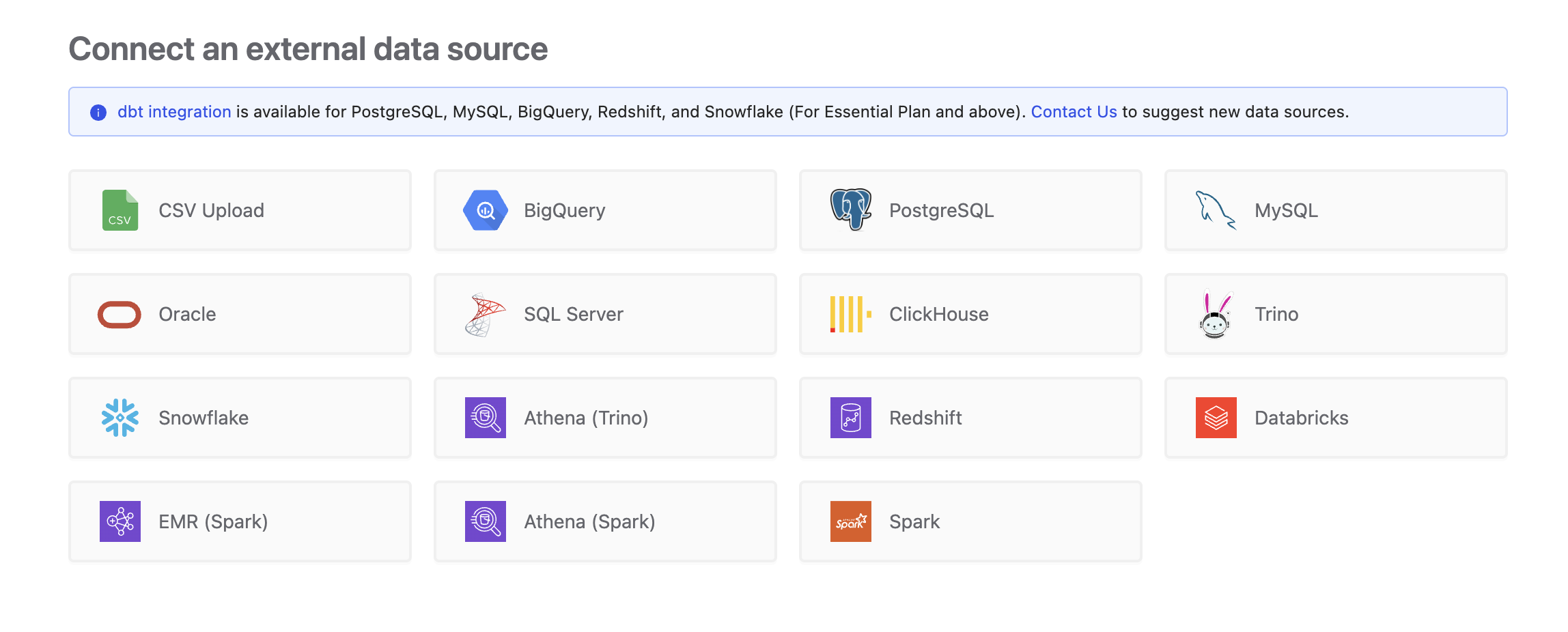
To add an Oracle connection, click on the Oracle option in the Connect a data source section.
Required Permissions
Wren AI connects to Oracle as a regular database user and only issues read-only queries — SELECT against your tables/views and the Oracle data dictionary. It will never INSERT, UPDATE, DELETE, MERGE, or run DDL (CREATE, ALTER, DROP, TRUNCATE). Read-only grants (SELECT on your data plus catalog read access) are sufficient — and recommended — for a secure connection.
Avoid using SYS or SYSTEM as the connecting account. They violate least-privilege principles and may surface unexpected internal objects. Always use either the application schema owner or a dedicated user.
Table discovery relies on the ALL_USERS.ORACLE_MAINTAINED column, which was only introduced in Oracle 12.1.0.2. Older releases (11g, 12.1.0.1) will fail at the Select Tables step — see Tested Oracle versions for details.
1. Privileges checklist
The Oracle user account used by Wren AI needs the following on your target database:
| Category | Privilege | Notes |
|---|---|---|
| Login | CREATE SESSION | Required to connect. Granted by default to most users. |
| Business data | SELECT on the tables/views you want Wren AI to read | Or SELECT ANY TABLE for broad read-only access across user schemas. |
| Data dictionary | SELECT on the ALL_* views listed below | Exposed as PUBLIC synonyms and readable by any authenticated user by default. Only needs an explicit grant in hardened environments that revoke PUBLIC access. |
| Version view | SELECT ON V_$VERSION | Not publicly readable by default — must be granted explicitly. V$VERSION is a PUBLIC synonym for the underlying view V_$VERSION; grants must target the underlying view. SELECT_CATALOG_ROLE covers V$VERSION and all ALL_* views in one step, but exposes the entire data dictionary — prefer SELECT ON V_$VERSION for a tighter least-privilege grant. |
Data dictionary views used for table/column discovery:
| View | Purpose |
|---|---|
ALL_TABLES | Discover tables |
ALL_VIEWS | Discover views |
ALL_USERS | Filter out Oracle-maintained schemas (ORACLE_MAINTAINED = 'N') |
ALL_TAB_COLUMNS | Read column names and types |
ALL_TAB_COMMENTS | Read table descriptions |
ALL_COL_COMMENTS | Read column descriptions |
ALL_CONSTRAINTS | Discover foreign-key constraints |
ALL_CONS_COLUMNS | Read constraint column mappings |
Missing any of these typically surfaces as an ORA-00942: table or view does not exist error when connecting or running queries.
2. Minimum account setup
You can connect Wren AI either as an existing schema owner or as a dedicated read-only user. Pick whichever fits your security posture — both work with the connector.
Option A — Create a dedicated read-only user (recommended)
For least-privilege setups, or when the tables you want to expose are spread across multiple schemas:
-- 1. Create the user.
CREATE USER wren_ai IDENTIFIED BY "YourSecurePassword";

-- 2. Allow login.
GRANT CREATE SESSION TO wren_ai;

-- 3. Grant SELECT on each table/view to expose.
GRANT SELECT ON app_data.orders    TO wren_ai;
GRANT SELECT ON app_data.customers TO wren_ai;
-- ...or, for broad read-only access across user schemas:
-- GRANT SELECT ANY TABLE TO wren_ai;

-- 4. Grant catalog access (covers V$VERSION and the ALL_* views).
GRANT SELECT_CATALOG_ROLE TO wren_ai;
-- ...or, if PUBLIC catalog access is intact, only V$VERSION is needed:
-- GRANT SELECT ON V_$VERSION TO wren_ai;
Option B — Connect as the schema owner
If your tables already live under a single Oracle user (e.g., APP_DATA), reuse that account. The user already owns the tables, so no extra business-data grants are needed.
-- 1. Ensure the user can log in (usually already granted).
GRANT CREATE SESSION TO app_data;

-- 2. Allow reading the Oracle version (and, if PUBLIC catalog access is
--    revoked in your environment, all ALL_* views in one step):
GRANT SELECT_CATALOG_ROLE TO app_data;
-- ...or, if you only need V$VERSION (ALL_* views are already readable):
-- GRANT SELECT ON V_$VERSION TO app_data;
Tables and views granted this way will appear in Wren AI's table picker — the connector lists everything visible to the connecting user through ALL_TABLES / ALL_VIEWS, not just objects owned by that user. Objects in Oracle-maintained schemas (SYS, SYSTEM, XDB, MDSYS, CTXSYS, OUTLN, APEX_*, etc.) are excluded by design.
3. Verify the account
After setup, log in as the Oracle user you plan to configure in Wren AI (e.g., sqlplus wren_ai/******@//host:port/service) and run the scripts below. Each one mirrors a check Wren AI performs at connection time — if all four succeed, the account is ready.
a. Login + version access
-- Connects and reads V$VERSION — exactly what Wren AI does on first connection.
SELECT * FROM V$VERSION;
If this fails with
ORA-00942, grantSELECT ON V_$VERSION(orSELECT_CATALOG_ROLE) to your user.
b. Data dictionary access
-- If this query completes without an ORA-00942, all required dictionary views are accessible.
SELECT 'ALL_TABLES'        AS view_name, COUNT(*) AS row_count FROM all_tables        UNION ALL
SELECT 'ALL_VIEWS',                      COUNT(*)              FROM all_views         UNION ALL
SELECT 'ALL_USERS',                      COUNT(*)              FROM all_users         UNION ALL
SELECT 'ALL_TAB_COLUMNS',                COUNT(*)              FROM all_tab_columns   UNION ALL
SELECT 'ALL_TAB_COMMENTS',               COUNT(*)              FROM all_tab_comments  UNION ALL
SELECT 'ALL_COL_COMMENTS',               COUNT(*)              FROM all_col_comments  UNION ALL
SELECT 'ALL_CONSTRAINTS',                COUNT(*)              FROM all_constraints   UNION ALL
SELECT 'ALL_CONS_COLUMNS',               COUNT(*)              FROM all_cons_columns;
If any row errors with
ORA-00942, PUBLIC catalog access has been revoked in your environment — grantSELECT_CATALOG_ROLEto your user.
c. Preview the tables Wren AI will discover
This is the exact query the connector uses to populate the table picker. Each row corresponds to one entry the user will see in the Select Tables step:
SELECT
    o.owner       AS schema_name,
    o.object_name AS name,
    o.object_type AS kind
FROM (
    SELECT owner, table_name AS object_name, 'TABLE' AS object_type FROM all_tables
    UNION ALL
    SELECT owner, view_name  AS object_name, 'VIEW'  AS object_type FROM all_views
) o
JOIN all_users u
    ON u.username = o.owner
   AND u.oracle_maintained = 'N'
ORDER BY o.owner, o.object_name;
- If a table you expect to see is missing, the connecting user has no visibility on it — go back to step 2 and add the appropriate
GRANT SELECT. - If the result is huge and full of unfamiliar objects, you may be connecting with a highly privileged account (e.g., one that holds
SELECT ANY TABLE). Consider switching to a dedicated user with narrower grants.
d. Spot-check a sample table
-- Replace with one of the schema/table pairs you intend to expose.
SELECT * FROM app_data.orders FETCH FIRST 1 ROWS ONLY;
A successful read confirms that
SELECTon the target object is in place.
Before you connect
A couple of Oracle-specific details that often trip people up on the connection form:
The Service name field expects an Oracle service name (the modern identifier), not a SID. Common defaults:
| Oracle edition | Typical service name |
|---|---|
| Oracle XE 18c | XE |
| Oracle Free 23ai | FREEPDB1 or FREE |
| Oracle Enterprise / Standard | ORCL, ORCLPDB1, or custom |
If you only have a SID, switch to the DSN connection method and use a full TNS descriptor with SID = ... instead of SERVICE_NAME = ....
For Oracle 12c and later running in multitenant mode, connect to a pluggable database (PDB) service name (e.g., ORCLPDB1, FREEPDB1), not the container database (CDB) root. If you're unsure of the service name, ask your DBA or run on the database server:
SELECT name, pdb FROM v$services; -- in SQL*Plus / SQLcl
lsnrctl status -- on the DB host shell
Connect
Fill in the connection settings. Oracle supports two connection methods: Basic and DSN. Pick the one that matches how your database is exposed.
Display name
The display name for the database in the Wren AI interface.
Connection method
Choose between Basic and DSN:
- Basic: Provide host, port, and service name as separate fields. Use this if you have a standard Oracle database with direct network access.
- DSN: Provide a single Data Source Name connection string. Use this when you need a custom connection descriptor (e.g., TNS, SSL/TCPS, or Oracle Cloud wallet-based connections).
- Basic
- DSN
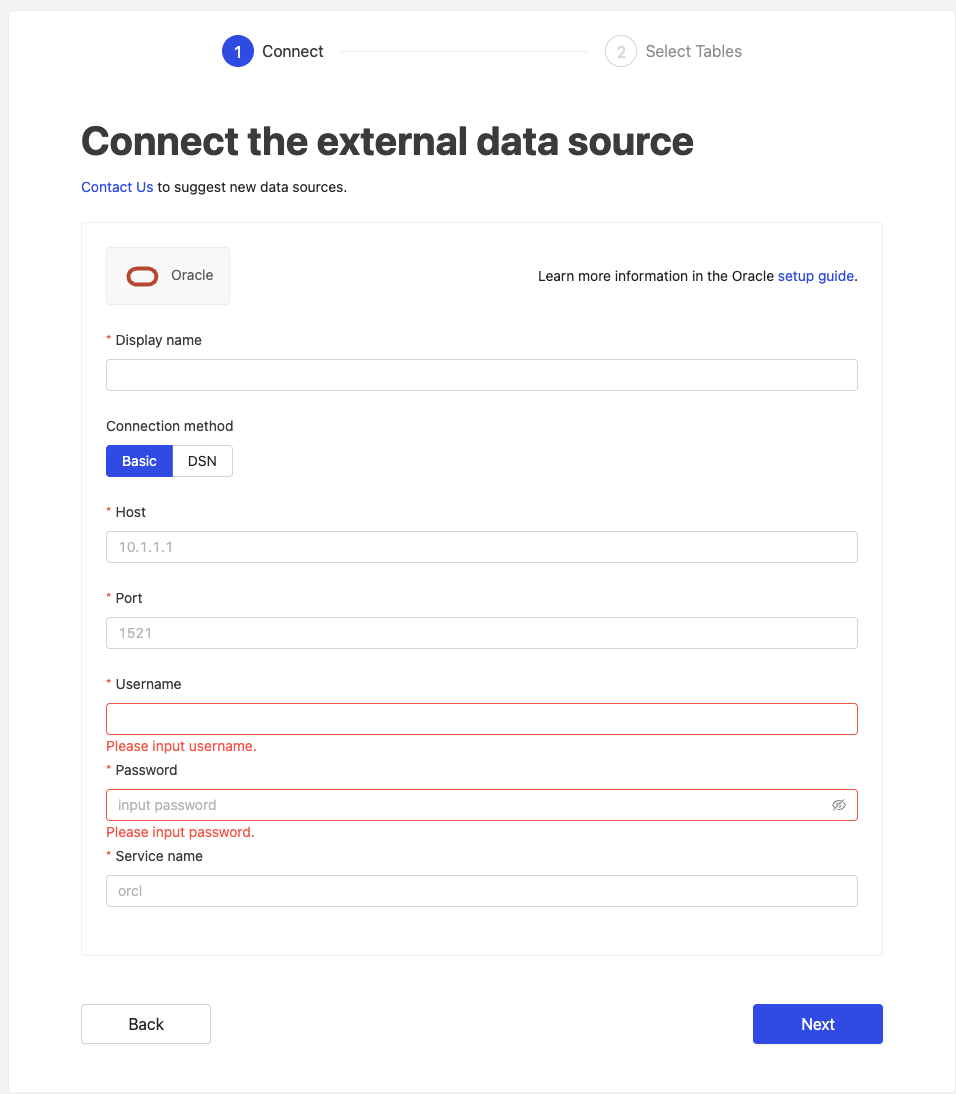
Host
Your Oracle database's IP address or domain name (e.g., 10.1.1.1).
Port
Your Oracle database port (default: 1521).
Username
The database username for the account that you want to use to connect to your Oracle database.
Password
The password for the username that you use to connect to the database.
Service name
The service name of the database you want to connect to (e.g., orcl).
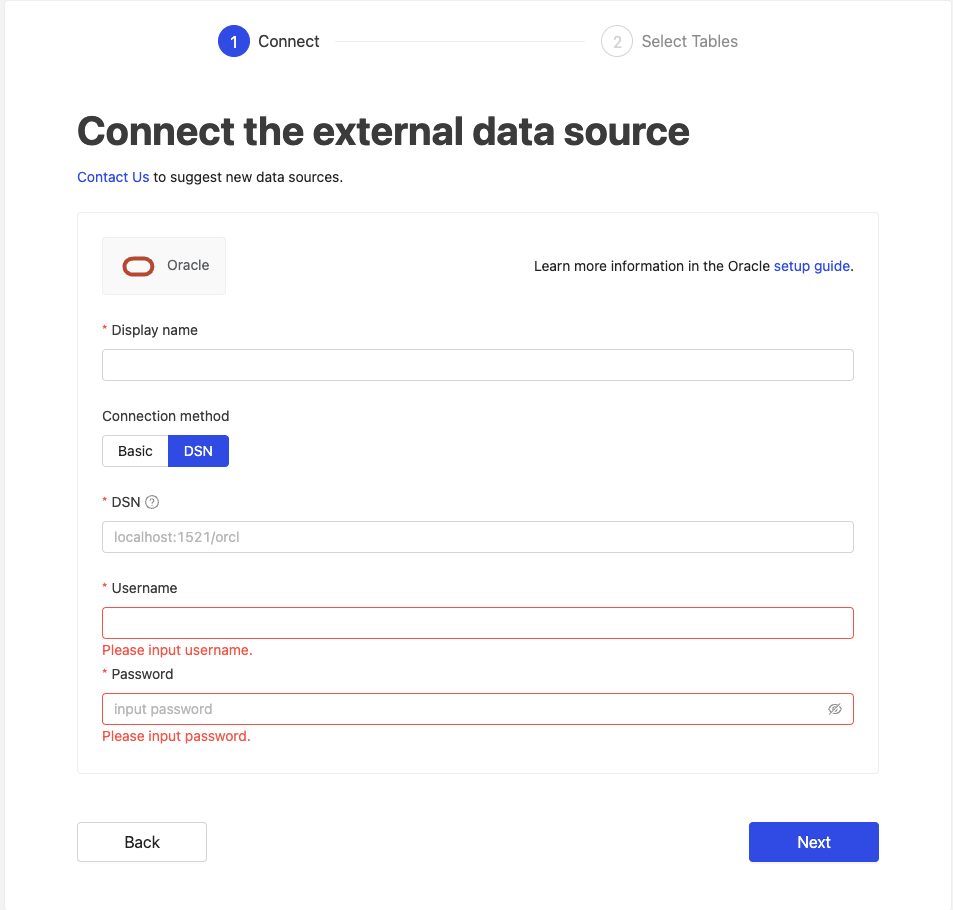
DSN
A Data Source Name connection string that defines how to connect to your Oracle database.
The simplest form is the Easy Connect syntax:
host:port/service_name
For example: localhost:1521/orcl.
For advanced setups (SSL/TCPS, multiple addresses, wallet-based authentication), you can also pass a full Oracle TNS descriptor — see the examples below.
Username
The database username for the account that you want to use to connect to your Oracle database.
Password
The password for the username that you use to connect to the database.
(DESCRIPTION =
  (ADDRESS = (PROTOCOL = TCP)(HOST = your-hostname)(PORT = 1521))
  (CONNECT_DATA =
    (SERVICE_NAME = FREE)
  )
)
PROTOCOL = TCP: Standard connectionPORT = 1521: Default Oracle portSERVICE_NAME = FREE: Oracle service name
(DESCRIPTION =
  (ADDRESS = (PROTOCOL = TCPS)(HOST = db.example.com)(PORT = 2484))
  (CONNECT_DATA =
    (SERVICE_NAME = FREE)
  )
  (SECURITY =
    (SSL_SERVER_CERT_DN = "CN=db.example.com,OU=DB,O=Example Corp,L=City,ST=State,C=US")
  )
)
PROTOCOL = TCPS: Secure connectionPORT = 2484: Default Oracle SSL portSSL_SERVER_CERT_DN: Certificate details for SSL verification
Click Next to start the connection and go to the next step.
Select Tables
All tables and views visible to the connecting Oracle user are listed in this step (via ALL_TABLES / ALL_VIEWS, excluding Oracle-maintained schemas). Select which ones you want to use in Wren AI — each selected entry will be created as a data model. See the Modeling docs to learn more about data models.
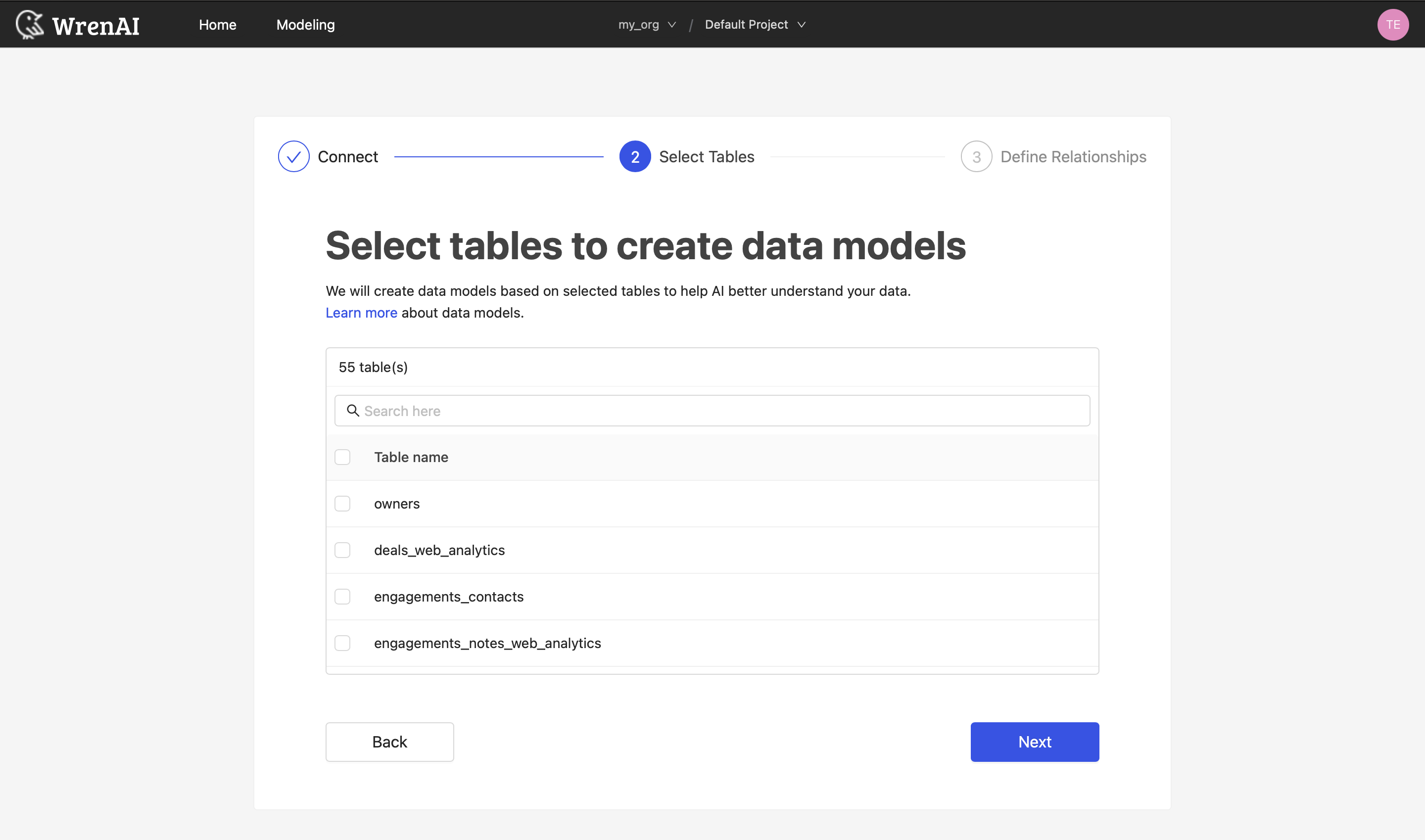
If a table you expect to see is missing, or unfamiliar objects appear, see Required Permissions → Verify the account to preview the discovery result and adjust grants before retrying.
Define relationships
Define the relationships among selected tables in this step. If you have defined primary keys and foreign keys in your Oracle dataset, we will list suggested relationships based on that information. If not, you can also add relationships by clicking the Add relationships button on the table blocks.
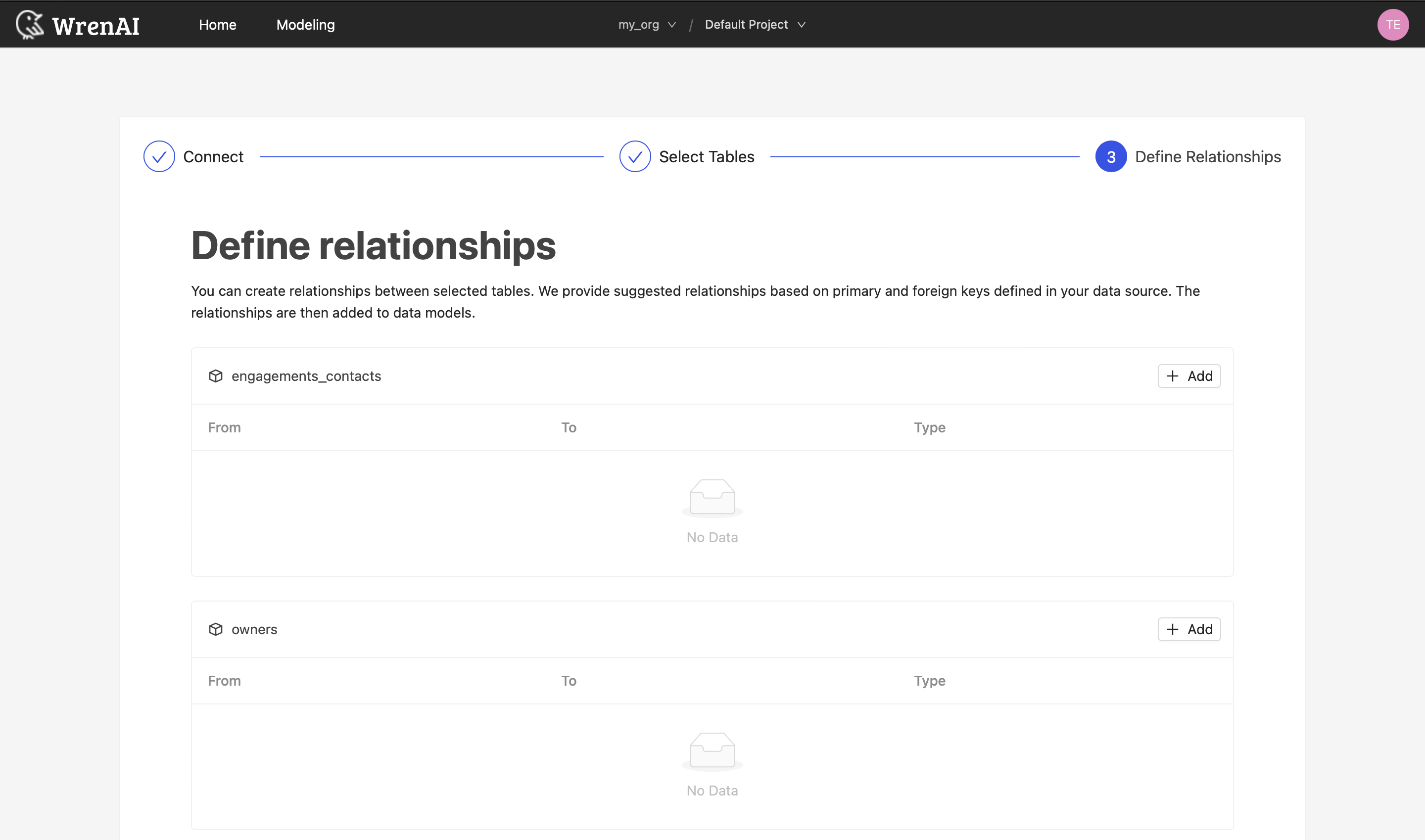
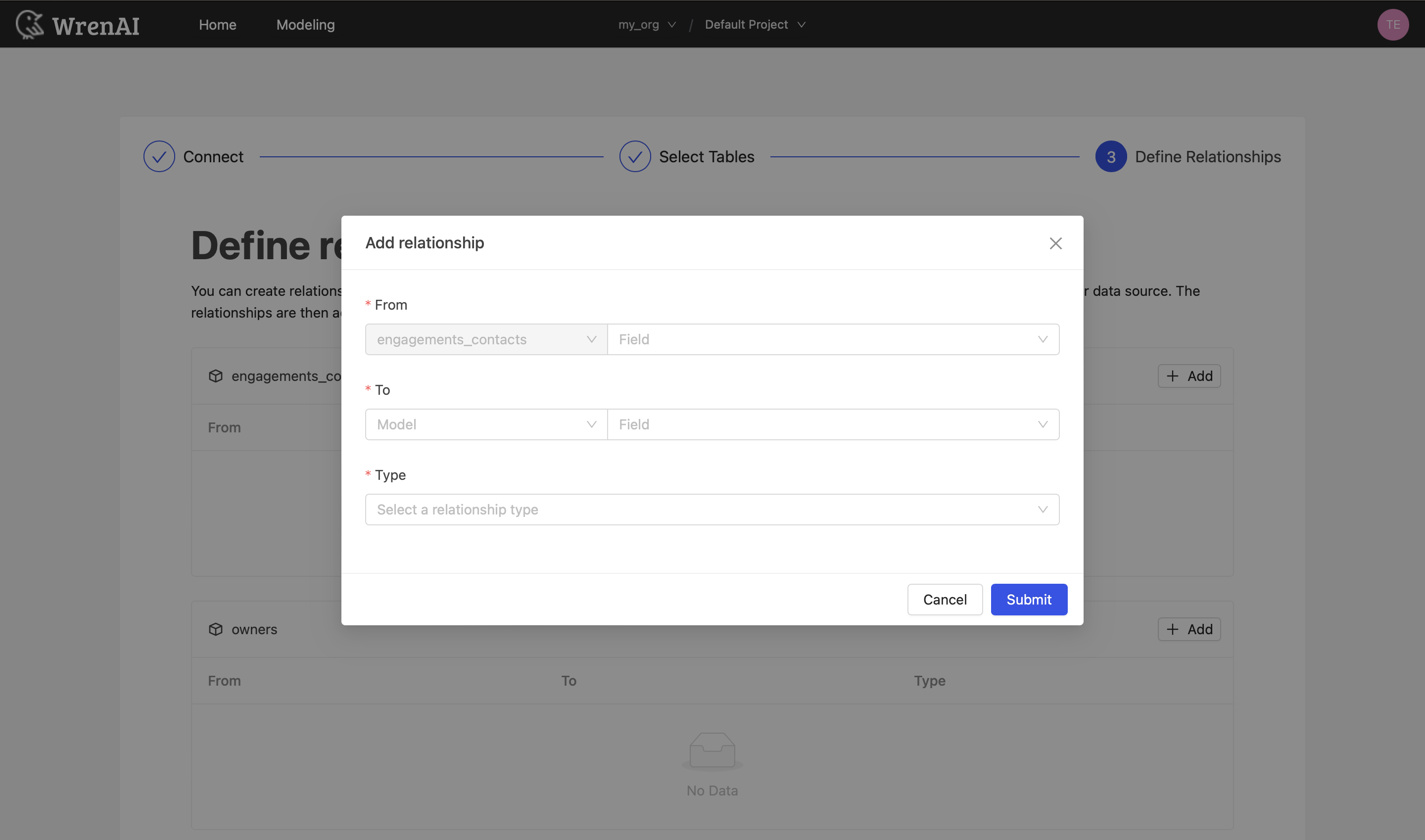
Define the following properties in a relationship:
- From: Select the left side table and column of this relationship.
- To: Select the right side table and column of this relationship.
- Relationship Type: Select the type of relationship.
Find more information about relationships in Modeling - Working with Relationships.
You can also skip this step and finish the connection.
Tested Oracle versions
Wren AI is regularly tested against the following Oracle editions:
- Oracle XE 18c
- Oracle XE 21c
- Oracle Free 23ai
Other 19c, Standard, and Enterprise editions are expected to work via the same connection mechanism, but are not part of the automated test suite. If you hit a version-specific issue, please contact us.
Wren AI requires Oracle 12.1.0.2 or later. Table discovery joins ALL_USERS on the ORACLE_MAINTAINED column to exclude Oracle-internal schemas, and that column was only introduced in 12.1.0.2.
On 11g (or 12.1.0.1) the introspection query will fail with:
ORA-00904: "U"."ORACLE_MAINTAINED": invalid identifier
and the Select Tables step will return an empty list. There is currently no fallback for older releases — please upgrade to a supported version, or contact us if you need help.