Amazon EMR (Spark)
Use this guide to connect EMR Spark to Wren AI and verify that Spark Connect and network access are configured correctly.
Included in all plans
Wren AI Cloud must be able to reach the EMR Spark primary node from its outbound IP address. Please add the IP address of the Wren AI service to the firewall / security group of your EMR cluster.
Scroll to the bottom of the data source connection page to find the IP address.
Wren AI requires Spark Connect Server to be running on the EMR primary node.
Before you begin
Before connecting Wren AI to EMR Spark, make sure:
- Your EMR cluster is running and in the
WAITINGorRUNNINGstate - Spark Connect Server is running on the cluster (see Start Spark Connect Server using an EMR Step)
- Network access is configured correctly (see Cannot connect to EMR from Wren AI Cloud)
- The EMR version you use is within the supported range
EMR & Spark version compatibility
Supported EMR versions
| EMR Release | Support Status |
|---|---|
| EMR 7.3.0 | ✅ Supported |
| EMR 7.4.0 | ✅ Supported |
| EMR 7.5.0 | ✅ Supported |
| EMR 7.6.0 | ✅ Supported |
| EMR 7.7.0 | ✅ Supported |
| EMR 7.8.0 | ✅ Supported |
| EMR 7.9.0 | ✅ Supported |
| EMR 7.10.0 | ✅ Supported |
| EMR 7.11.0 | ✅ Supported |
| EMR 7.12.0 | ✅ Supported |
Currently, only EMR versions from 7.3.0 to 7.12.0 are supported. EMR 6.x and earlier EMR 7.x releases are not supported.
To add an EMR Spark connection, click on the EMR Spark option in the Connect a data source section.
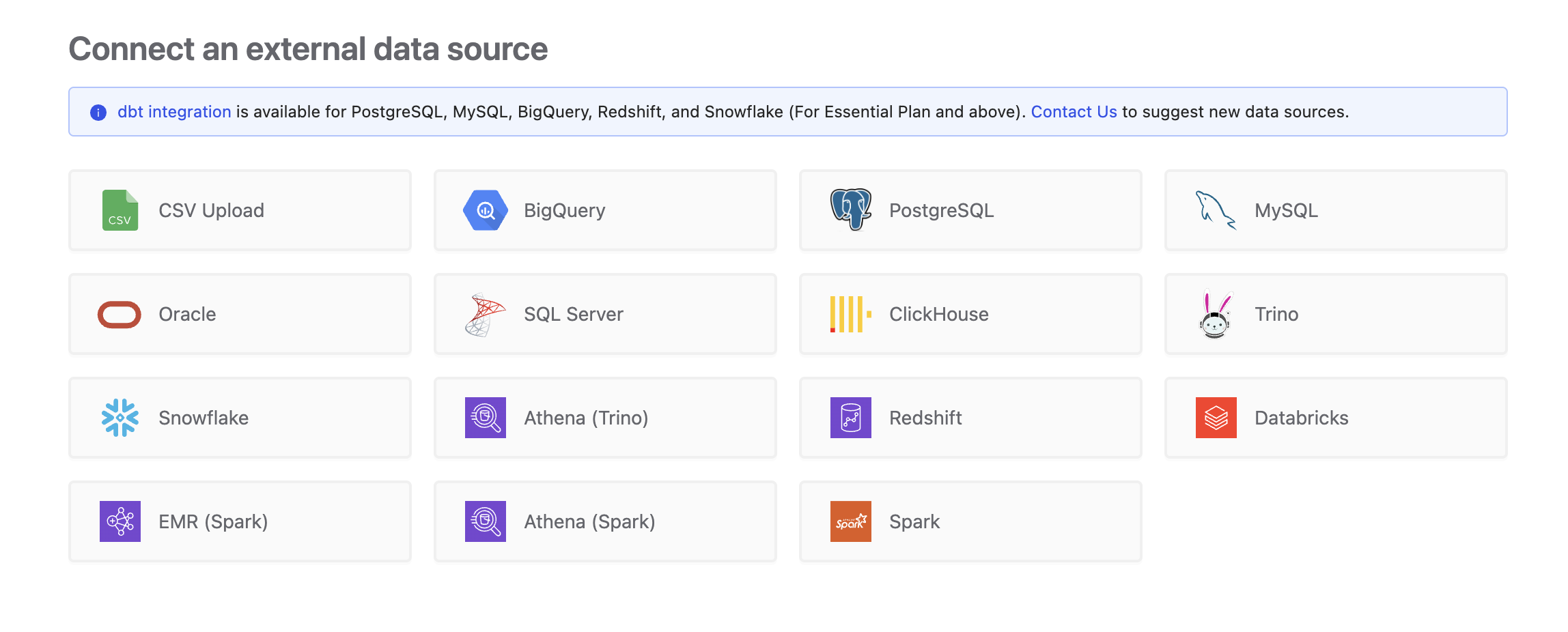
Connect
Fill in the connection settings:
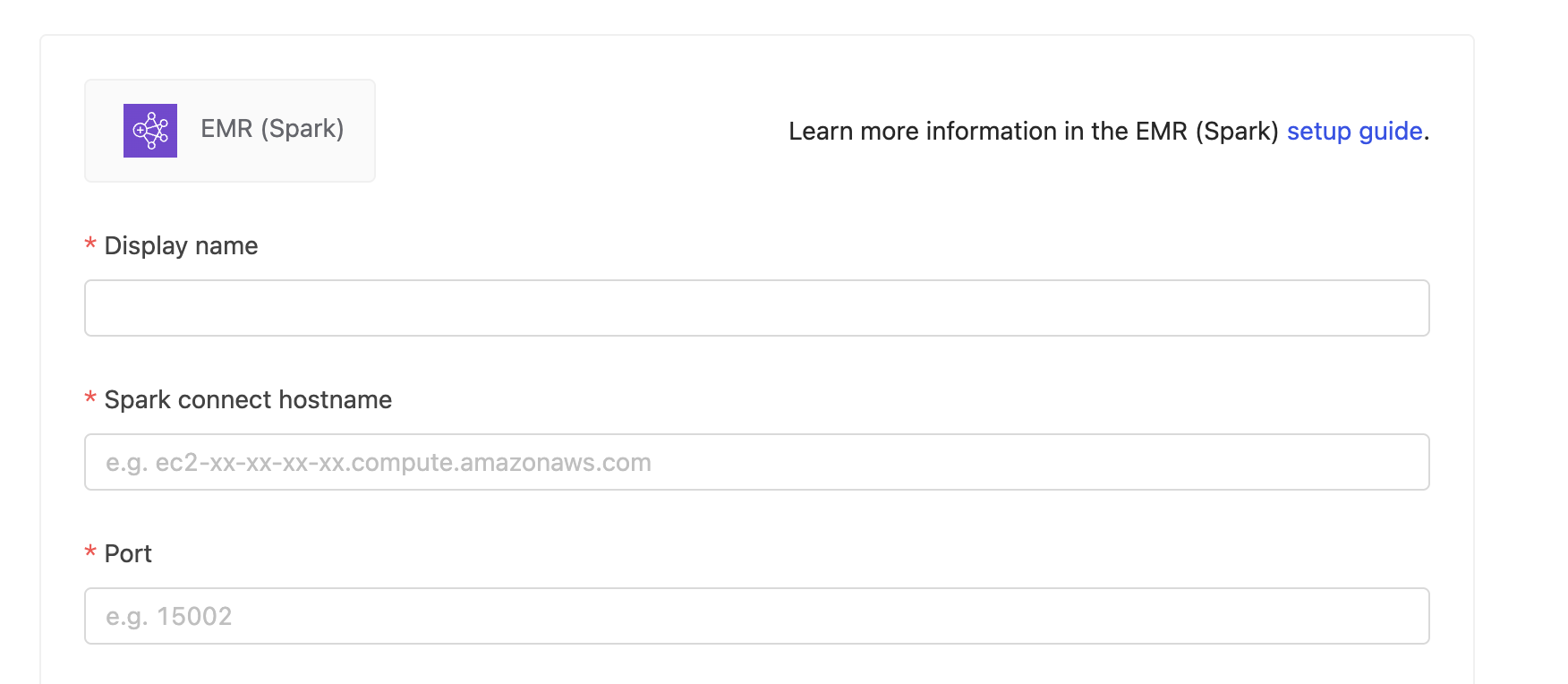
Display name
The display name for the database in the Wren AI interface.
Spark connect hostname
The DNS name of the EMR Spark primary node.
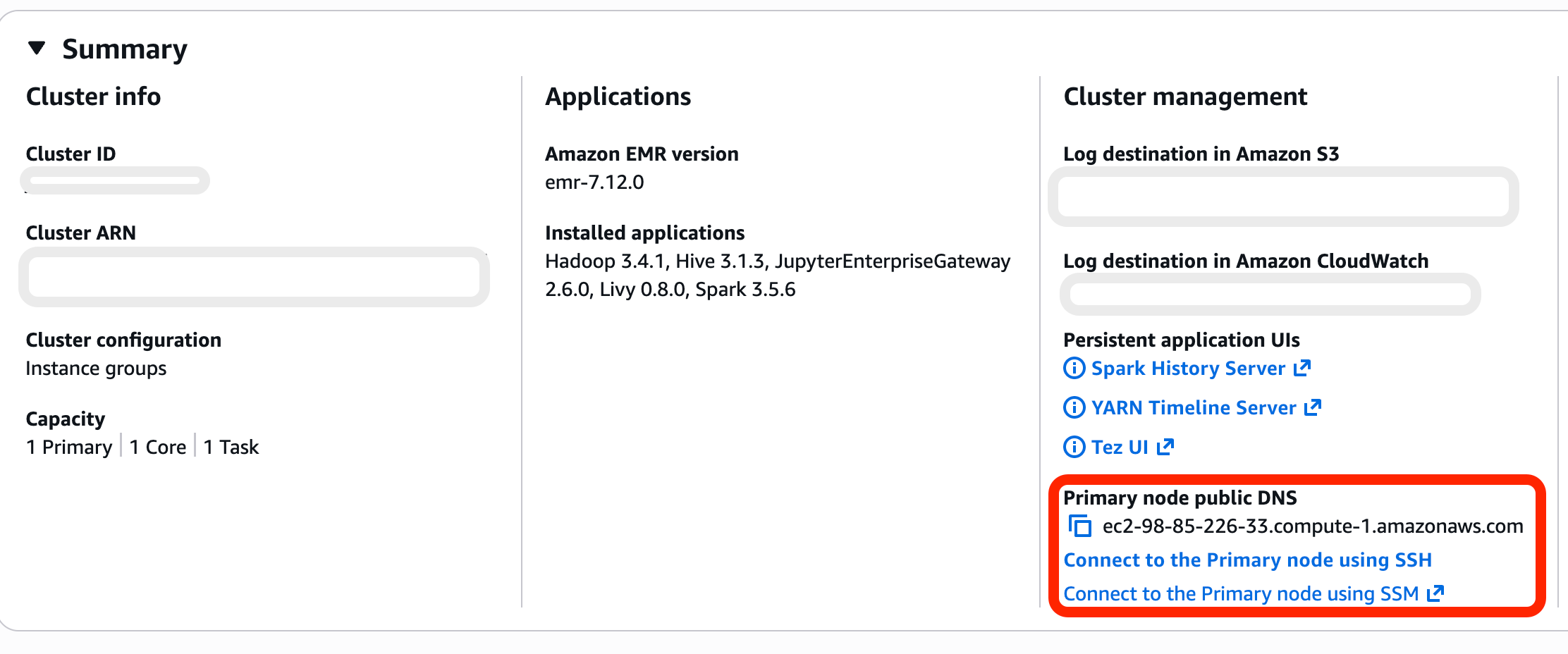
Port
The port used by Spark Connect. By default, Spark Connect listens on 15002.
Troubleshooting
Start Spark Connect Server using an EMR Step
If your EMR Spark cluster does not have Spark Connect Server running, you need to add a step to the cluster to start it on the primary node.
Add a step from the EMR Console
- Open the Amazon EMR Console
- Select your EMR cluster
- Go to the Steps tab

- Click Add step
- Configure the step with the following values:
- Step type: Custom JAR
- Name: Spark Connect Server
- JAR location:
command-runner.jar - Arguments:
spark-submit --packages org.apache.spark:spark-connect_2.12:3.5.0 --class org.apache.spark.sql.connect.service.SparkConnectServer /usr/lib/spark/jars/spark-connect_2.12-3.5.0.jar
Cannot connect to EMR from Wren AI Cloud
Make sure the security group of the EMR primary EC2 instance allows inbound traffic from the Wren AI Cloud outbound IP (34.57.198.97).
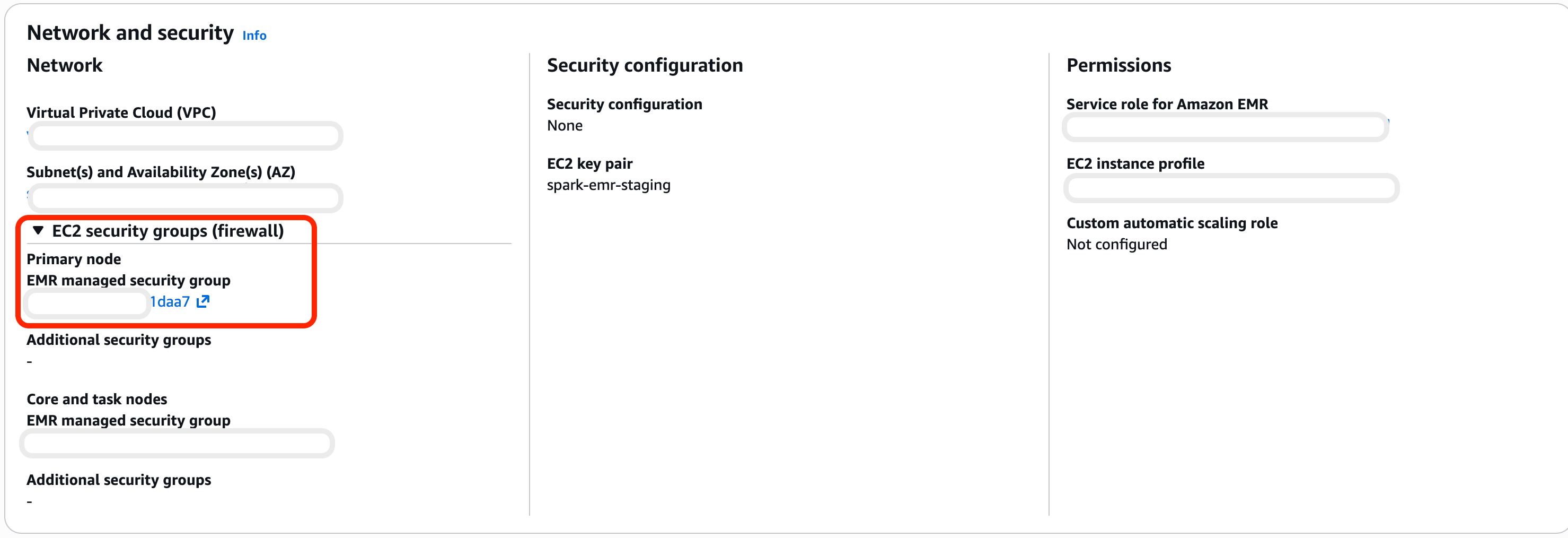
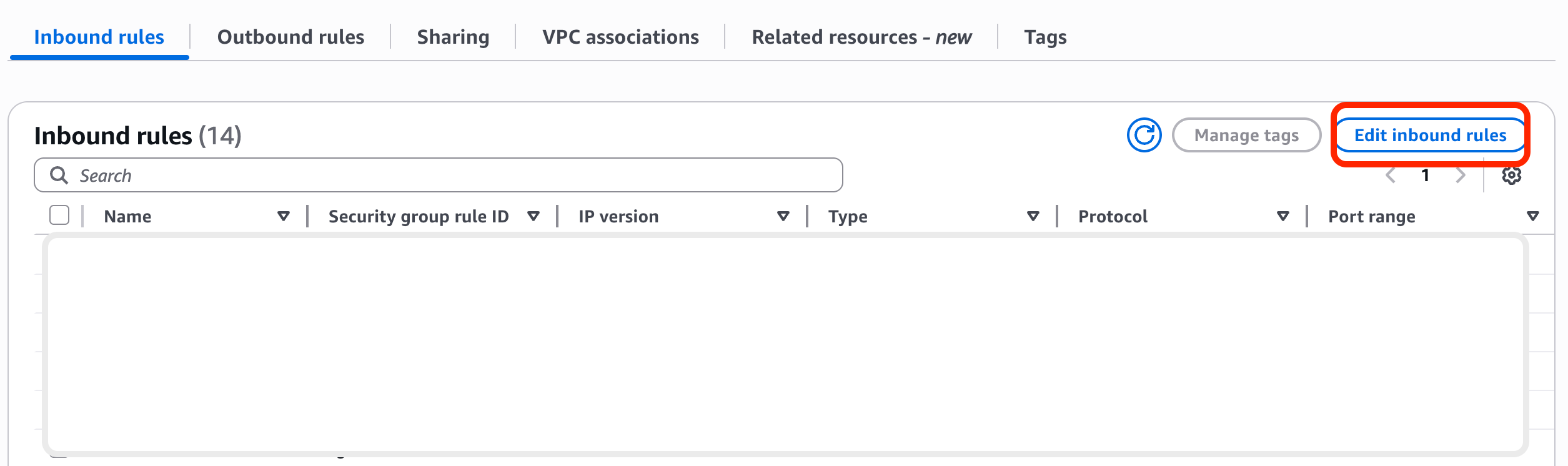
Check the following:
- The inbound rule includes the Spark Connect port (default:
15002) - The source IP matches the outbound IP (34.57.198.97) shown at the bottom of the Wren AI data source connection page
If the security group is missing this rule, Wren AI will not be able to connect to your EMR cluster.
Select Tables
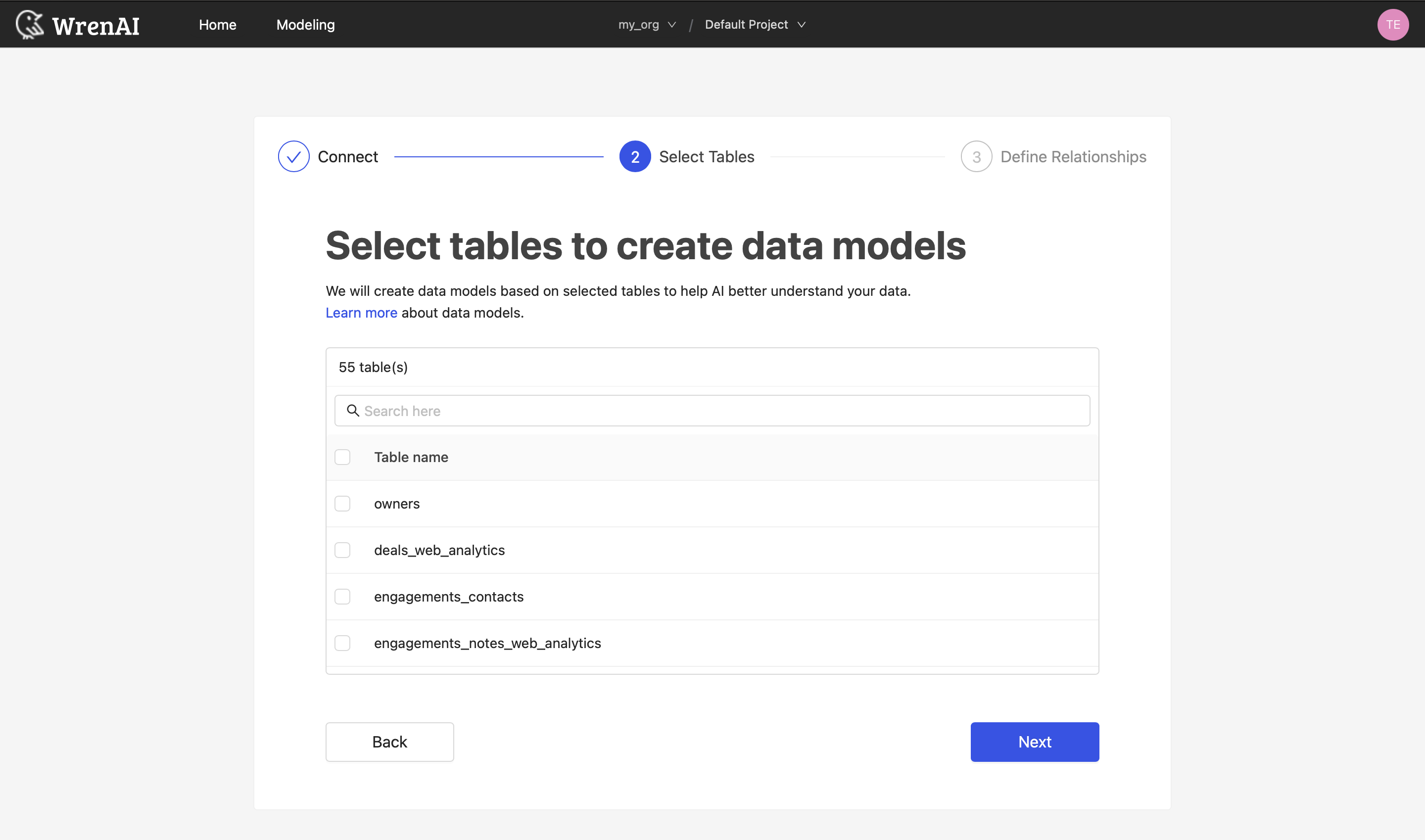
All tables of your connected EMR Spark cluster will be listed in this step. Select which tables you want to use in Wren AI. Each selected table will be created as a data model. See the Modeling documentation to learn more about data models.
Define relationships
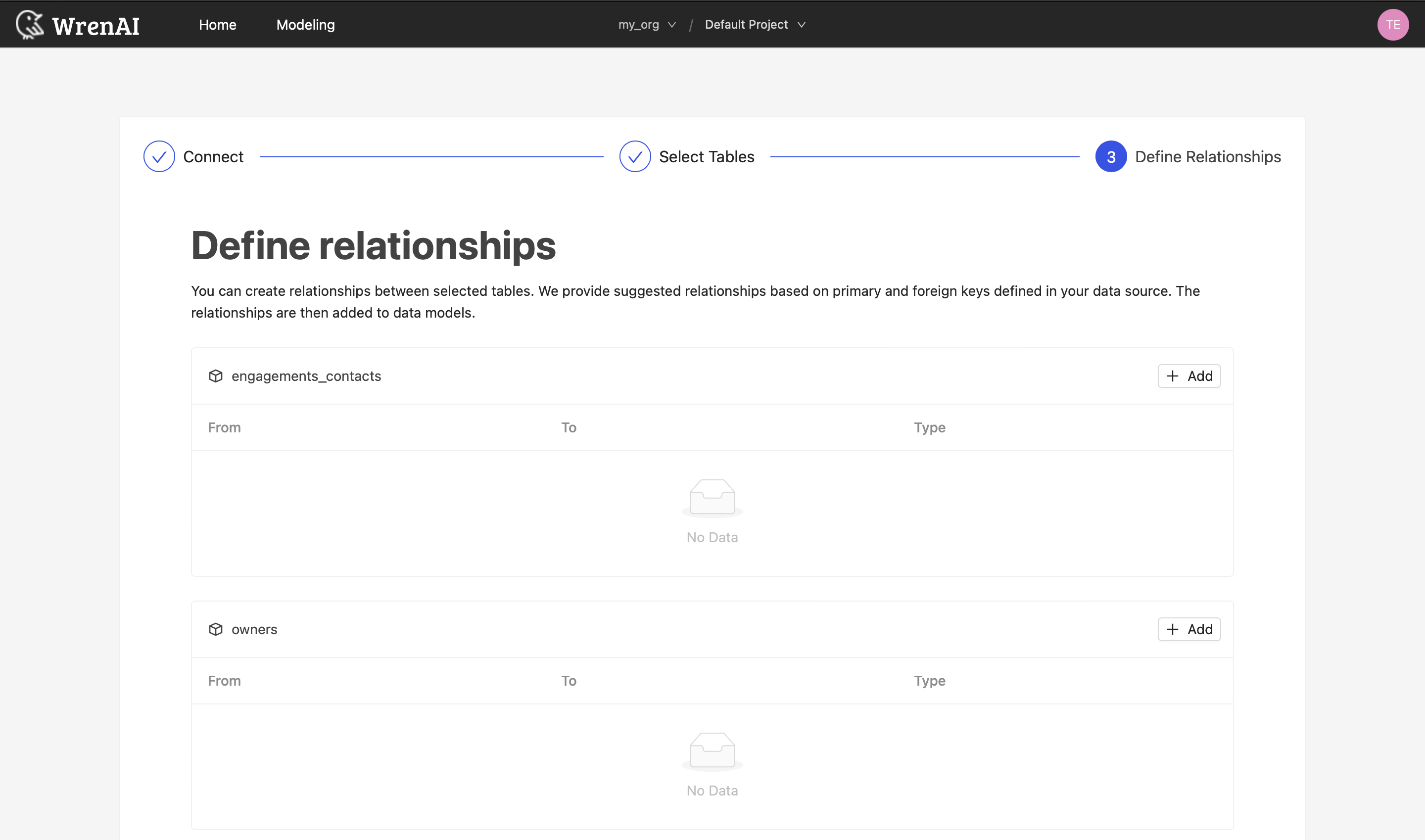
Define the relationships among selected tables in this step. If you have defined primary keys and foreign keys in your dataset, we will list suggested relationships based on that information. If not, you can also add relationships by clicking the Add relationships button on the table blocks.
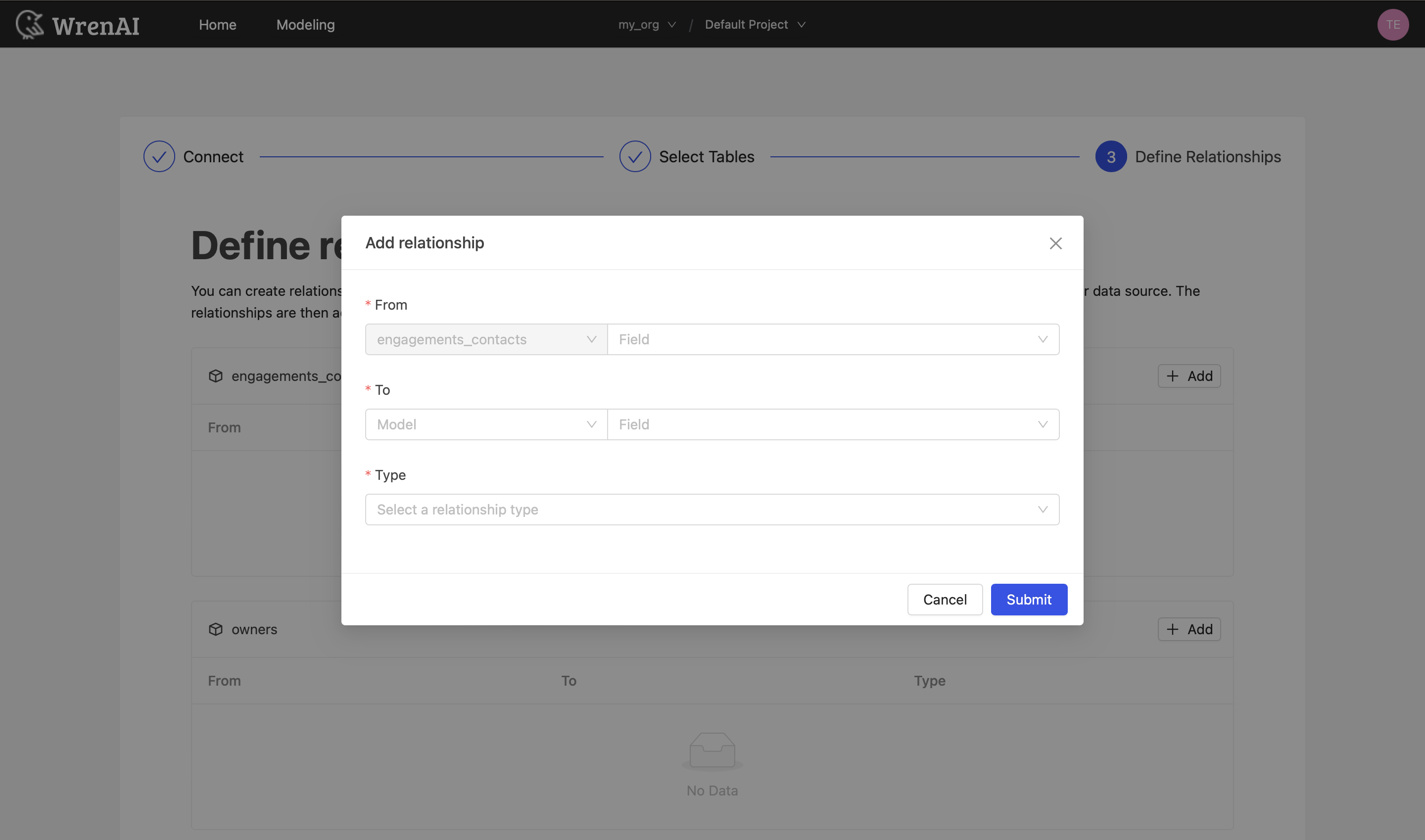
Define the following properties in a relationship:
- From: Select the left side table and column of this relationship.
- To: Select the right side table and column of this relationship.
- Relationship Type: Select the type of relationship.
Find more information about relationships in Modeling - Working with Relationships.
You can also skip this step and finish the connection.