Trino & Starburst
Use this guide to connect Trino or Starburst to Wren AI and continue through connection, table selection, and relationship setup.
Included in all plans
Wren AI needs to access your Trino database via the outbound IP address of Wren AI Cloud. Please add the IP address of the Wren AI service to the firewall of your Trino database.
Scroll to the bottom of the data source connection page to find the IP address.
Required Permissions
Wren AI connects to Trino as a regular user and only issues read-only queries — SELECT against your tables/views and each catalog's information_schema. It will never write data or run DDL.
How permissions are granted depends on the access control system your cluster uses (file-based access control, Apache Ranger, Starburst built-in access control, or the underlying connector's own permissions). Whichever system you use, the connecting user needs:
| Category | Requirement | Notes |
|---|---|---|
| Login | A valid Trino user (and password, if your cluster has authentication enabled) | Required to connect. |
| Business data | Permission to run SELECT on the catalogs and schemas you list in the connection form | Scope this to the specific catalog.schema pairs you plan to expose. |
| Metadata discovery | Read access to information_schema in those catalogs | Wren AI uses it to list tables, columns, and data types. It is readable by users who have access to the catalog in standard setups. |
Avoid using a cluster admin account. A user scoped to the target catalogs and schemas keeps the connection least-privilege.
To add a Trino connection, click on the Trino option in the Connect a data source section.
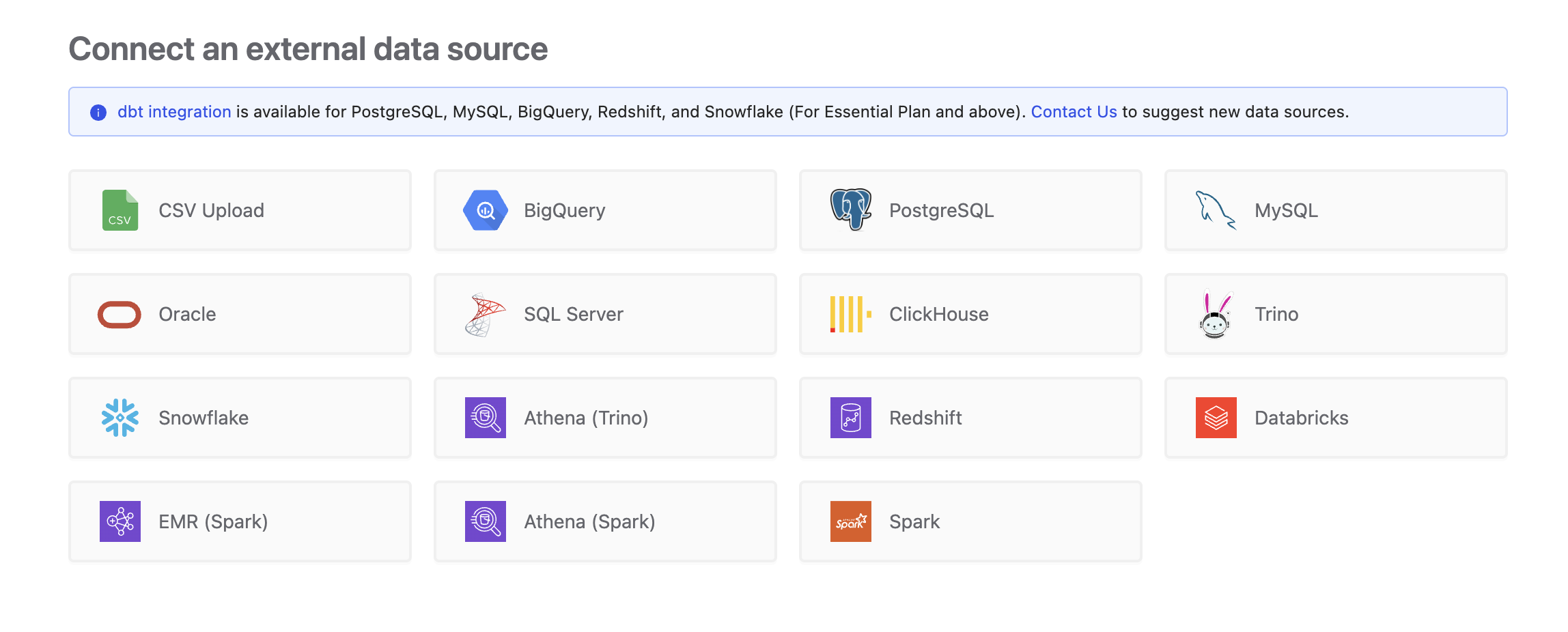
Connect
Fill in the connection settings:
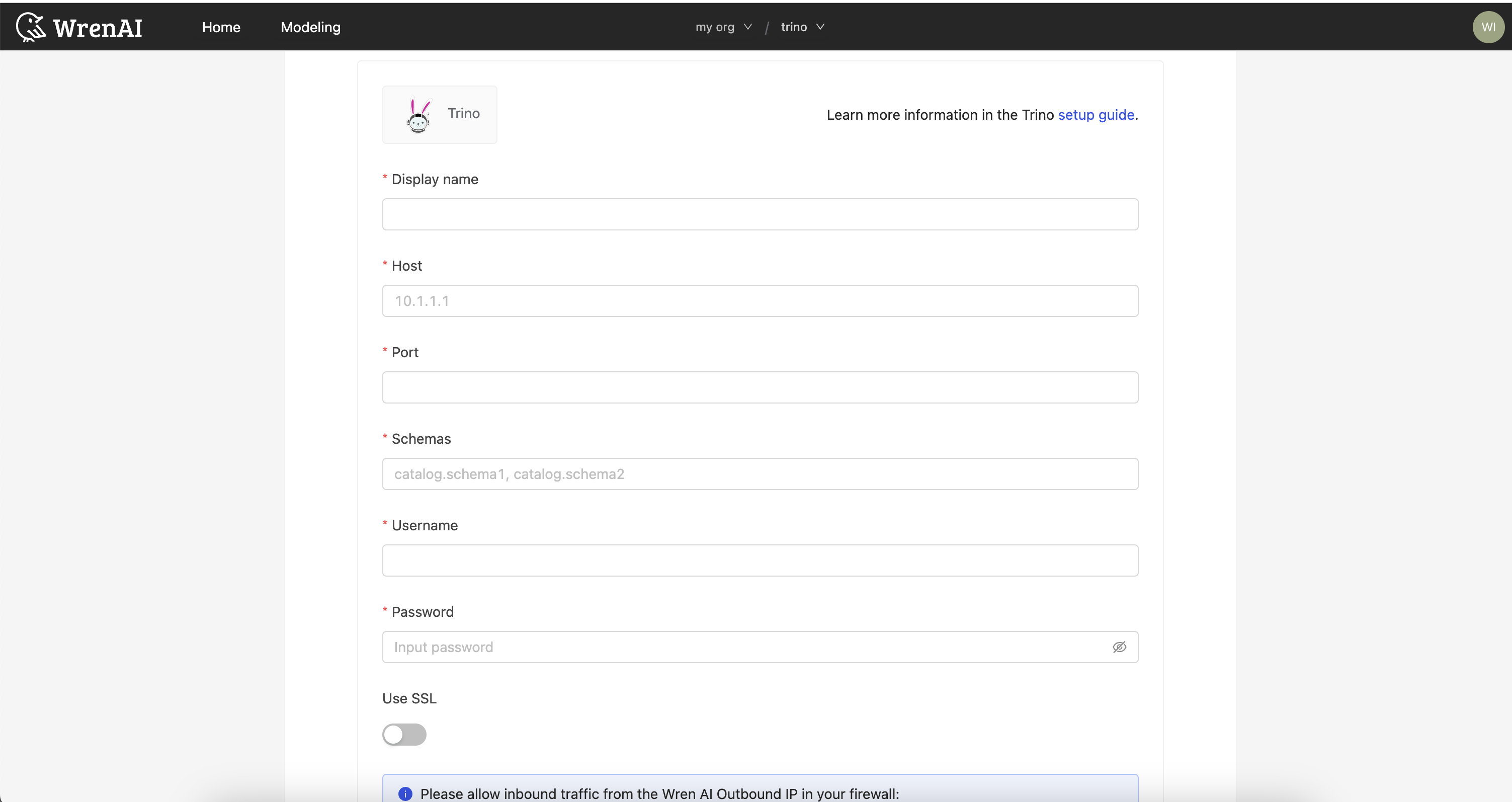
Display name
The display name for the database in the Wren AI interface.
Host
Your Trino database's IP address or domain name.
Port
Your Trino database port.
Catalog
The catalog of the Trino database you want to connect to.
Schemas
Specify the catalogs and schemas of the Trino data source you wish to connect to. Enter a comma-separated list in the format catalogA.schemaA, catalogB.schemaB.
Username
The database username for the account that you want to use to connect to your Trino database.
Password
The password for the username that you use to connect to the database.
Click Next to start the connection and go to the next step.
Connecting to Starburst managed Trino instances
Find your Starburst cluster connection details
- Click
Partner connectin the sidebar.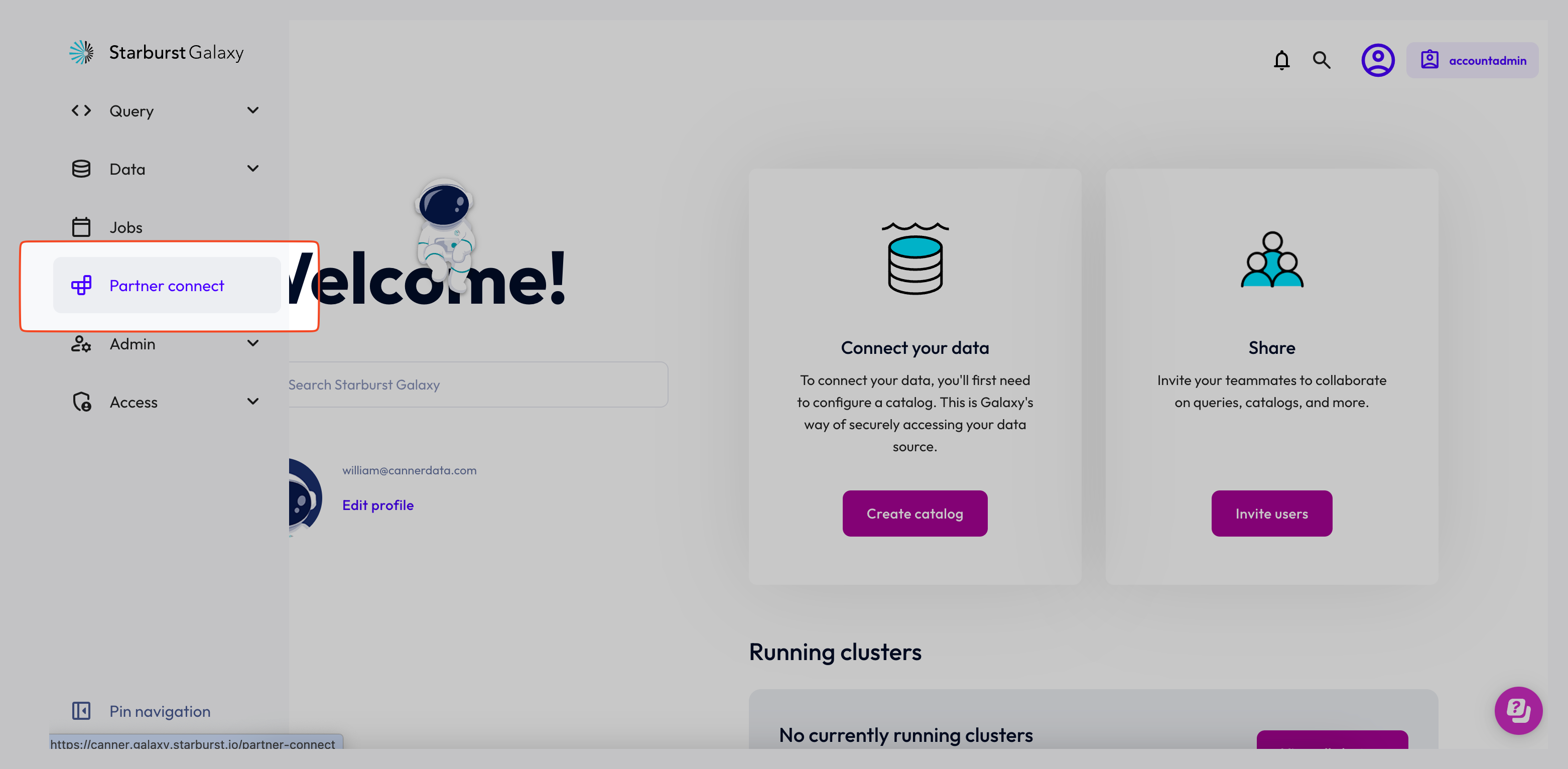
- Select
Ibis: Since Wren AI uses Ibis under the hood to connect to Trino, you can selectIbisto find the connection details.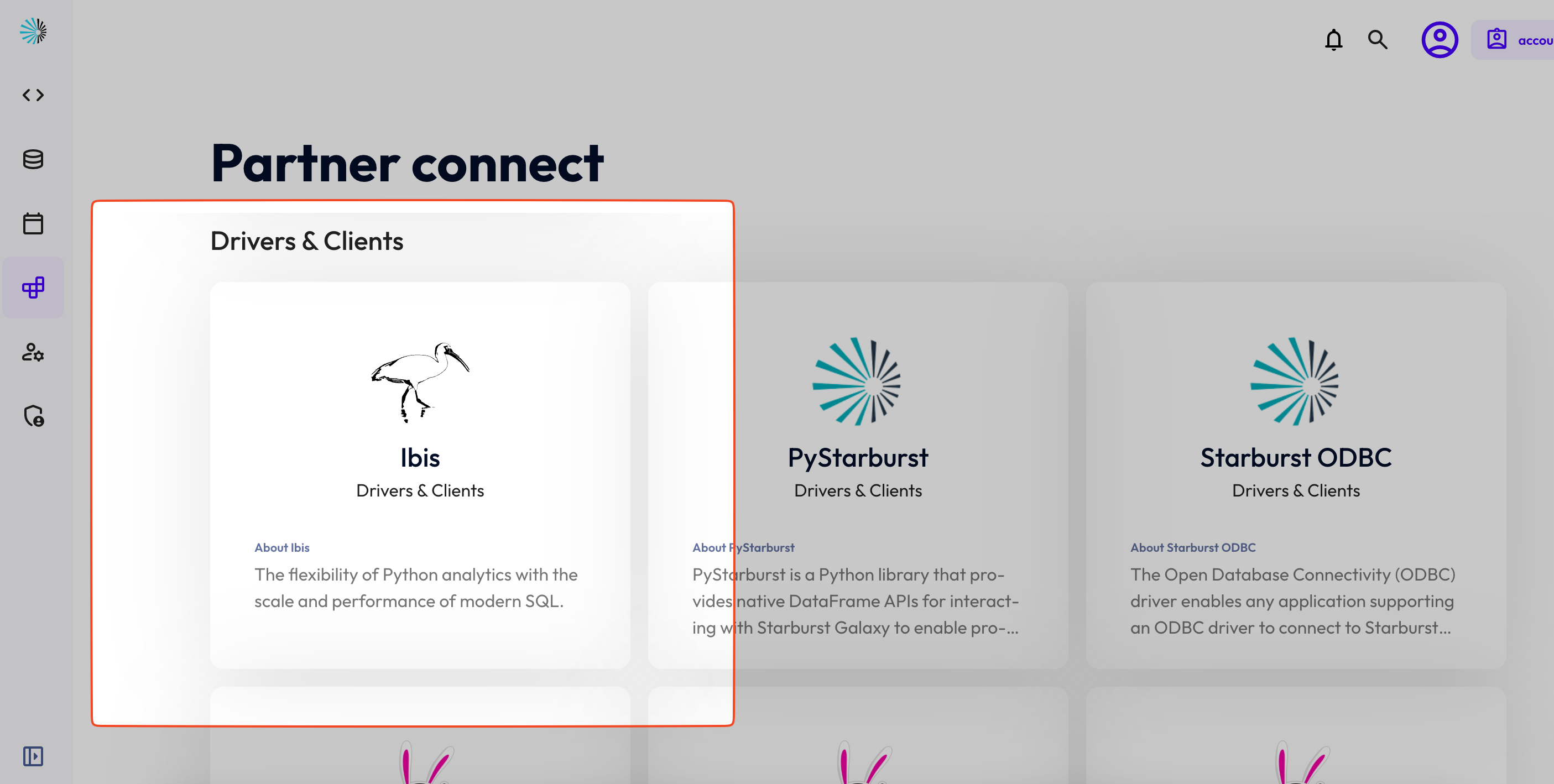
- Copy the connection details.
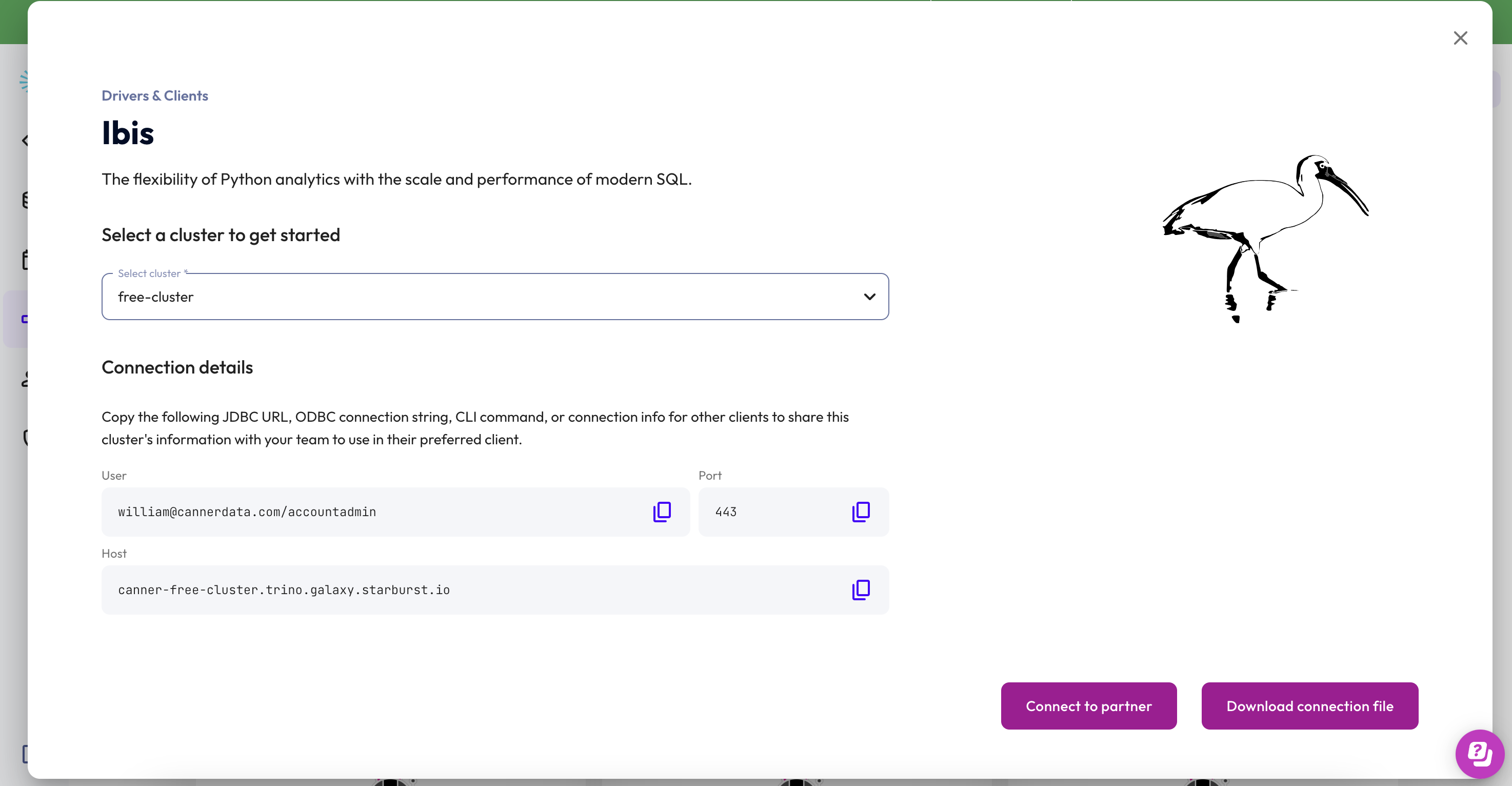
Connect to Starburst on Wren AI
- The connection steps are the same as for Trino. Copy the connection details and paste them into Wren AI.
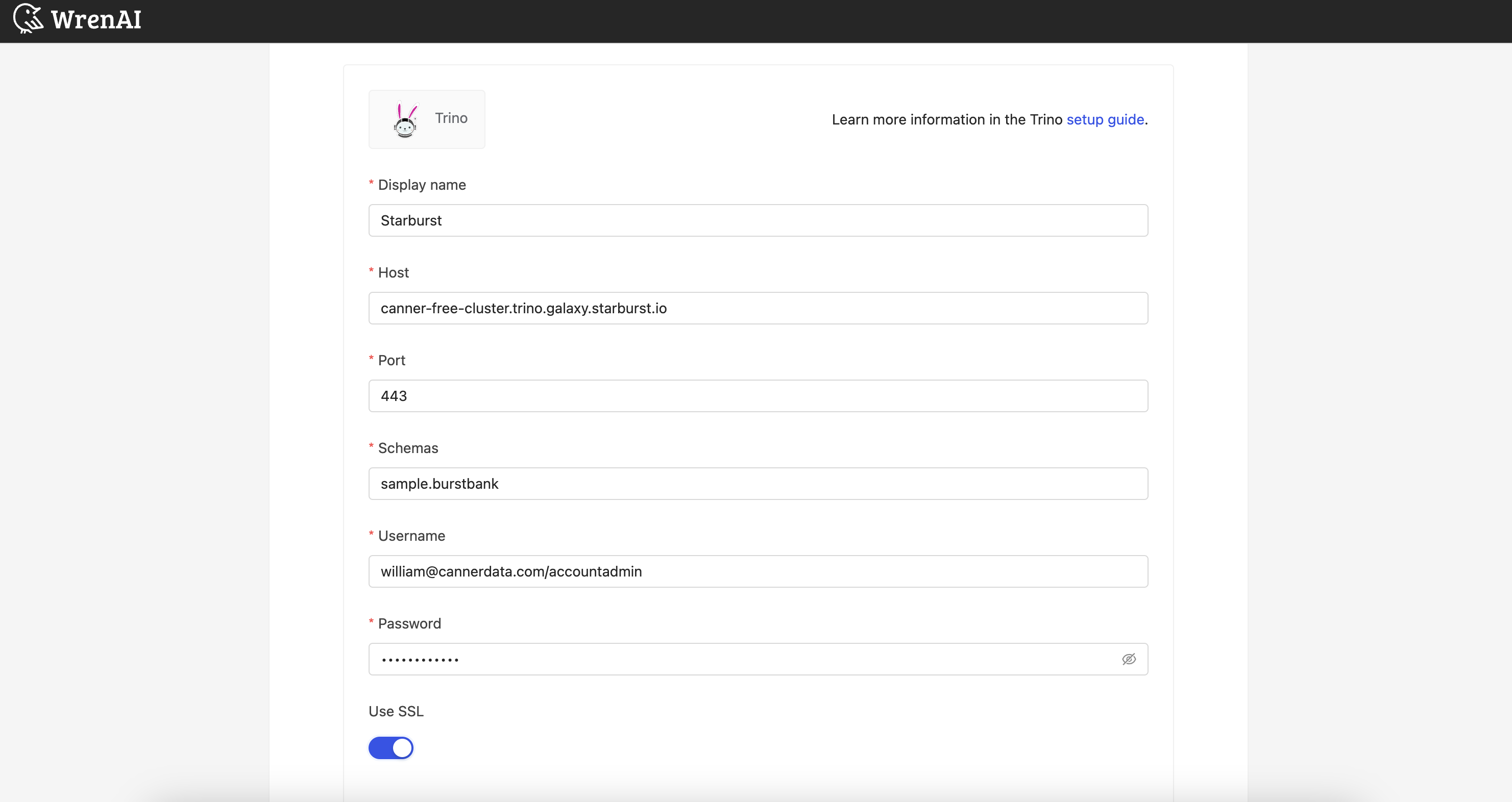
For this example, we connect to the
sample.burstbankschema.
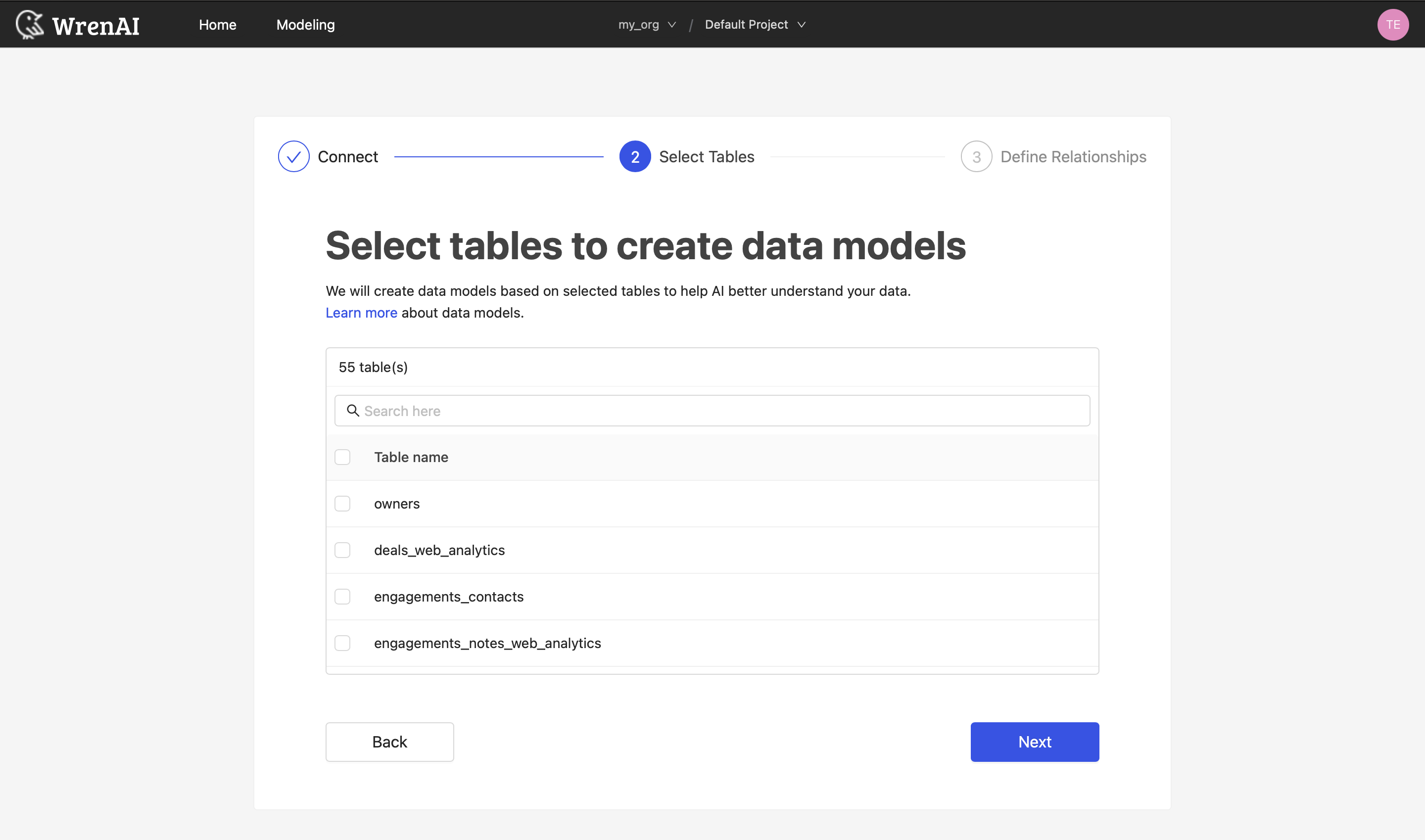
Select Tables
All tables of your connected Trino database will be listed in this step. Select which tables you want to use in Wren AI. Each selected table will be created as a data model. See the Modeling documentation to learn more about data models.
Define relationships
Define the relationships among selected tables in this step. You can define relationships by clicking the Add relationships button on the table blocks.
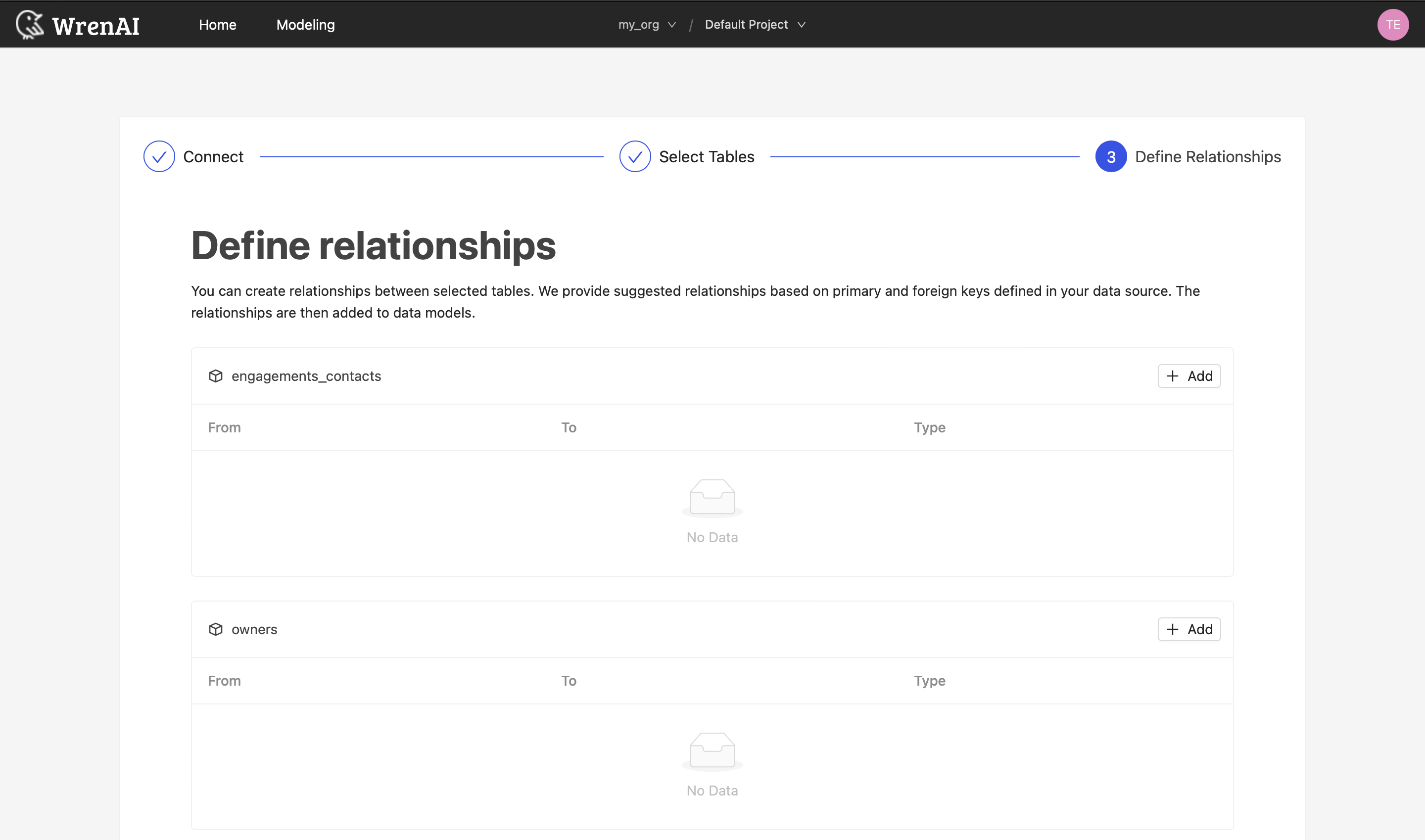
Define the following properties in a relationship:
- From: Select the left side table and column of this relationship.
- To: Select the right side table and column of this relationship.
- Relationship Type: Select the type of relationship.
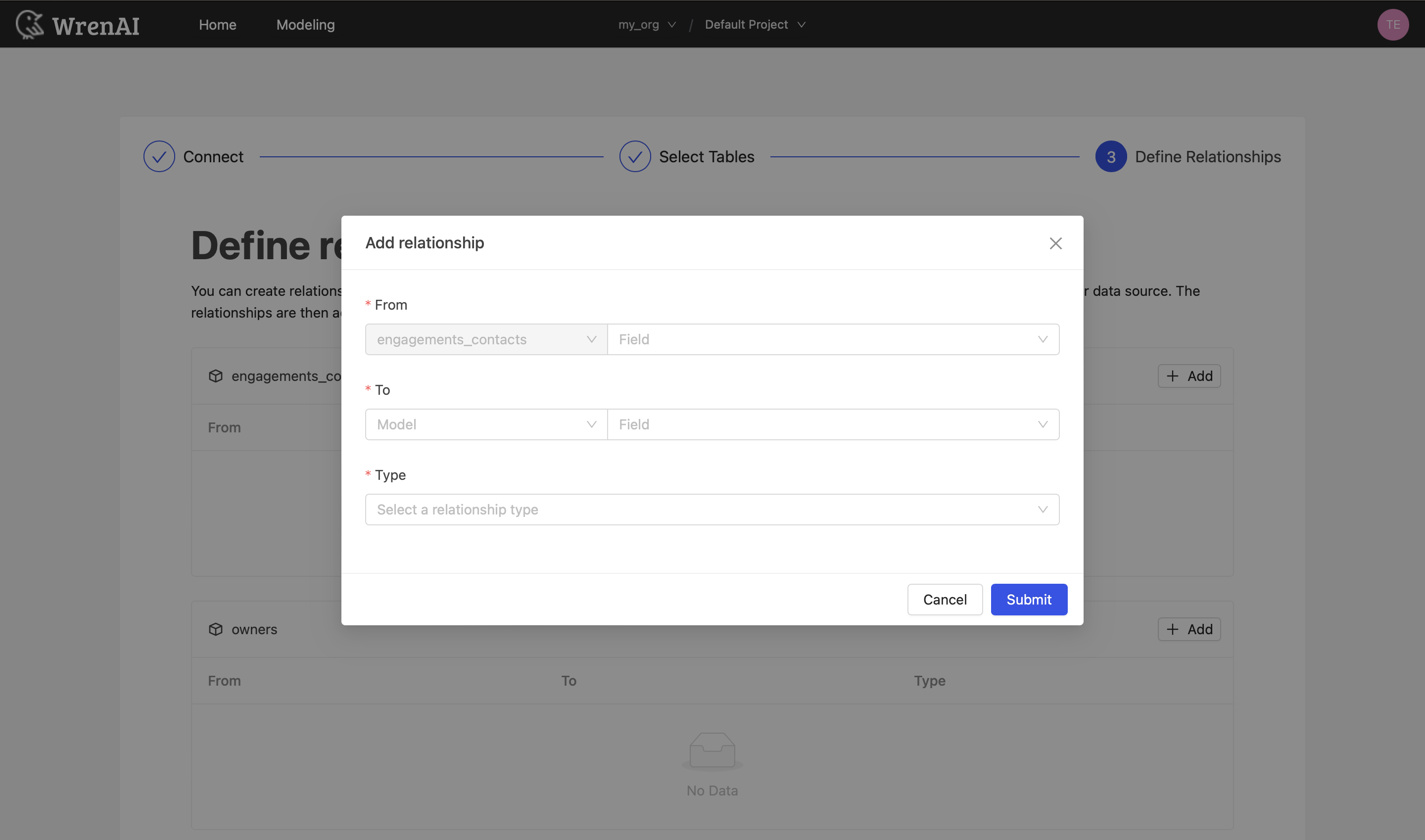
Find more information about relationships in Modeling - Working with Relationships.
You can also skip this step, finish the connection, and define relationships later.
Tested versions
Wren AI connects over Trino's standard client protocol, and recent Trino and Starburst releases are expected to work. If you hit a version-specific issue, please contact us.