Working with Relationships
Use this page to create, update, and delete relationships between models in Wren AI.
Relationships tell Wren AI how tables connect so it can generate better joins and answer cross-table questions more accurately.
Create a relationship
Create a relationship during connection
As an additional step during the connection process, you can define relationships among selected tables.
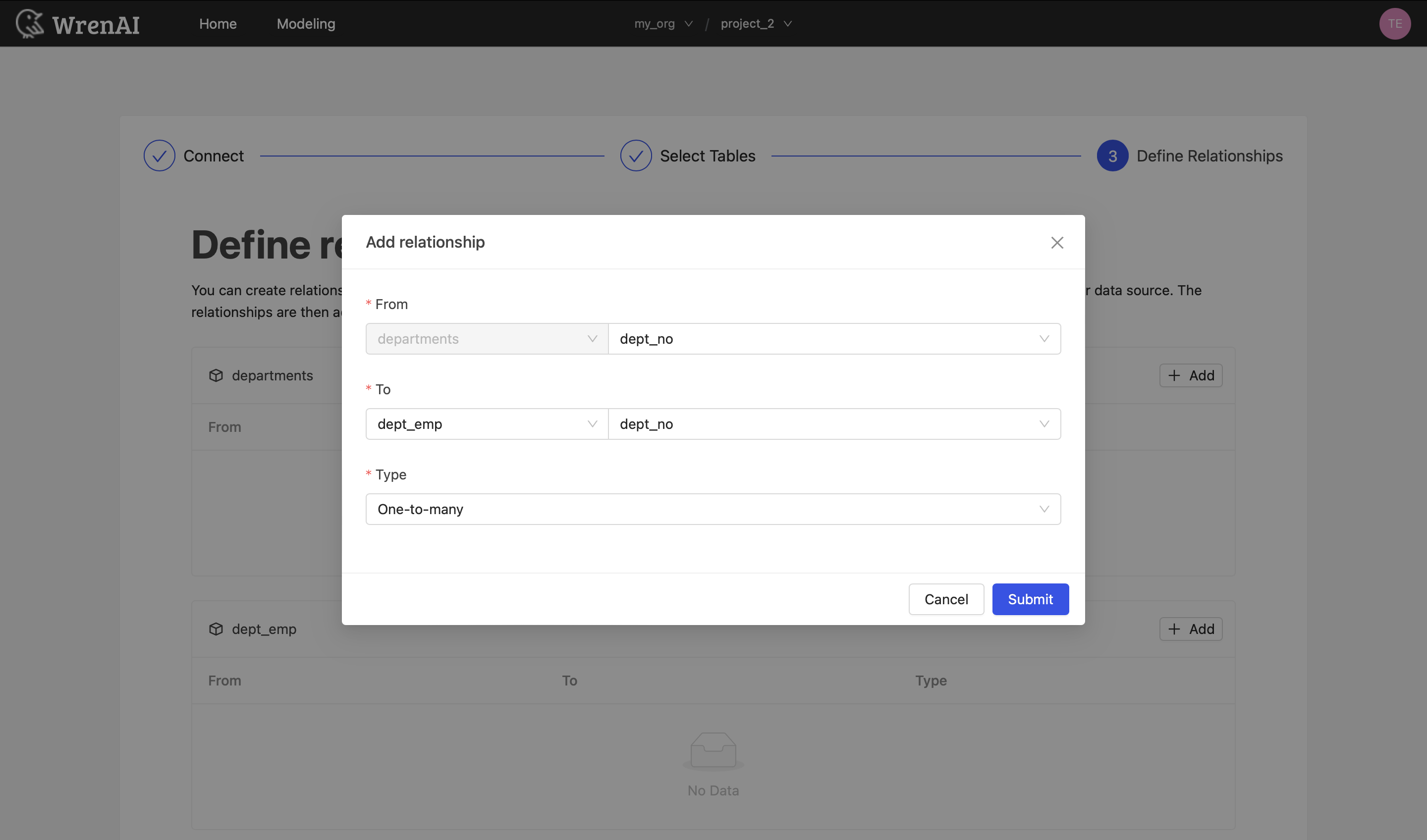
Create a relationship from the Modeling page
-
Go to the diagram of the model where you want to create a relationship.
-
Click the "+" icon next to the "Relationships" section.
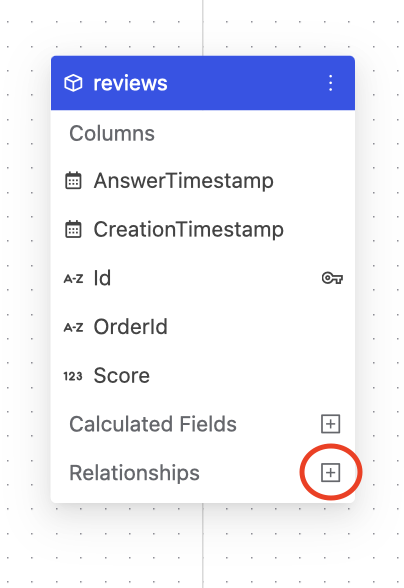
-
Define the following properties in a relationship:
- From: Select the left side table and column of this relationship.
- To: Select the right side table and column of this relationship.
- Type: Select the type of relationship (Many-to-one, One-to-many, One-to-one).
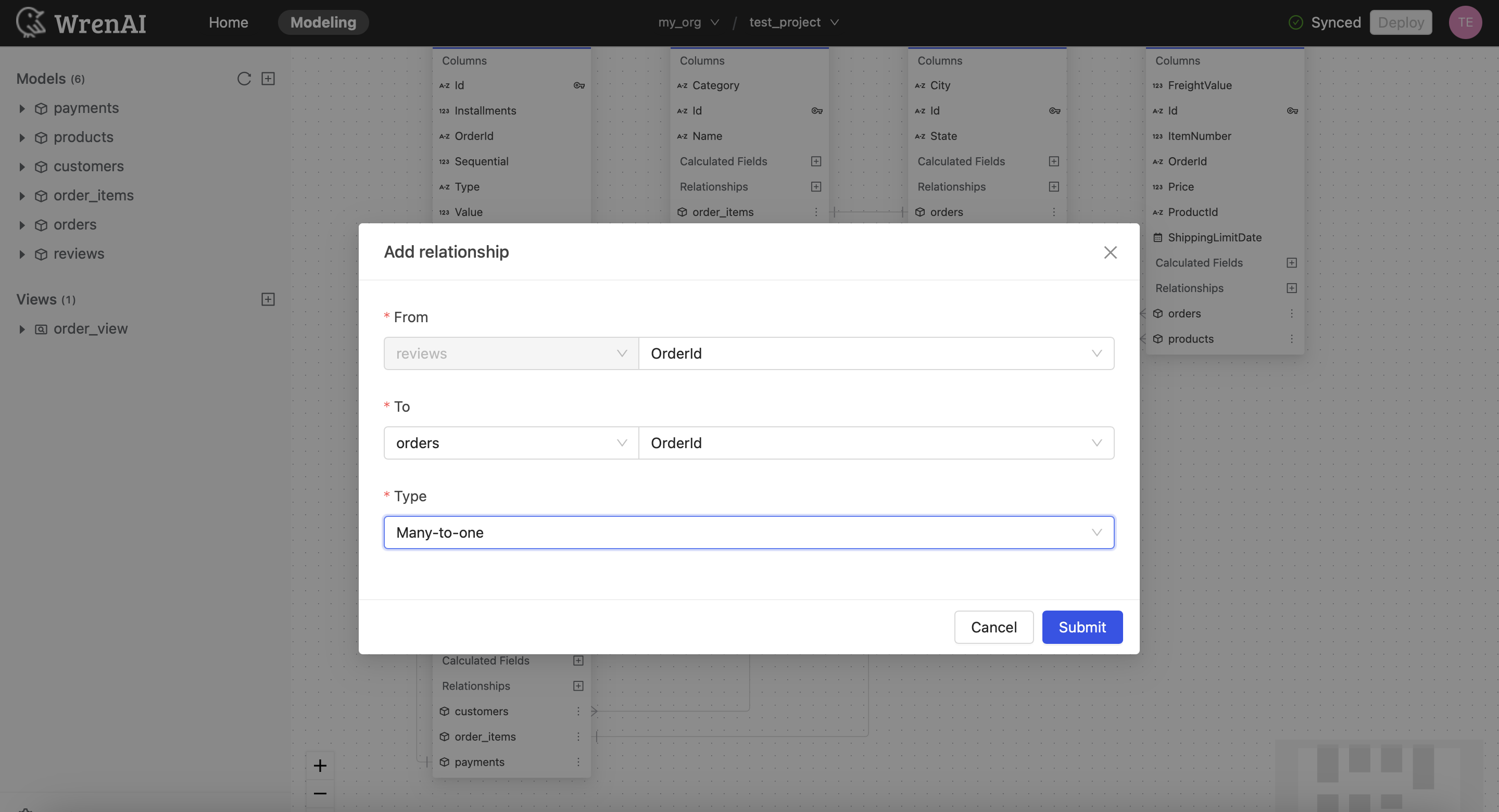
-
Click "Save" to create.
When creating relationships between data models in Wren AI, the following situations are not allowed:
1. Self-Referential Relationship
A self-referential relationship is when a column within a model points back to the same model.
For example, in an Employee model, the reportsTo column may store the ID of another Employee, indicating the reporting structure within the organization.
Wren AI currently does not support creating such self-referential relationships, where a column in a model references the same model. This limitation prevents the direct modeling of hierarchical or recursive data structures within a single model.
2. Relationship Duplication
Wren AI does not permit the creation of duplicate relationships between the same pair of models using identical columns.
For instance, if a relationship already exists between the Order and Customer models using the customerID field, you cannot create another relationship using the same customerID field between these models.
This restriction ensures that each relationship remains unique, avoiding redundancy and potential confusion in model associations.
Update a relationship
To update relationship settings in a model:
-
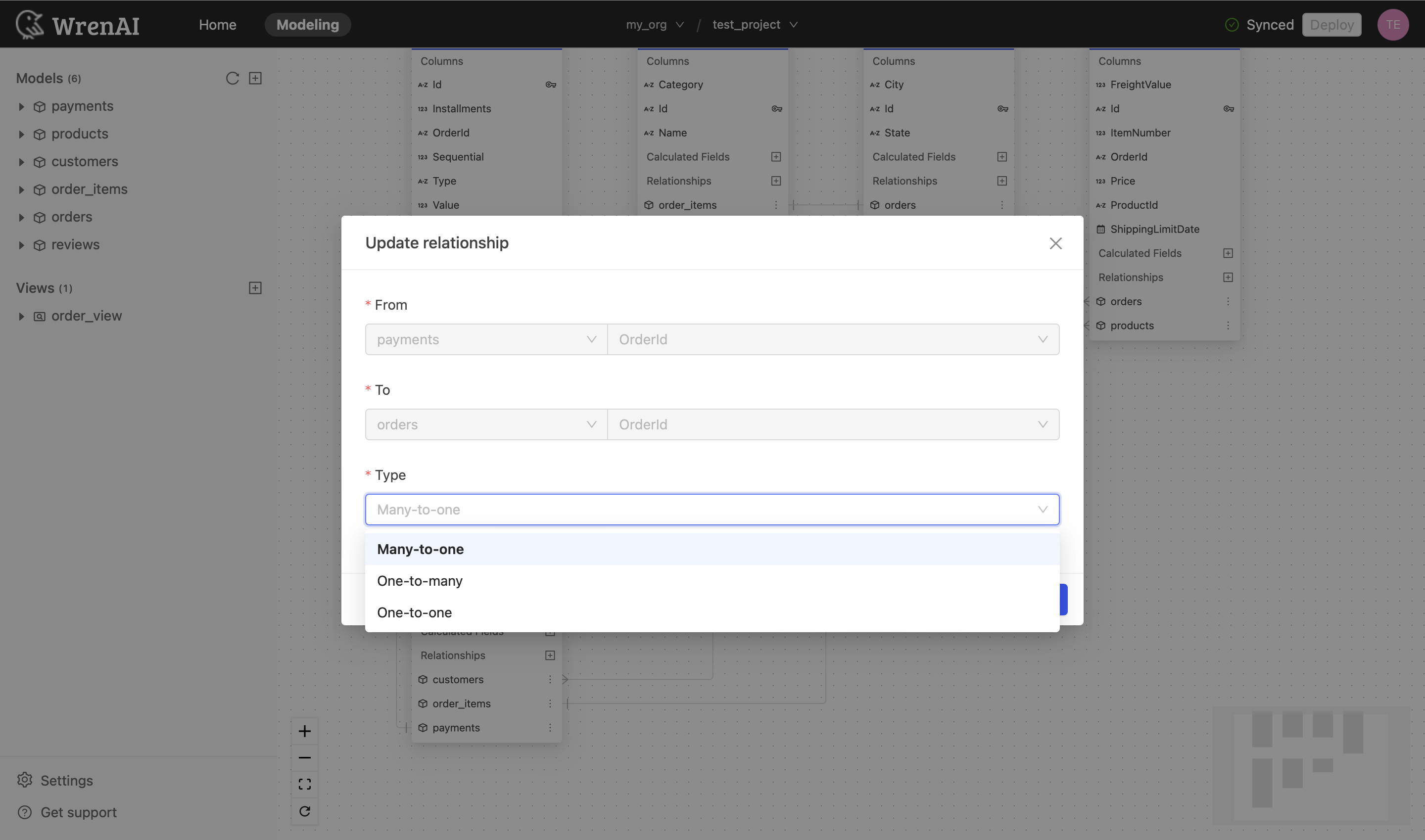
Click the "..." icon next to the relationship on the model diagram.
-
Choose "Edit".
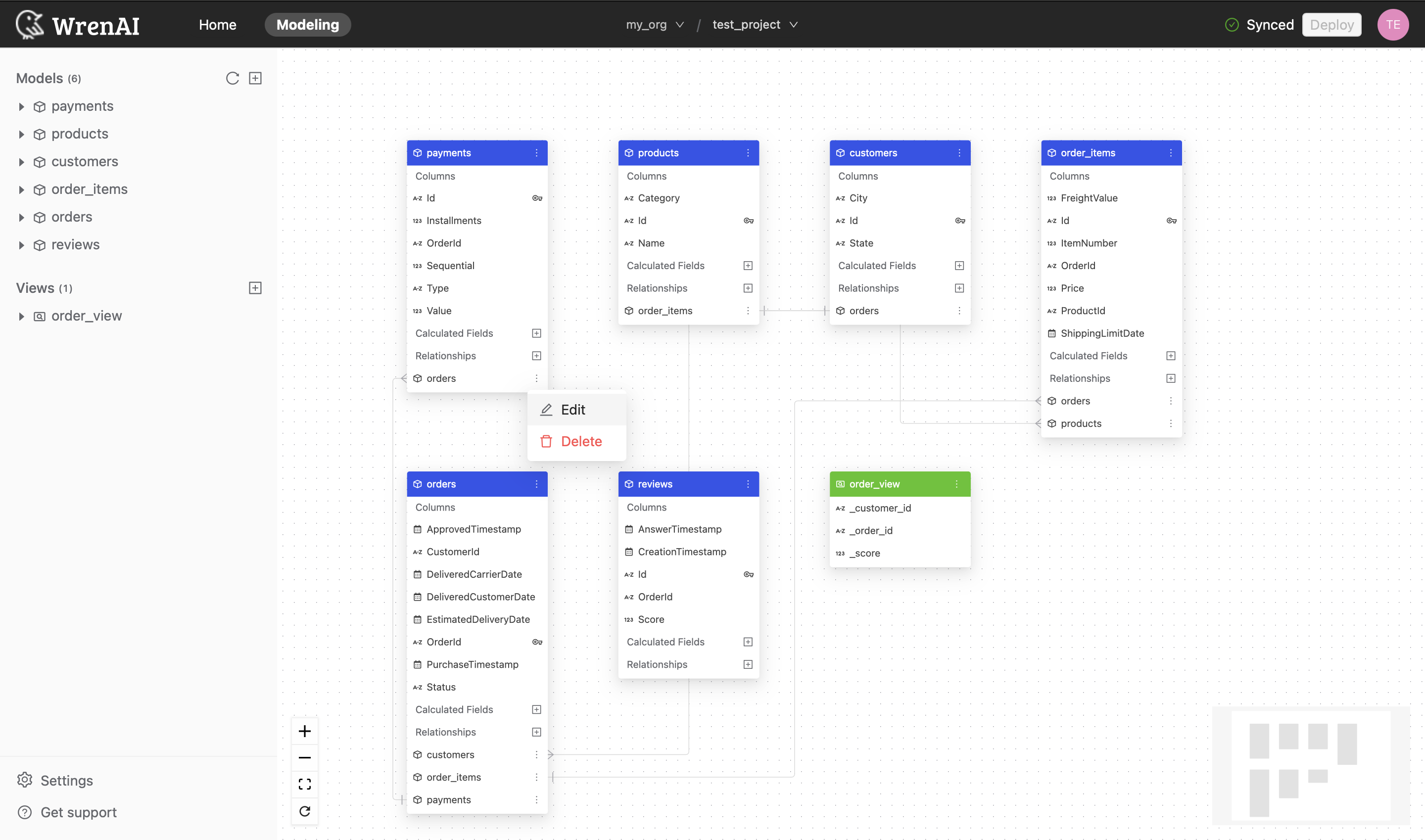
-
You can edit the Type of this relationship.
Delete a relationship
To delete a relationship:
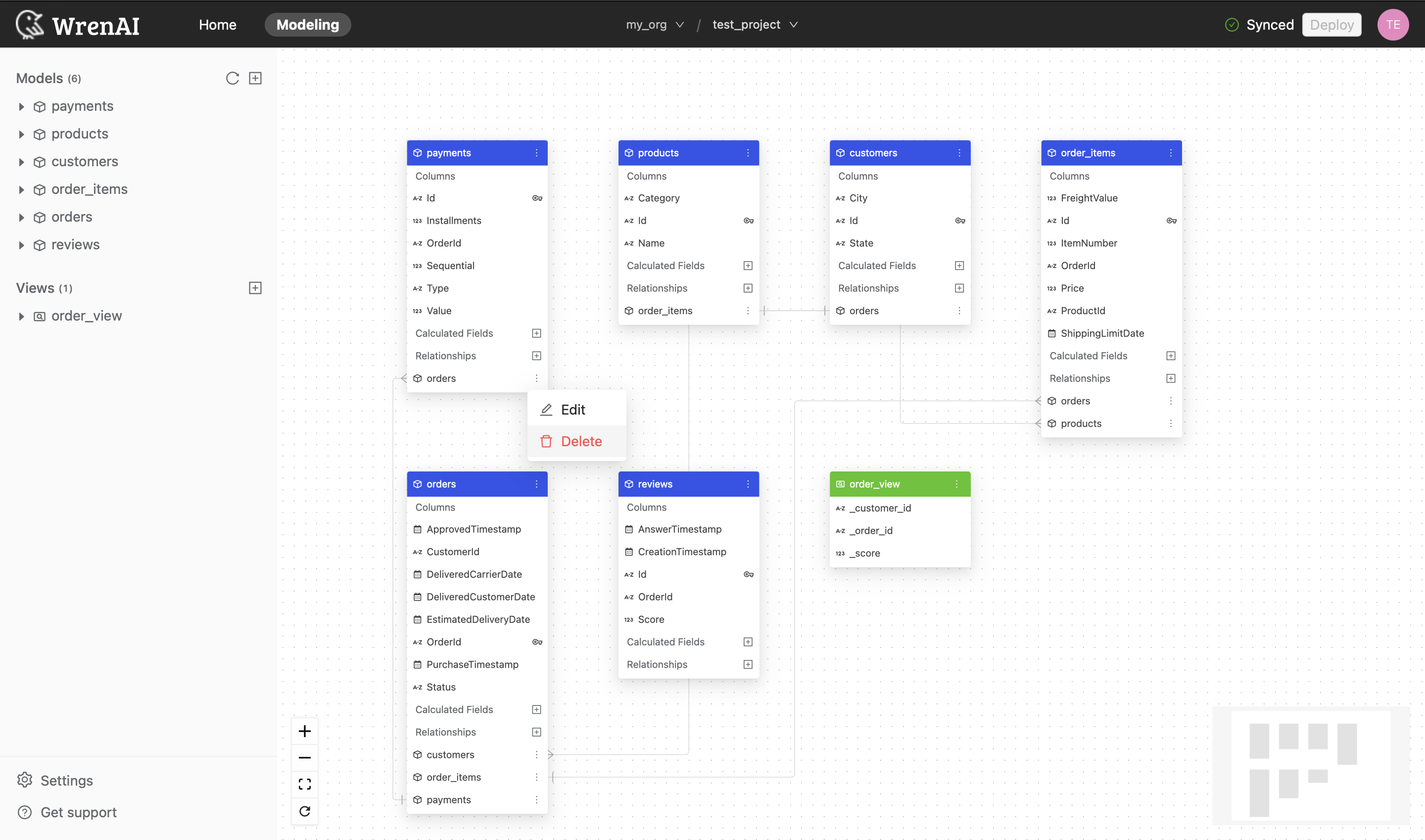
- Click the "..." icon next to the relationship on the model diagram.
- Choose "Delete".
Inspect relationship details
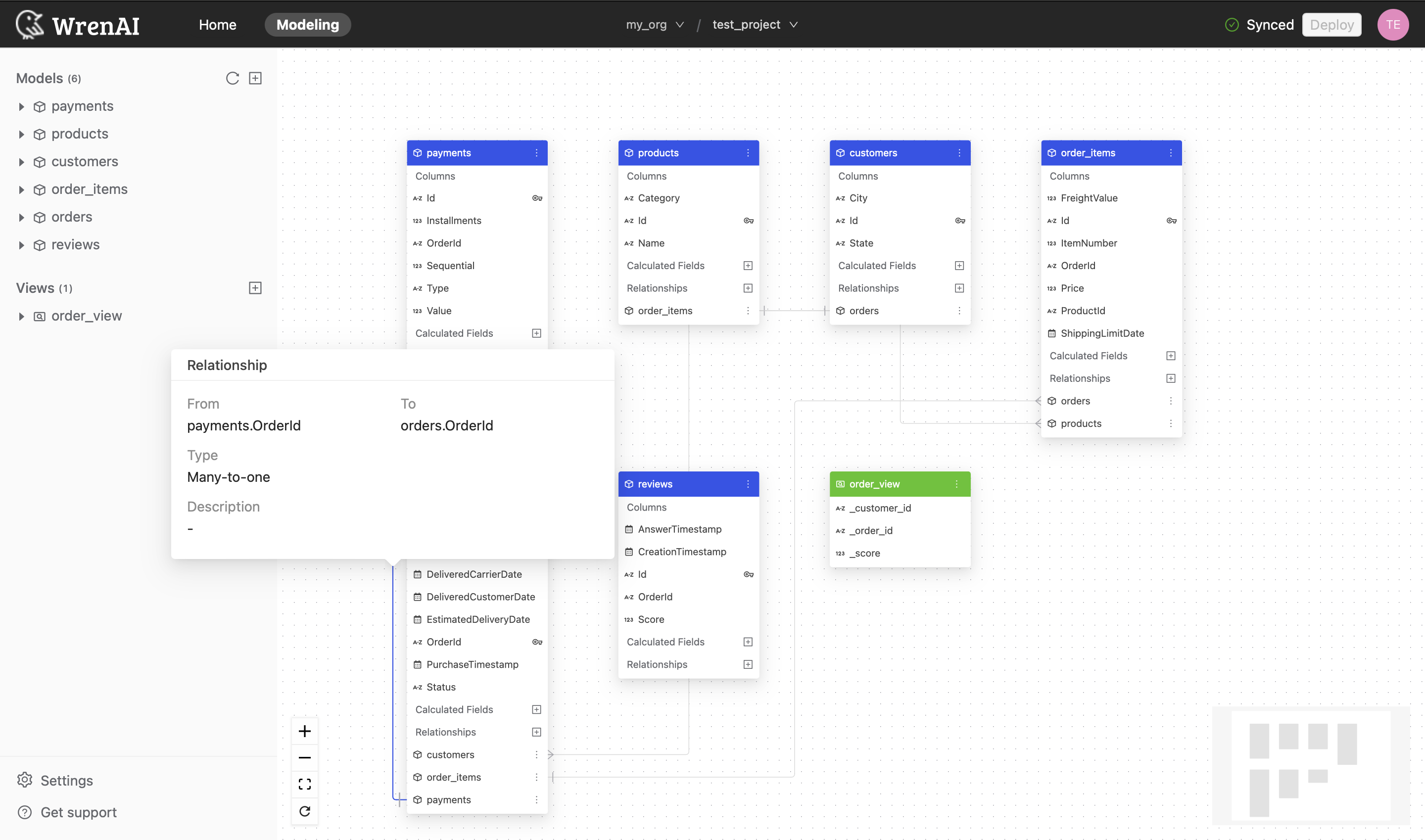
You can hover over the relationship line between model diagrams to see the information on specific relationships.
Deploy
Press Deploy on the navigation bar to synchronize changes from the Modeling page.
The navigation bar will show an Undeployed changes message if there are any new changes.

The navigation bar will show a synced message if all changes have been deployed.
