Databricks
Use this guide to connect Databricks to Wren AI and confirm that your SQL Warehouse is ready before setup.
To add a Databricks connection, click on the Databricks option in the Connect a data source section.

Before you begin
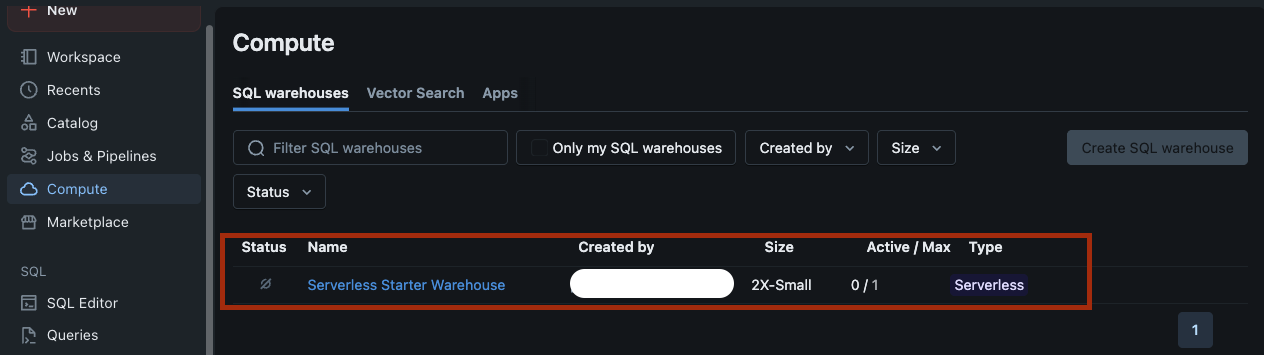
Before connecting Wren AI with Databricks, log in to the Databricks UI and start your SQL Warehouse:
Required Permissions
Wren AI connects through a Databricks SQL Warehouse and only issues read-only queries — SELECT against your tables/views and Unity Catalog metadata (INFORMATION_SCHEMA). It will never write data or run DDL.
The identity Wren AI connects as — your user (Personal Access Token) or a service principal — needs:
| Category | Permission | Notes |
|---|---|---|
| Compute | CAN USE on the SQL Warehouse | Required to run queries. |
| Catalog access | USE CATALOG on the catalog and USE SCHEMA on the schemas you want Wren AI to read | Required to resolve objects and sync metadata from Unity Catalog. |
| Business data | SELECT on the tables/views | Grant at schema level to cover all tables in the schema. |
Example Unity Catalog grants for a dedicated service principal:
GRANT USE CATALOG ON CATALOG main TO `wren-ai-principal`;
GRANT USE SCHEMA ON SCHEMA main.analytics TO `wren-ai-principal`;
GRANT SELECT ON SCHEMA main.analytics TO `wren-ai-principal`;
A Personal Access Token carries all of your own workspace permissions. For production connections, prefer a dedicated service principal with only the grants above.
Connect
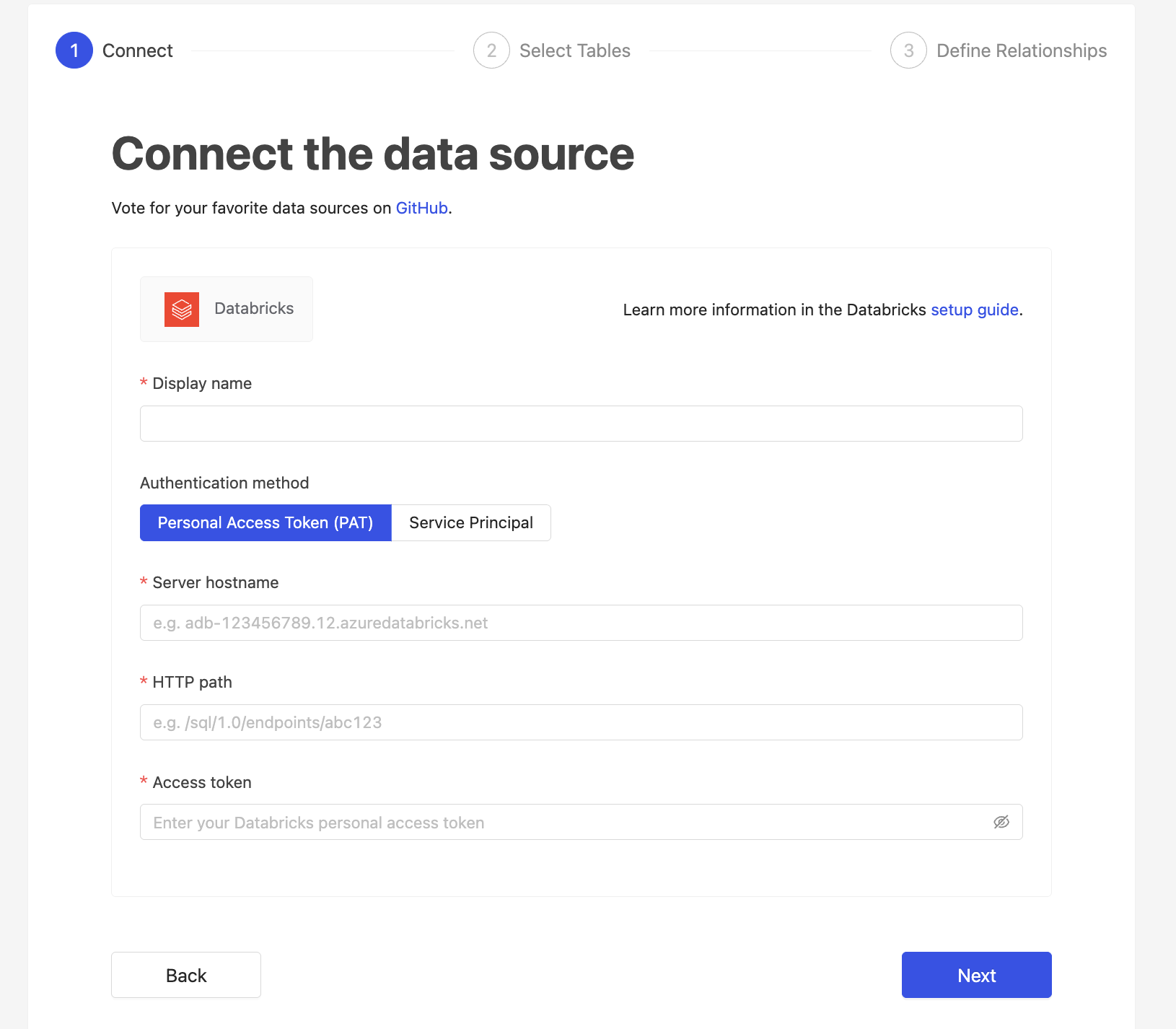
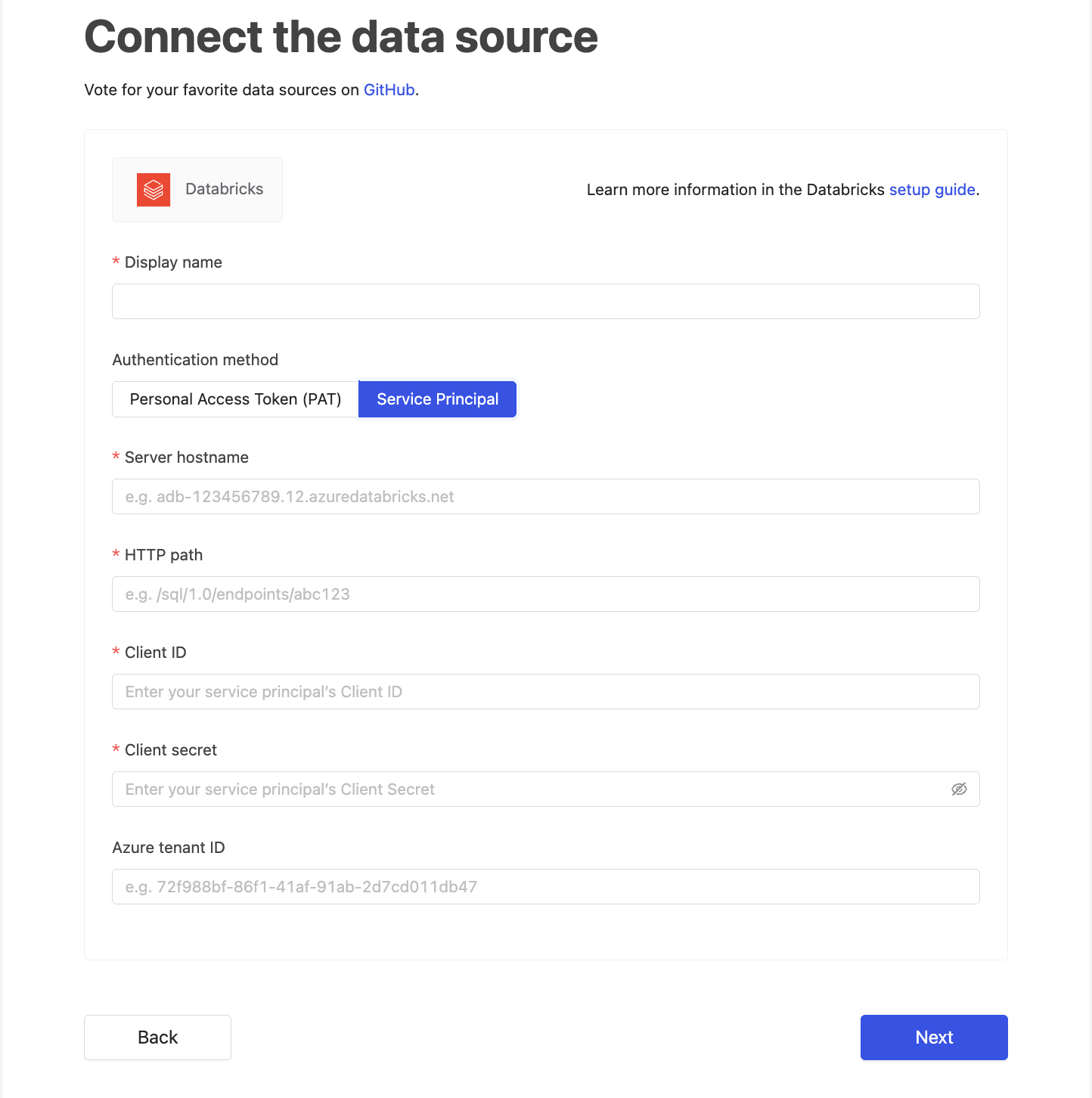
Fill in the connection settings:
Display name
The display name for the Databricks connection in the Wren AI interface.
Server hostname
The Databricks workspace URL without the protocol.
HTTP path
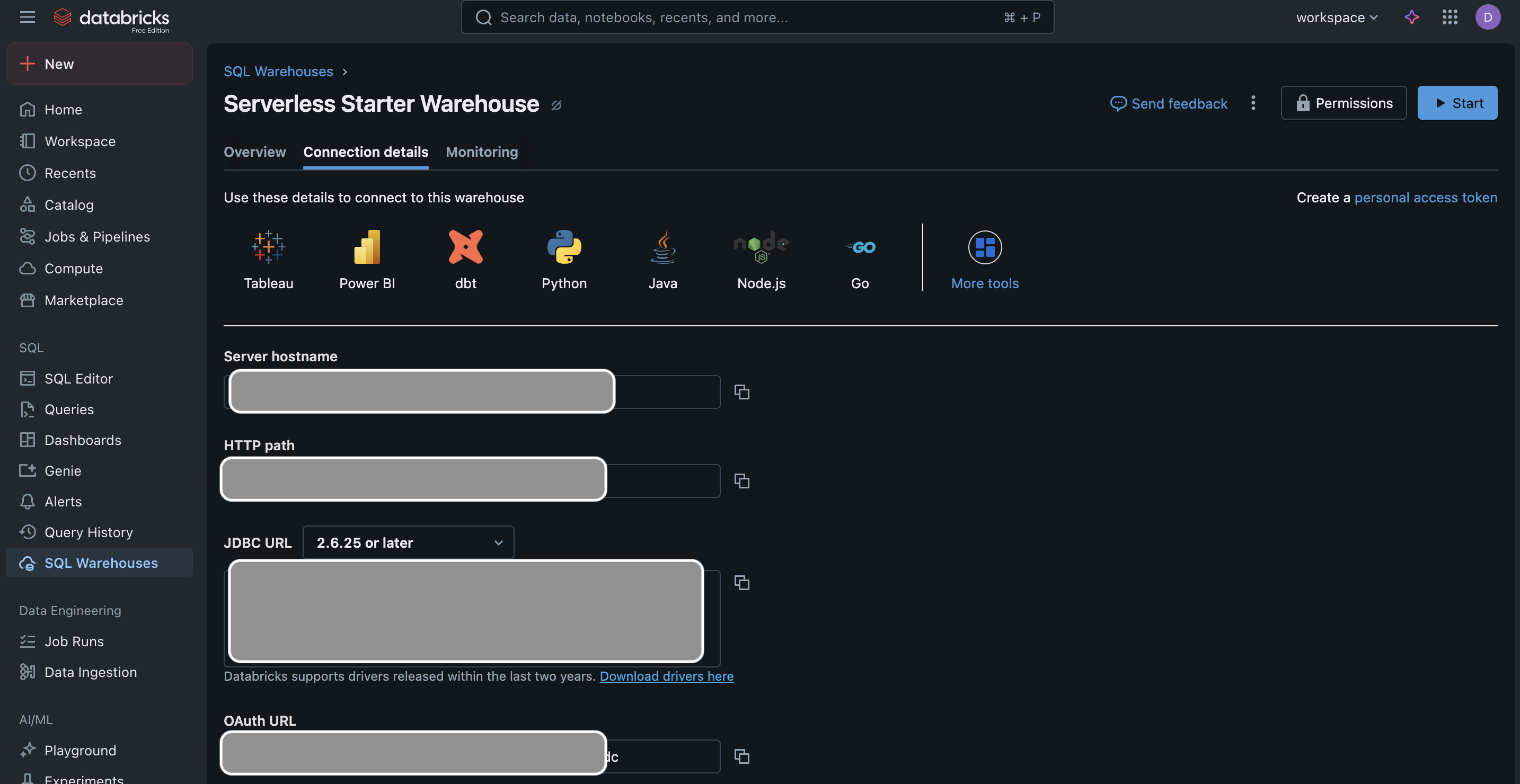
The HTTP path of the SQL warehouse you will use to run queries.
You can find this in Databricks → SQL Warehouses → Connection details.
Authentication method
Choose between two authentication methods:
- Personal Access Token
- Service Principal
Personal Access Token
- Access token:
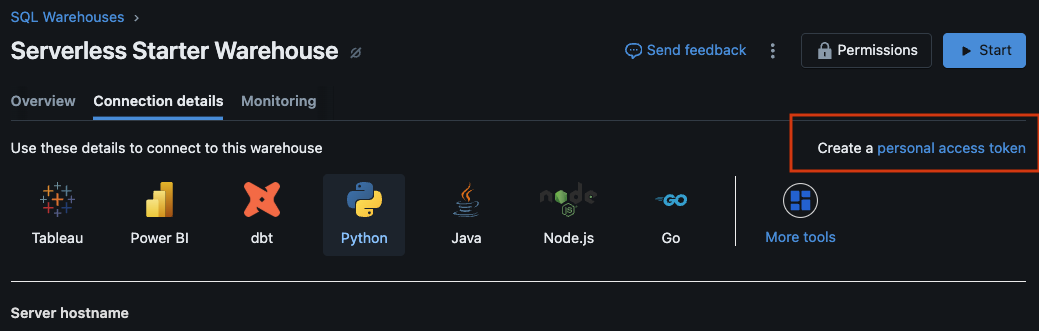
A Personal Access Token (PAT) generated from the Databricks UI. This token authenticates your Databricks user account when connecting from Wren AI. You can create or manage tokens under User Settings → Developer → Access Tokens. Keep this token secure, as it grants access to your workspace.
Service Principal
-
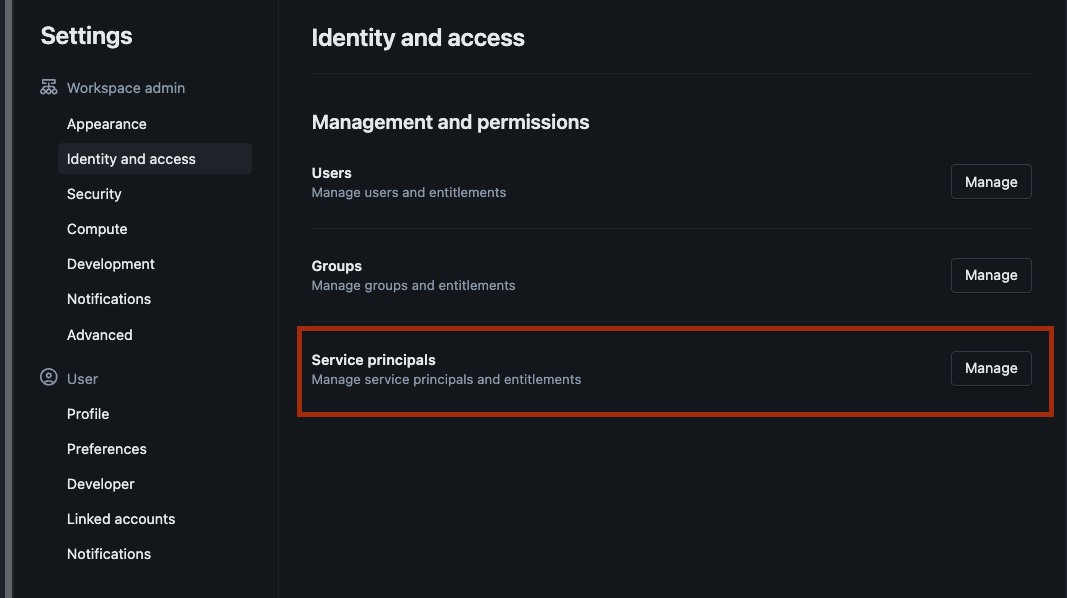
Client ID:
The application ID of your Databricks Service Principal. You can find this in the Databricks UI under Service Principals. It identifies which service principal Wren AI should use when connecting. -
Client secret:
The secret associated with the Service Principal. This acts as the credential for authentication. You can generate or rotate this secret in the Databricks UI. Treat it like a password and keep it secure.
Select Tables
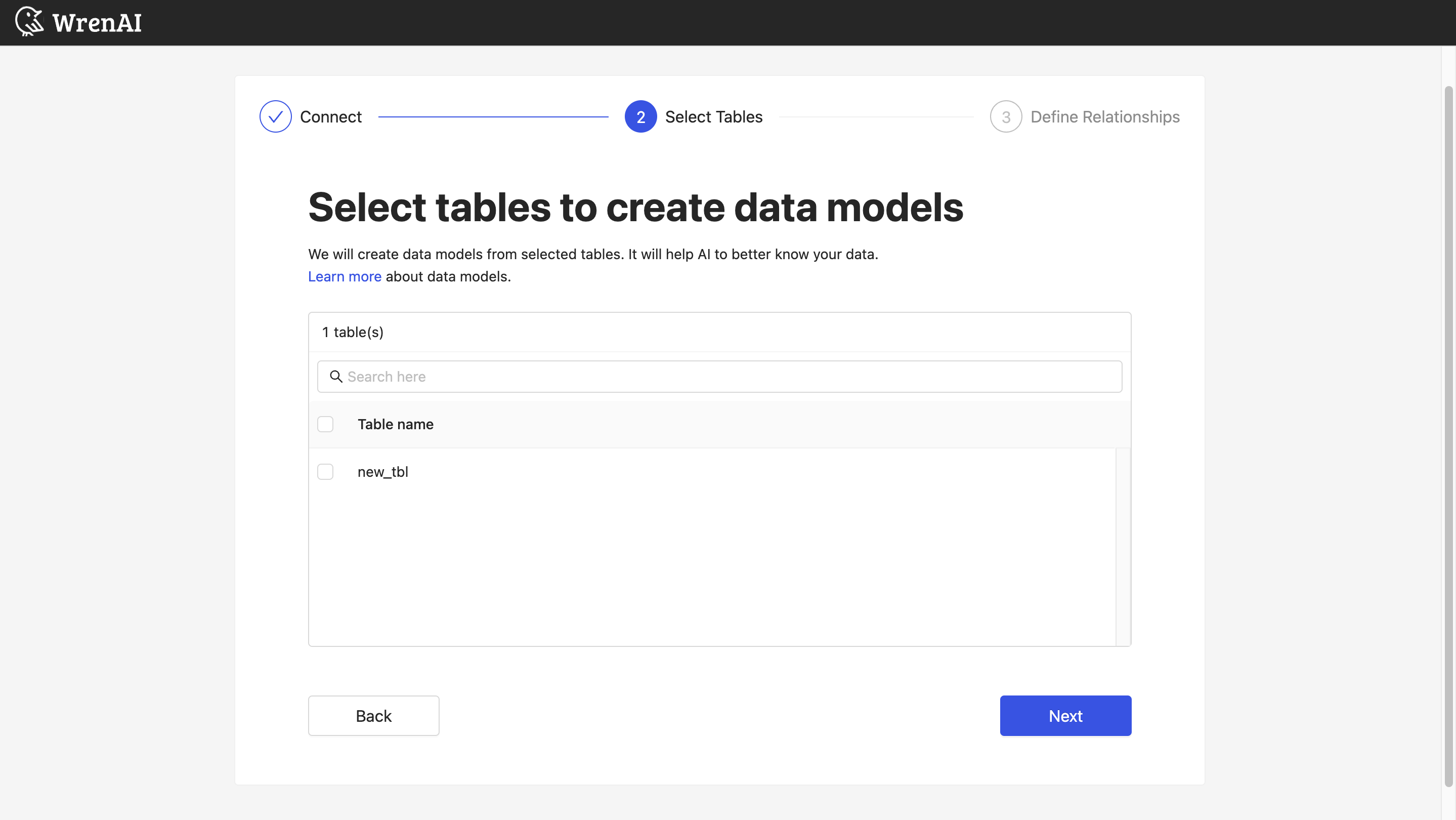
All tables from your connected Databricks warehouse will be listed in this step. Select the tables you want to use in Wren AI. Each selected table will be created as a data model. See the Modeling documentation to learn more about data models.
Wren AI syncs the metadata of the selected tables from Unity Catalog (via INFORMATION_SCHEMA). This includes table names, table comments, column names, column data types, and column comments.
Define relationships
Define the relationships among selected tables in this step. If you have defined primary keys and foreign keys in your Databricks warehouse, we will list suggested relationships based on that information. If not, you can add relationships manually by clicking the Add relationships button on the table blocks.
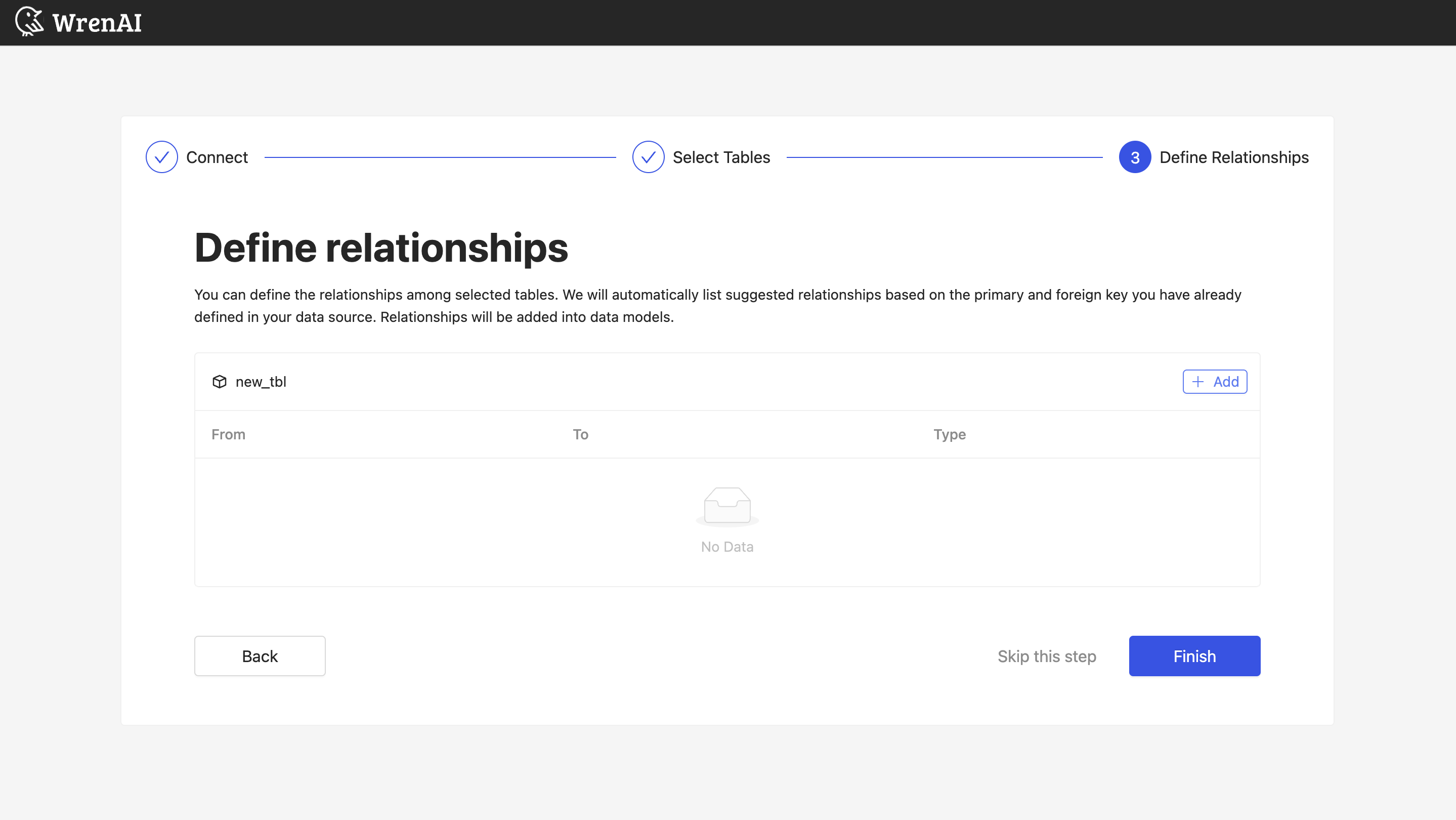
Define the following properties in a relationship:
- From: Select the left-side table and column.
- To: Select the right-side table and column.
- Relationship Type: Select the type of relationship.
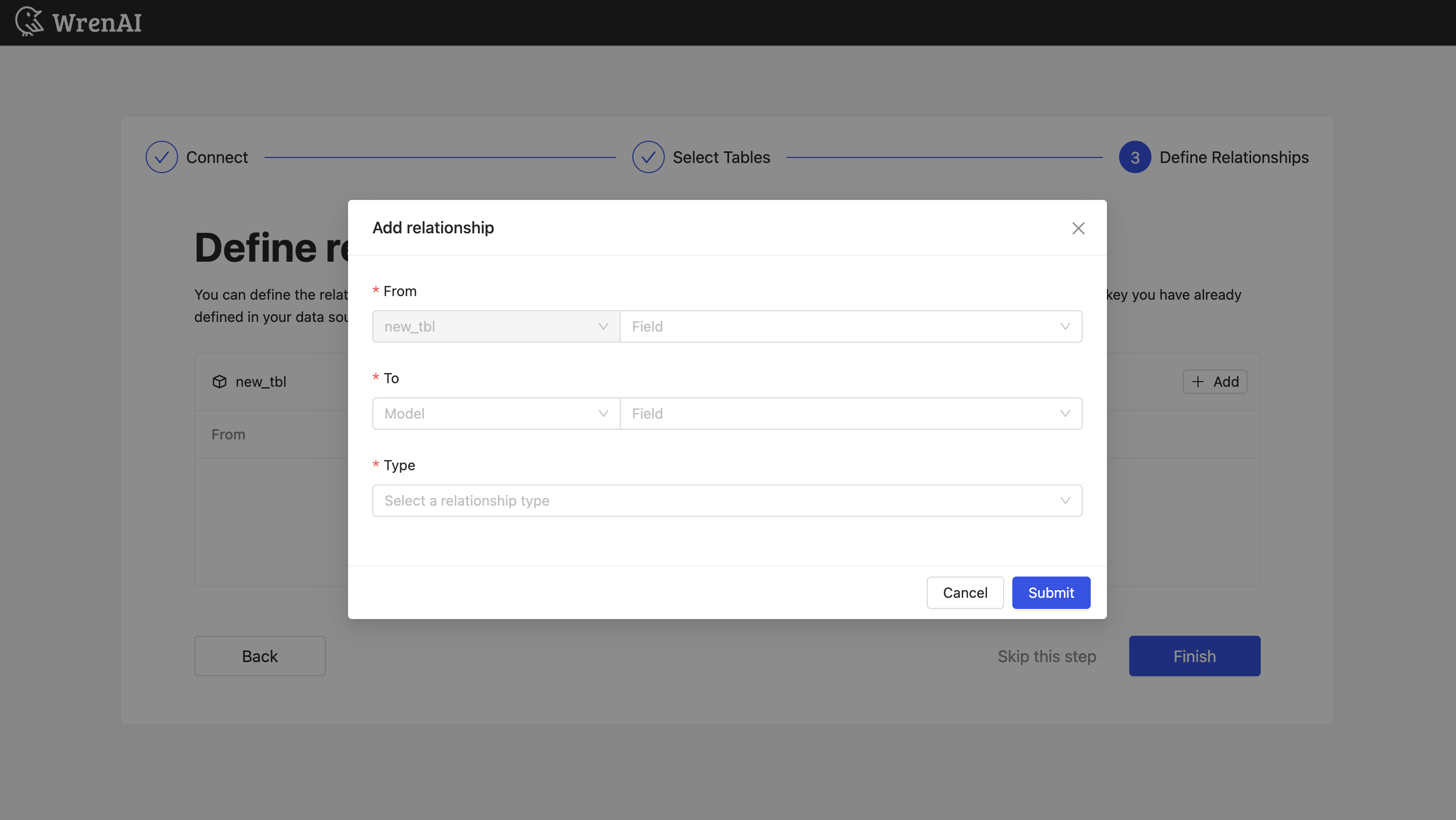
Find more information about relationships in Modeling - Working with Relationships.
You can also skip this step and finish the connection.
Tested versions
Databricks is a managed platform with continuous releases, so there is no version to pin. The connection requires a workspace with Unity Catalog enabled (metadata is synced from Unity Catalog's INFORMATION_SCHEMA) and a running SQL Warehouse. If you hit a workspace-specific issue, please contact us.