ClickHouse
Use this guide to connect ClickHouse to Wren AI and review the permissions and settings required for stable query execution.
Included in all plans
Wren AI needs to access your ClickHouse database via the outbound IP address of Wren AI Cloud. Please add the IP address of the Wren AI service to the firewall of your ClickHouse database.
Scroll to the bottom of the data source connection page to find the IP address.
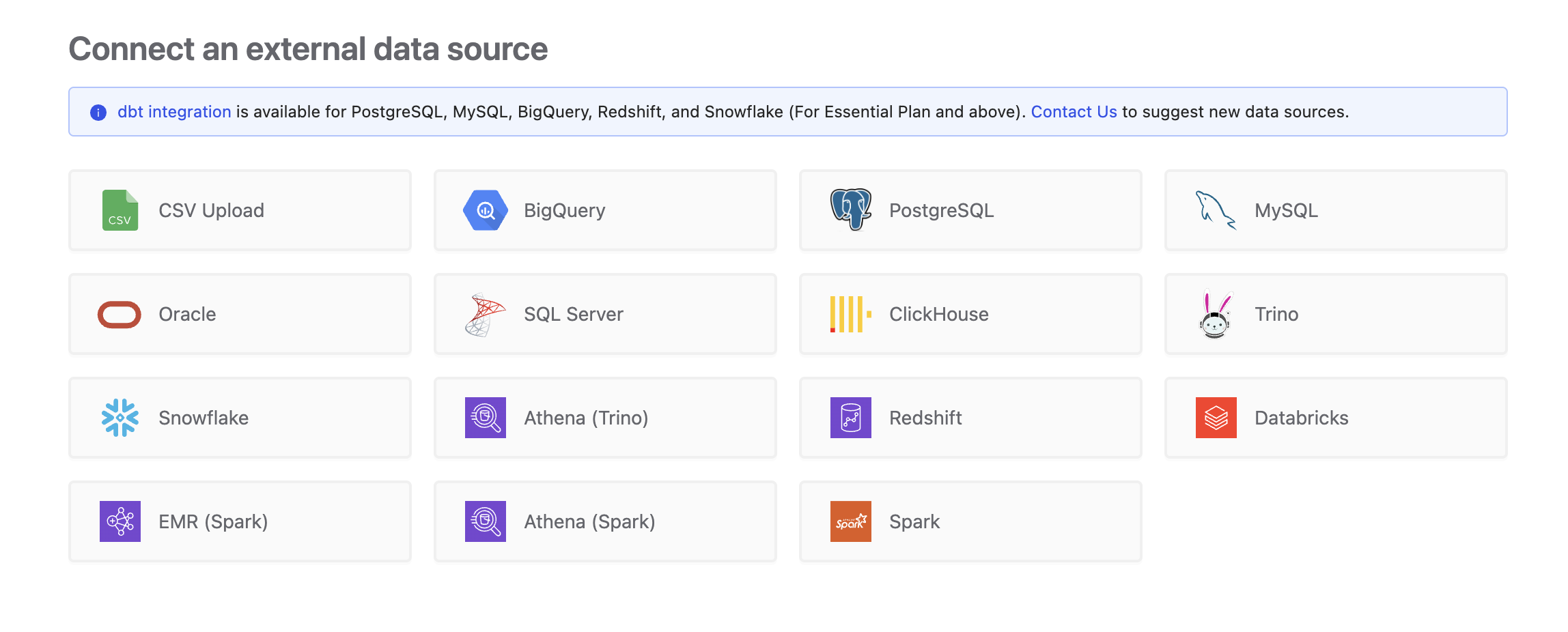
To add a ClickHouse connection, click on the ClickHouse option in the Connect a data source section.
Required Permissions
Wren AI connects to ClickHouse as a regular database user and only issues read-only queries — SELECT against your tables/views and ClickHouse metadata tables. It will never INSERT, UPDATE, DELETE, or run DDL (CREATE, ALTER, DROP, TRUNCATE). Read-only grants are sufficient — and recommended — for a secure connection.
Avoid using default, admin, or any broadly privileged account as the connecting account. They violate least-privilege principles and may expose more databases than you intended. Use a dedicated read-only user whenever possible.
1. Privileges checklist
The ClickHouse user account used by Wren AI needs the following on your target database:
| Category | Privilege | Notes |
|---|---|---|
| Login | A valid ClickHouse user/password | Required to connect. |
| Business data | SELECT on the tables/views you want Wren AI to read | Grant this per database, for example GRANT SELECT ON analytics.* TO wren_ai;. |
| Metadata discovery | Read access to system.tables and system.columns | Wren AI uses these system tables to list tables, columns, comments, and raw ClickHouse types. In standard ClickHouse setups this is available to authenticated users. In hardened environments, grant these explicitly. |
System tables used for table/column discovery:
| System table | Purpose |
|---|---|
system.tables | Discover tables/views and table comments |
system.columns | Read column names, data types, and column comments |
Missing data access typically surfaces as an ACCESS_DENIED error when connecting, selecting tables, or running queries.
The table picker excludes objects in system, INFORMATION_SCHEMA, information_schema, and pg_catalog by design. Objects in those databases will not appear in Wren AI even if the connecting user can query them directly.
2. Minimum account setup
You can connect Wren AI either as an existing read-only user or as a dedicated read-only user. Pick whichever fits your security posture — both work with the connector.
Option A — Create a dedicated read-only user (recommended)
For least-privilege setups, create a dedicated user and grant only SELECT on the databases you want Wren AI to read:
-- 1. Create the user.
CREATE USER wren_ai IDENTIFIED WITH sha256_password BY 'YourSecurePassword';

-- 2. Grant SELECT on each database to expose.
GRANT SELECT ON analytics.* TO wren_ai;
GRANT SELECT ON mart.*      TO wren_ai;
Option B — Use an existing read-only user
If you already have a read-only ClickHouse user, make sure it can read the target tables/views:
GRANT SELECT ON analytics.* TO existing_readonly_user;
Tables and views granted this way will appear in Wren AI's table picker. If you grant access to multiple databases, Wren AI can list and model tables across those databases.
3. Verify the account
After setup, log in as the ClickHouse user you plan to configure in Wren AI and run the scripts below. Each one mirrors a check Wren AI performs at connection time — if all checks succeed, the account is ready.
a. Login + version access
-- Confirms the account can connect and read the server version.
SELECT version();
If login fails with
AUTHENTICATION_FAILEDorUNKNOWN_USER, verify the username and password. If the request times out, check your host, port, SSL setting, and IP allow-list.
b. Metadata discovery access
-- Confirms Wren AI can read the system tables used for table/column discovery.
SELECT 'system.tables' AS table_name, COUNT(*) AS row_count
FROM system.tables
WHERE database NOT IN ('system', 'INFORMATION_SCHEMA', 'information_schema', 'pg_catalog')
UNION ALL
SELECT 'system.columns', COUNT(*)
FROM system.columns
WHERE database NOT IN ('system', 'INFORMATION_SCHEMA', 'information_schema', 'pg_catalog');
If this fails with
ACCESS_DENIED, grantSELECT ON system.tablesandSELECT ON system.columnsto your user. If this fails withUNKNOWN_IDENTIFIER, your ClickHouse version or compatible service may not expose one of the required system table columns. Upgrade to a recent ClickHouse version or contact us.
c. Preview the tables Wren AI will discover
This is the metadata query Wren AI uses to populate the table picker. Each row corresponds to one column in a table or view visible to the connecting user:
SELECT
    c.database AS table_schema,
    c.table AS table_name,
    t.comment AS table_comment,
    c.name AS column_name,
    c.type AS data_type,
    c.comment AS column_comment
FROM system.columns AS c
JOIN system.tables AS t
    ON c.database = t.database
   AND c.table = t.name
WHERE c.database NOT IN ('system', 'INFORMATION_SCHEMA', 'information_schema', 'pg_catalog')
ORDER BY c.database, c.table, c.position;
- If a table you expect to see is missing, the connecting user has no
SELECTprivilege on it — go back to step 2 and add the appropriateGRANT SELECT. - If the result is huge and full of unfamiliar objects, you may be connecting with a highly privileged account. Consider switching to a dedicated read-only user with narrower grants.
d. Spot-check a sample table
-- Replace with one of the database/table pairs you intend to expose.
SELECT *
FROM analytics.orders
LIMIT 1;
A successful read confirms that
SELECTon the target object is in place. If this fails withACCESS_DENIED, grantSELECTon the target database/table to your user.
Before you connect
For ClickHouse Cloud, make sure the Wren AI outbound IP is added to your service's IP access list. ClickHouse Cloud connection details commonly use HTTPS/TLS, so use the Cloud-provided host and port (often 8443) and enable SSL in the connection form when required.
User management may be handled in the ClickHouse Cloud console or through SQL, depending on your organization settings. Use the same least-privilege model: create or select a dedicated user, then grant SELECT only on the databases Wren AI should read.
Wren AI requires ClickHouse metadata tables system.tables and system.columns for table discovery. This is available in modern ClickHouse releases, including the tested versions listed below. If your deployment does not expose these system tables or required metadata columns, the Select Tables step may fail or return an empty list.
Connect
Fill in the connection settings:
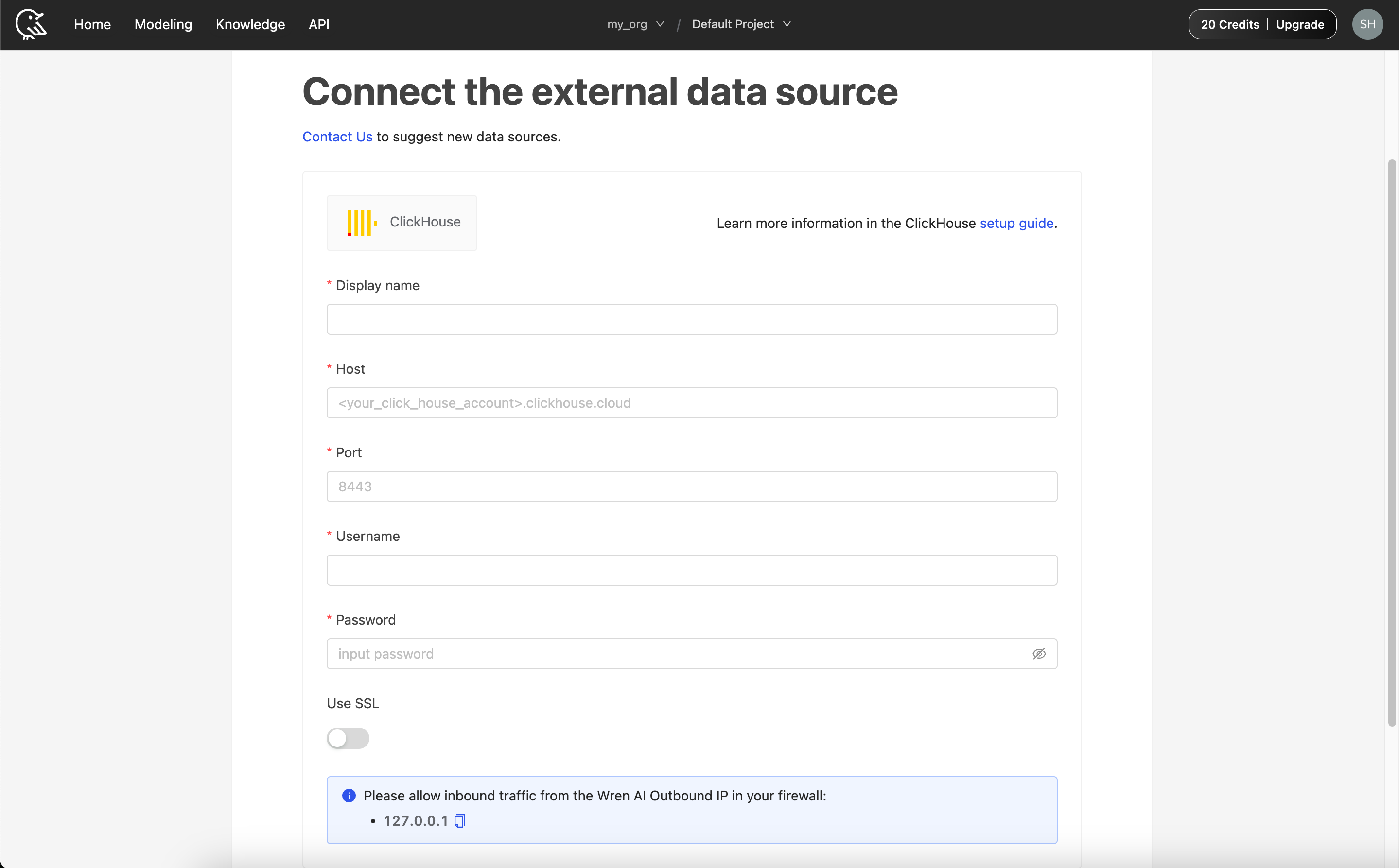
Display name
The display name for the database in the Wren AI interface.
Host
IP address or domain name of your ClickHouse database.
Port
Your ClickHouse database port.
Username
The database username for the account that you want to use to connect to your ClickHouse database.
Password
The password for the username that you use to connect to the database.
Click Next to start the connection and go to the next step.
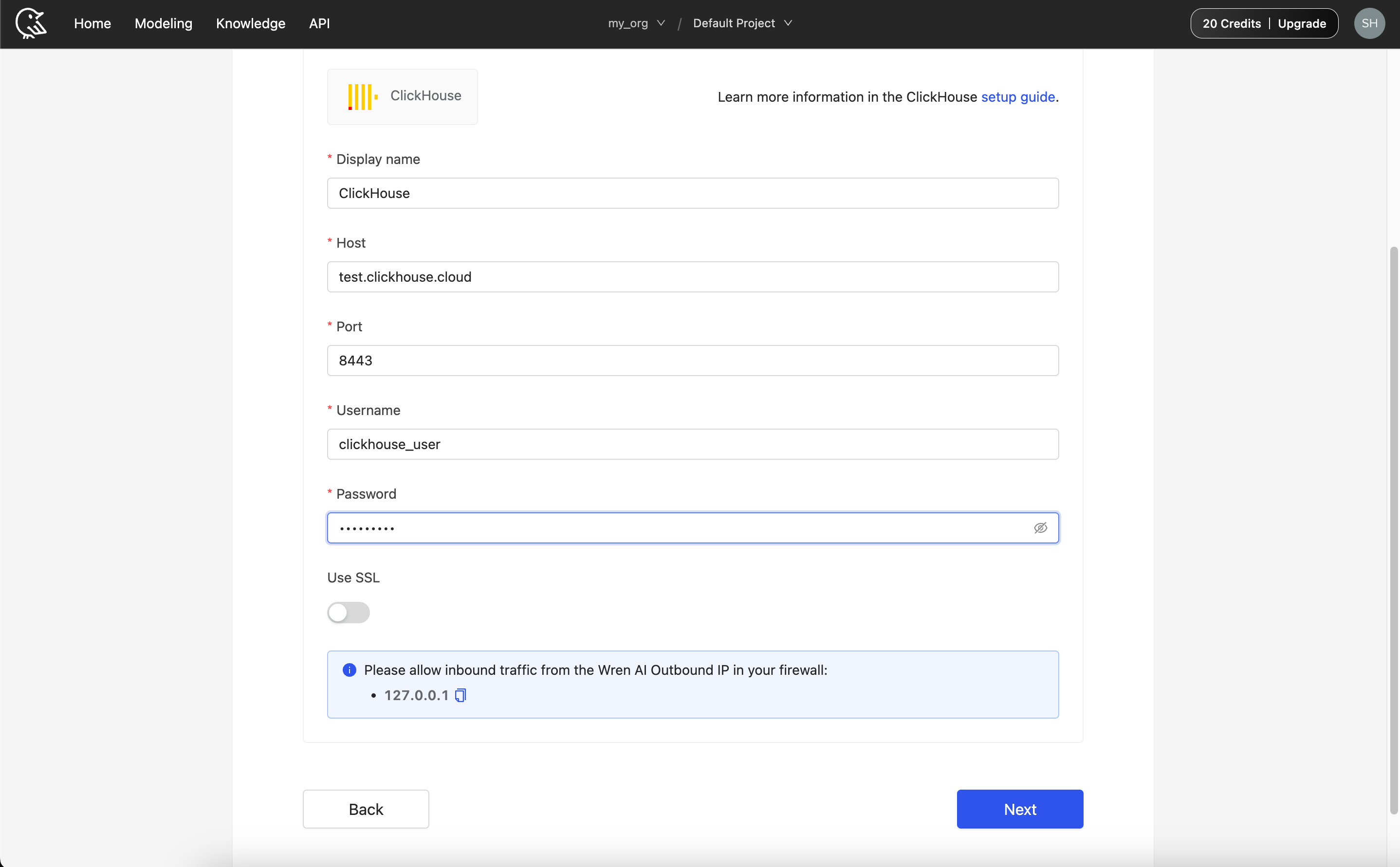
Wren AI supports cross-database table selection in ClickHouse. You do not need to specify a database name. In the Select Tables step, tables from all available databases will be listed for you to choose from.
Select Tables
All tables of your connected ClickHouse dataset will be listed in this step. Select which tables you want to use in Wren AI. Each selected table will be created as a data model. See the Modeling documentation to learn more about data models.
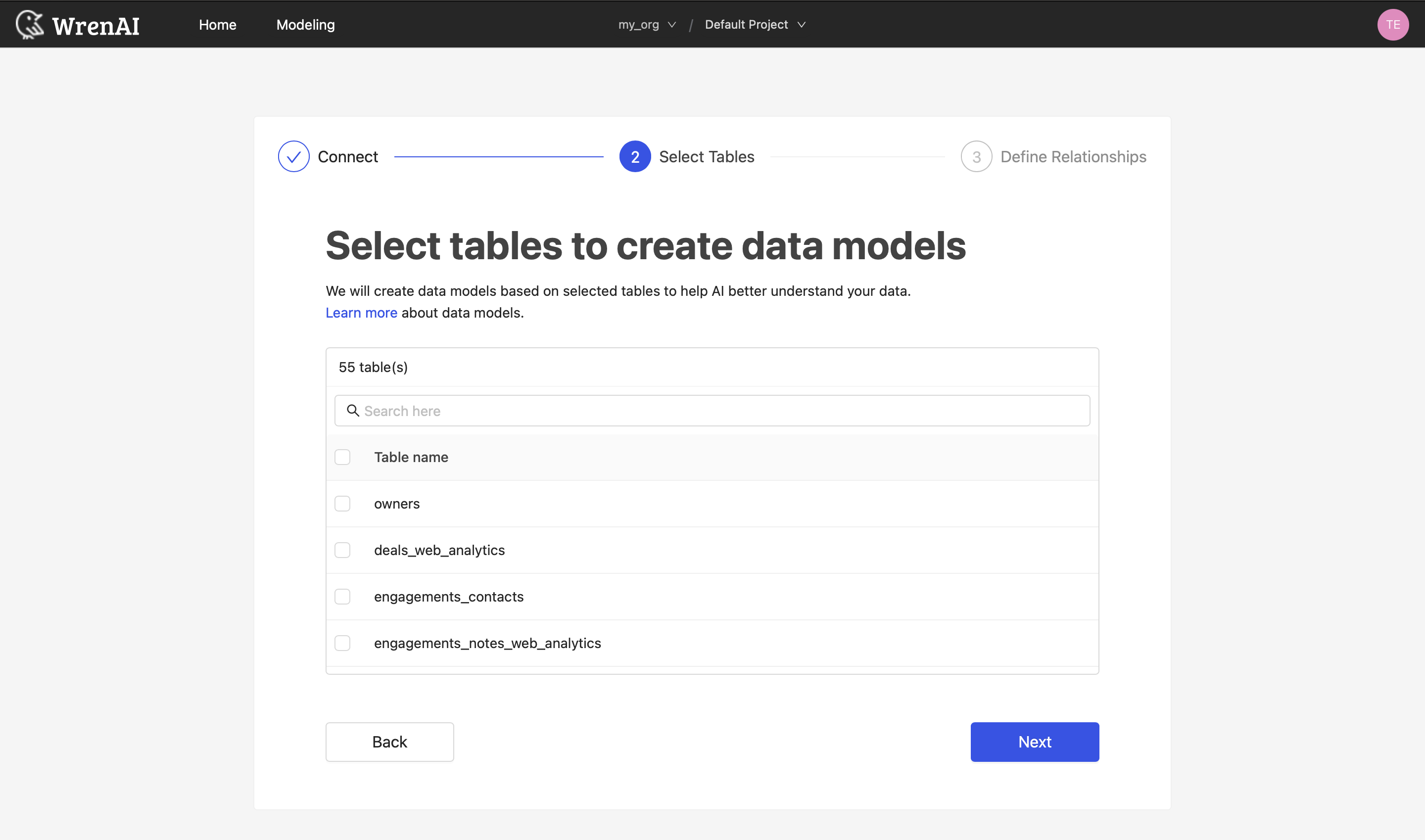
If a table you expect to see is missing, or unfamiliar objects appear, see Required Permissions → Verify the account to preview the discovery result and adjust grants before retrying.
Define relationships
Define the relationships among selected tables in this step. ClickHouse does not provide foreign-key metadata in the same way as traditional relational databases, so Wren AI does not automatically list suggested relationships for ClickHouse connections. You can add relationships manually by clicking the Add relationships button on the table blocks.
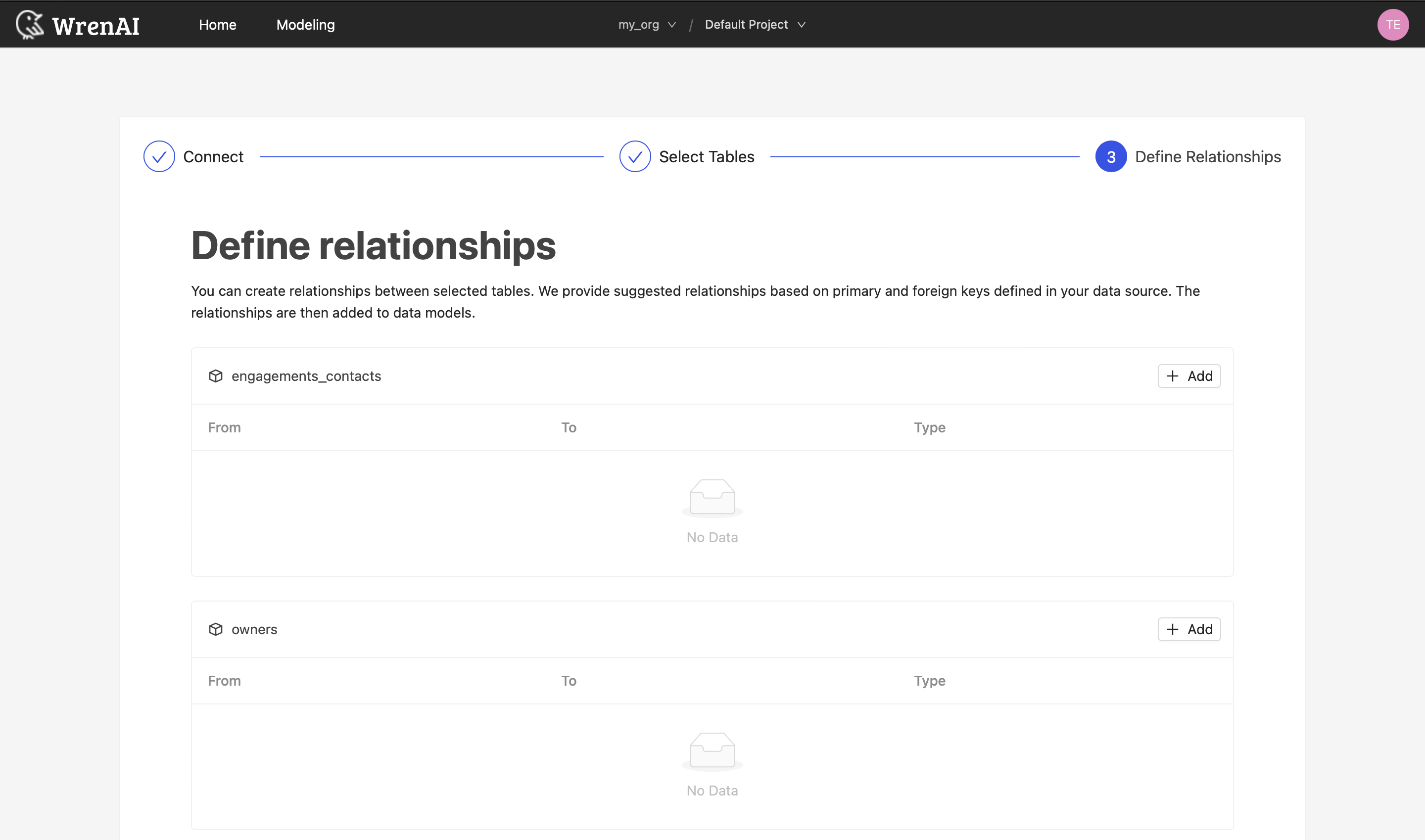
Define the following properties in a relationship:
- From: Select the left side table and column of this relationship.
- To: Select the right side table and column of this relationship.
- Relationship Type: Select the type of relationship.
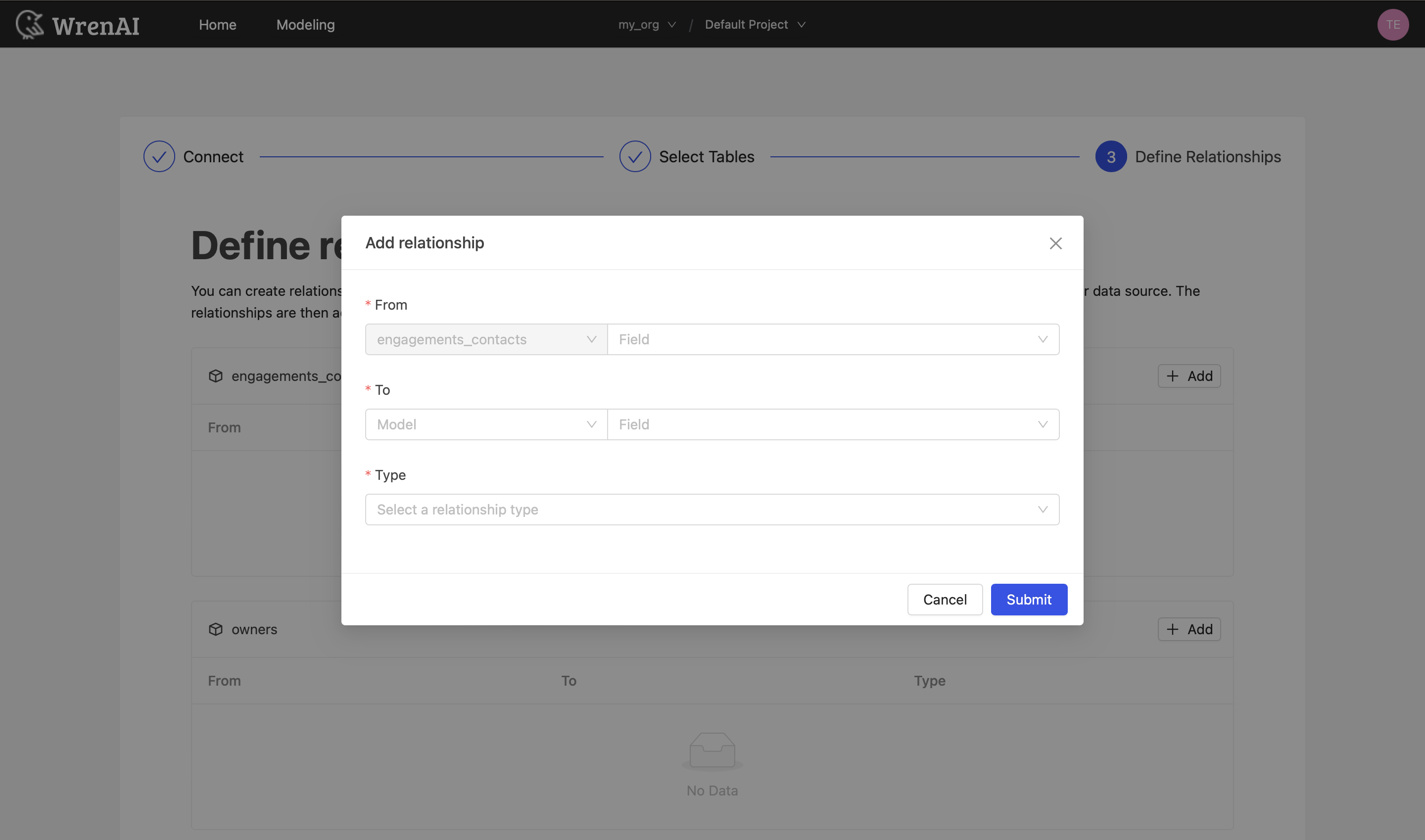
Find more information about relationships in Modeling - Working with Relationships.
You can also skip this step and finish the connection.
Tested ClickHouse versions
Wren AI is tested against the following ClickHouse environments:
- ClickHouse Cloud
- ClickHouse
25.8.24.21 - ClickHouse
24.10.1.2812
Other recent ClickHouse versions are expected to work via the same connection mechanism, but are not part of the tested version list. If you hit a version-specific issue, please contact us.