MySQL / MariaDB
Use this guide to connect MySQL or MariaDB to Wren AI and review the permissions and settings required for stable modeling and query execution.
Included in all plans
Wren AI needs to access your MySQL or MariaDB database via the outbound IP address of Wren AI Cloud. Please add the IP address of the Wren AI service to the firewall of your database.
Scroll to the bottom of the data source connection page to find the IP address.
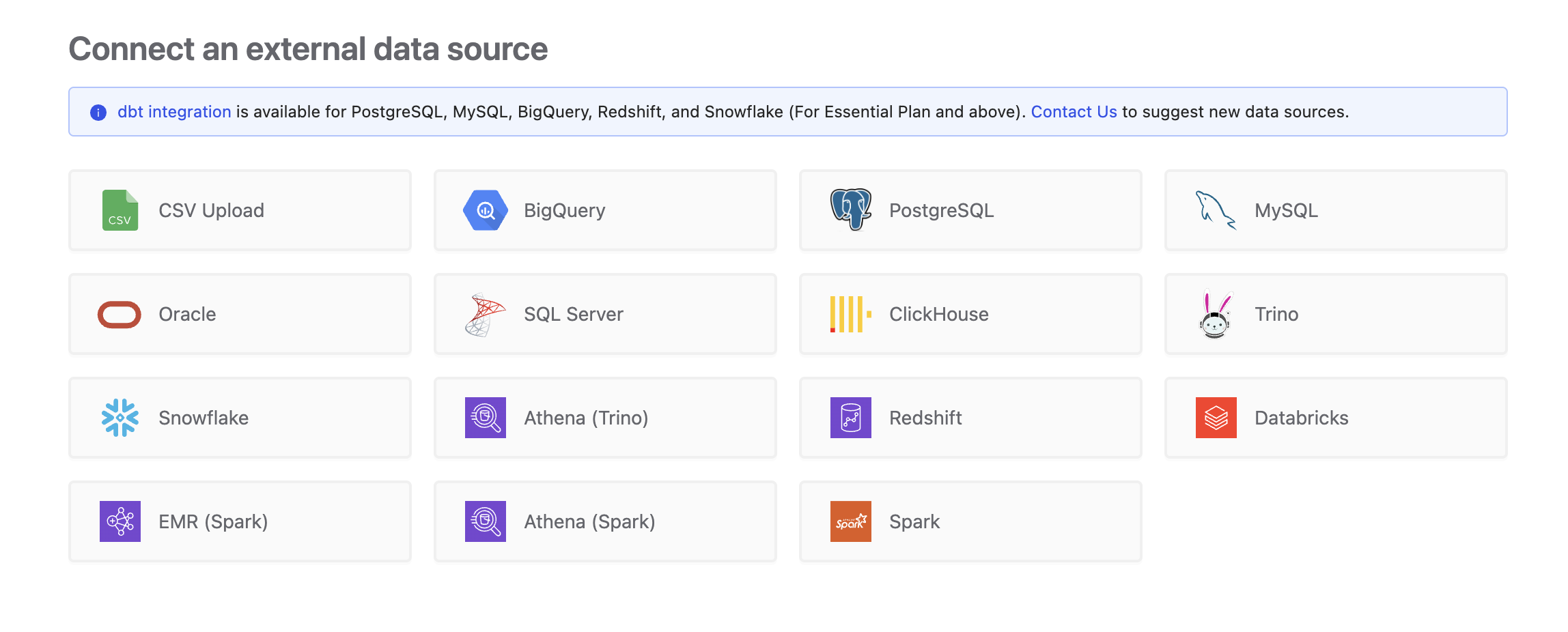
To add a MySQL or MariaDB connection, click on the MySQL option in the Connect a data source section. Both vendors use Wren AI's MySQL-compatible connector.
Required Permissions
Wren AI connects to MySQL / MariaDB as a regular database user and only issues read-only queries — SELECT against your tables/views and metadata tables. It will never INSERT, UPDATE, DELETE, or run DDL (CREATE, ALTER, DROP, TRUNCATE). Read-only grants are sufficient — and recommended — for a secure connection.
Avoid using root, admin, or any broadly privileged account as the connecting account. They violate least-privilege principles and may expose more databases than you intended. Use a dedicated read-only user whenever possible.
1. Privileges checklist
The MySQL / MariaDB user account used by Wren AI needs the following on your target database:
| Category | Privilege | Notes |
|---|---|---|
| Login | A valid database user/password | Required to connect. |
| Business data | SELECT on the tables/views you want Wren AI to read | Grant this per database, for example GRANT SELECT ON analytics.* TO 'wren_ai'@'%';. |
| Metadata discovery | Read access to the information_schema views listed below | Wren AI uses these views to list tables, columns, comments, raw data types, and foreign-key relationships. They are readable by authenticated users in standard setups. |
| FK auto-suggestions | REFERENCES on the same databases | Optional but recommended if you want Wren AI to suggest relationships from existing foreign keys. Without it, table selection and queries still work, but information_schema.REFERENTIAL_CONSTRAINTS may be empty. |
Metadata views used for table/column and relationship discovery:
| View | Purpose |
|---|---|
information_schema.TABLES | Discover tables/views and table comments |
information_schema.COLUMNS | Read column names, raw column types, nullability, primary-key hints, and column comments |
information_schema.REFERENTIAL_CONSTRAINTS | Discover foreign-key relationships |
information_schema.KEY_COLUMN_USAGE | Read foreign-key column mappings |
Missing data access typically surfaces as ERROR 1044 (42000) when opening a database, or ERROR 1142 (42000) when selecting from a table or view.
The table picker excludes objects in mysql, information_schema, performance_schema, and sys by design. Objects in those schemas will not appear in Wren AI even if the connecting user can query them directly.
2. Minimum account setup
You can connect Wren AI either as an existing read-only user or as a dedicated read-only user. Pick whichever fits your security posture — both work with the connector.
Option A — Create a dedicated read-only user (recommended)
For least-privilege setups, create a dedicated user and grant only SELECT on the databases you want Wren AI to read:
-- 1. Create the user.
-- This uses your server's default authentication plugin. If your organization
-- requires a specific plugin, specify it according to your MySQL / MariaDB policy.
CREATE USER 'wren_ai'@'%' IDENTIFIED BY 'YourSecurePassword';

-- 2. Grant SELECT on each database to expose.
GRANT SELECT ON analytics.* TO 'wren_ai'@'%';
GRANT SELECT ON mart.*      TO 'wren_ai'@'%';

-- 3. Optional but recommended: allow FK metadata visibility for relationship suggestions.
GRANT REFERENCES ON analytics.* TO 'wren_ai'@'%';
GRANT REFERENCES ON mart.*      TO 'wren_ai'@'%';
If your organization manages privileges through roles, make sure the role is active by default for the Wren AI user.
For MySQL 8.0:
CREATE ROLE wren_read_only;
GRANT SELECT ON analytics.* TO wren_read_only;
GRANT REFERENCES ON analytics.* TO wren_read_only; -- optional, for FK suggestions
GRANT wren_read_only TO 'wren_ai'@'%';
SET DEFAULT ROLE wren_read_only TO 'wren_ai'@'%';
For MariaDB:
CREATE ROLE wren_read_only;
GRANT SELECT ON analytics.* TO wren_read_only;
GRANT REFERENCES ON analytics.* TO wren_read_only; -- optional, for FK suggestions
GRANT wren_read_only TO 'wren_ai'@'%';
SET DEFAULT ROLE wren_read_only FOR 'wren_ai'@'%';
Option B — Use an existing read-only user
If you already have a read-only MySQL / MariaDB user, make sure it can read the target tables/views:
GRANT SELECT ON analytics.* TO 'existing_readonly_user'@'%';

-- Optional, for FK relationship suggestions.
GRANT REFERENCES ON analytics.* TO 'existing_readonly_user'@'%';
Tables and views granted this way will appear in Wren AI's table picker. If you grant access to multiple databases, Wren AI can list and model tables across those databases.
3. Verify the account
After setup, log in as the MySQL / MariaDB user you plan to configure in Wren AI and run the scripts below. Each one mirrors a check Wren AI performs at connection time — if all checks succeed, the account is ready.
a. Login + version access
-- Confirms the account can connect and read the server version.
SELECT VERSION();
If login fails with
ERROR 1045 (28000), verify the username, password, host pattern, and authentication plugin. If the request times out, check your host, port, SSL setting, firewall, and IP allow-list.
b. Metadata discovery access
-- Confirms Wren AI can read the metadata views used for discovery.
SELECT 'information_schema.TABLES' AS view_name, COUNT(*) AS row_count
FROM information_schema.TABLES
WHERE TABLE_SCHEMA NOT IN ('mysql', 'information_schema', 'performance_schema', 'sys')
UNION ALL
SELECT 'information_schema.COLUMNS', COUNT(*)
FROM information_schema.COLUMNS
WHERE TABLE_SCHEMA NOT IN ('mysql', 'information_schema', 'performance_schema', 'sys')
UNION ALL
SELECT 'information_schema.REFERENTIAL_CONSTRAINTS', COUNT(*)
FROM information_schema.REFERENTIAL_CONSTRAINTS
UNION ALL
SELECT 'information_schema.KEY_COLUMN_USAGE', COUNT(*)
FROM information_schema.KEY_COLUMN_USAGE;
If this fails with
ERROR 1142 (42000)or returns unexpectedly little metadata, confirm that the connecting user hasSELECTon the databases you want Wren AI to model. In hardened environments, ask your DBA whether access toinformation_schemahas been restricted. Ifinformation_schema.REFERENTIAL_CONSTRAINTSreturns0but your schema has foreign keys, the connecting user likely lacksREFERENCESon the target database. GrantingREFERENCESexposes FK metadata for relationship suggestions without granting data write access.
c. Preview the tables Wren AI will discover
This is the metadata query Wren AI uses to populate the table picker. Each row corresponds to one column in a table or view visible to the connecting user:
SELECT
    c.TABLE_SCHEMA AS table_schema,
    c.TABLE_NAME AS table_name,
    t.TABLE_COMMENT AS table_comment,
    c.COLUMN_NAME AS column_name,
    c.COLUMN_TYPE AS column_type,
    c.IS_NULLABLE AS is_nullable,
    c.COLUMN_KEY AS column_key,
    c.COLUMN_COMMENT AS column_comment
FROM information_schema.COLUMNS AS c
JOIN information_schema.TABLES AS t
    ON c.TABLE_SCHEMA = t.TABLE_SCHEMA
   AND c.TABLE_NAME = t.TABLE_NAME
WHERE c.TABLE_SCHEMA NOT IN ('mysql', 'information_schema', 'performance_schema', 'sys')
ORDER BY c.TABLE_SCHEMA, c.TABLE_NAME, c.ORDINAL_POSITION;
- If a table you expect to see is missing, the connecting user has no
SELECTprivilege on it — go back to step 2 and add the appropriateGRANT SELECT. - If the result is huge and full of unfamiliar objects, you may be connecting with a highly privileged account. Consider switching to a dedicated read-only user with narrower grants.
d. Preview foreign-key relationships
This is the metadata query Wren AI uses to suggest relationships from MySQL / MariaDB foreign keys. It intentionally mirrors the connector implementation:
SELECT
    kcu.CONSTRAINT_NAME AS constraint_name,
    kcu.TABLE_SCHEMA AS table_schema,
    kcu.TABLE_NAME AS table_name,
    kcu.COLUMN_NAME AS column_name,
    kcu.REFERENCED_TABLE_SCHEMA AS referenced_table_schema,
    kcu.REFERENCED_TABLE_NAME AS referenced_table_name,
    kcu.REFERENCED_COLUMN_NAME AS referenced_column_name
FROM information_schema.REFERENTIAL_CONSTRAINTS AS rc
JOIN information_schema.KEY_COLUMN_USAGE AS kcu
    ON rc.CONSTRAINT_NAME = kcu.CONSTRAINT_NAME
   AND rc.CONSTRAINT_SCHEMA = kcu.CONSTRAINT_SCHEMA
ORDER BY kcu.TABLE_SCHEMA, kcu.TABLE_NAME, kcu.CONSTRAINT_NAME, kcu.ORDINAL_POSITION;
If this returns no rows, Wren AI can still connect and model tables. It usually means either the schema has no foreign keys, or the connecting user lacks the optional
REFERENCESprivilege required to see rows ininformation_schema.REFERENTIAL_CONSTRAINTS. To enable FK auto-suggestions, grantREFERENCESon the target database. Otherwise, you can add relationships manually in Wren AI.
e. Spot-check a sample table
-- Replace with one of the database/table pairs you intend to expose.
SELECT *
FROM analytics.orders
LIMIT 1;
A successful read confirms that
SELECTon the target object is in place. If this fails withERROR 1044 (42000)orERROR 1142 (42000), grantSELECTon the target database/table to your user.
Before you connect
MySQL and MariaDB both use Wren AI's MySQL-compatible connector and the MySQL connection form shown below. Use your database host, port, username, password, and database name.
Table-name casing depends on the server's lower_case_table_names setting and operating system. Wren AI reads table and column names from metadata exactly as the database reports them. If your schema uses mixed-case table names, verify the setting before connecting:
SHOW VARIABLES LIKE 'lower_case_table_names';
We highly recommend using CHARSET=utf8mb4 COLLATE=utf8mb4_unicode_ci for databases and tables that Wren AI will read. This is especially important if your schema includes mixed-language table names, column names, comments, or row values.
For a new database or table:
CREATE DATABASE analytics
  CHARACTER SET utf8mb4
  COLLATE utf8mb4_unicode_ci;

CREATE TABLE analytics.orders (
  id BIGINT PRIMARY KEY,
  customer_name VARCHAR(255)
) ENGINE=InnoDB DEFAULT CHARSET=utf8mb4 COLLATE=utf8mb4_unicode_ci;
To check the server defaults:
SHOW VARIABLES LIKE 'character_set_server';
SHOW VARIABLES LIKE 'collation_server';
To check a database:
SELECT
    DEFAULT_CHARACTER_SET_NAME AS charset_name,
    DEFAULT_COLLATION_NAME AS collation_name
FROM information_schema.SCHEMATA
WHERE SCHEMA_NAME = 'analytics';
To check tables and columns:
SELECT
    TABLE_NAME,
    TABLE_COLLATION
FROM information_schema.TABLES
WHERE TABLE_SCHEMA = 'analytics';

SELECT
    TABLE_NAME,
    COLUMN_NAME,
    CHARACTER_SET_NAME,
    COLLATION_NAME
FROM information_schema.COLUMNS
WHERE TABLE_SCHEMA = 'analytics'
  AND CHARACTER_SET_NAME IS NOT NULL
ORDER BY TABLE_NAME, ORDINAL_POSITION;
To check the current connection/session:
SHOW VARIABLES LIKE 'character_set_connection';
SHOW VARIABLES LIKE 'collation_connection';
Troubleshoot UTF-8 issues
UTF-8 related problems usually show up during table selection, modeling, or query preview. Common symptoms include:
- Table names, column names, comments, or values appear as
?,????, or garbled text in Wren AI. - The table picker works, but model or column names are corrupted after import.
- Queries fail because the identifier Wren AI received does not match the real table or column name.
- Writes or test inserts fail with errors such as
ERROR 1366 (22007): Incorrect string valueorERROR 1300 (HY000): Invalid utf8mb3 character string. - Comparisons or joins fail with
ERROR 1267 (HY000): Illegal mix of collations.
Use these checks to find where the mismatch is happening.
1. Check the server and current connection
SHOW VARIABLES WHERE Variable_name IN (
  'character_set_server',
  'collation_server',
  'character_set_client',
  'character_set_connection',
  'character_set_results',
  'collation_connection'
);
If character_set_client, character_set_connection, or character_set_results is not utf8mb4, reconnect with a UTF-8-compatible client setting or run:
SET NAMES utf8mb4 COLLATE utf8mb4_unicode_ci;
2. Check database, table, and column settings
SELECT
    SCHEMA_NAME,
    DEFAULT_CHARACTER_SET_NAME,
    DEFAULT_COLLATION_NAME
FROM information_schema.SCHEMATA
WHERE SCHEMA_NAME = 'analytics';

SELECT
    TABLE_NAME,
    TABLE_COLLATION
FROM information_schema.TABLES
WHERE TABLE_SCHEMA = 'analytics';

SELECT
    TABLE_NAME,
    COLUMN_NAME,
    CHARACTER_SET_NAME,
    COLLATION_NAME
FROM information_schema.COLUMNS
WHERE TABLE_SCHEMA = 'analytics'
  AND CHARACTER_SET_NAME IS NOT NULL
ORDER BY TABLE_NAME, ORDINAL_POSITION;
If the database or table defaults are not utf8mb4 / utf8mb4_unicode_ci, update the defaults for future objects:
ALTER DATABASE analytics
  CHARACTER SET utf8mb4
  COLLATE utf8mb4_unicode_ci;
To convert existing text columns in a table:
ALTER TABLE analytics.orders
  CONVERT TO CHARACTER SET utf8mb4
  COLLATE utf8mb4_unicode_ci;
Changing database defaults only affects new tables. Converting a table updates text columns, but it does not repair text that was already stored incorrectly. If existing values or identifiers are already garbled, restore them from a clean source or rename/reload them after fixing the character set.
3. Check whether data is already corrupted
Compare the rendered value with its bytes:
SELECT
    customer_name,
    HEX(customer_name) AS customer_name_hex
FROM analytics.orders
LIMIT 5;
If the displayed value is already ??? and the hex bytes match question marks (3F), the original characters were lost before Wren AI read them. Fix the database/table/client settings, then reload the data from the original source.
Wren AI requires standard information_schema views for table and relationship discovery. These views are available in supported MySQL versions and modern MariaDB releases. If your deployment restricts metadata access, the Select Tables step may fail or return an empty list.
Connect
Fill in the connection settings:
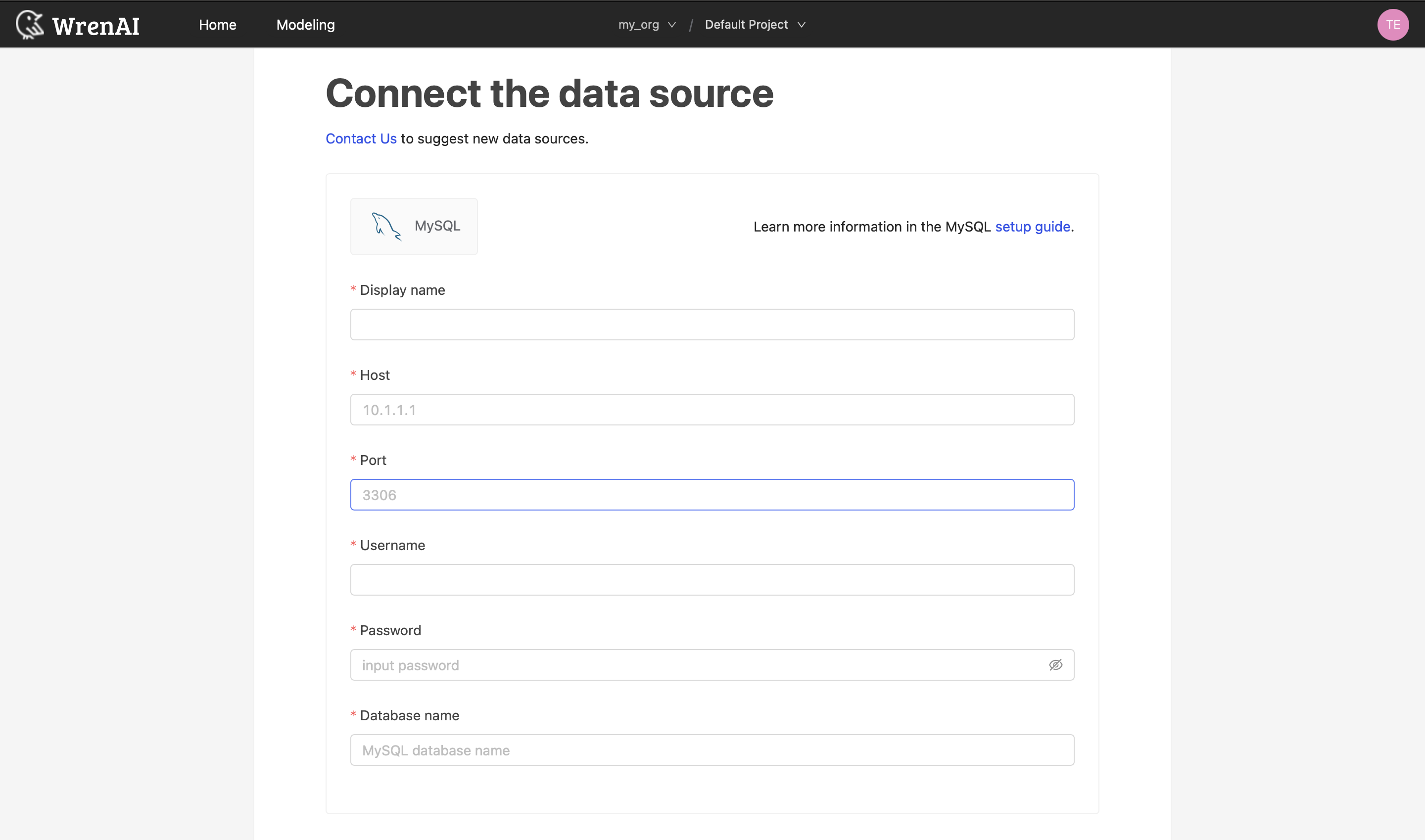
Display name
The display name for the database in the Wren AI interface.
Host
Your MySQL or MariaDB database's IP address or domain name.
Port
Your MySQL or MariaDB database port.
Username
The database username for the account that you want to use to connect to your database.
Password
The password for the username that you use to connect to the database.
Database name
The name of the database you want to connect to.
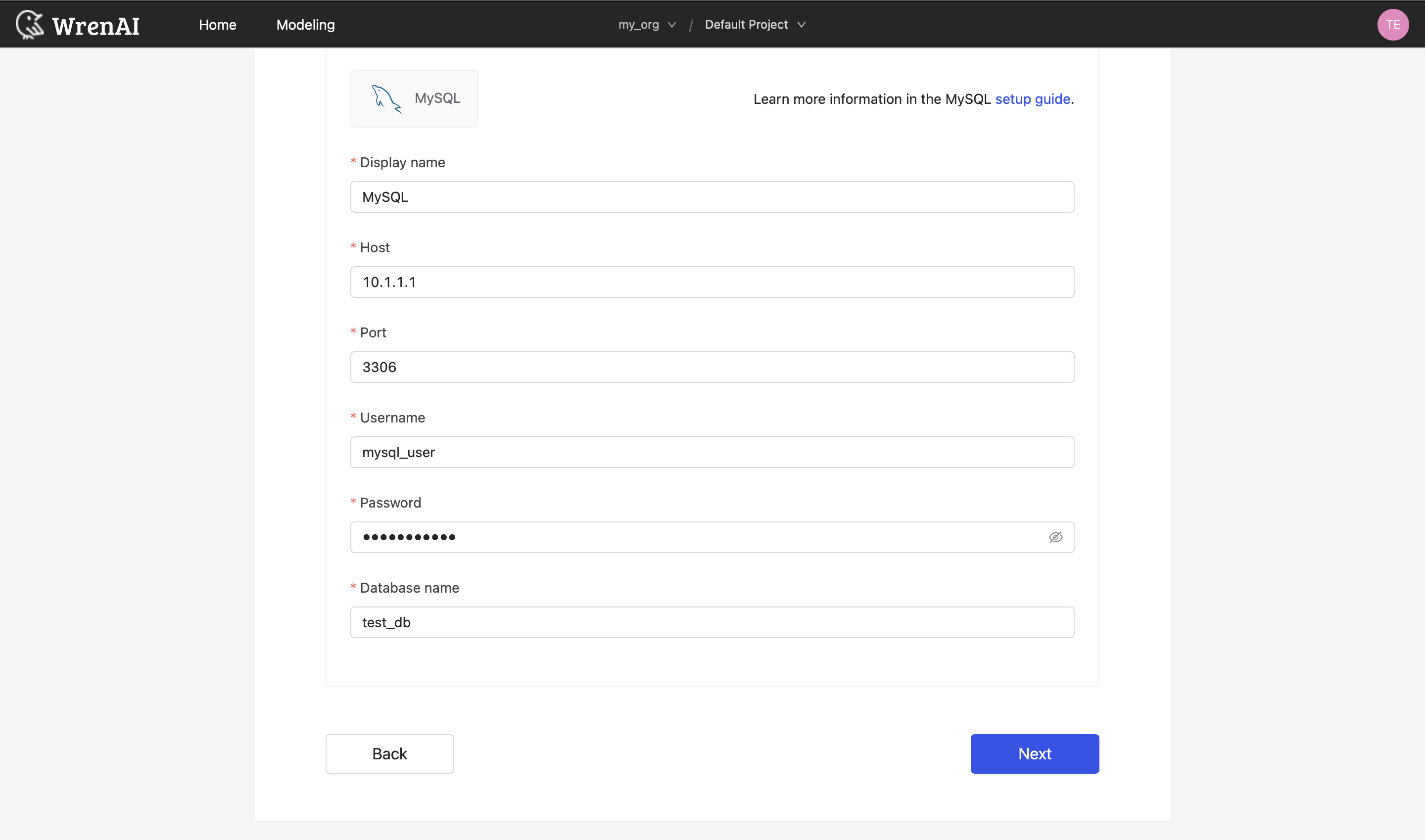
Click Next to start the connection and go to the next step.
Select Tables
All tables and views visible to the connecting MySQL / MariaDB user are listed in this step (via information_schema.TABLES / information_schema.COLUMNS, excluding mysql, information_schema, performance_schema, and sys). Select which ones you want to use in Wren AI — each selected entry will be created as a data model. See the Modeling docs to learn more about data models.
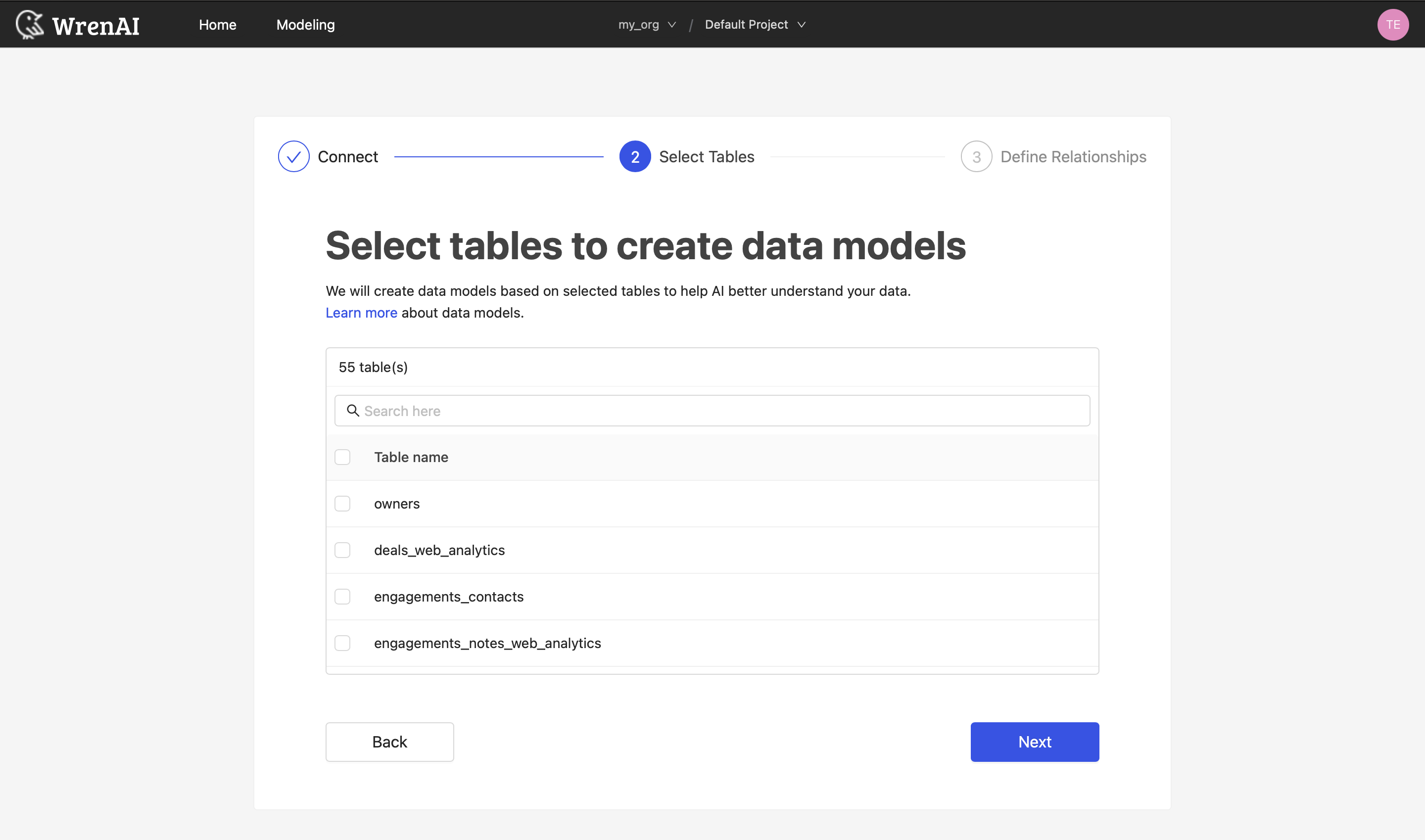
If a table you expect to see is missing, or unfamiliar objects appear, see Required Permissions → Verify the account to preview the discovery result and adjust grants before retrying.
Define relationships
Define the relationships among selected tables in this step. If you have defined primary keys and foreign keys in your MySQL / MariaDB dataset, we will list suggested relationships based on that information. If not, you can also add relationships by clicking the Add relationships button on the table blocks.
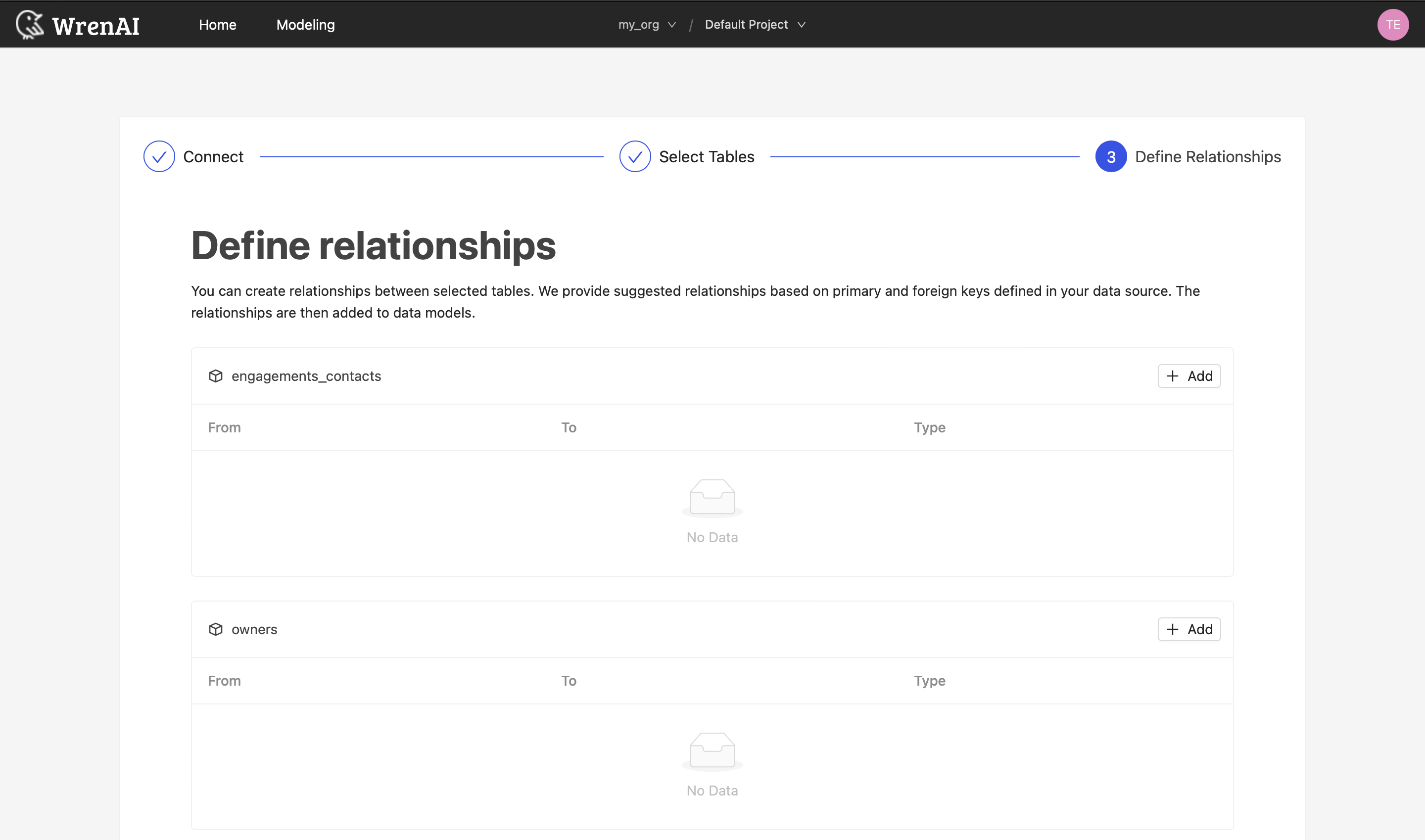
Define the following properties in a relationship:
- From: Select the left side table and column of this relationship.
- To: Select the right side table and column of this relationship.
- Relationship Type: Select the type of relationship.
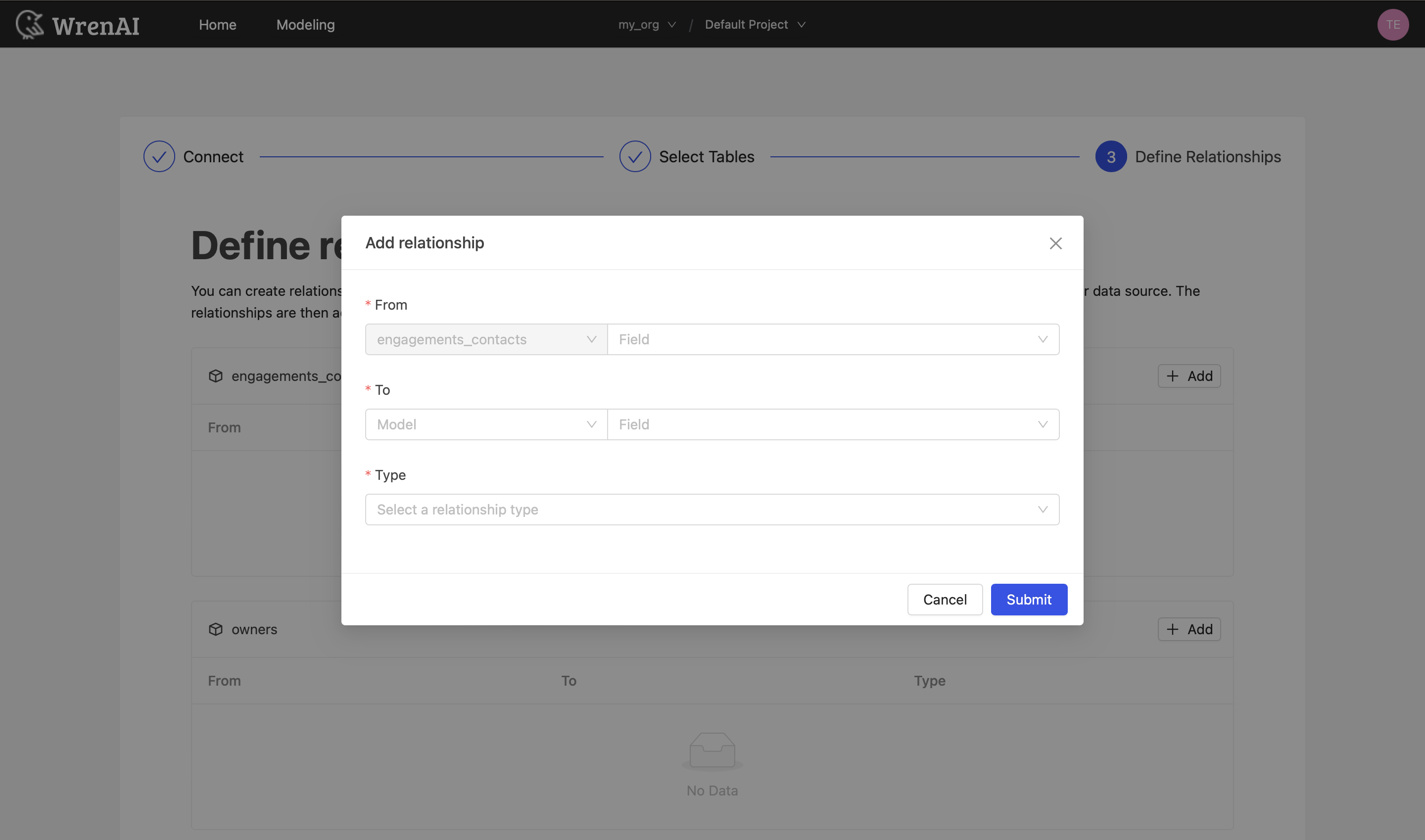
Find more information about relationships in Modeling - Working with Relationships.
You can also skip this step and finish the connection.
Tested versions
Wren AI is tested against the following MySQL-compatible environments:
- MySQL
8.0and above - MariaDB
10.6.19
For MariaDB, we recommend 10.6 or later because that is the validated major release line. Other recent MariaDB versions are expected to work via the same MySQL-compatible connection mechanism, but are not part of the tested version list. If you hit a version-specific issue, please contact us.