Amazon Athena (Spark)
Use this guide to connect Amazon Athena with the Spark engine to Wren AI and continue through table selection and relationship setup.
Included in all plans
Wren AI needs to access your Athena database via the IP address of the outbound IP of Wren AI Cloud. If you had applied network access controls on top of Athena, please add the IP address of the Wren AI service to the allowed IP list.
Scroll to the bottom of the data source connection page to find the IP address.
Amazon Athena supports two open-source query engines: Apache Spark and Trino. This guide covers the Apache Spark engine. If you are using the Trino engine, please refer to the Athena (Trino) documentation instead.
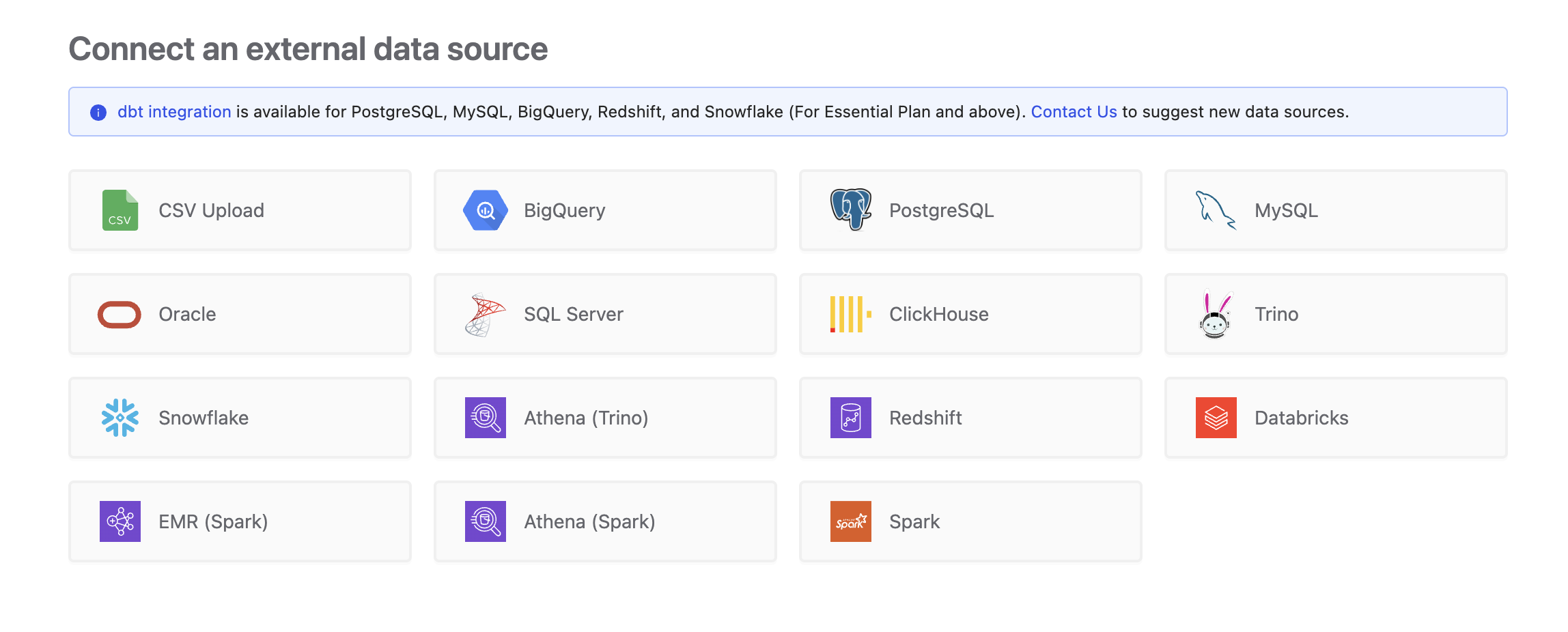
To add an Amazon Athena connection, click on the Athena (Spark) option in Connect a data source section.
Prerequisites
AWS Account and Permissions
You'll need an AWS account with appropriate permissions to access Amazon Athena. The user or role you use to connect should have the following permissions:
- AmazonAthenaFullAccess policy and AWSGlueServiceRole, or at minimum:
- Permissions to run Athena queries
- Full access to the S3 bucket where query results are stored
- Read access to metadata from AWS Glue Data Catalog
Athena Spark Workgroup
You must have an existing Athena Spark workgroup configured in your AWS account. Athena Spark workgroups use Apache Spark as the query engine and are distinct from standard Athena (Trino) workgroups. To create a Spark workgroup:
Open the Amazon Athena console.
- Navigate to Workgroups and click Create workgroup.
- Select Apache Spark as the analytics engine.
- Configure the workgroup settings (name, IAM role, S3 results location, etc.).
- Click Create workgroup.
For more details, refer to the AWS documentation on Athena Spark workgroups.
Connect
Fill in the connection settings:
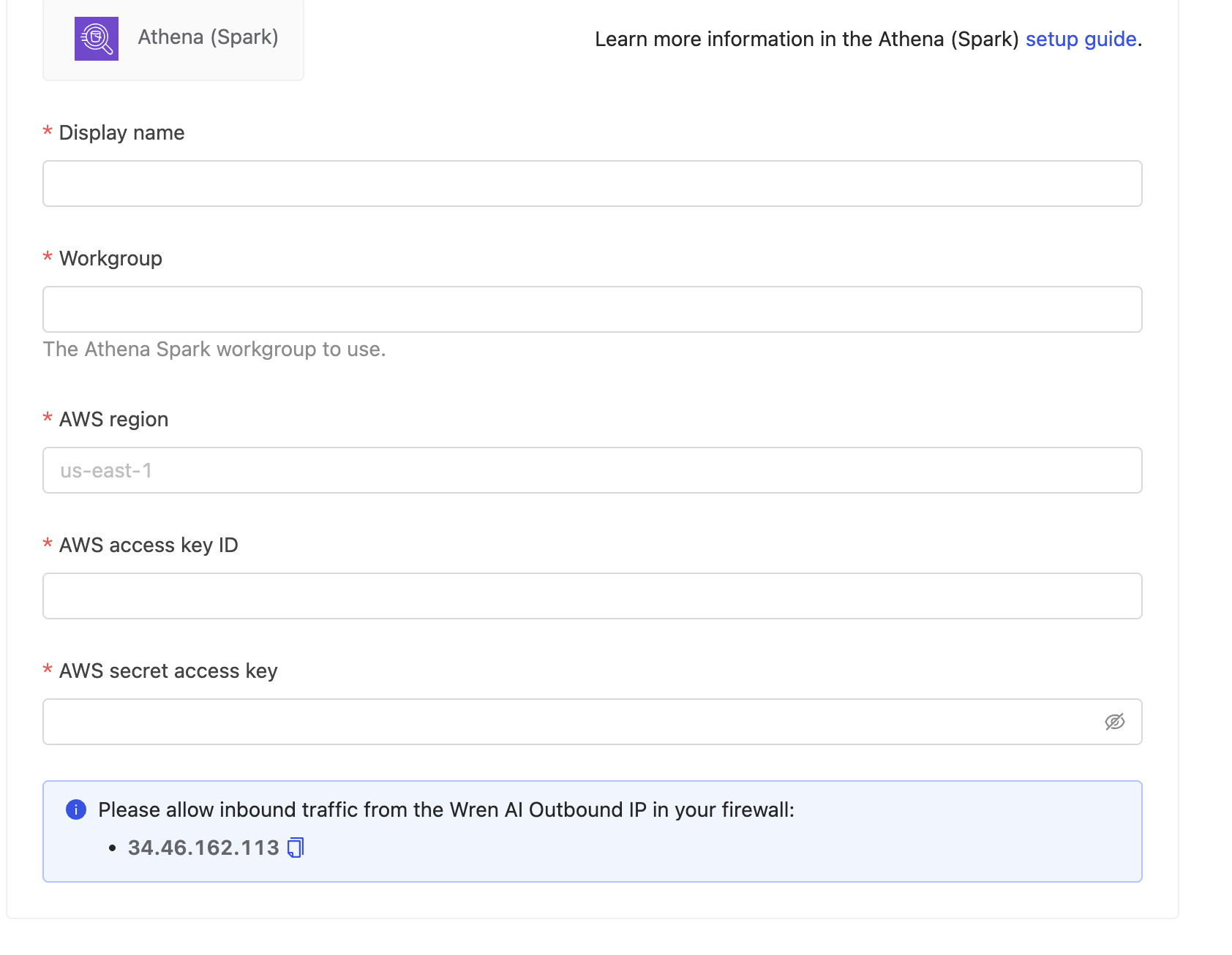
Display name
The display name for the database in the Wren AI interface.
Workgroup
The name of the Athena Spark workgroup to use for running queries (e.g.spark-workgroup).
The workgroup must be configured with Apache Spark as the analytics engine. Standard Trino workgroups are not compatible with this connection type.
AWS region
The AWS region where your Athena service is located (e.g., us-east-1, eu-west-1, ap-southeast-1).
AWS access key ID and secret access key
The AWS credentials used by Wren AI to authenticate with Athena.
These credentials must have sufficient permissions to run queries, manage workgroups, and access the specified S3 staging location.
Click Next to start connection and go to the next step.
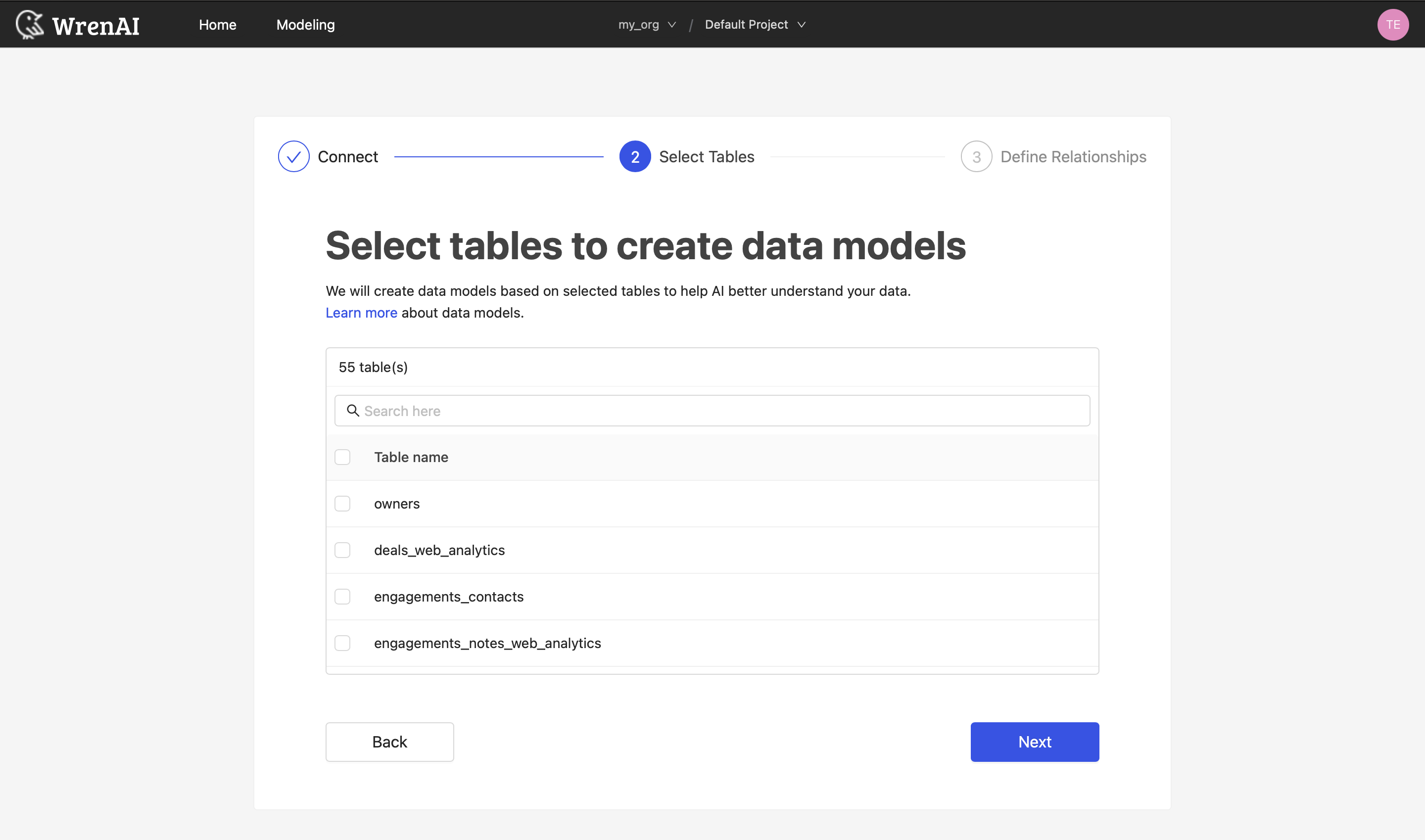
Select Tables
All tables of your connected Athena database will be listed in this step. Select which tables you want to use in Wren AI. Each selected table will be created as a data model. See the Modeling documentations to learn more about what is data models.
Define relationships
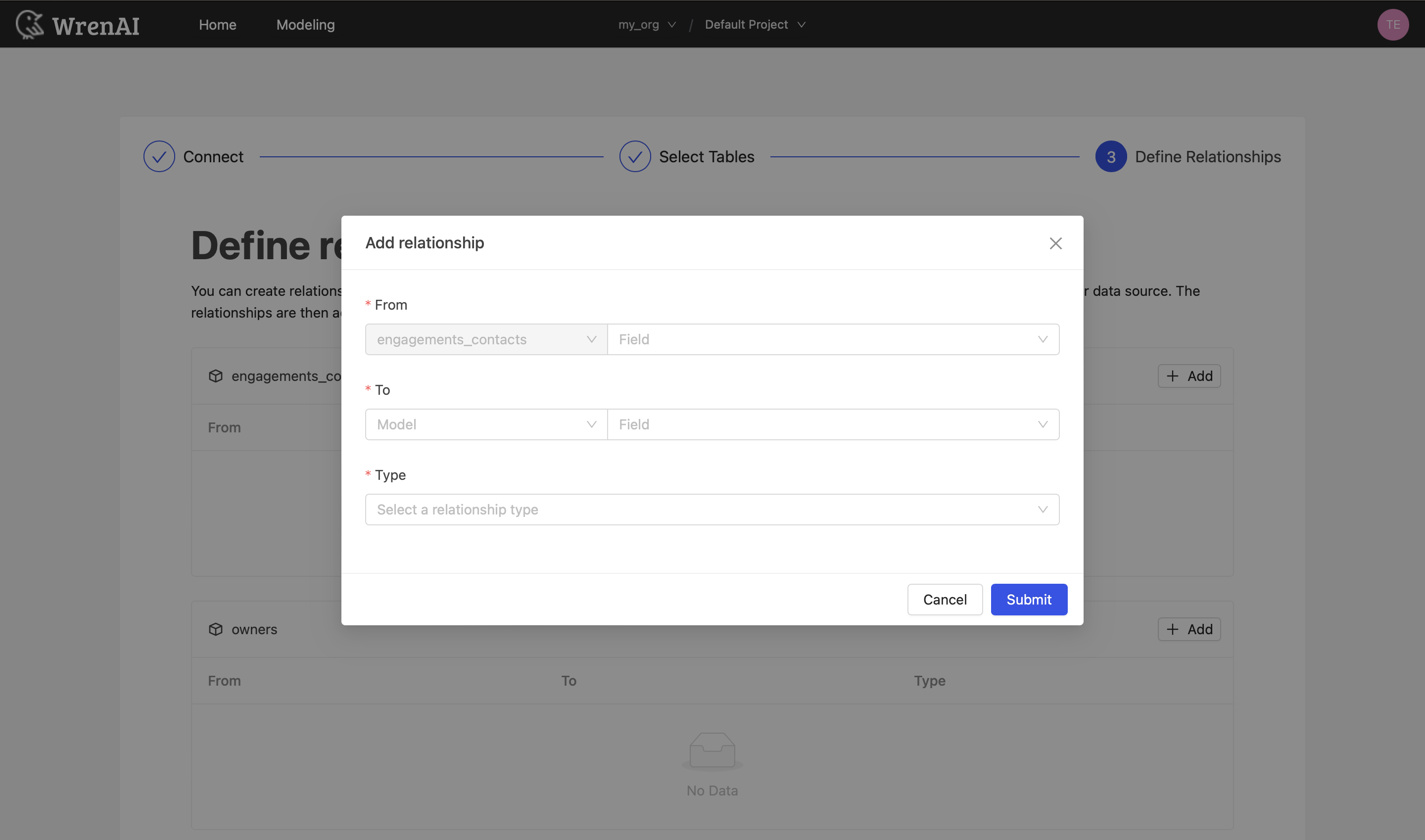
Define the relationships among selected tables in this step. If you have defined primary keys and foreign keys in your Athena dataset, we will list suggested relationships based on the information. If not, you can also add relationships by clicking the Add relationships button on the table blocks.
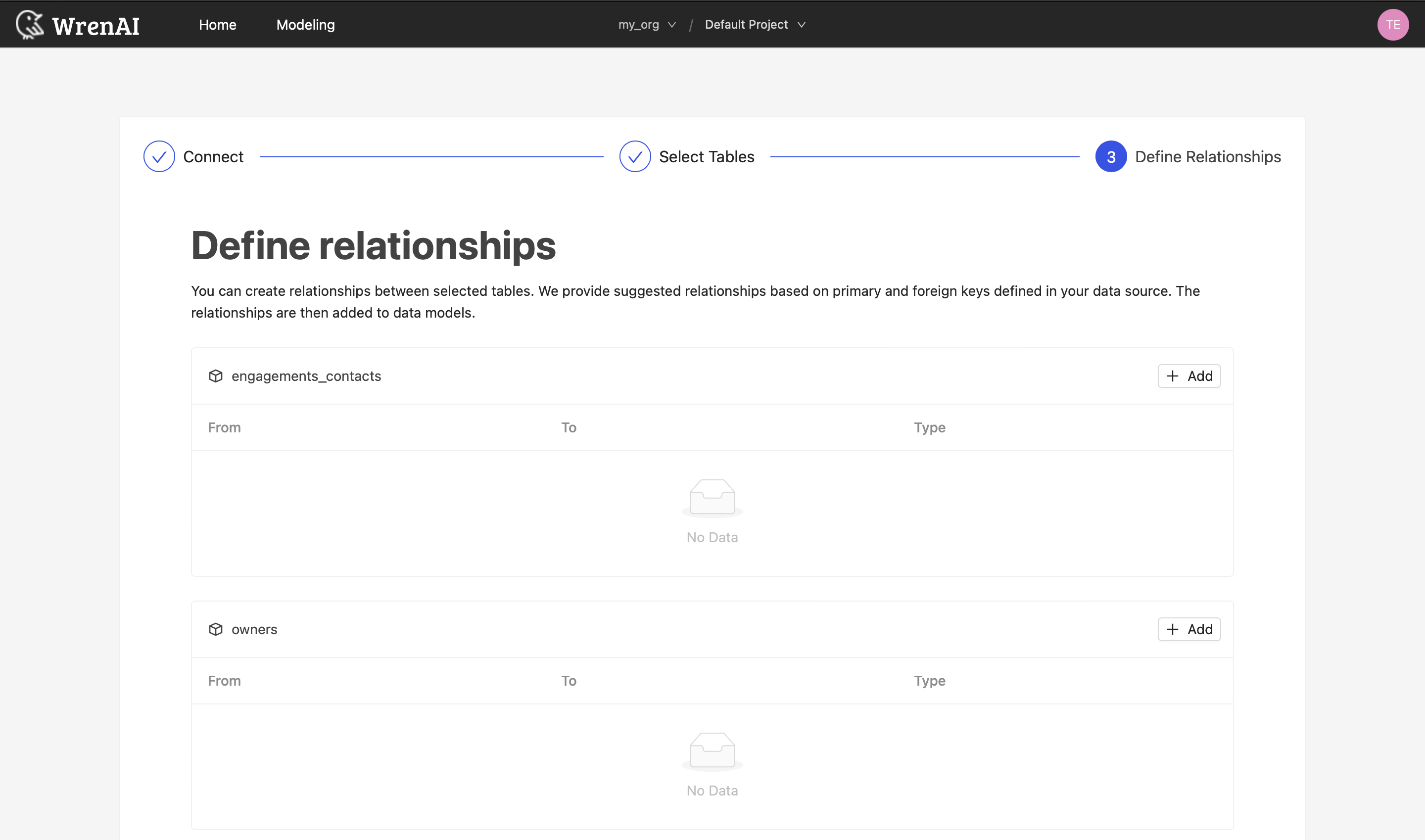
Define following properties in a relationship:
- From: Select the left side table and column of this relationship.
- To: Select the right side table and column of this relationship.
- Relationship Type: Select the type of relationship.
Find more information about relationship in Modeling - Working with Relationships
You can also skip this step and finish connection.
Known Issues
Athena Spark sessions may take additional time to initialize when running the first query or after a period of inactivity. This cold start delay is expected behavior. Subsequent queries within the same session will execute significantly faster.