Snowflake
Use this guide to connect Snowflake to Wren AI and enter the account and warehouse settings required for queries.
Included in all plans
Wren AI needs to access your Snowflake database via the outbound IP address of Wren AI Cloud. Please add the IP address of the Wren AI service to the firewall of your Snowflake database.
Scroll to the bottom of the data source connection page to find the IP address.
Required Permissions
Wren AI connects to Snowflake as a regular user and only issues read-only queries — SELECT against your tables/views and INFORMATION_SCHEMA. It will never write data or run DDL. A dedicated read-only role is sufficient — and recommended — for a secure connection.
Avoid using ACCOUNTADMIN or another broadly privileged role as the connecting role. Use a dedicated read-only role scoped to the warehouse, database, and schema you want to expose.
Privileges checklist
The role used by Wren AI needs:
| Category | Privilege | Notes |
|---|---|---|
| Compute | USAGE on the virtual warehouse | Required to run queries. |
| Database access | USAGE on the database and schema | Required to resolve objects. |
| Business data | SELECT on the tables/views you want Wren AI to read | Include FUTURE TABLES if you want new tables covered automatically. |
| Metadata discovery | INFORMATION_SCHEMA access | Granted implicitly with the USAGE and SELECT privileges above. |
Minimum account setup
Create a dedicated read-only role and user:
CREATE ROLE wren_ai_role;

GRANT USAGE ON WAREHOUSE compute_wh TO ROLE wren_ai_role;
GRANT USAGE ON DATABASE analytics TO ROLE wren_ai_role;
GRANT USAGE ON SCHEMA analytics.public TO ROLE wren_ai_role;
GRANT SELECT ON ALL TABLES IN SCHEMA analytics.public TO ROLE wren_ai_role;
GRANT SELECT ON FUTURE TABLES IN SCHEMA analytics.public TO ROLE wren_ai_role;

CREATE USER wren_ai DEFAULT_ROLE = wren_ai_role DEFAULT_WAREHOUSE = compute_wh;
GRANT ROLE wren_ai_role TO USER wren_ai;
To add a Snowflake connection, click on the Snowflake option in the Connect a data source section.
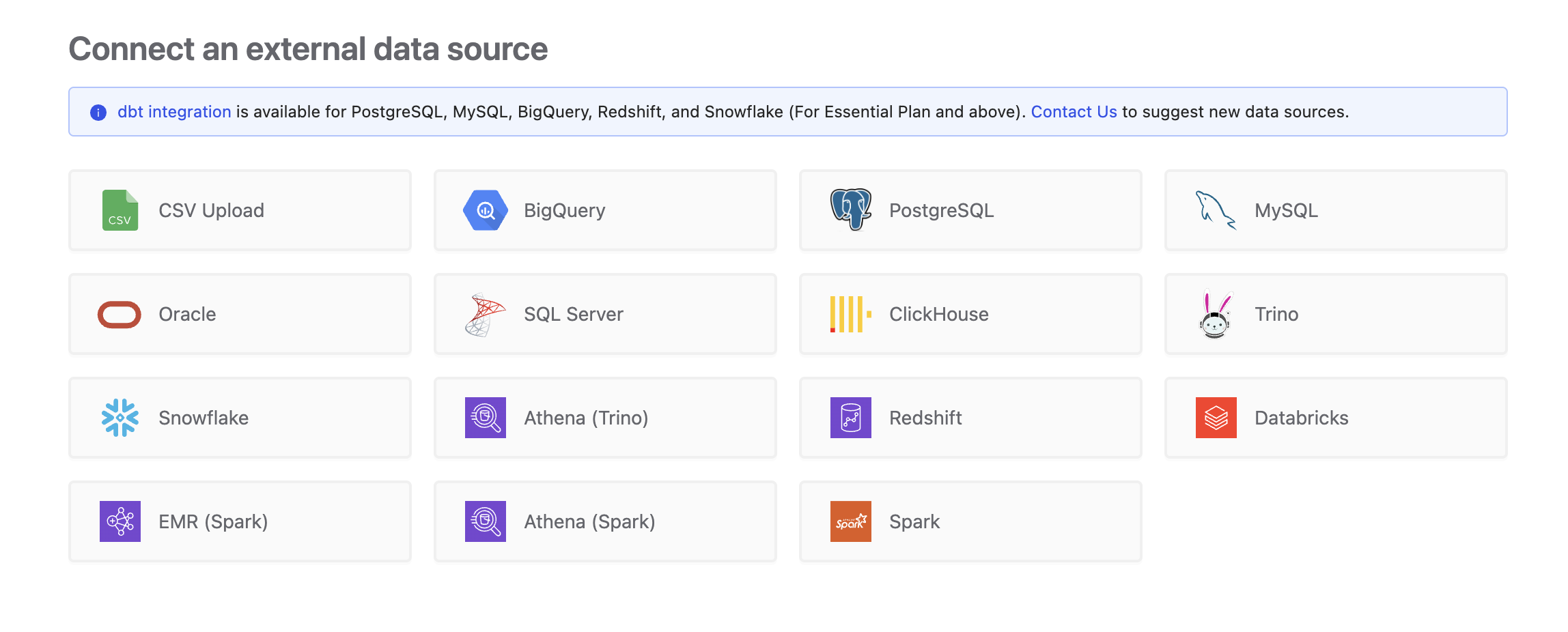
Connect
Fill in the connection settings:
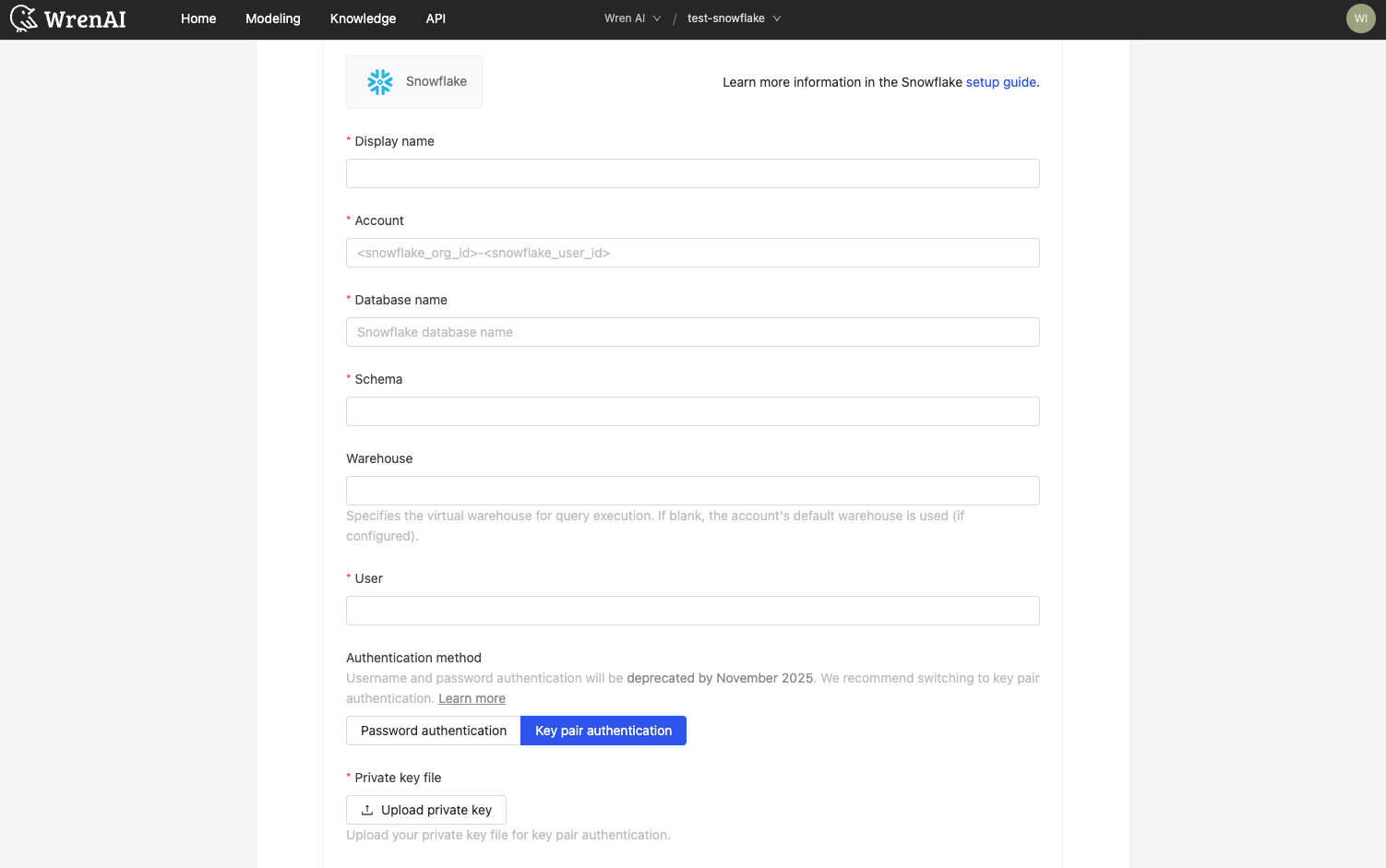
Display name
The display name for the database in the Wren AI interface.
Account
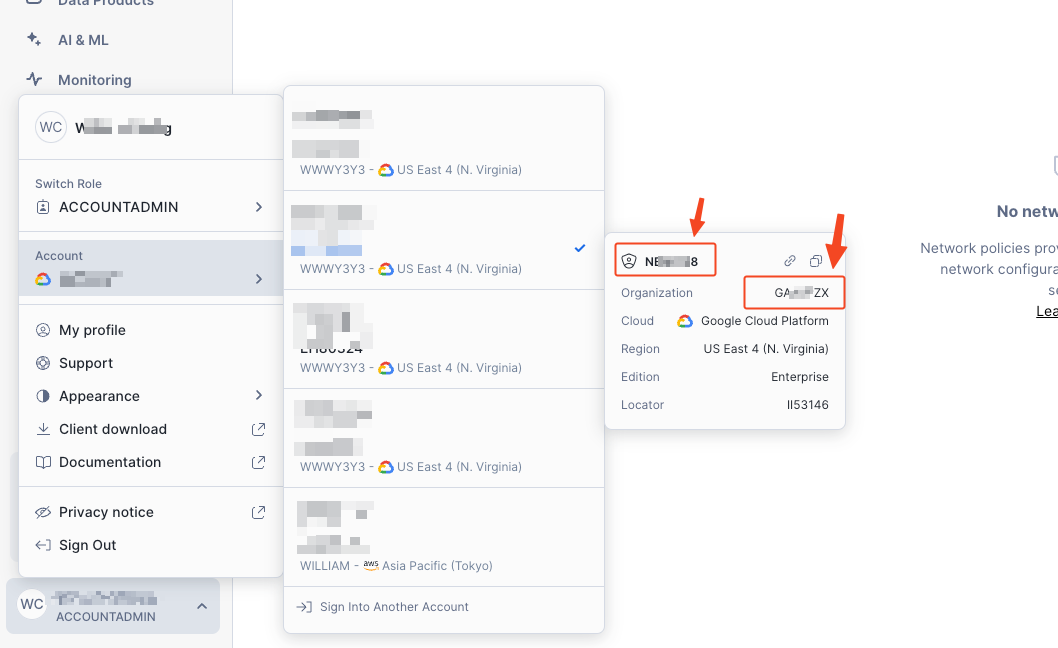
The account name for the account that you want to use to connect to your Snowflake database. The format is organization_name-account_name.
You can find the account name in the Snowflake dashboard.
Database name
The name of the database you want to connect to.
Schema
The schema name for the schema that you want to use to connect to your Snowflake database.
Warehouse
Specifies the virtual warehouse for query execution. If blank, the account's default warehouse is used (if configured). For sizing and auto-suspend guidance, see Query execution and sessions.
User
The database username for the account that you want to use to connect to your Snowflake database.
Authentication method
Snowflake has deprecated single-factor username and password authentication. We recommend using key pair authentication. Learn more
Choose between two authentication methods:
Password authentication
- Username: The database username for the account that you want to use to connect to your Snowflake database.
- Password: The password for the username that you use to connect to the database.
Key pair authentication
- Username: The database username for the account that you want to use to connect to your Snowflake database.
- Private key: Upload your encrypted or unencrypted PKCS#8 RSA private key file.
- Private key passphrase: If the private key is encrypted, enter the passphrase used to encrypt it. Leave this field blank for an unencrypted private key.
To configure key pair authentication, follow the Snowflake documentation to generate and configure your key pair. Wren AI supports both encrypted and unencrypted PKCS#8 private keys.
Click Next to start the connection and go to the next step.
Troubleshooting
Private key authentication errors
If Wren AI cannot load your private key, verify the following:
- The key is an RSA private key in PKCS#8 format.
- For an encrypted private key, the Private key passphrase matches the passphrase used to encrypt the key.
- For an unencrypted private key, Private key passphrase is blank.
- The matching public key is assigned to the Snowflake user specified in the connection settings.
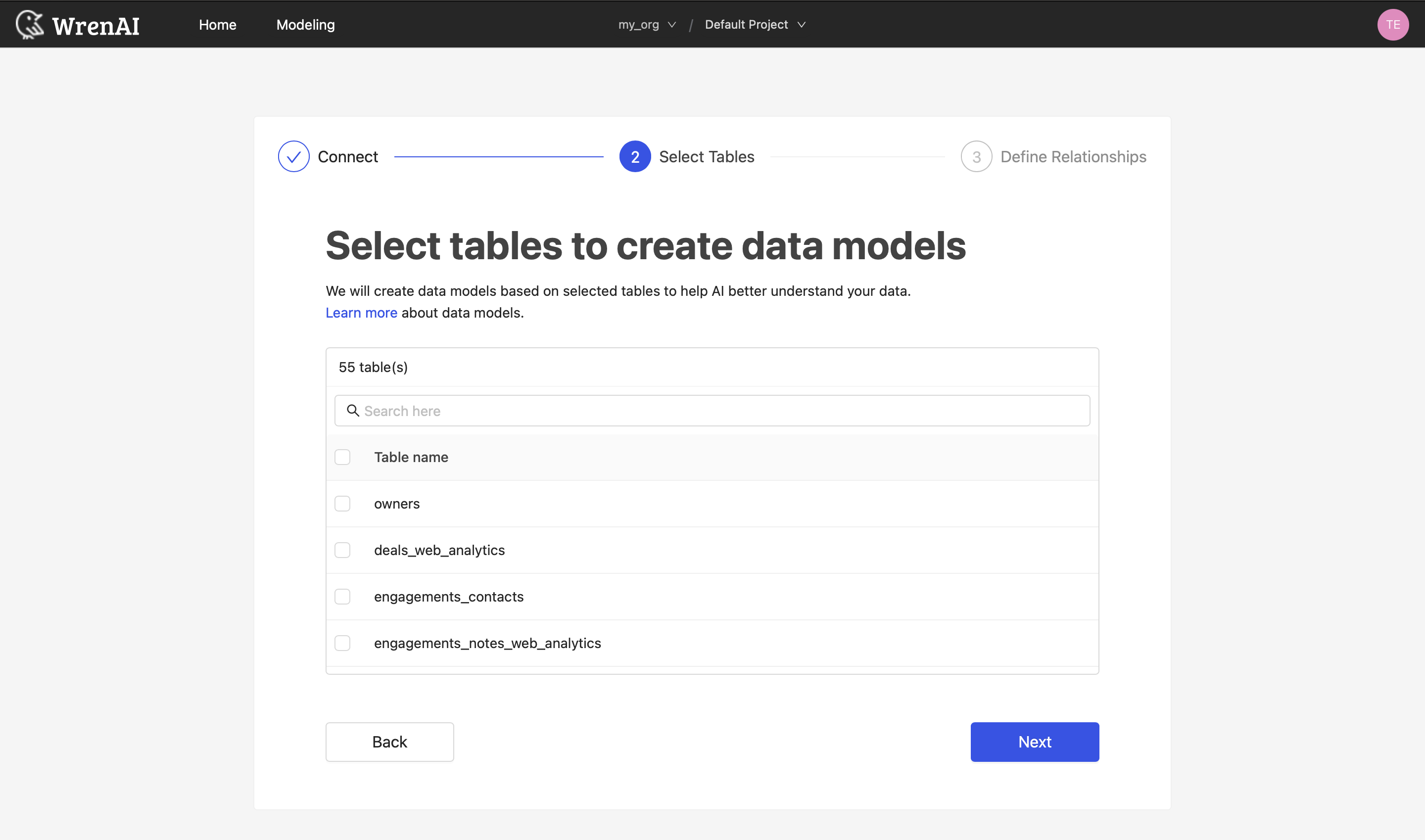
Select Tables
All tables of your connected Snowflake dataset will be listed in this step. Select which tables you want to use in Wren AI. Each selected table will be created as a data model. See the Modeling documentation to learn more about data models.
Define relationships
Define the relationships among selected tables in this step. If you have defined primary keys and foreign keys in your Snowflake dataset, we will list suggested relationships based on that information. If not, you can also add relationships by clicking the Add relationships button on the table blocks.
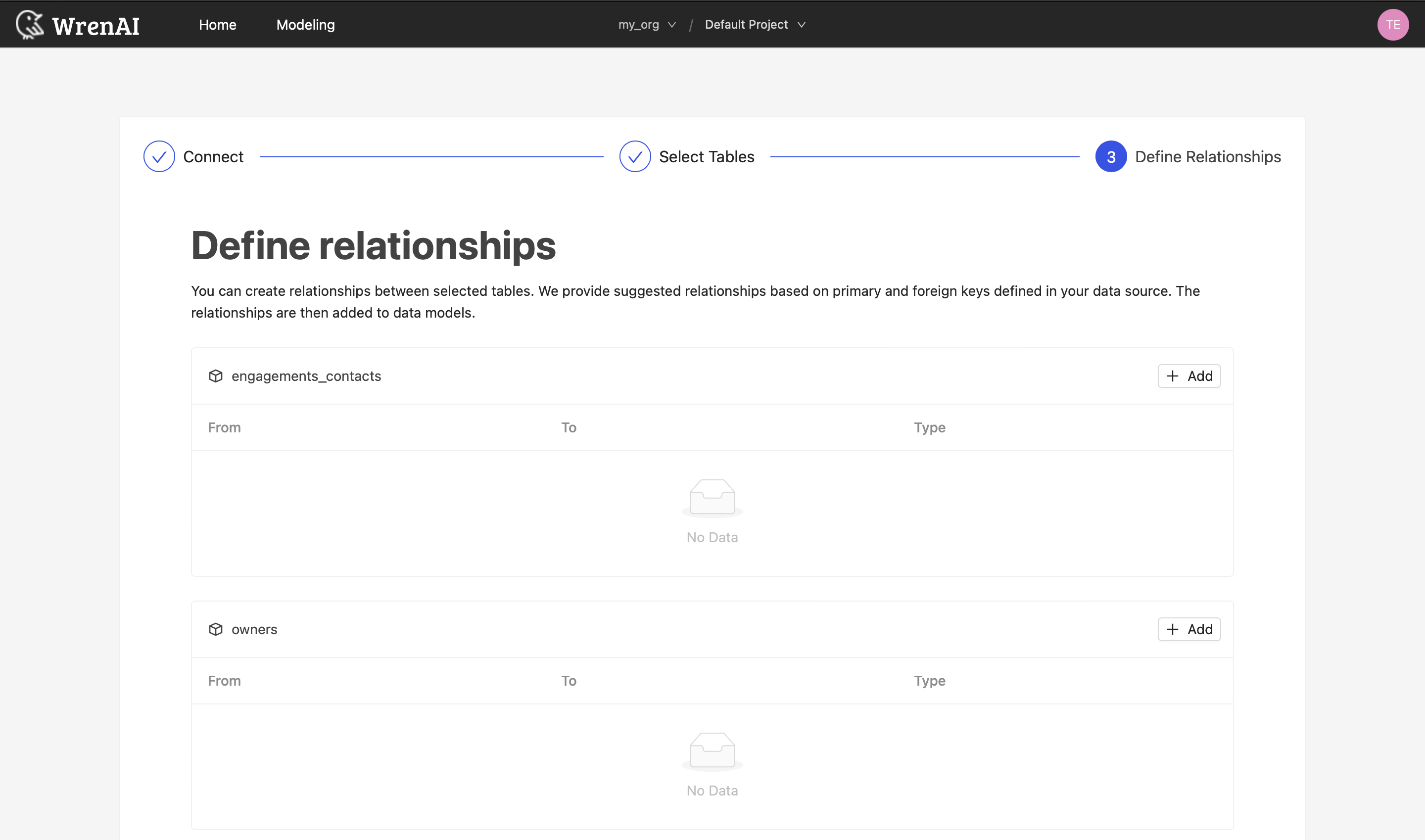
Define the following properties in a relationship:
- From: Select the left side table and column of this relationship.
- To: Select the right side table and column of this relationship.
- Relationship Type: Select the type of relationship.
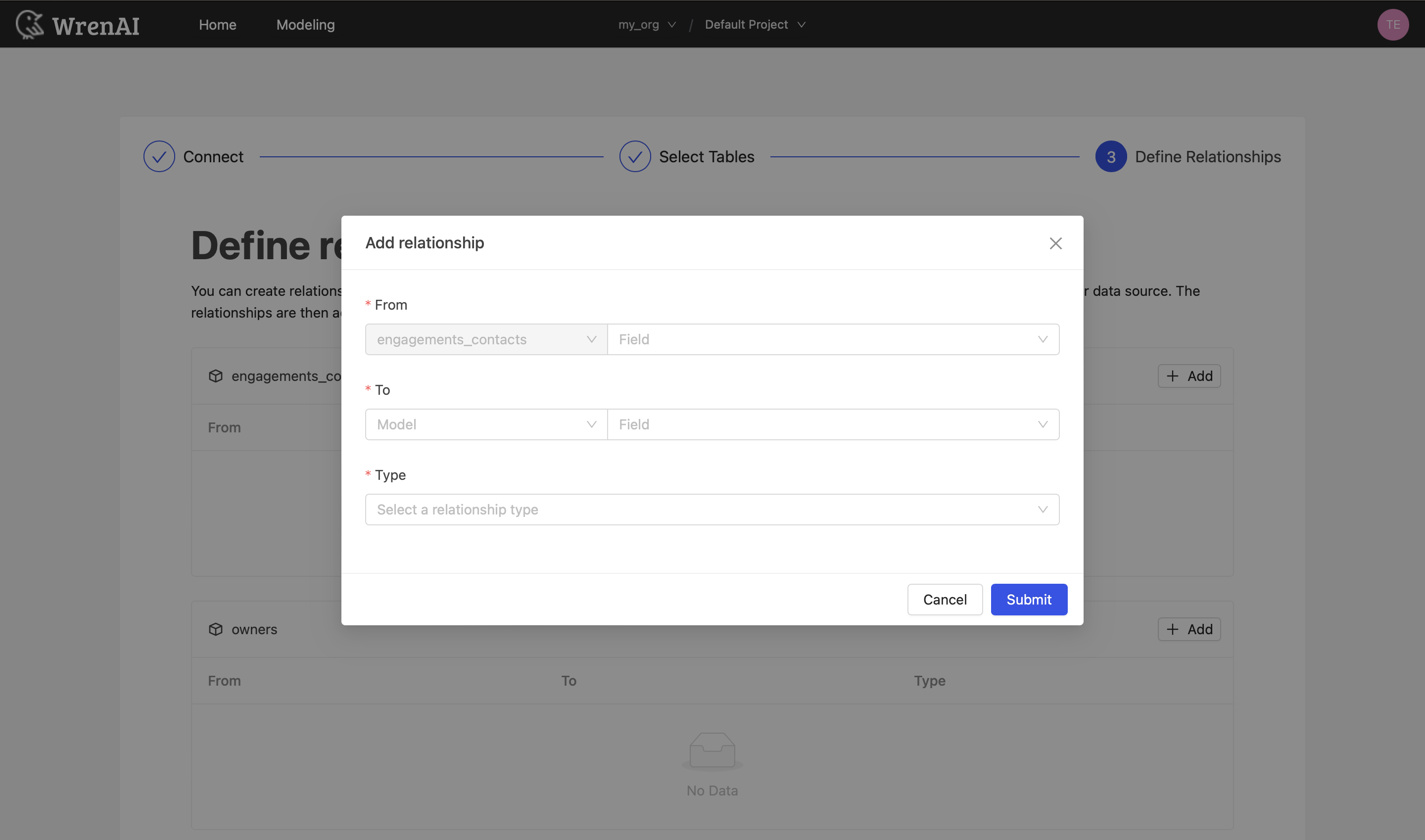
Find more information about relationships in Modeling - Working with Relationships.
You can also skip this step and finish the connection.
Query execution and sessions
Wren AI answers every question by running read-only SELECT statements against your warehouse. This section explains what that looks like from the Snowflake side, and how to set up your account so those queries stay fast and predictable.
How Wren AI uses your connection
- Wren AI connects as the user you configured, and opens a Snowflake session under that user's role.
- One question usually produces several queries. Wren AI validates candidate queries before running the final one, so a single question typically issues a handful of statements in quick succession rather than just one.
- Sessions are reused across queries. Opening a session costs more than a short validation query does, so Wren AI keeps a session open and reuses it instead of reconnecting every time. Sessions left idle are closed after a few minutes.
- Two connections share a session only when every setting matches. The account, user, credentials, database, schema, and warehouse all identify a session, so separate Wren AI connections — including two projects pointing at different schemas — always get their own.
- Wren AI never changes session state. It issues only
SELECTstatements, neverUSE,SET,ALTER SESSION, or DDL, so nothing carries over from one query to the next. - A dropped session recovers on its own. If Snowflake ends the session — a session policy expiring it, an administrator killing it, a network interruption — Wren AI reconnects and retries on the next query.
Snowflake bills warehouse compute, not sessions. A warehouse auto-suspends based on query inactivity regardless of how many sessions are connected to it, so a session Wren AI holds open does not keep your warehouse running or add to your bill.
Statement timeout
Wren AI limits each statement it runs to 180 seconds, applied at the session level. A query that exceeds this is cancelled by Snowflake and surfaces as a timeout error in Wren AI.
Snowflake enforces the lowest non-zero STATEMENT_TIMEOUT_IN_SECONDS among the values set on the warehouse and on the session, which has two consequences:
- Setting a lower value on the warehouse or account does take effect — Wren AI's queries are then cancelled at your value instead of at 180 seconds.
- Setting a higher value does not extend Wren AI's limit. The 180-second session value still wins.
If questions are hitting the limit, make the queries cheaper rather than raising the timeout: scope your data models to the columns you actually need, cluster or pre-aggregate large tables, or move Wren AI to a larger warehouse.
Session policies
If your account applies a session policy, it governs Wren AI's sessions as it would any other programmatic client:
| Parameter | Effect on Wren AI |
|---|---|
SESSION_IDLE_TIMEOUT_MINS | Wren AI keeps its session alive with a periodic heartbeat, so an idle timeout rarely ends a session between questions. If one does expire, Wren AI reconnects on the next query. |
SESSION_MAX_LIFESPAN_MINS | A heartbeat cannot extend a maximum lifespan. When it is reached the session ends, and Wren AI reconnects on the next query. |
You do not need to relax either policy for Wren AI. Reconnection is automatic, and costs one extra connection handshake on the first query after a session ends.
Recommended warehouse setup
| Setting | Recommendation | Why |
|---|---|---|
| Dedicated warehouse | Give Wren AI its own warehouse instead of sharing one with ETL or other BI tools. | Interactive questions do not queue behind long-running loads, and Wren AI's cost becomes easy to attribute and to cap with a resource monitor. |
| Size | Start at X-Small or Small. | A larger warehouse makes an individual heavy query faster; it does not help with many small concurrent ones. Size up only if single queries are genuinely slow. |
AUTO_SUSPEND | 60–300 seconds. | Wren AI's traffic is bursty. Each resume bills a 60-second minimum, so suspending too aggressively between closely spaced questions can cost more than it saves. |
| Multi-cluster (Enterprise Edition and above) | MIN_CLUSTER_COUNT = 1, MAX_CLUSTER_COUNT = 2 or more. | Because one question issues several statements at once, and several people may ask at once, concurrency rather than raw size is the usual bottleneck. |
STATEMENT_TIMEOUT_IN_SECONDS | Leave at the default, or set it to 180 or higher. | A lower value on the warehouse silently caps Wren AI's queries below its own limit. See Statement timeout. |
| Role | A dedicated read-only role. | See Required Permissions. |
Monitoring Wren AI's activity
To review what Wren AI has run, filter Snowflake's query history by the user you created for it:
SELECT start_time, total_elapsed_time, warehouse_name, execution_status, query_text
FROM TABLE(information_schema.query_history_by_user(USER_NAME => 'WREN_AI', RESULT_LIMIT => 100))
ORDER BY start_time DESC;
Because sessions are reused, several unrelated questions can share one session ID. Attribute activity by user and time range rather than by session.
Tested versions
Snowflake is a fully managed service with continuous releases, so there is no database version to pin. Wren AI works with current Snowflake accounts across cloud providers. If you hit an account-specific issue, please contact us.