Create and Manage an Organization
Use this page to create your organization, invite members, and manage organization-level settings.
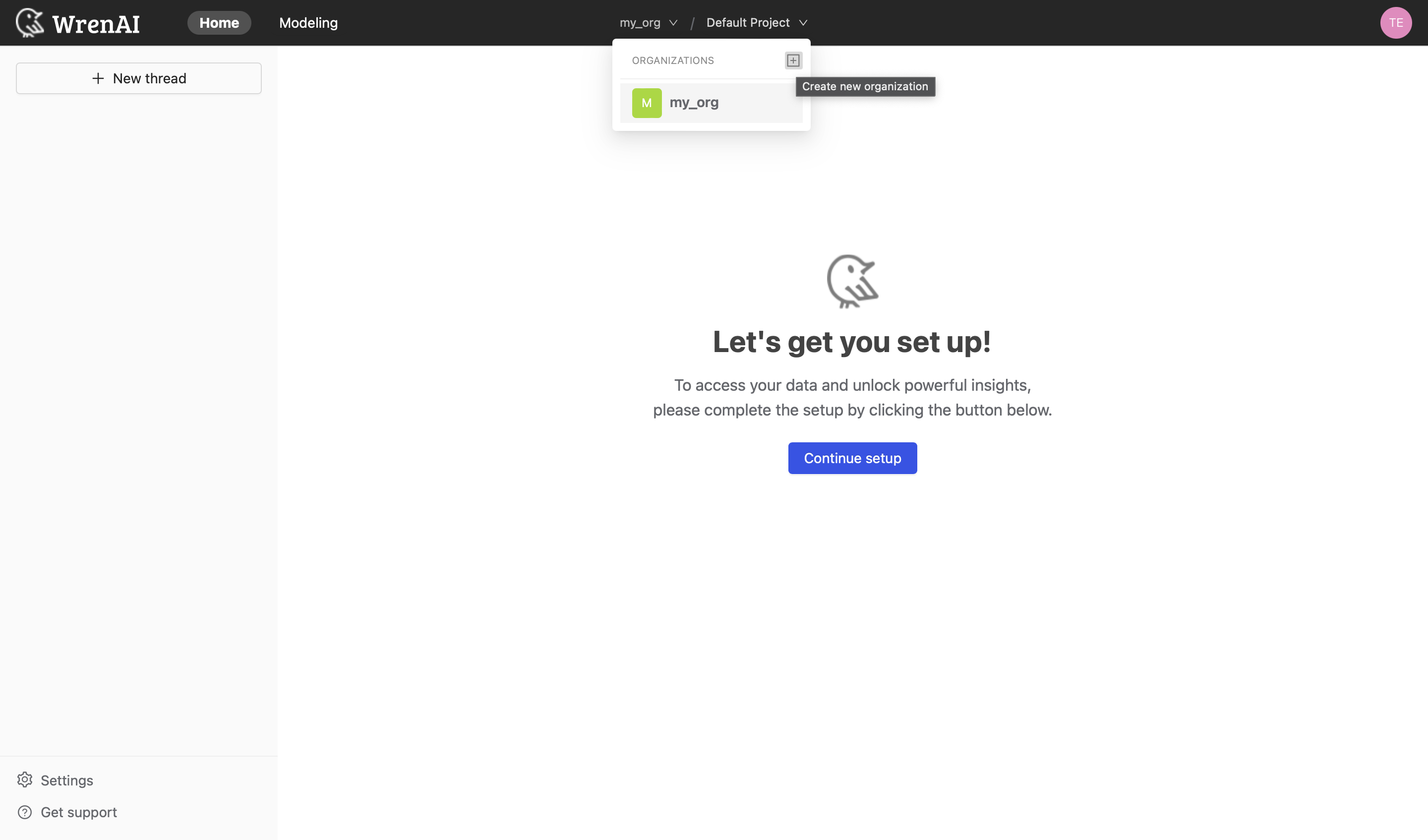
You can create organizations from the navigation bar. Each organization is billed separately.
Create an organization
- Open the navigation bar.
- Click Create organization.
- Enter the organization details and confirm creation.
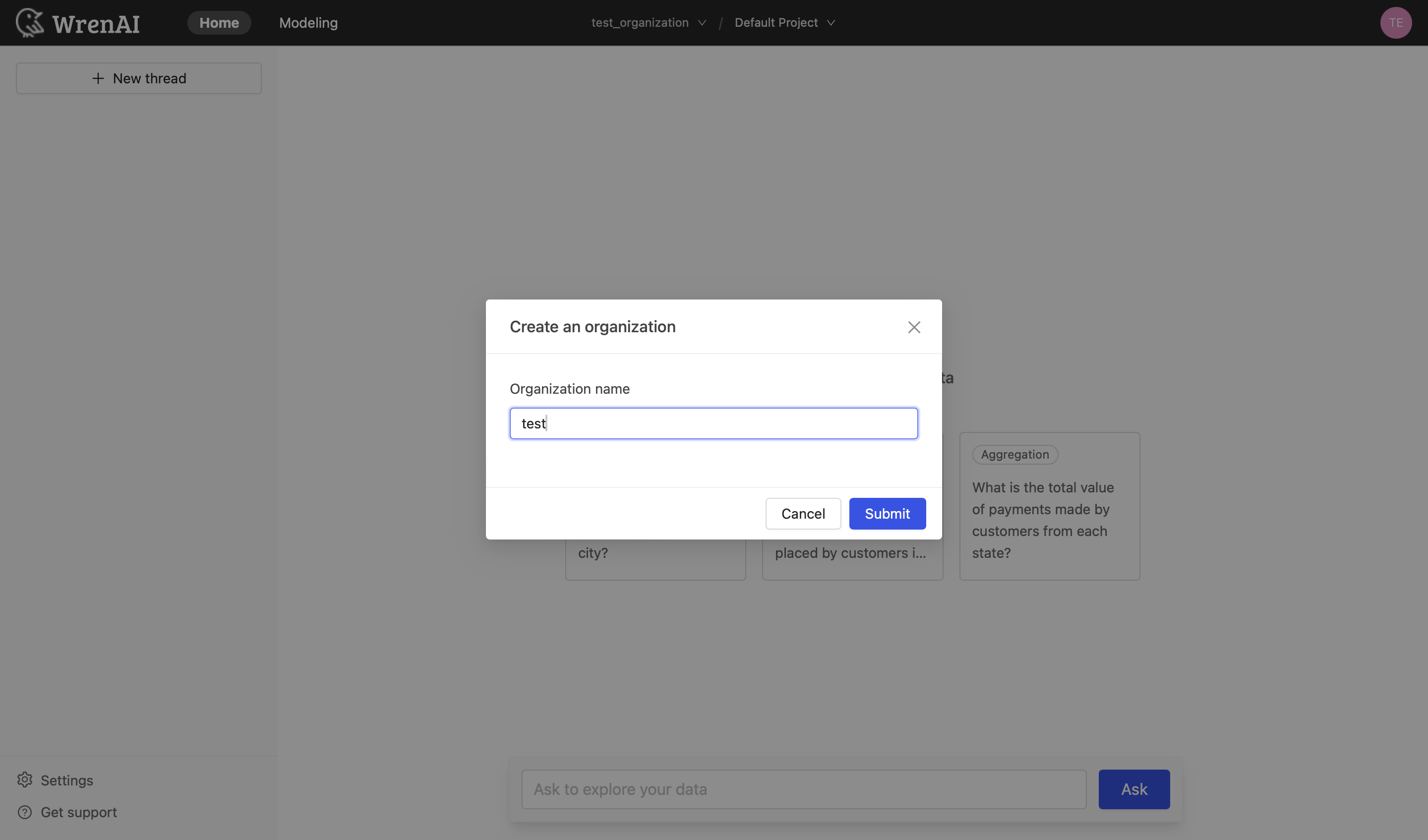
After the organization is created, Wren AI automatically creates a default project and places it at the top of your project list.
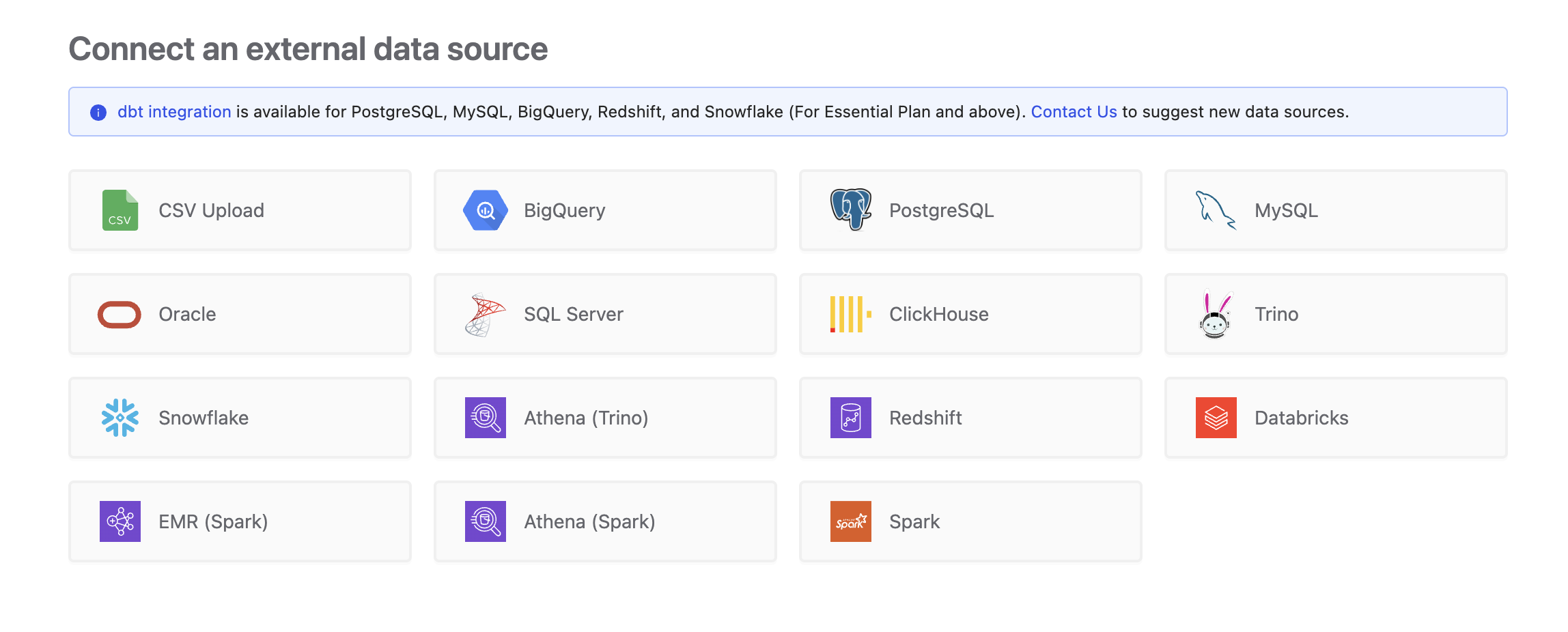
You can set up a data source connection for the project and start asking questions.
Organization settings
Organization admins can use these settings to manage billing, membership, and organization status.
General
As an admin, you can change the display name of your organization in General.
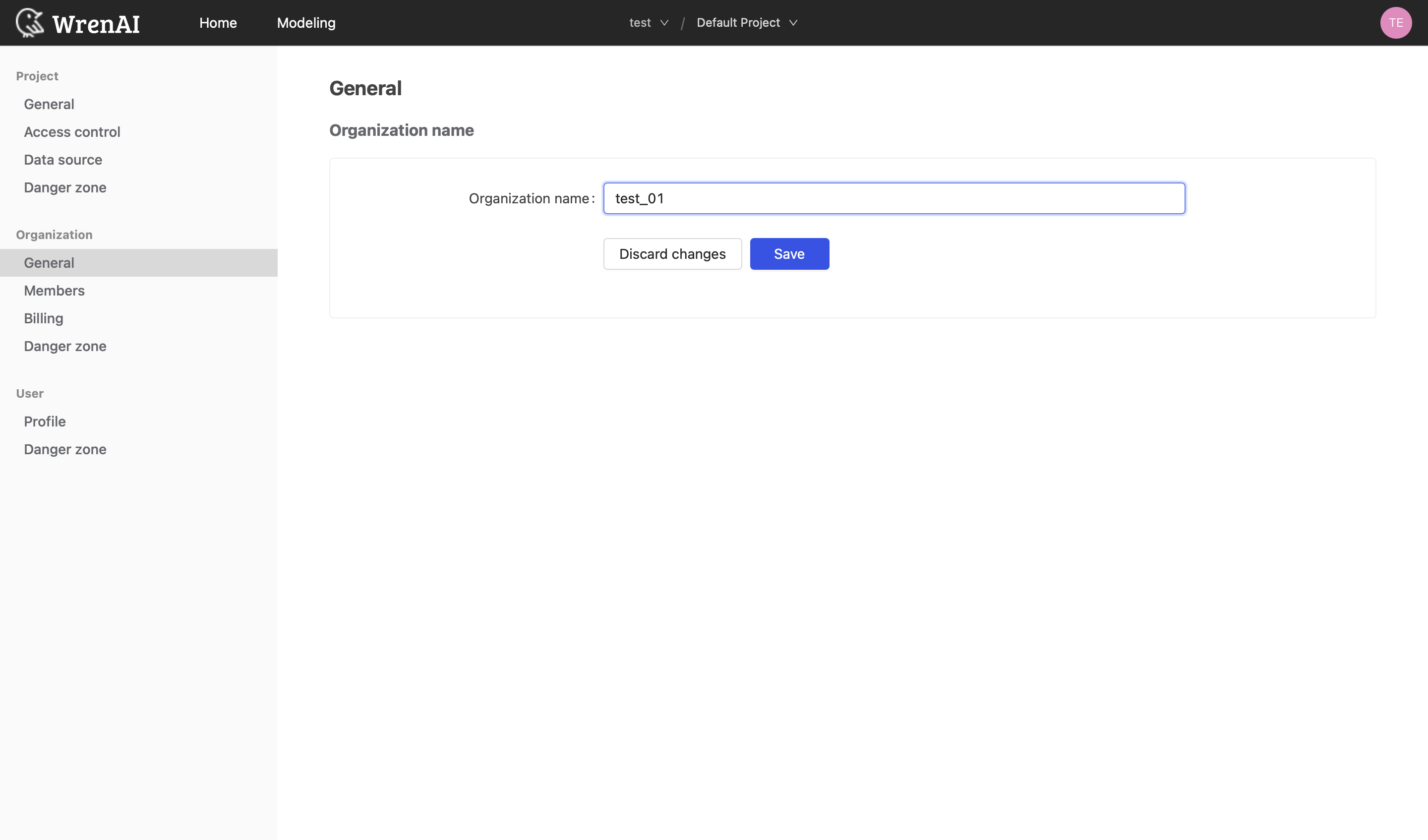
Members
This section lists all users in the organization with their roles. Organization admins can invite, remove, and modify members' roles.
Invite people
- Click Invite People.
- Enter the email address of the user you want to invite.
- Choose a role to assign them. Learn more about roles in Account Roles and Permissions.
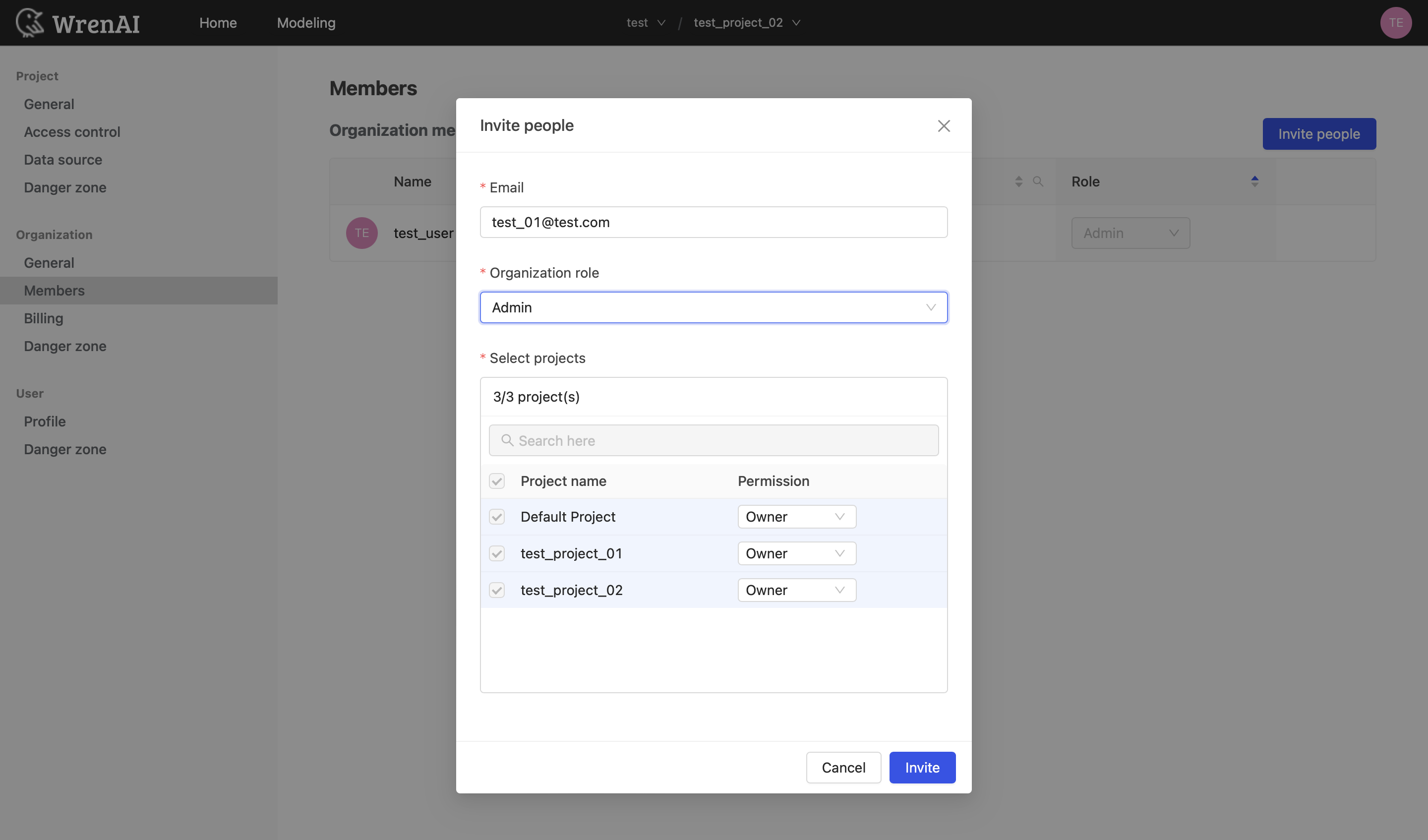
If you assign the Organization Admin role, the user will have access to all projects within the organization and will be able to create new projects.
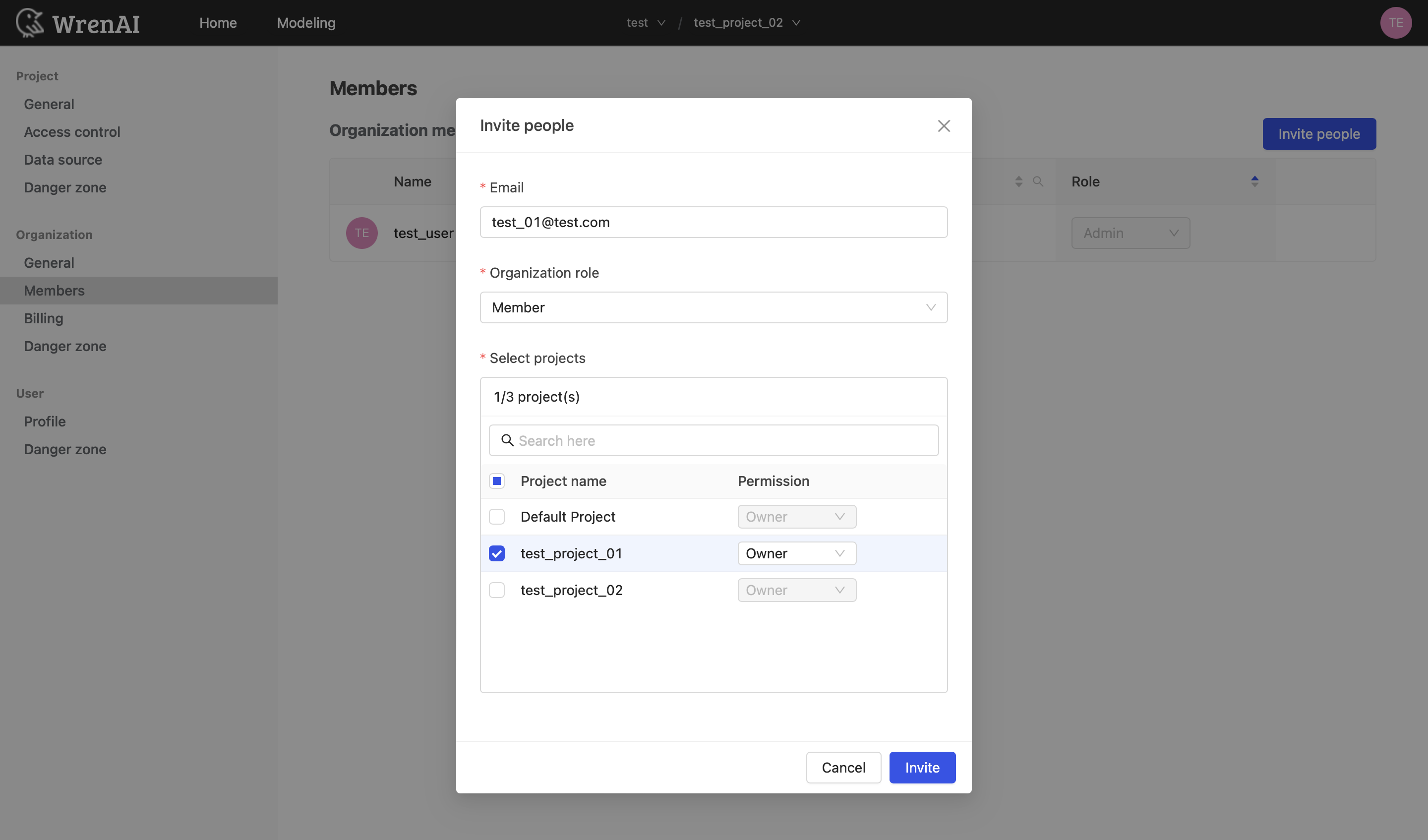
In the onboarding step, you can also add the invited user to multiple projects by checking the box next to each project name. Each project is independent and requires its own project role, which you can assign here.
If you choose the Organization Member role, the invited user must be added to at least one project.
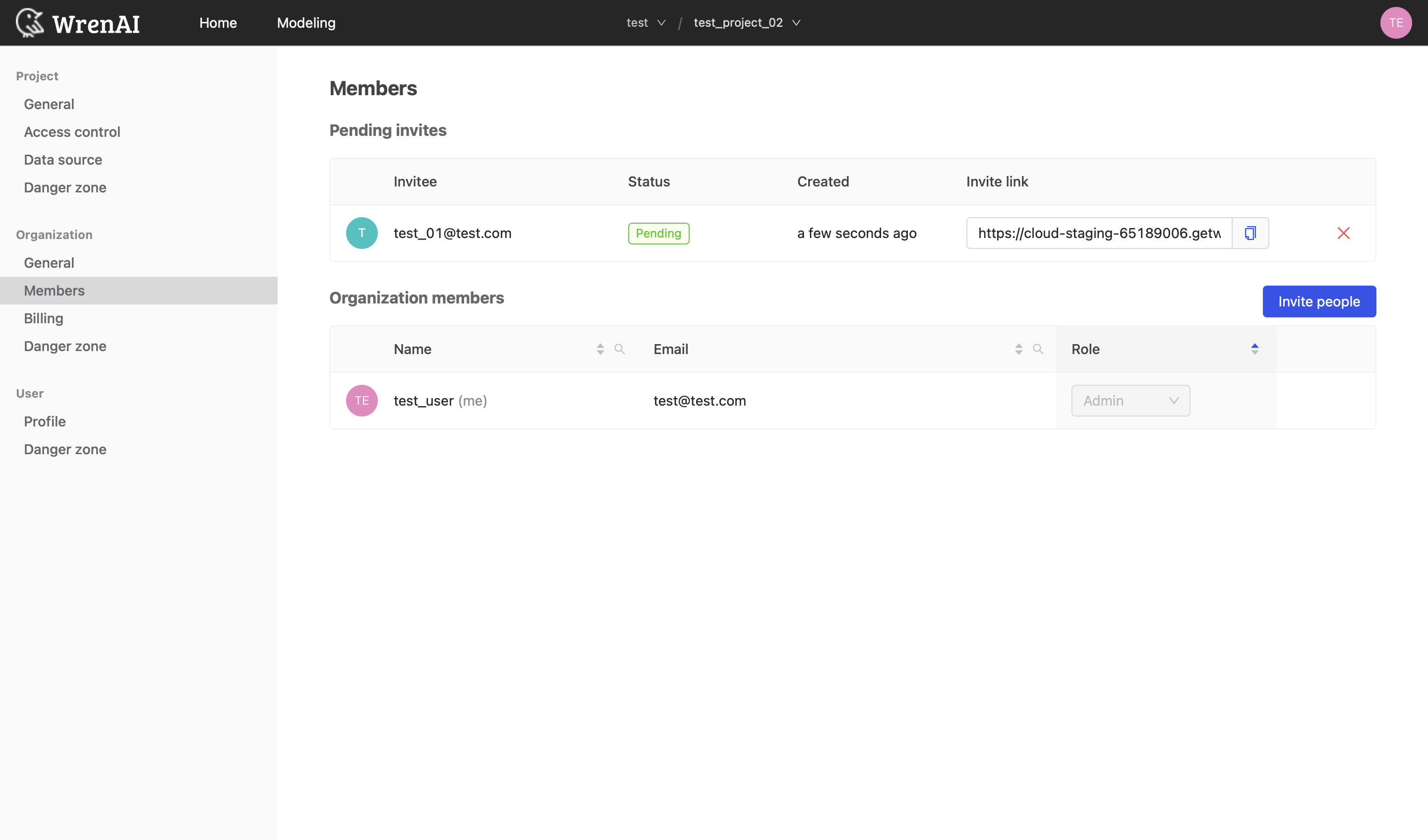
Once the invitation is sent, you can view its status and the invitation link on the Members page.
Invitations expire if not accepted within 3 days. If an invitation expires, send a new one.
Update a member's role
Organization admins can modify the role of each organization member. Find the member whose role you want to modify and open the Role dropdown menu.
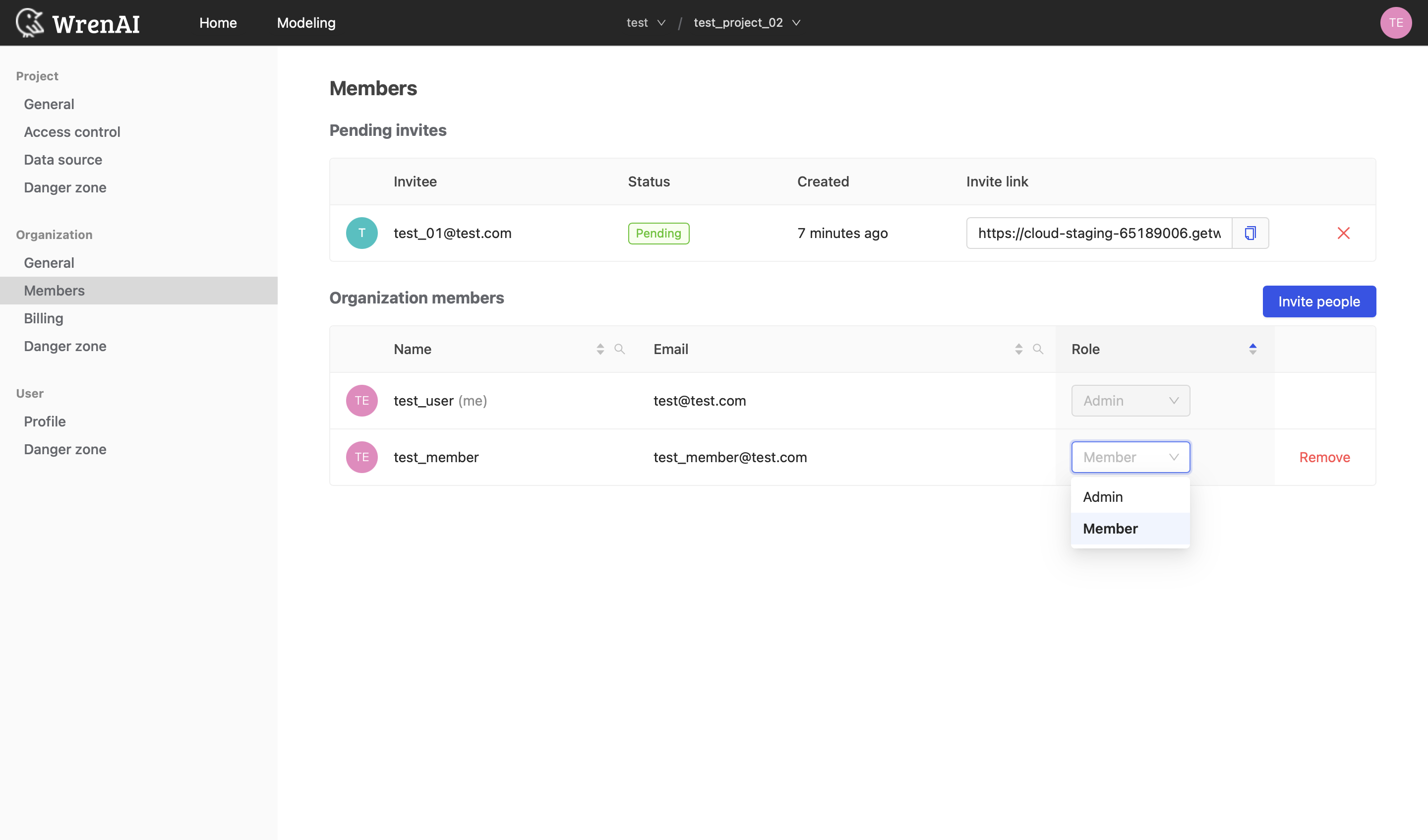
You cannot modify your own role. If you need to change your role from Organization Admin to Member, first assign a new Organization Admin and ask that user to modify your role.
Remove a member
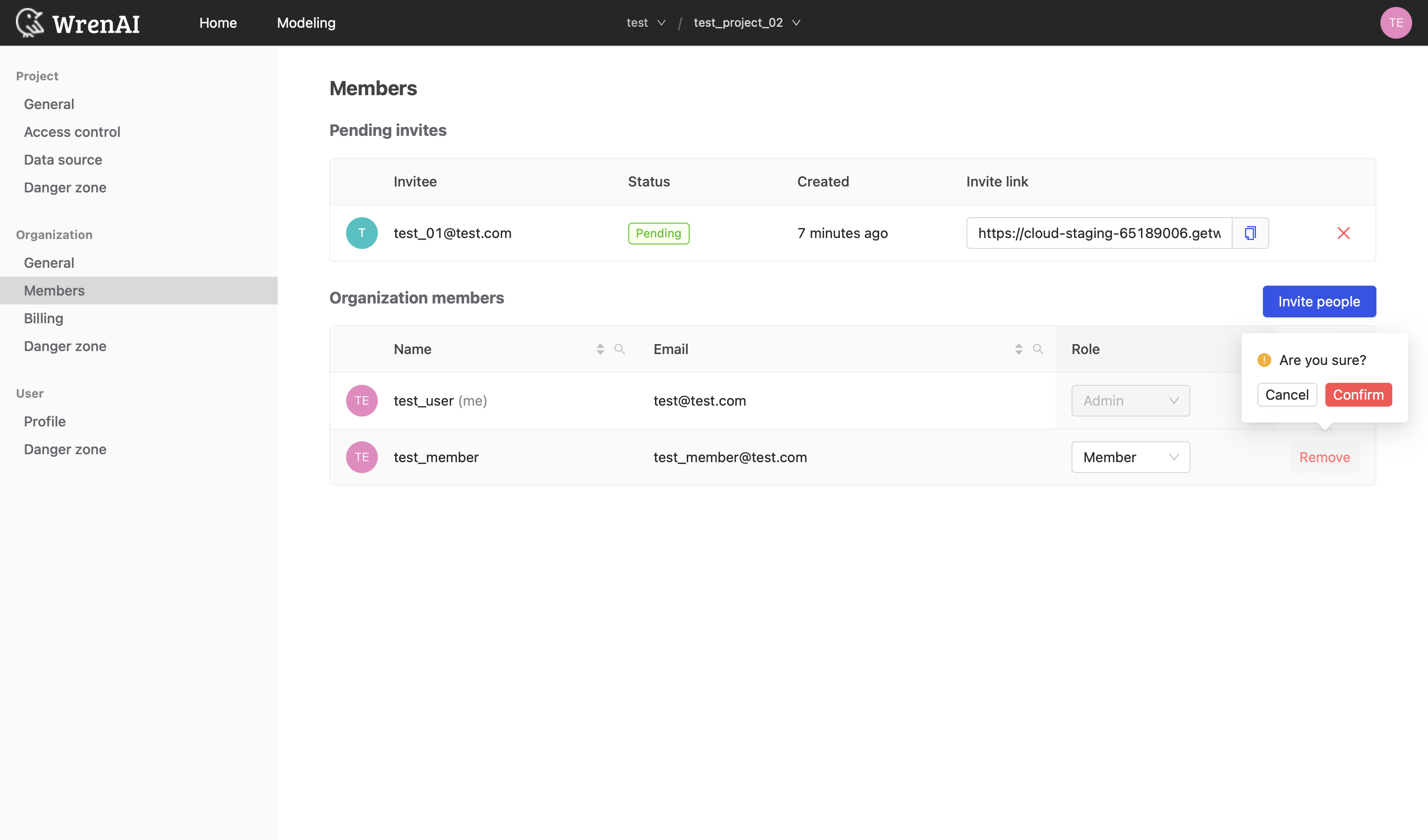
Only organization admins can remove users from the organization. Click Remove next to a user to revoke their access.
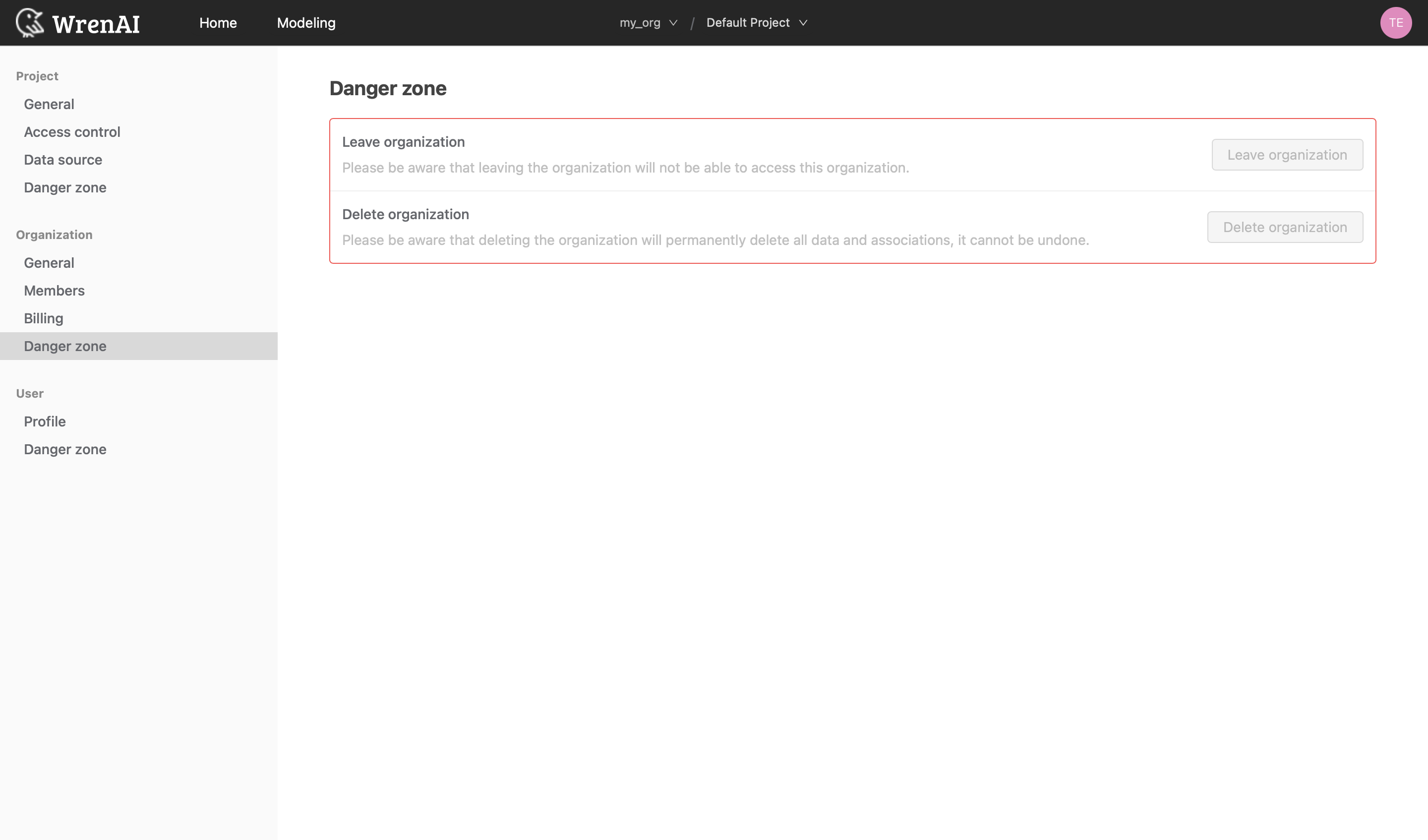
Danger Zone
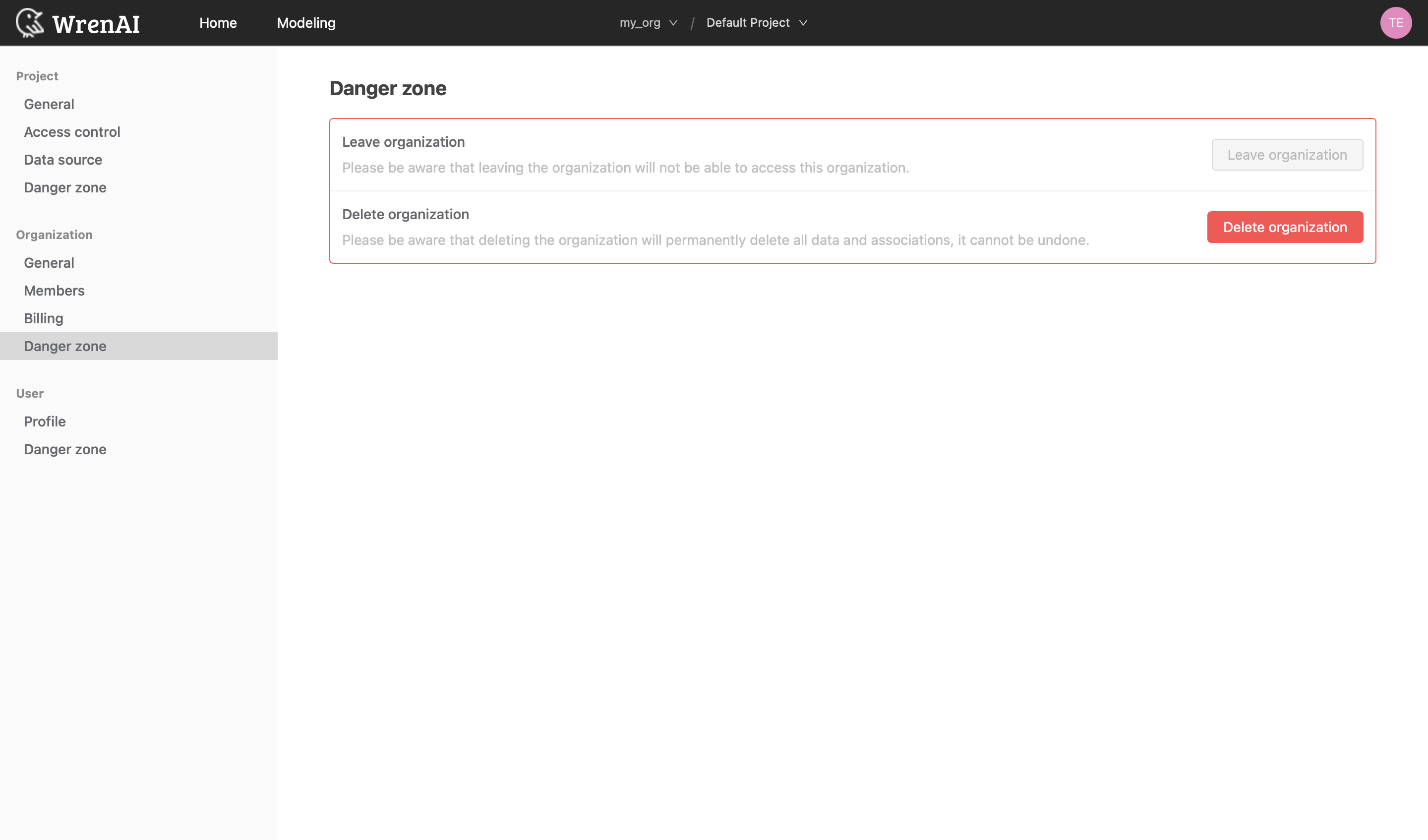
In Danger Zone, you can leave or delete the organization, depending on your role.
Leave organization
Organization members can leave the organization at any time. After leaving, the organization and its projects are no longer accessible to you.
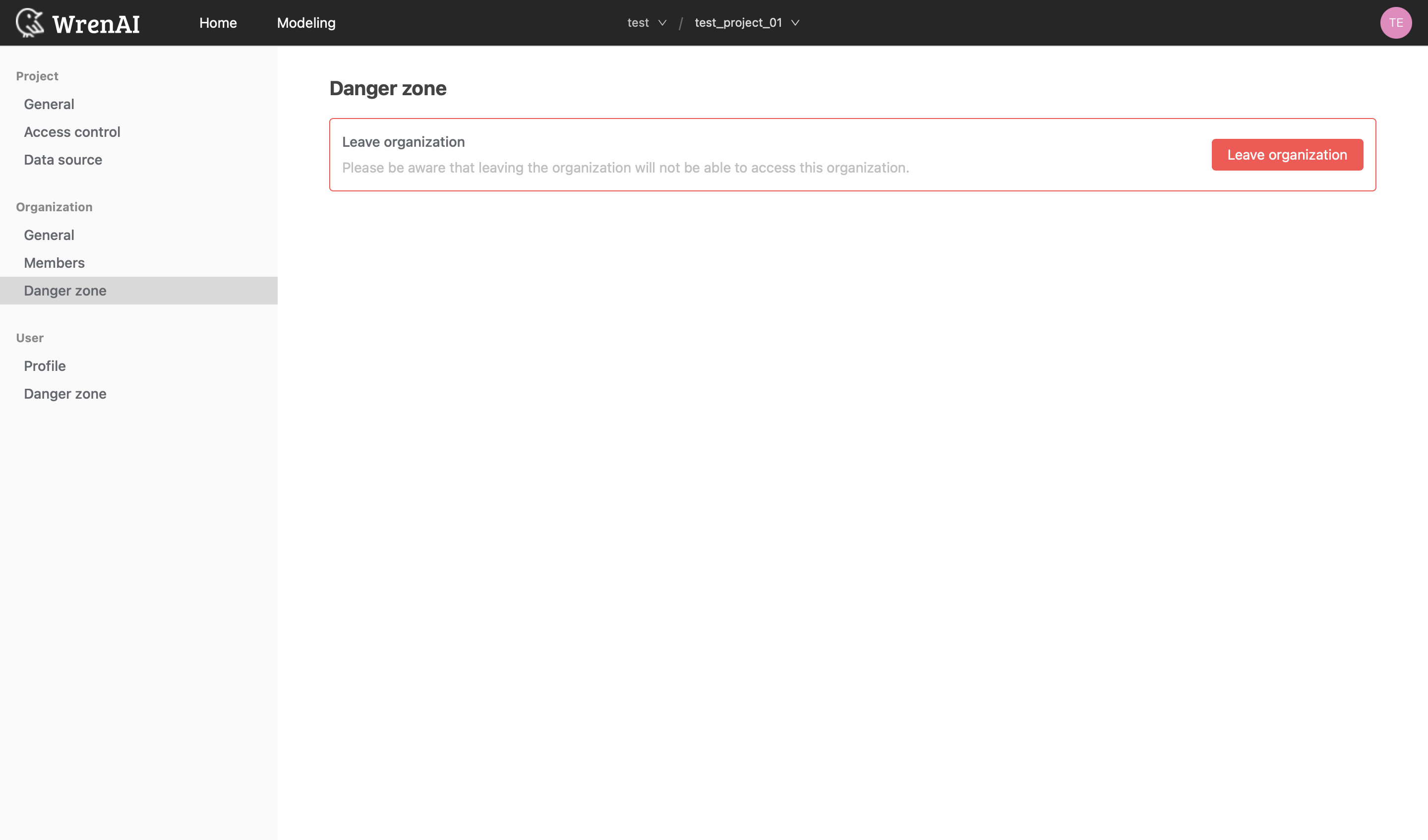
If you are the last Organization Admin, you cannot leave the organization. You need to delete the organization to remove yourself from it.
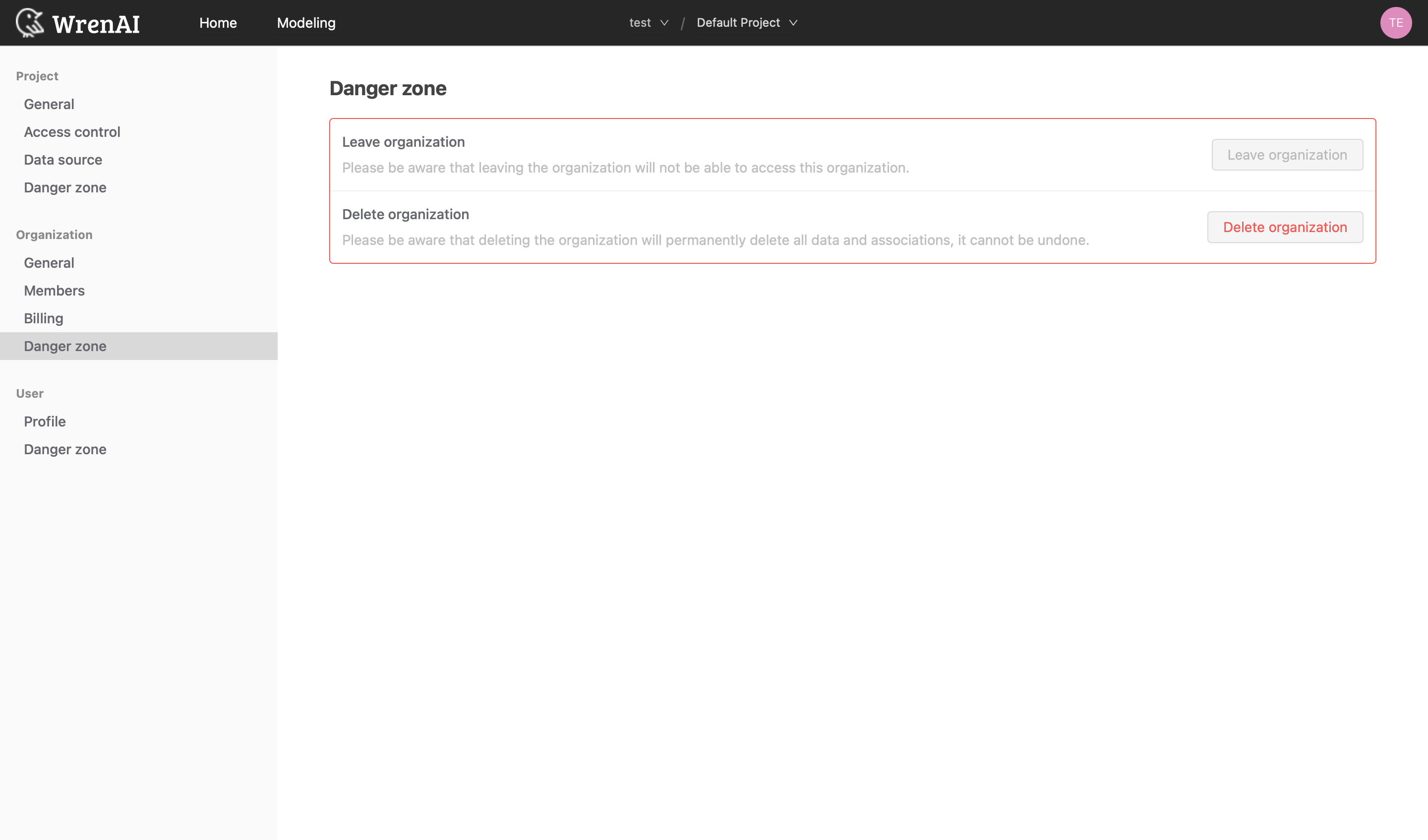
Delete organization
Only organization admins can delete the organization.
Deleting an organization cannot be undone. Its projects become unavailable to all of the organization's users.
You cannot delete the organization if it is your last accessible organization.