PostgreSQL
Use this guide to connect PostgreSQL to Wren AI and review the permissions required for stable modeling and query execution. The same connector also works with Greenplum — see Greenplum for the differences.
Included in all plans
Wren AI needs to access your PostgreSQL database via the outbound IP address of Wren AI Cloud. Please add the IP address of the Wren AI service to the firewall of your PostgreSQL database.
Scroll to the bottom of the data source connection page to find the IP address.
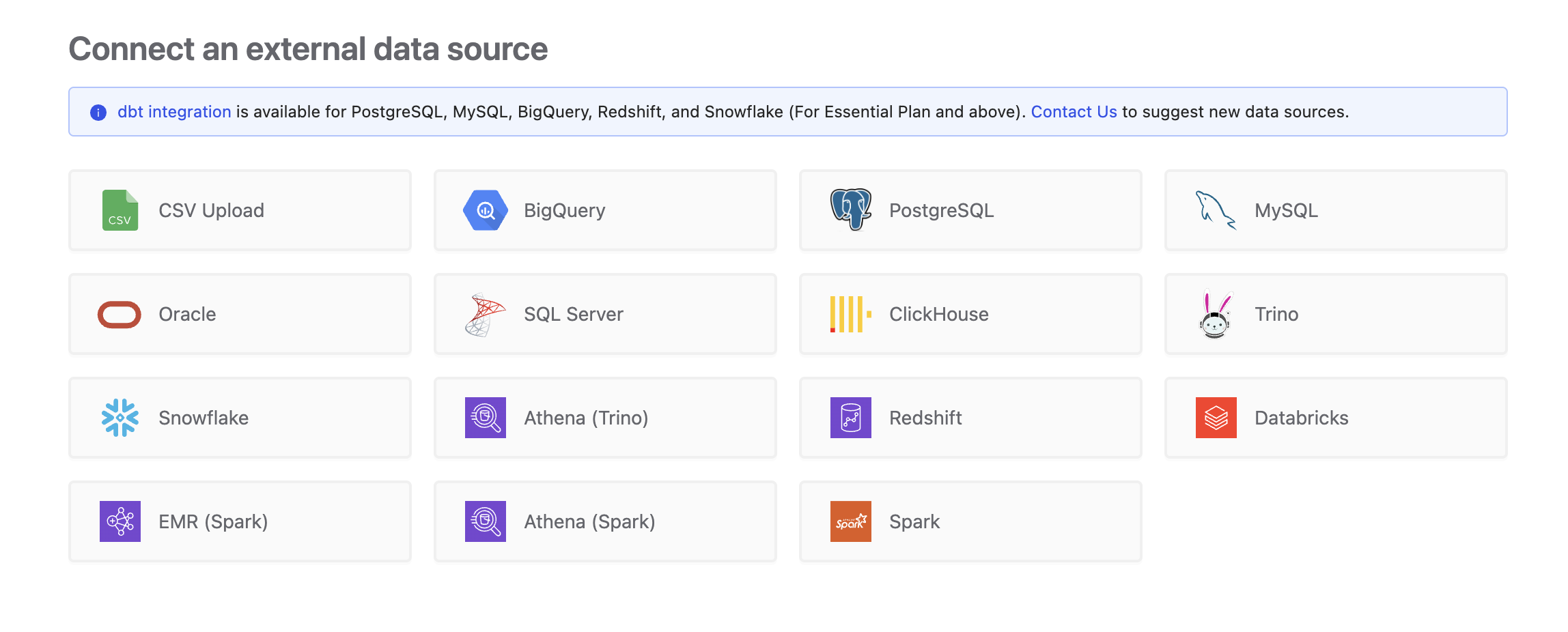
To add a PostgreSQL connection, click on the PostgreSQL option in the Connect a data source section.
Required Permissions
Wren AI connects to PostgreSQL as a regular database user and only issues read-only queries — SELECT against your tables and views, and against the system catalog (pg_catalog and information_schema) to discover tables, columns, comments, and foreign keys. It never runs INSERT, UPDATE, DELETE, or DDL such as CREATE, ALTER, DROP, or TRUNCATE, and it does not create temporary views. Read-only grants are sufficient — and recommended — for a secure connection.
Avoid connecting as postgres, gpadmin, or any other superuser or database owner account. Table discovery lists every table and view the connecting user can read, so a superuser sees every schema in the database — including other teams' schemas and internal objects. On large shared warehouses this makes the Select Tables step slow and the list hard to use. Use a dedicated user that can read only the schemas you want to model.
1. Privileges checklist
The PostgreSQL user account used by Wren AI needs the following on your target database:
| Category | Privilege | Notes |
|---|---|---|
| Login | LOGIN on the role, CONNECT on the database | CONNECT is granted to PUBLIC by default; it only needs an explicit grant if your database revokes it. |
| Schemas | USAGE on each schema you want to expose | Without USAGE, tables in the schema are invisible even if SELECT is granted. |
| Business data | SELECT on the tables, views, and materialized views you want Wren AI to read | Table discovery only lists objects the user can read, so grant exactly what you want to model. |
| System catalog | Read access to pg_catalog and information_schema | Readable by every user by default. No grant needed unless your environment has revoked PUBLIC access. |
2. Minimum account setup
You can connect Wren AI either as a dedicated read-only user or as the owner of the tables. Pick whichever fits your security posture — both work with the connector.
Option A — Create a dedicated read-only user (recommended)
-- 1. Create the user.
CREATE ROLE wren_ai LOGIN PASSWORD 'YourSecurePassword';

-- 2. Allow it to connect to the database (only needed if CONNECT is revoked from PUBLIC).
GRANT CONNECT ON DATABASE analytics TO wren_ai;

-- 3. For each schema to expose: allow access to the schema and read its tables and views.
GRANT USAGE ON SCHEMA sales TO wren_ai;
GRANT SELECT ON ALL TABLES IN SCHEMA sales TO wren_ai;

-- 4. Optional: also grant SELECT on tables created in this schema later.
--    Applies to objects created by the role that runs this statement.
ALTER DEFAULT PRIVILEGES IN SCHEMA sales GRANT SELECT ON TABLES TO wren_ai;
GRANT SELECT ON ALL TABLES IN SCHEMA covers tables, views, materialized views, foreign tables, and every partition of a partitioned table that exists at the time you run it.
Option B — Connect as the table owner
If your tables already belong to a single application role, you can reuse that account. It already owns the tables, so no extra grants are needed.
Wren AI reads foreign keys through information_schema, which only shows constraints on tables owned by the connecting user. With a dedicated read-only user (Option A), the Define relationships step may suggest no relationships even if your tables declare foreign keys. You can still add the relationships manually in that step. Run check c to see which foreign keys the user can read.
3. Verify the account
After setup, log in as the user you plan to configure in Wren AI (for example, psql "host=db.example.com port=5432 dbname=analytics user=wren_ai") and run the queries below. Each one mirrors what Wren AI does at connection time — if all of them succeed, the account is ready.
a. Login, version, and encoding
SELECT version(), current_setting('server_encoding') AS server_encoding;
version()is how Wren AI identifies the server version. On Greenplum it reports the underlying PostgreSQL version followed by the Greenplum version, for examplePostgreSQL 9.4.26 (Greenplum Database 6.25.3 ...).server_encodingshould beUTF8. See Before you connect.
b. Preview the tables Wren AI will discover
This query follows the same rules the connector uses to populate the table picker: one row per table or view the user can read, excluding the system schemas.
SELECT
    n.nspname AS table_schema,
    c.relname AS table_name,
    CASE c.relkind
        WHEN 'r' THEN 'table'
        WHEN 'p' THEN 'partitioned table'
        WHEN 'f' THEN 'foreign / external table'
        WHEN 'v' THEN 'view'
        WHEN 'm' THEN 'materialized view'
    END AS kind,
    count(*) AS visible_columns
FROM pg_catalog.pg_class c
JOIN pg_catalog.pg_namespace n
    ON n.oid = c.relnamespace
JOIN pg_catalog.pg_attribute a
    ON a.attrelid = c.oid
   AND a.attnum > 0
   AND NOT a.attisdropped
WHERE c.relkind IN ('r', 'p', 'f', 'v', 'm')
  AND n.nspname NOT IN ('pg_catalog', 'information_schema')
  AND NOT pg_is_other_temp_schema(n.oid)
  AND (
        pg_has_role(c.relowner, 'USAGE')
     OR has_column_privilege(c.oid, a.attnum, 'SELECT, INSERT, UPDATE, REFERENCES')
  )
GROUP BY 1, 2, 3
ORDER BY 1, 2;
- If a table you expect to see is missing, the user lacks
USAGEon its schema orSELECTon the table — go back to step 2. - If the result is very large or full of unfamiliar schemas, the account is too broadly privileged. Narrow its grants: the size of this result is what determines how long the Select Tables step takes.
c. Check the foreign keys Wren AI can read
SELECT DISTINCT
    tc.table_schema,
    tc.table_name,
    kcu.column_name,
    ccu.table_schema AS foreign_table_schema,
    ccu.table_name   AS foreign_table_name,
    ccu.column_name  AS foreign_column_name
FROM information_schema.table_constraints AS tc
JOIN information_schema.key_column_usage AS kcu
    ON tc.constraint_name = kcu.constraint_name
   AND tc.table_schema = kcu.table_schema
JOIN information_schema.constraint_column_usage AS ccu
    ON ccu.constraint_name = tc.constraint_name
WHERE tc.constraint_type = 'FOREIGN KEY';
An empty result means the Define relationships step will not suggest any relationships — either no foreign keys are declared, or the user does not own the tables (see the note in step 2).
d. Spot-check a sample table
-- Replace with one of the schema/table pairs you intend to expose.
SELECT * FROM sales.orders LIMIT 1;
A successful read confirms that
USAGEon the schema andSELECTon the table are in place.
Before you connect
Wren AI requires a database whose server encoding is UTF8. Table names, column names, comments, and data in any language — including Chinese — work in a UTF8 database. Databases created with a non-UTF8 encoding such as EUC_TW are not supported yet: the connection fails with codec not available in Python. Check the encoding with query a.
Check Use SSL on the connection form to require an encrypted connection. Wren AI does not verify the server certificate. When the box is unchecked, Wren AI uses SSL if the server offers it and falls back to an unencrypted connection otherwise.
Connect
Fill in the connection settings:
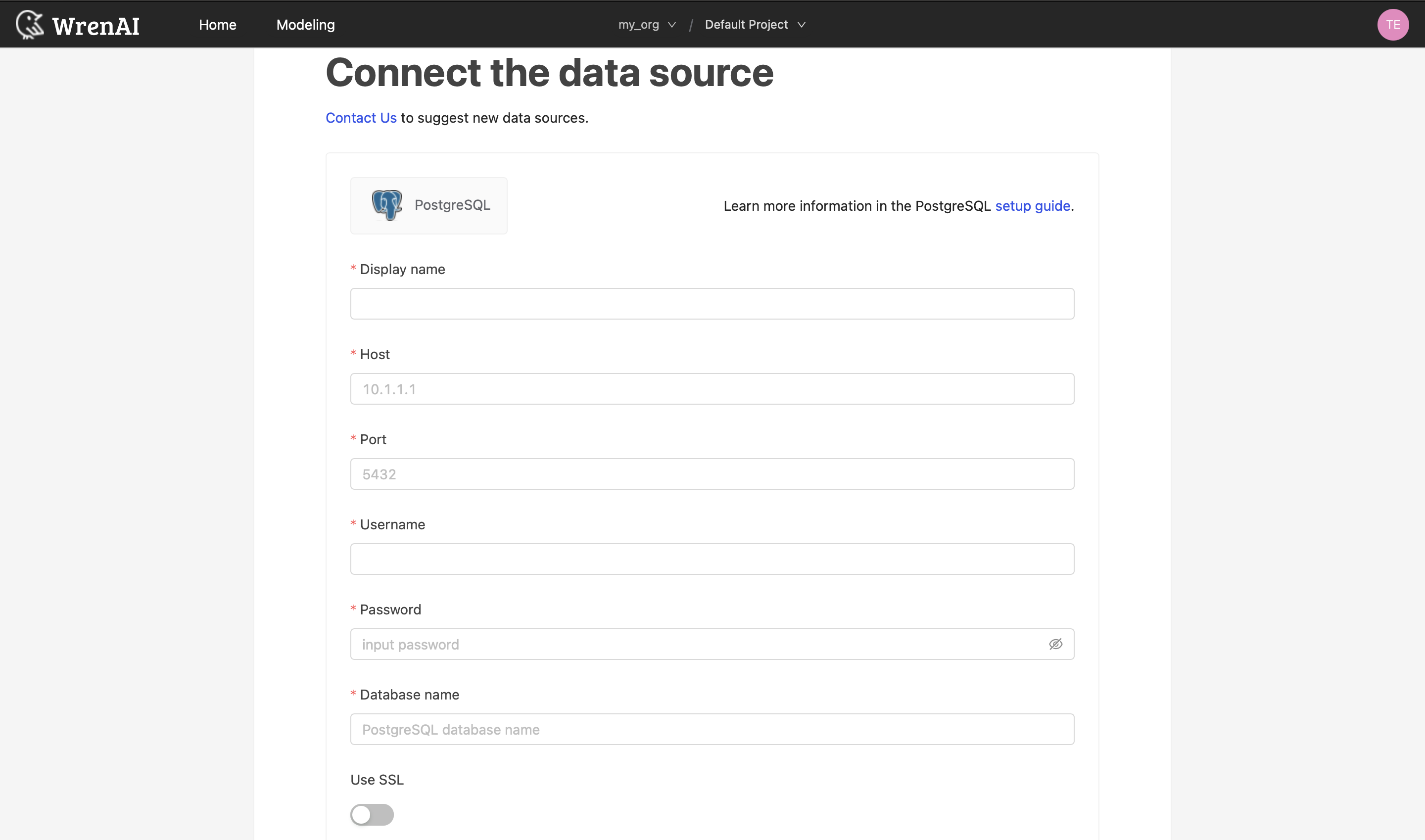
Display name
The display name for the database in the Wren AI interface.
Host
Your PostgreSQL database's IP address or domain name. For Greenplum, use the coordinator (master) host.
Port
Your PostgreSQL database port (default: 5432).
Username
The database username for the account that you want to use to connect to your PostgreSQL database.
Password
The password for the username that you use to connect to the database.
Database name
The name of the database you want to connect to.
Use SSL
Require an encrypted connection to the database. See SSL.
Click Next to start the connection and go to the next step.
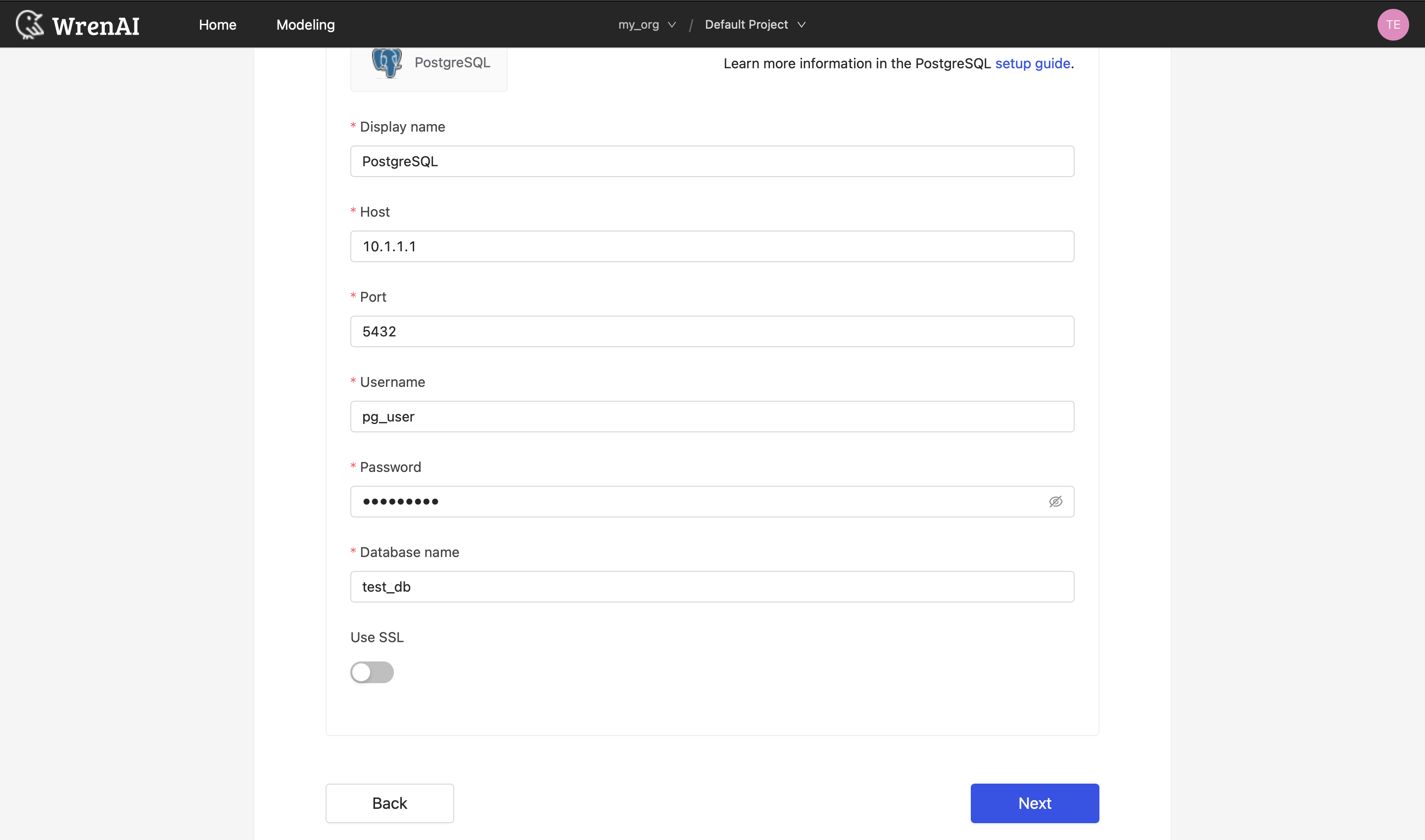
Select Tables
All tables, partitioned tables, foreign tables, views, and materialized views that the connecting user can read are listed in this step. The pg_catalog and information_schema system schemas are excluded. Select which ones you want to use in Wren AI — each selected entry will be created as a data model. See the Modeling documentation to learn more about data models.
Both the partitioned table and each of its partitions are listed. Select the parent table: it returns the rows of every partition, while a single partition only contains part of the data.
If a table you expect to see is missing, or unfamiliar objects appear, see Required Permissions → Verify the account to preview the discovery result and adjust grants before retrying.
Define relationships
Define the relationships among selected tables in this step. If you have defined primary keys and foreign keys in your PostgreSQL dataset, we will list suggested relationships based on that information. If not, you can also add relationships by clicking the Add relationships button on the table blocks.
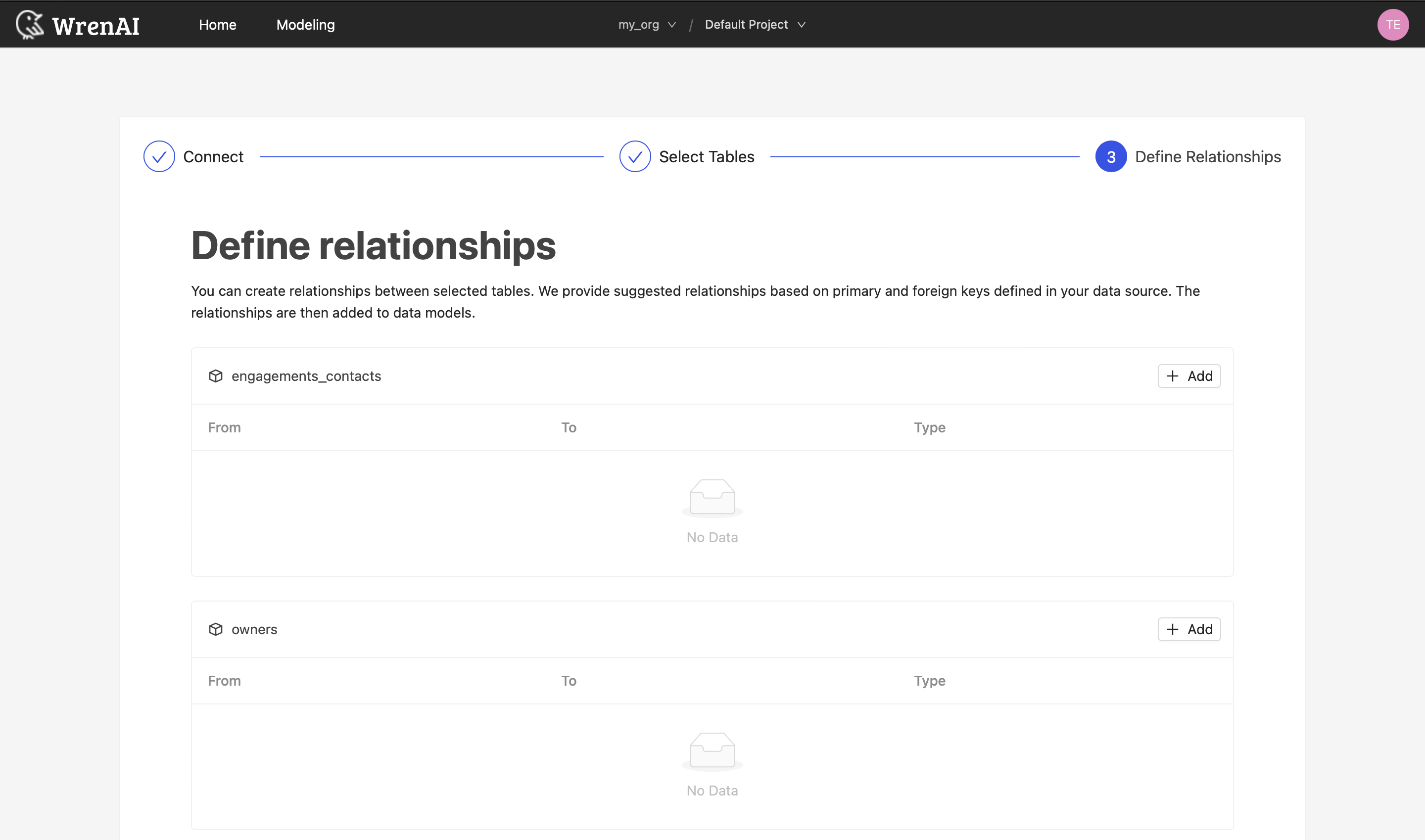
Foreign keys are only suggested when the connecting user owns the tables — see the note in Minimum account setup.
Define the following properties in a relationship:
- From: Select the left side table and column of this relationship.
- To: Select the right side table and column of this relationship.
- Relationship Type: Select the type of relationship.
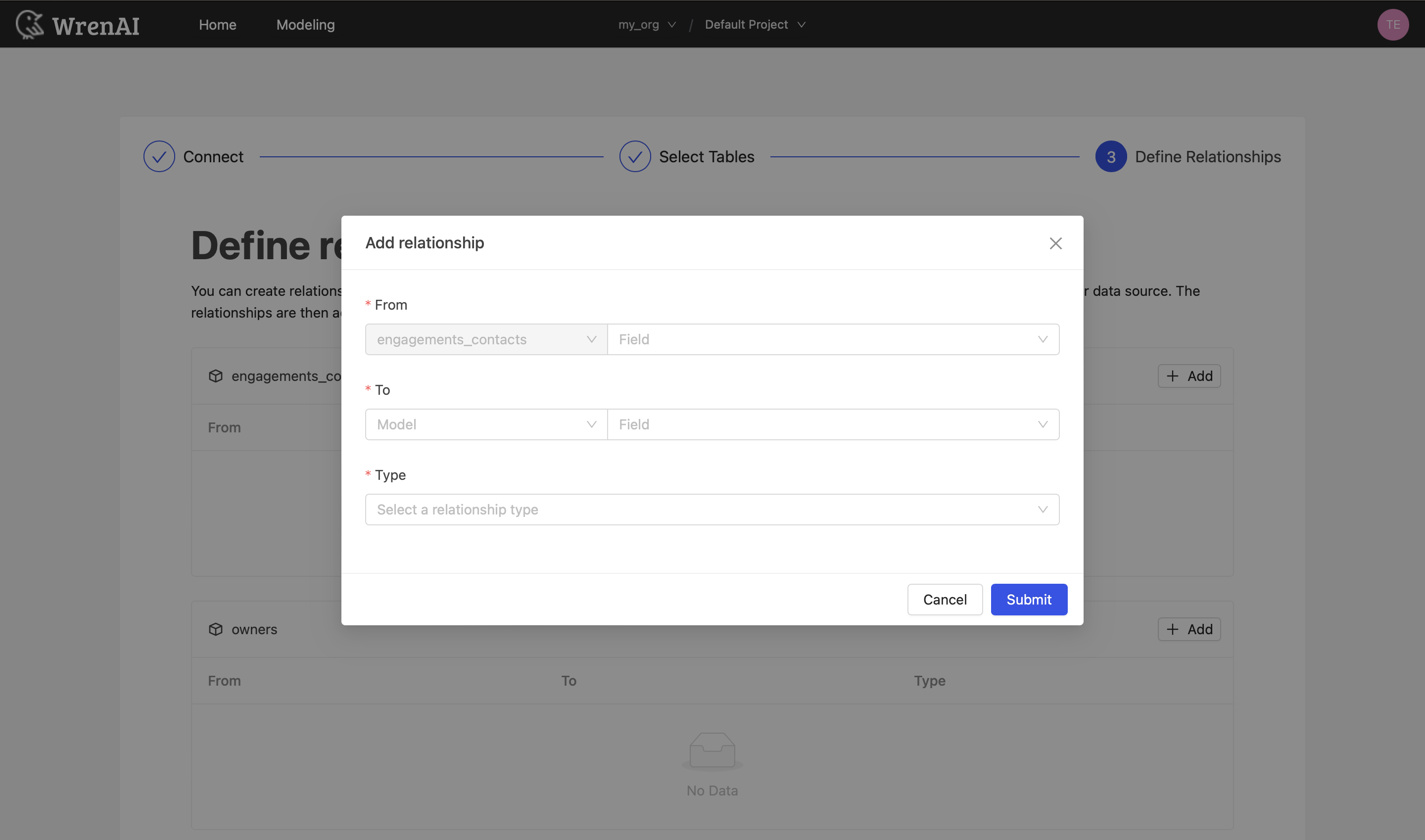
Find more information about relationships in Modeling - Working with Relationships.
You can also skip this step and finish the connection.
Greenplum
Greenplum is built on PostgreSQL, so you connect it with the PostgreSQL option — there is no separate Greenplum connector. Everything above applies; this section covers what is different.
| Greenplum version | Based on |
|---|---|
| Greenplum 7 | PostgreSQL 12 |
| Greenplum 6 | PostgreSQL 9.4 |
Greenplum-compatible distributions, such as Apache Cloudberry or EDB WarehousePG, are not part of the tested list. Confirm which distribution and version you run with query a.
Connecting
- Host: connect to the coordinator (master) host and port, not a segment host.
- Authentication: Greenplum 6 does not support SCRAM-SHA-256. Use
md5(orpassword) authentication for the Wren AI user inpg_hba.conf— Wren AI connects with either. - Account: create a dedicated read-only role as described in Option A. Do not connect as
gpadmin. Greenplum warehouses are usually shared by many teams, so a superuser's table list can contain far more objects than you intend to model.
What appears in Select Tables
- Partitioned tables: Greenplum 6 lists the parent table and every partition as separate regular tables, so a table partitioned by day can add hundreds of entries. Greenplum 7 lists the parent as a partitioned table, and its partitions as well. In both versions, select the parent table.
gp_toolkit: Greenplum's administrative views in thegp_toolkitschema are listed. Do not select them.- External tables are listed and can be modeled. Append-optimized tables, both row- and column-oriented, are listed like regular tables.
Relationships
Greenplum records foreign keys you declare but does not enforce them. Declared foreign keys are used for relationship suggestions in the same way as on PostgreSQL, subject to the ownership note. Since Greenplum tables often have no declared foreign keys, plan to add relationships manually in the Define relationships step.
SQL compatibility on Greenplum 6
Greenplum 6 is based on PostgreSQL 9.4. Questions whose generated SQL relies on features added in later PostgreSQL versions fail on Greenplum 6, for example:
TABLESAMPLE, and window frames usingGROUPSorEXCLUDEjsonb_build_object,to_jsonb,jsonb_agg,jsonb_set,array_position- Named function arguments written with
=>(Greenplum 6 only accepts:=) - Some
LATERALsubqueries, which Greenplum 6 rejects at execution time
If a question fails for one of these reasons, rephrase it or ask for a simpler aggregation. Greenplum 7 supports all of the above.
Tested PostgreSQL versions
Wren AI supports PostgreSQL 14 and above.
Greenplum 6.25 and 7.0 have been verified with the PostgreSQL connector.
Other recent PostgreSQL-compatible services are expected to work via the same connection mechanism, but are not part of the tested version list. If you hit a version-specific issue, please contact us.