Amazon Redshift
Use this guide to connect Amazon Redshift to Wren AI and choose the authentication method that fits your setup.
Included in all plans
Wren AI needs to access your Redshift database via the outbound IP address of Wren AI Cloud. If you have applied network access controls on top of Redshift, please add the IP address of the Wren AI service to the allowed IP list.
Scroll to the bottom of the data source connection page to find the IP address.
Required Permissions
Wren AI connects to Redshift as a regular database user and only issues read-only queries — SELECT against your tables/views and metadata catalogs. It will never INSERT, UPDATE, DELETE, or run DDL. Read-only grants are sufficient — and recommended — for a secure connection.
Avoid using a superuser or the cluster's admin account as the connecting account. Use a dedicated read-only user whenever possible.
Database user permissions (both authentication methods)
The database user needs:
| Category | Privilege | Notes |
|---|---|---|
| Login | A valid database user | Required to connect. |
| Schema access | USAGE on the schemas you want Wren AI to read | For example GRANT USAGE ON SCHEMA analytics TO wren_ai;. |
| Business data | SELECT on the tables/views in those schemas | For example GRANT SELECT ON ALL TABLES IN SCHEMA analytics TO wren_ai;. |
| Metadata discovery | Read access to information_schema and pg_catalog | Available to authenticated users in standard setups. |
Create a dedicated read-only user:
CREATE USER wren_ai PASSWORD 'YourStrongPassword1';
GRANT USAGE ON SCHEMA analytics TO wren_ai;
GRANT SELECT ON ALL TABLES IN SCHEMA analytics TO wren_ai;

-- Also cover tables created later
ALTER DEFAULT PRIVILEGES IN SCHEMA analytics GRANT SELECT ON TABLES TO wren_ai;
AWS credentials permissions (AWS Credentials method only)
If you authenticate with AWS credentials instead of a database password, the IAM identity needs at least the AmazonRedshiftReadOnlyAccess policy.
To add an Amazon Redshift connection, click on the Redshift option in the Connect a data source section.
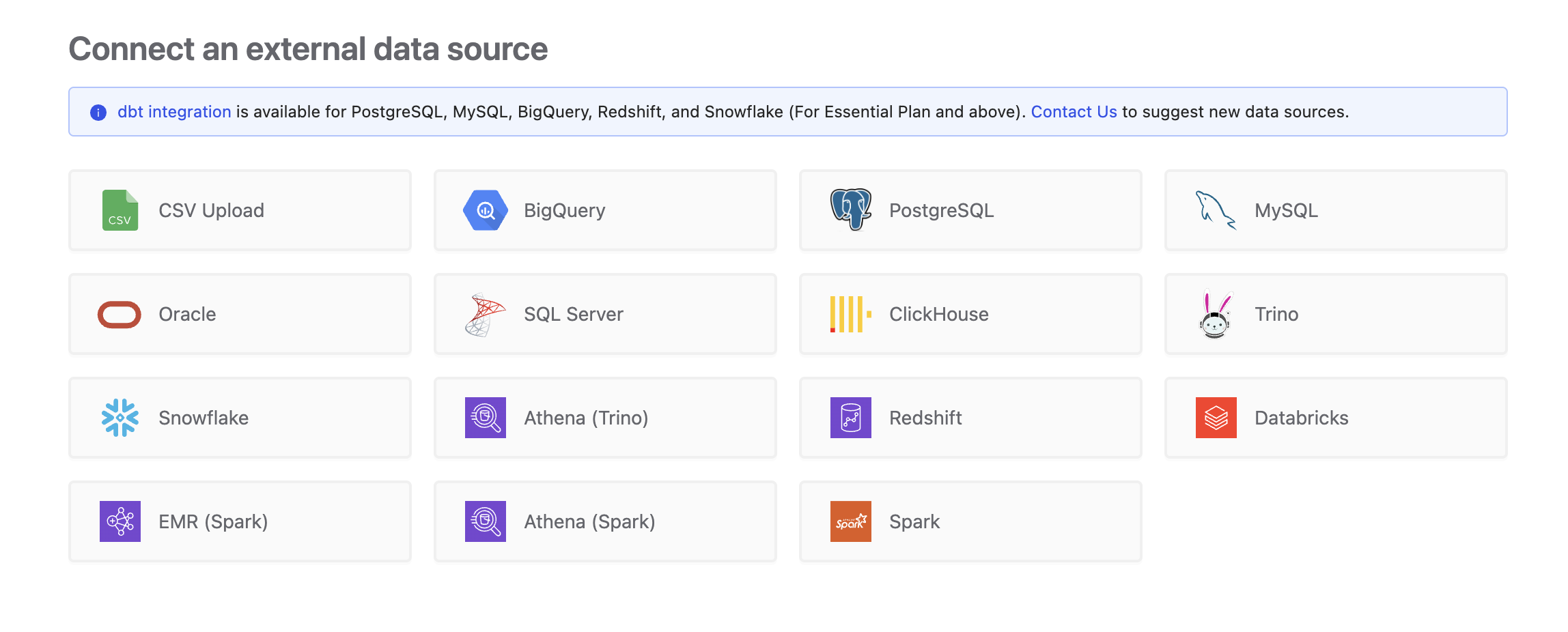
Connect
Fill in the connection settings:
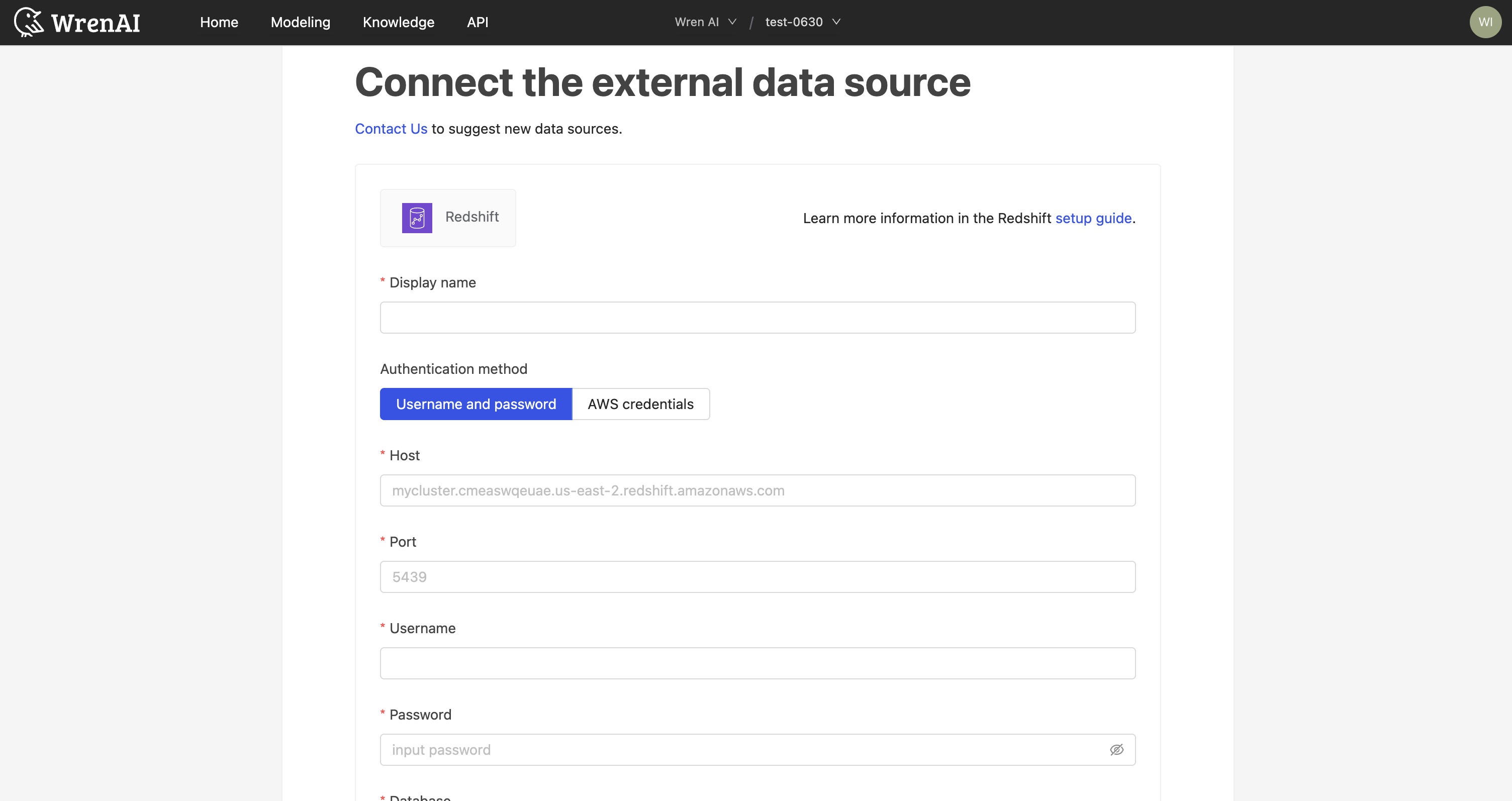
Display name
The display name for the database in the Wren AI interface.
Authentication Method
Choose between two authentication methods: Username and Password and AWS Credentials.
Choose the authentication method that best fits your setup:
- Username and Password: Use this if you have direct database credentials
- AWS Credentials: Use this if you prefer AWS IAM authentication and have the cluster identifier
- Username and Password
- AWS Credentials
Host
The endpoint URL of your Redshift cluster (e.g., my-cluster.abc123.us-east-1.redshift.amazonaws.com).
Port
The port number for your Redshift cluster (default: 5439).
Username
The Redshift database username.
Password
The password for the Redshift database username.
Database
The name of the database you want to connect to.
Cluster identifier
The identifier of your Redshift cluster (e.g., redshift-cluster-1).
Username
The Redshift database username specified in DB user permissions.
Database
The name of the database you want to connect to.
AWS region
The AWS region where your Redshift cluster is located (e.g., us-east-1, eu-west-1, ap-southeast-1).
AWS access key ID
Your AWS access key ID.
AWS secret access key
Your AWS secret access key corresponding to the access key ID.
If you choose to use AWS credentials, you need to have at least the AmazonRedshiftReadOnlyAccess policy granted. See Required Permissions above.
Click Next to start the connection and go to the next step.
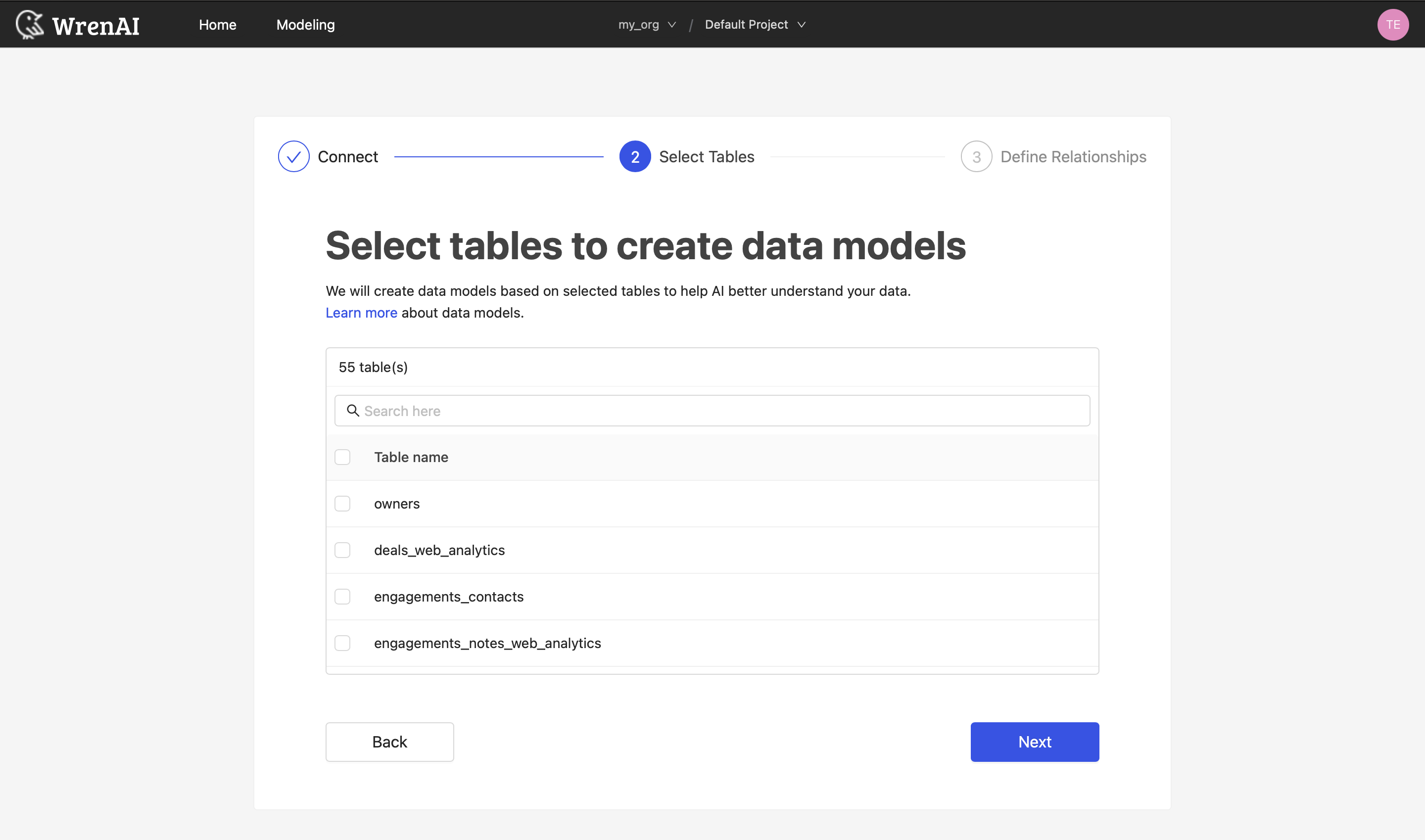
Select Tables
All tables of your connected Redshift database will be listed in this step. Select which tables you want to use in Wren AI. Each selected table will be created as a data model. See the Modeling documentation to learn more about data models.
Define relationships
Define the relationships among selected tables in this step. If you have defined primary keys and foreign keys in your Redshift dataset, we will list suggested relationships based on that information. If not, you can also add relationships by clicking the Add relationships button on the table blocks.
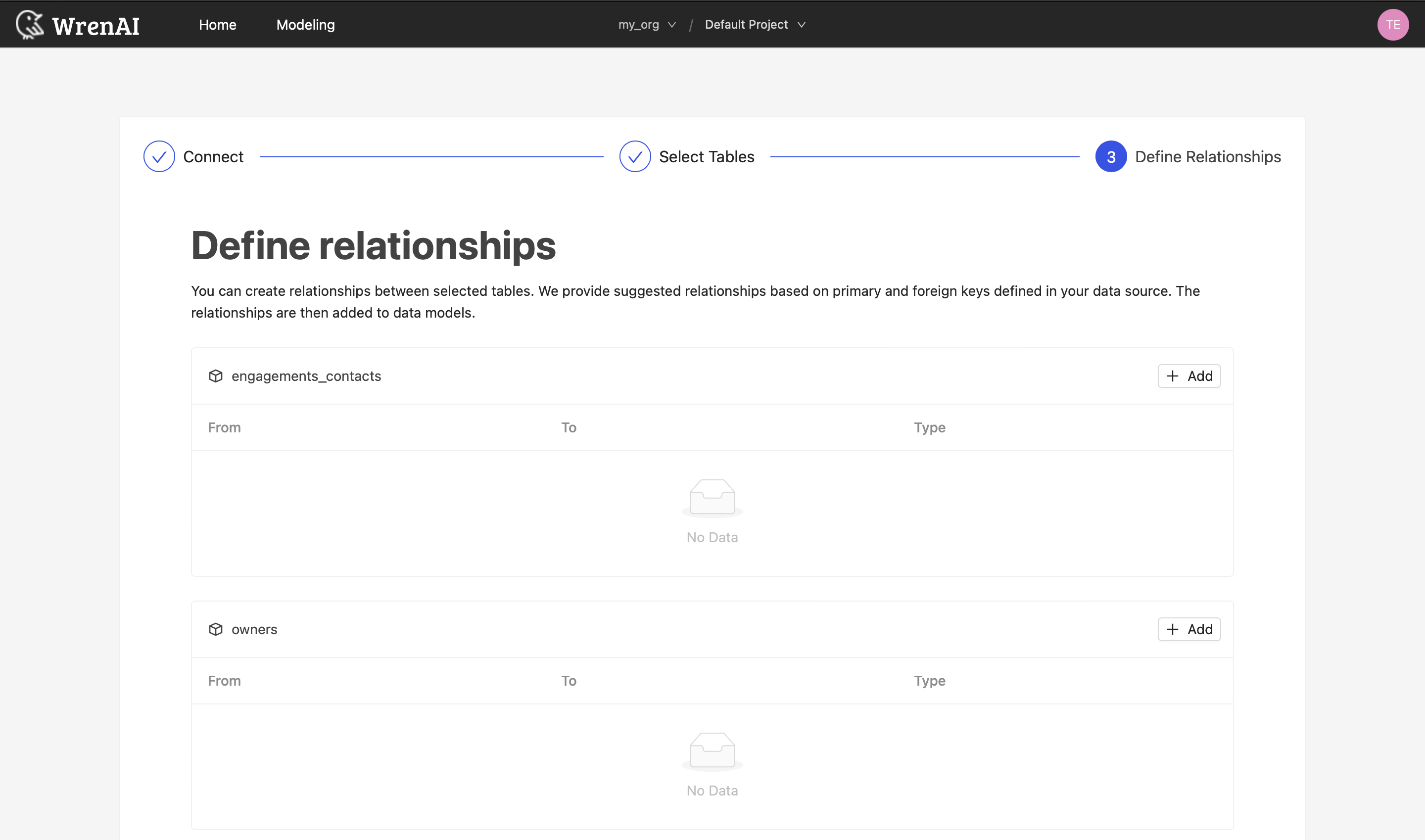
Define the following properties in a relationship:
- From: Select the left side table and column of this relationship.
- To: Select the right side table and column of this relationship.
- Relationship Type: Select the type of relationship.
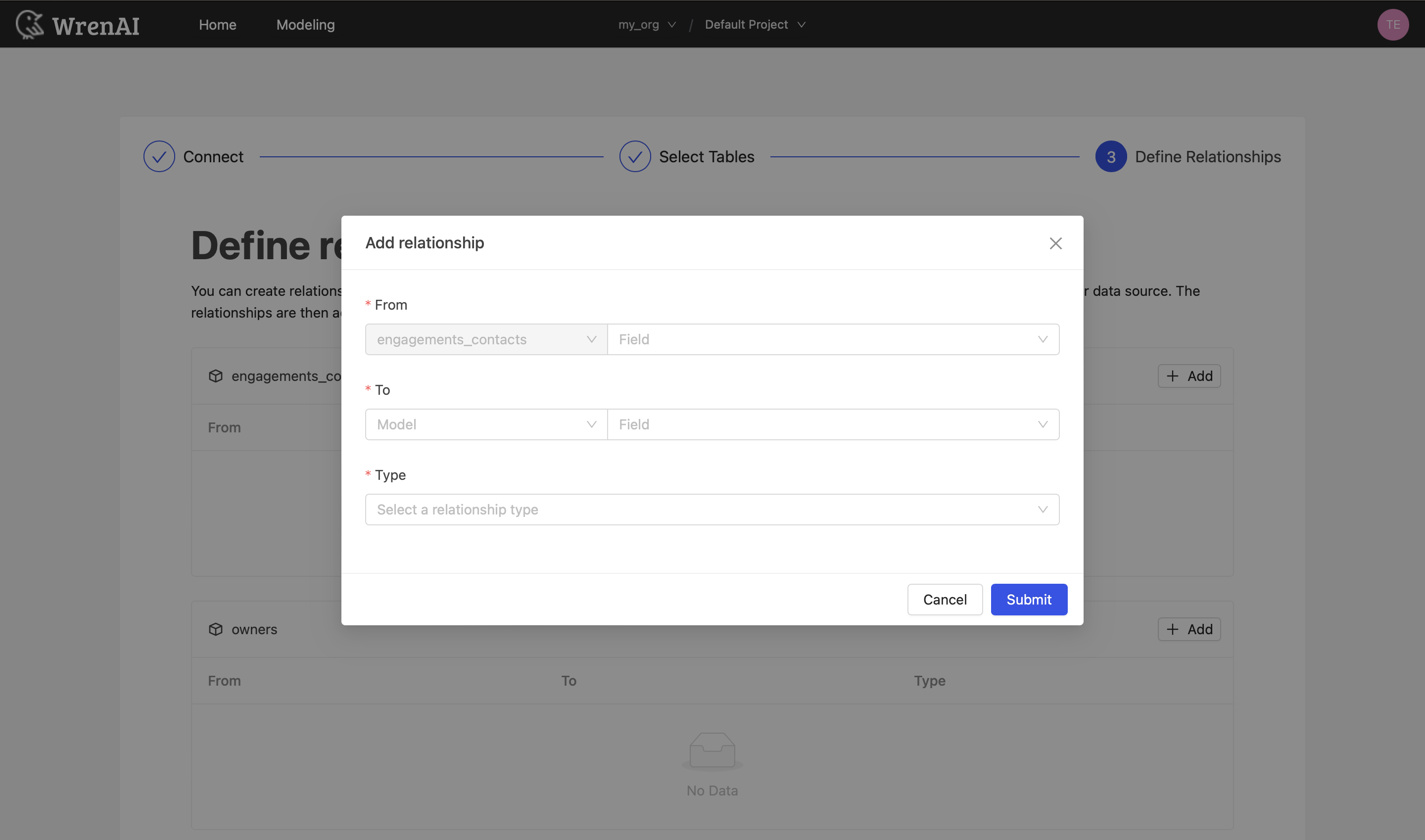
Find more information about relationships in Modeling - Working with Relationships.
You can also skip this step and finish the connection.
Notice
VPC and Security Group Configuration
Make sure your Redshift cluster's VPC and security groups allow connections from the Wren AI instance. You may need to configure inbound rules to allow traffic on port 5439.
Tested versions
Amazon Redshift is a managed service that AWS updates continuously, so there is no database version to pin. Note that the AWS Credentials authentication method requires a cluster identifier and therefore applies to provisioned clusters. If you hit an environment-specific issue, please contact us.