Views
Use this page to understand how Wren AI views work and how to save, inspect, or delete them.
Views in Wren AI are trusted saved results built from SQL generated in Wren AI. They are not the same as database-native views.
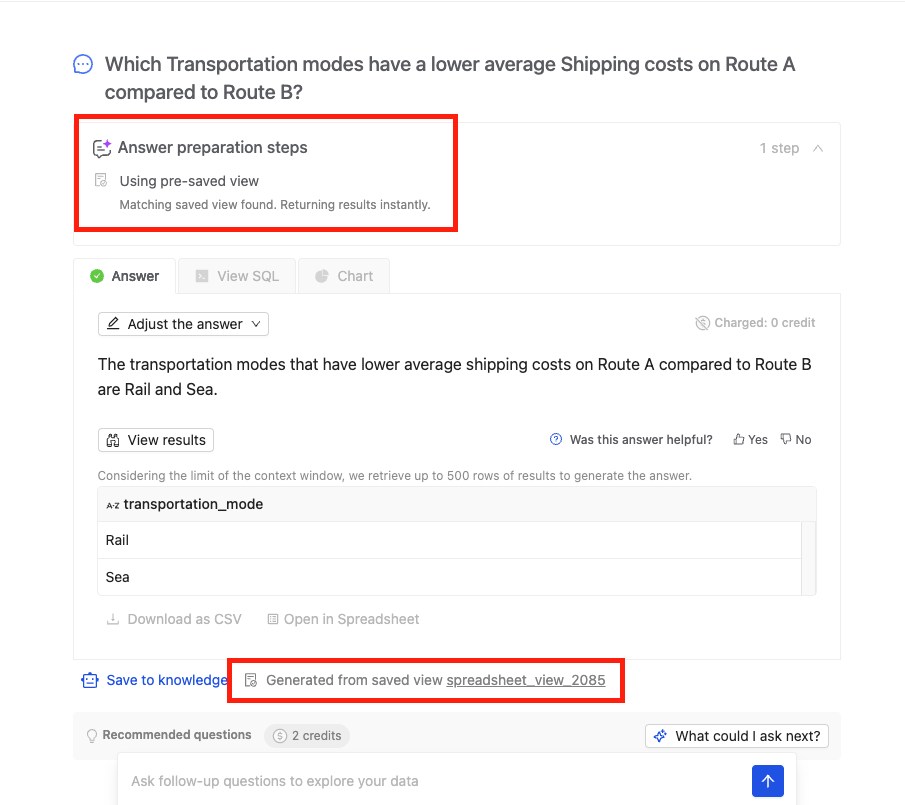
When you save a view, the question and the SQL result are saved as a trusted result. When a user asks the same question, it directly generates the result without using AI to regenerate the SQL. You can easily see in the UI whether the SQL is regenerated from AI or from saved views, as below.
Create a view
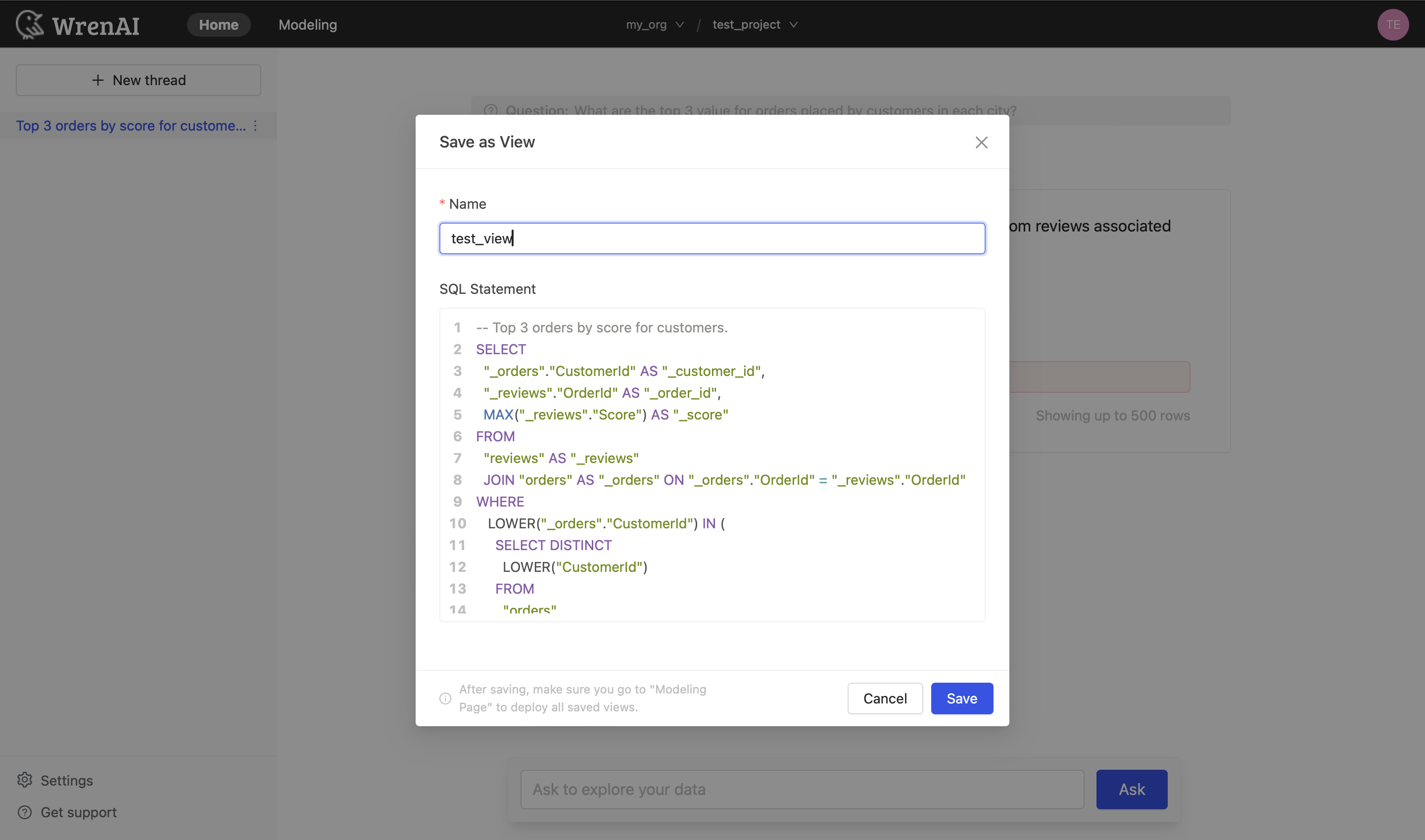
Currently, the only way to create a view in Wren AI is by saving a result SQL statement as a view.
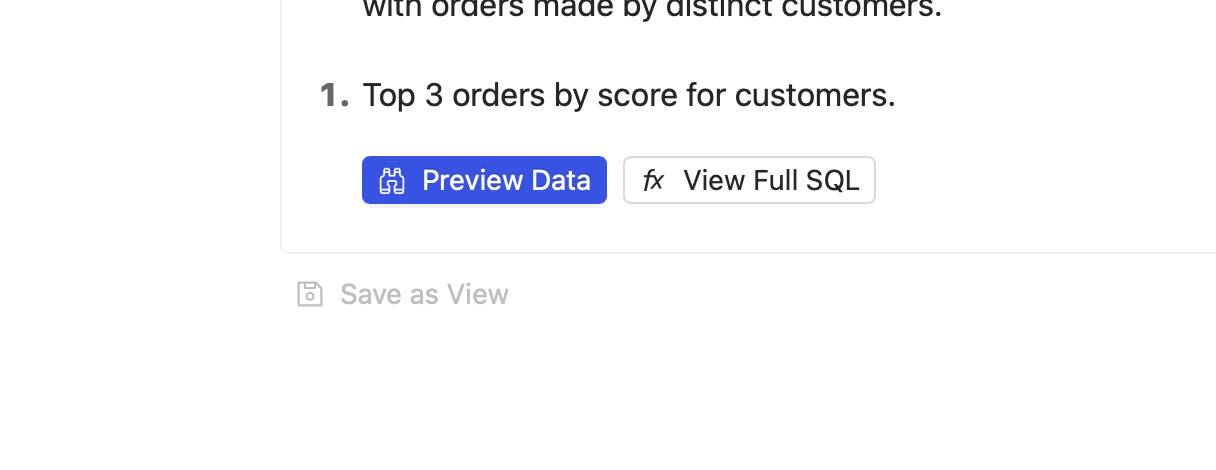
On the Home page, we offer a save as view button in every answer that allows you to save the result SQL as a view.
View list
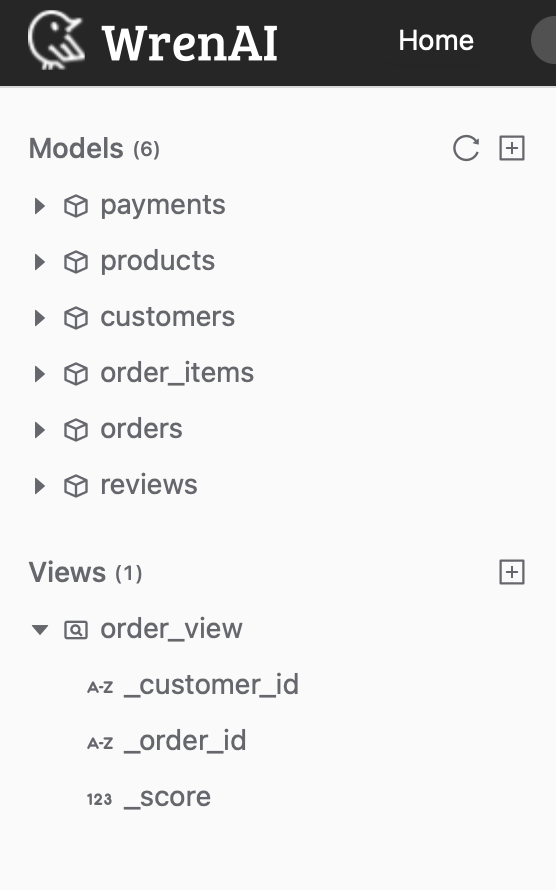
You can access the list of saved views in the "Views" section of the sidebar on the Modeling page.
Click on the expand icon to see the columns in a view.
If you click on a view from the sidebar, the Entity Relationship diagram will focus on the view you clicked.
Delete a view
To delete a view:
- Click the "..." icon on the view diagram.
- Choose "Delete".
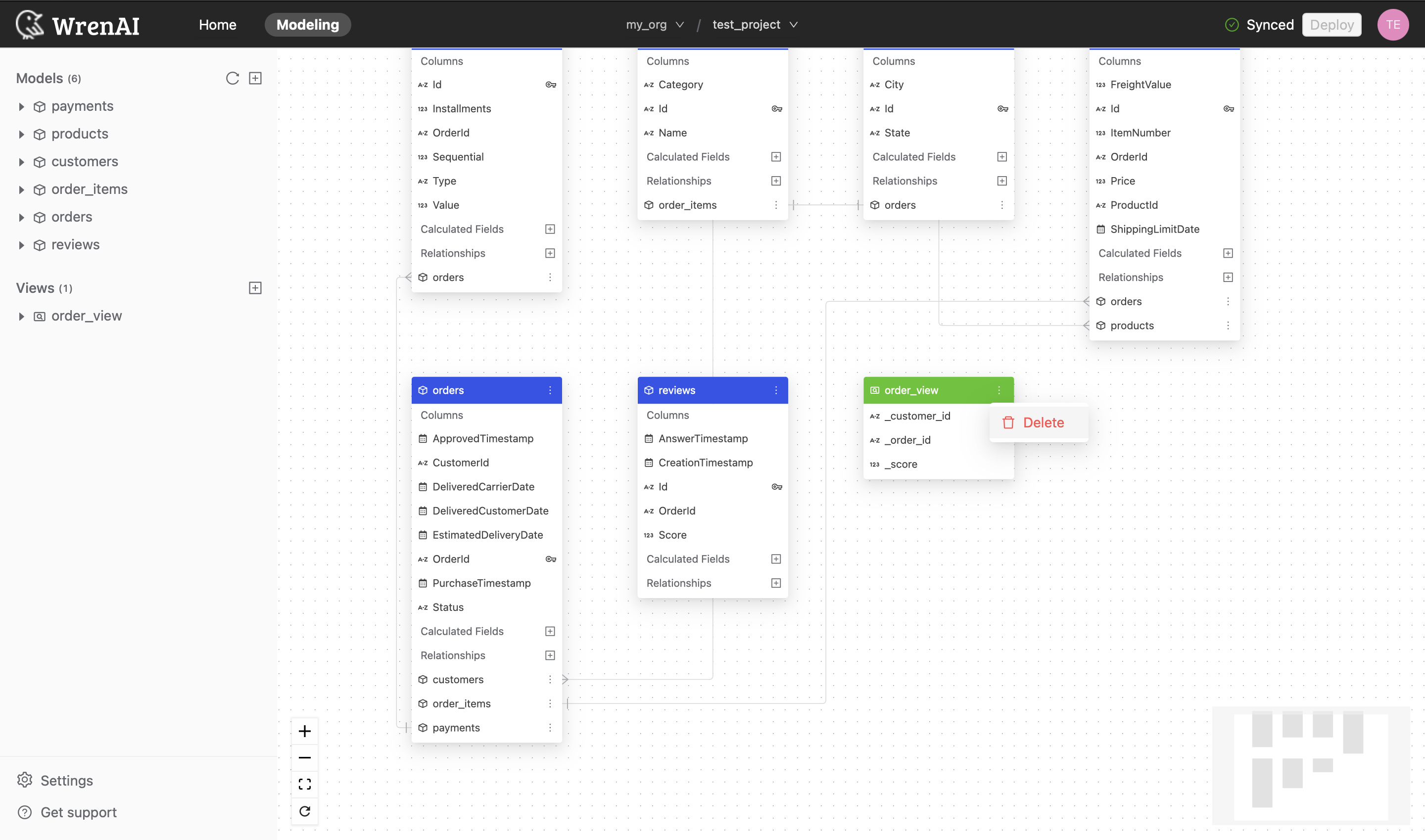
Read view metadata
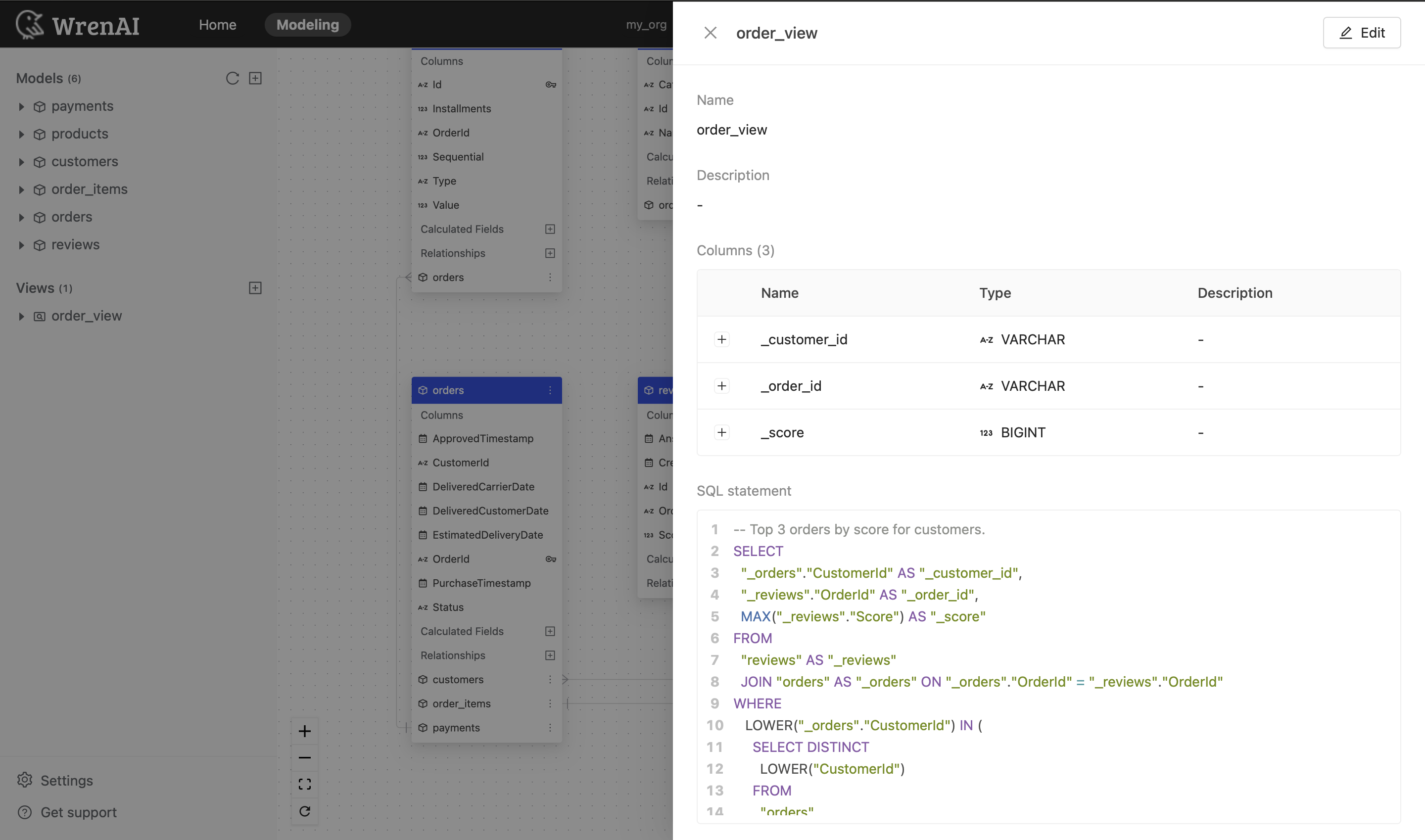
To further understand your data, you can click on a view in the Entity Relationship diagram to view the metadata:
- Name: View name
- SQL statement: Saved SQL statement of the view.
- Data Preview: By clicking Preview data, you can preview up to 100 rows of data from the view
Deploy
Press Deploy on the navigation bar to synchronize changes from the Modeling page.
The navigation bar will show an Undeployed changes message if there are any new changes.

The navigation bar will show a synced message if all changes have been deployed.
