Evaluation
Use this page to build test scenarios and benchmark Wren AI answer quality against expected SQL and outputs.
- Cloud: Enterprise Cloud
- Self-hosted: Enterprise Plus (existing Business plan customers keep access)
The Evaluation feature lets you systematically test and benchmark Wren AI's query accuracy. By creating test scenarios with ground truth SQL and expected outputs, you can measure how well the AI generates correct answers for your specific data and use cases.
Test Scenario: Create and Manage
Navigate to the Evaluation page from the left sidebar. The page displays all your test scenarios in a table with columns: Test scenario, Description, Latest accuracy, Execution time, Number of questions, and Action.
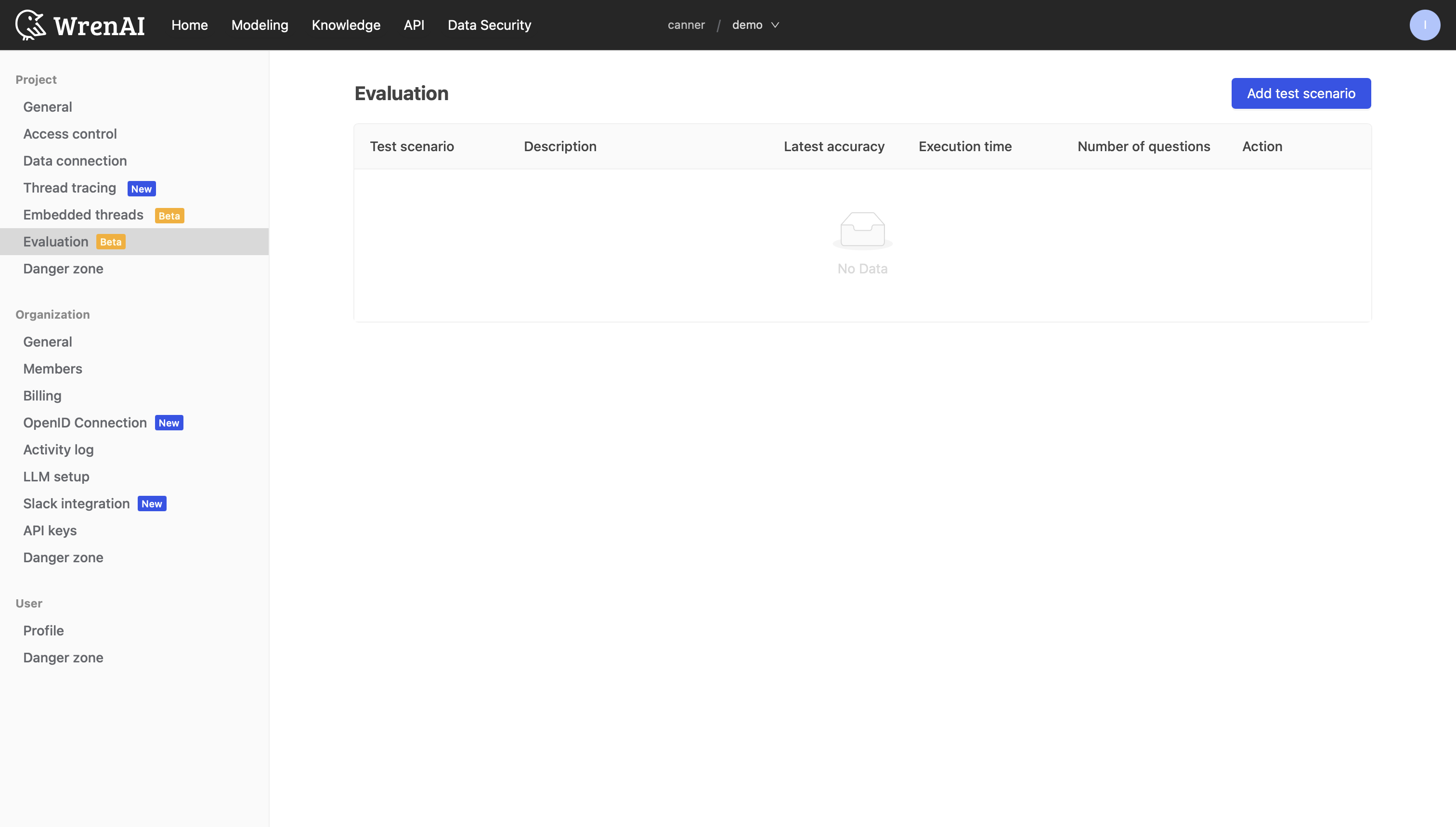
If no test scenarios exist yet, the page shows an empty state — click Add test scenario to get started.
Create a Test Scenario
Click Add test scenario in the top-right corner to open the creation modal.
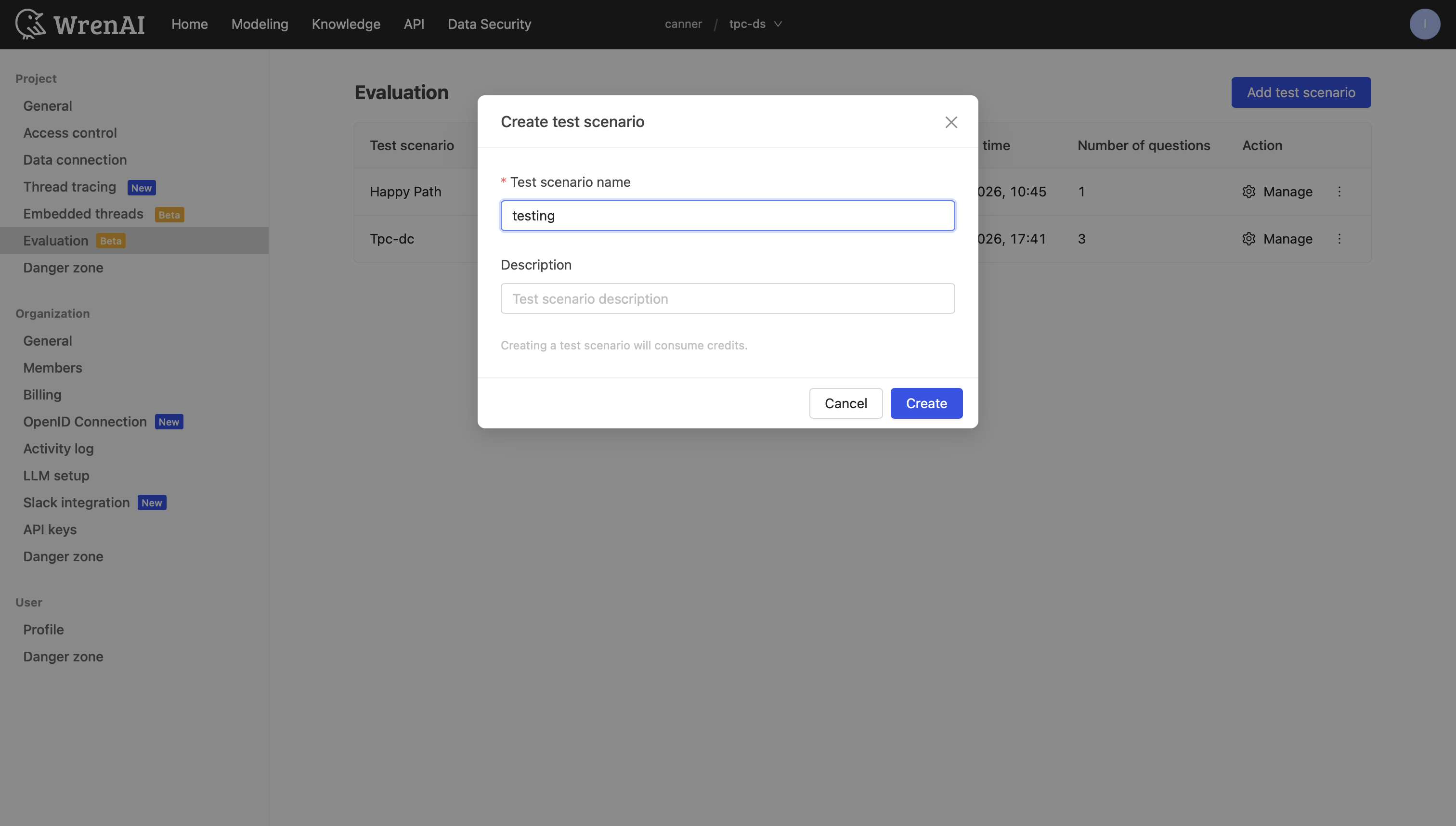
- Enter a Test scenario name (required).
- Optionally add a Description.
- Click Create.
You will be redirected to the scenario detail page.
Add Test Questions
Inside the scenario detail page, select the Questions tab and click Add question. Adding a question is a 2-step process.
Step 1 — Define the Question and Ground Truth SQL
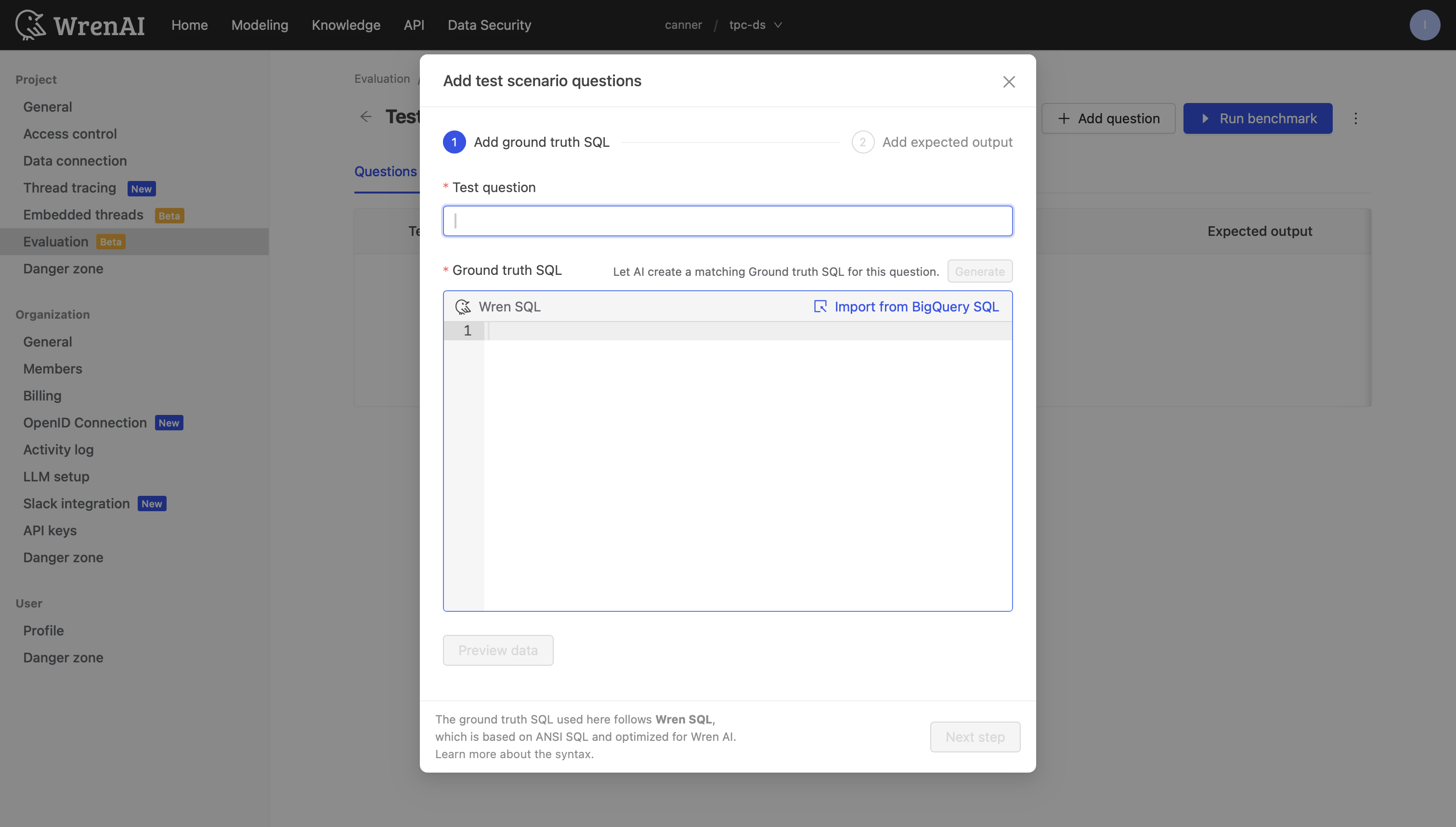
- Test question: Enter the natural language question.
- Ground truth SQL: Write the correct SQL in the code editor. You can also click Generate to let AI create a matching Ground truth SQL for this question.
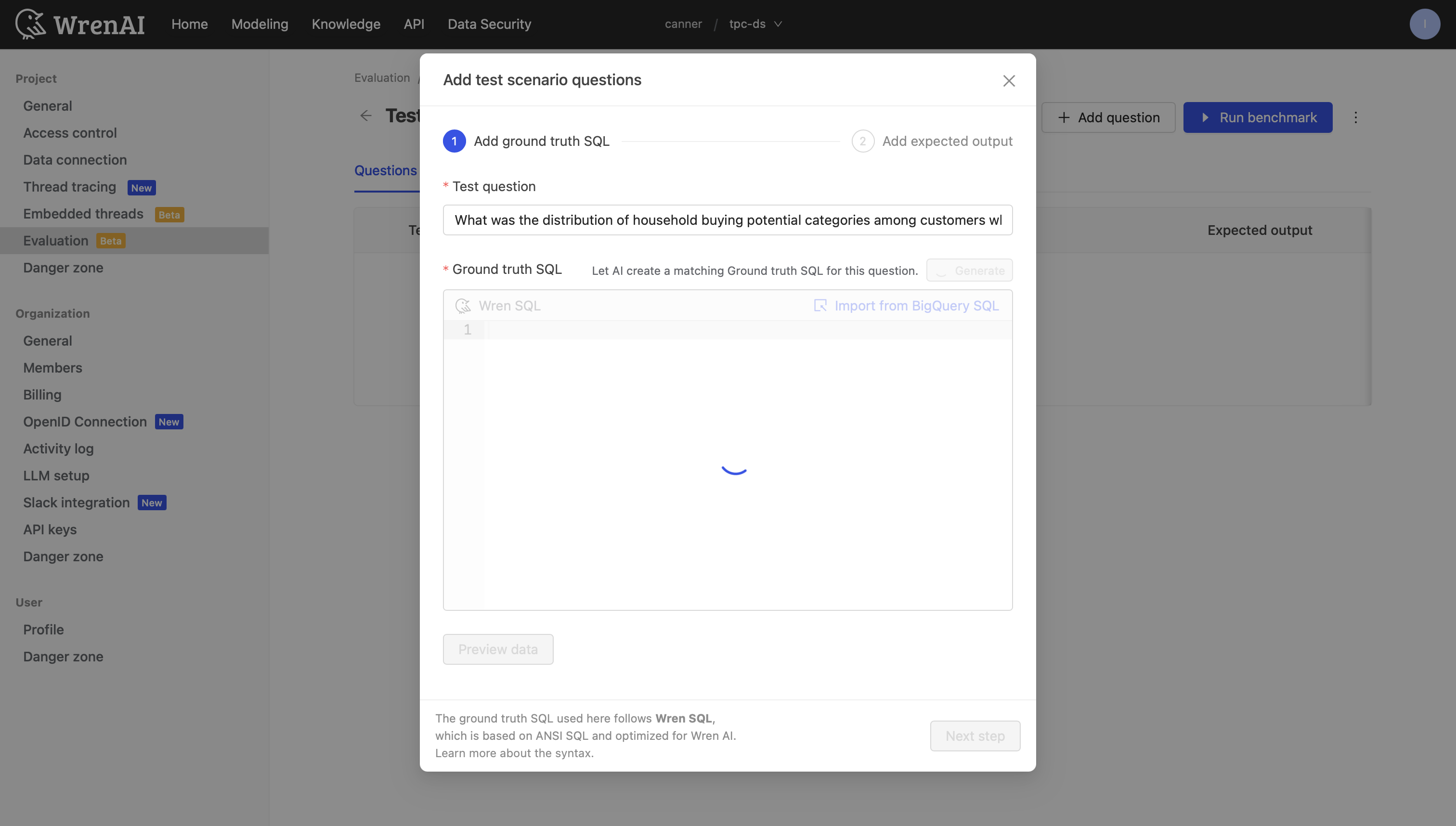
Once the SQL is generated, you can review and edit it in the code editor.
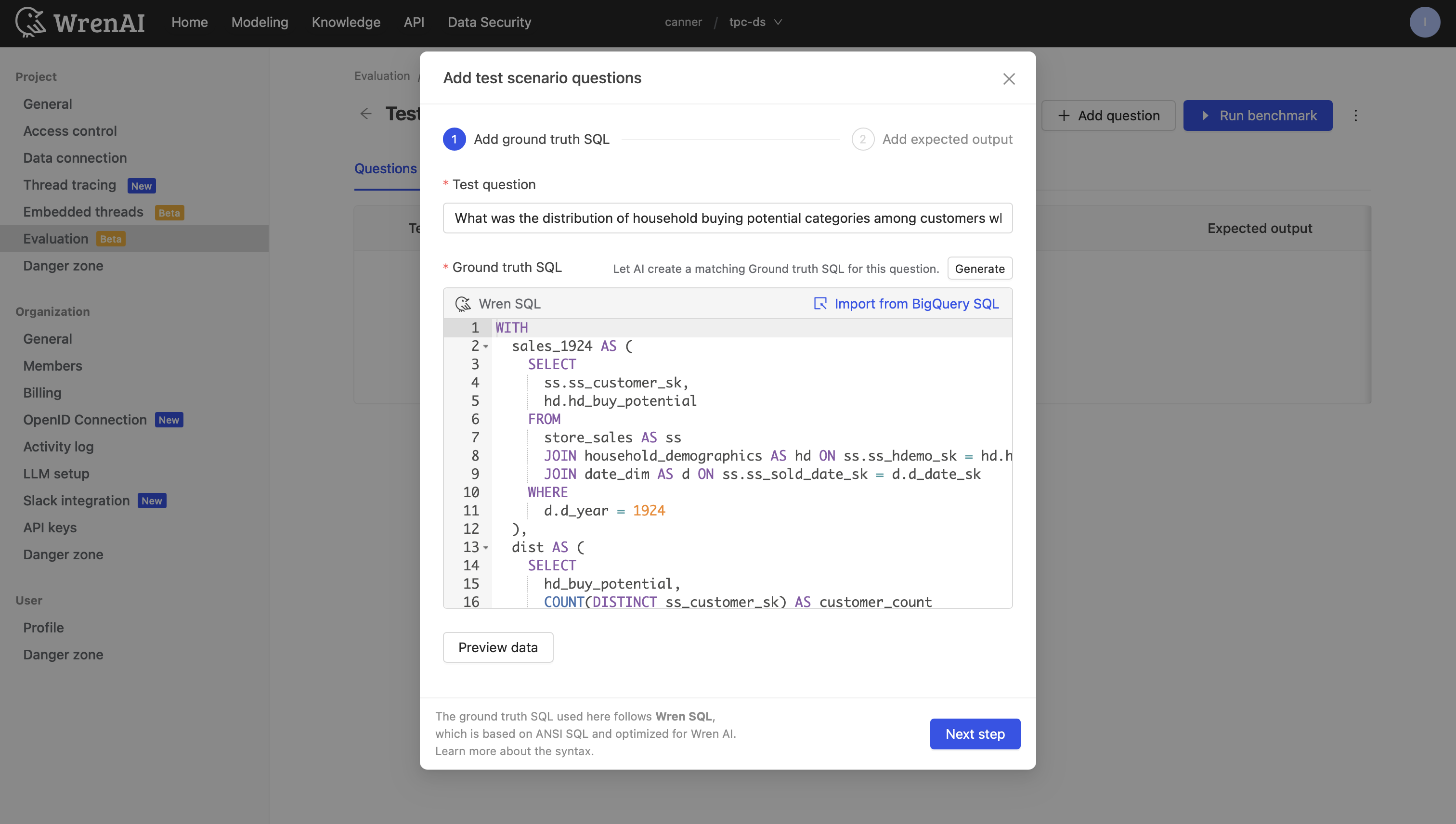
- Click Preview data to verify the SQL is valid. A data preview table appears below the editor on success.
The ground truth SQL follows Wren SQL syntax. See Wren SQL for more details.
Step 2 — Define the Expected Output
After clicking Next step, the AI automatically generates an expected output including data sources, key findings, and conclusions.
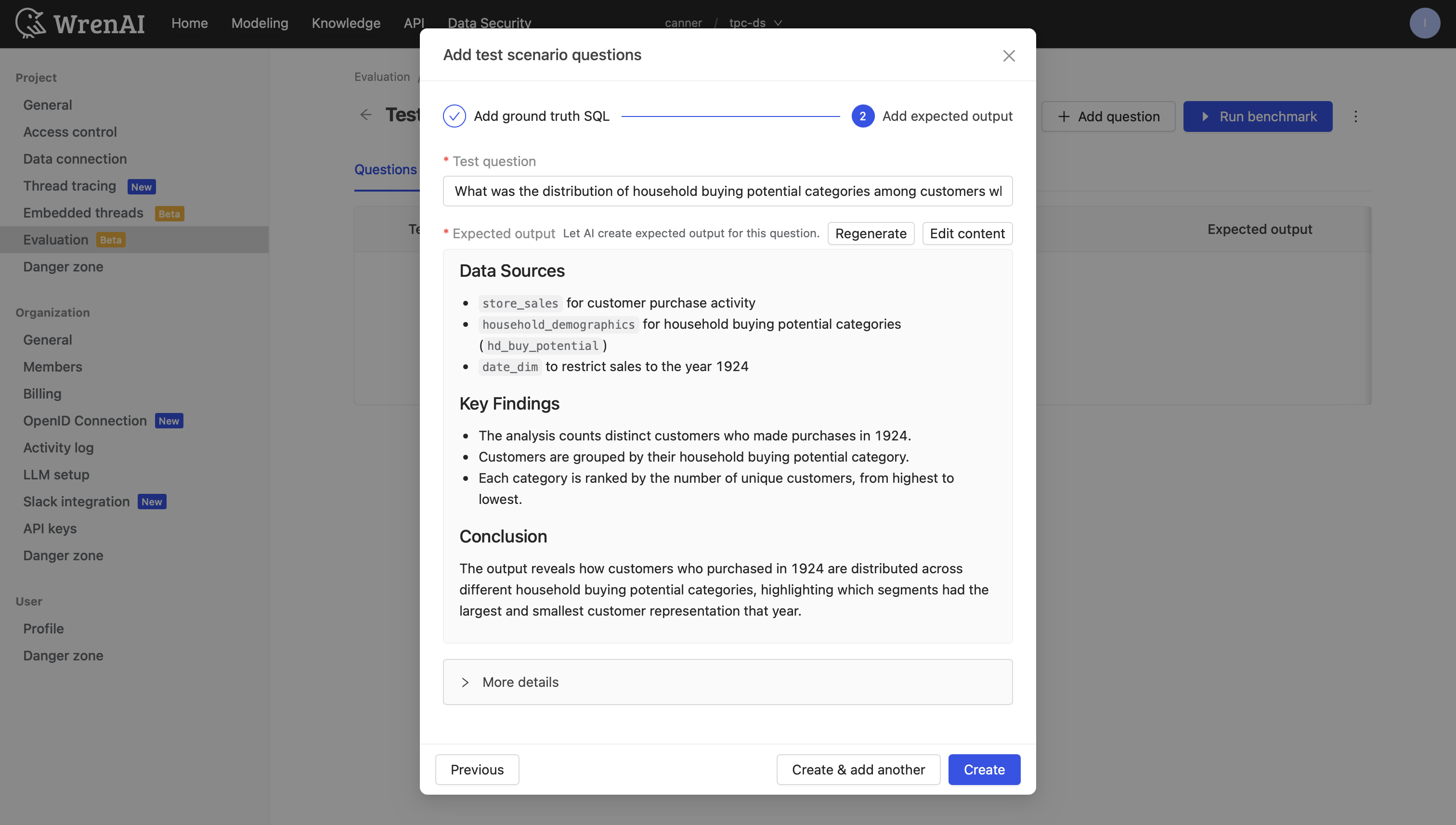
- Click Edit content to modify the AI-generated output as needed.
- Expand More details to review expected answer, expected tables, and expected conditions.
When finished:
- Click Create & add another to save and continue adding questions.
- Click Create to save and return to the scenario detail page.
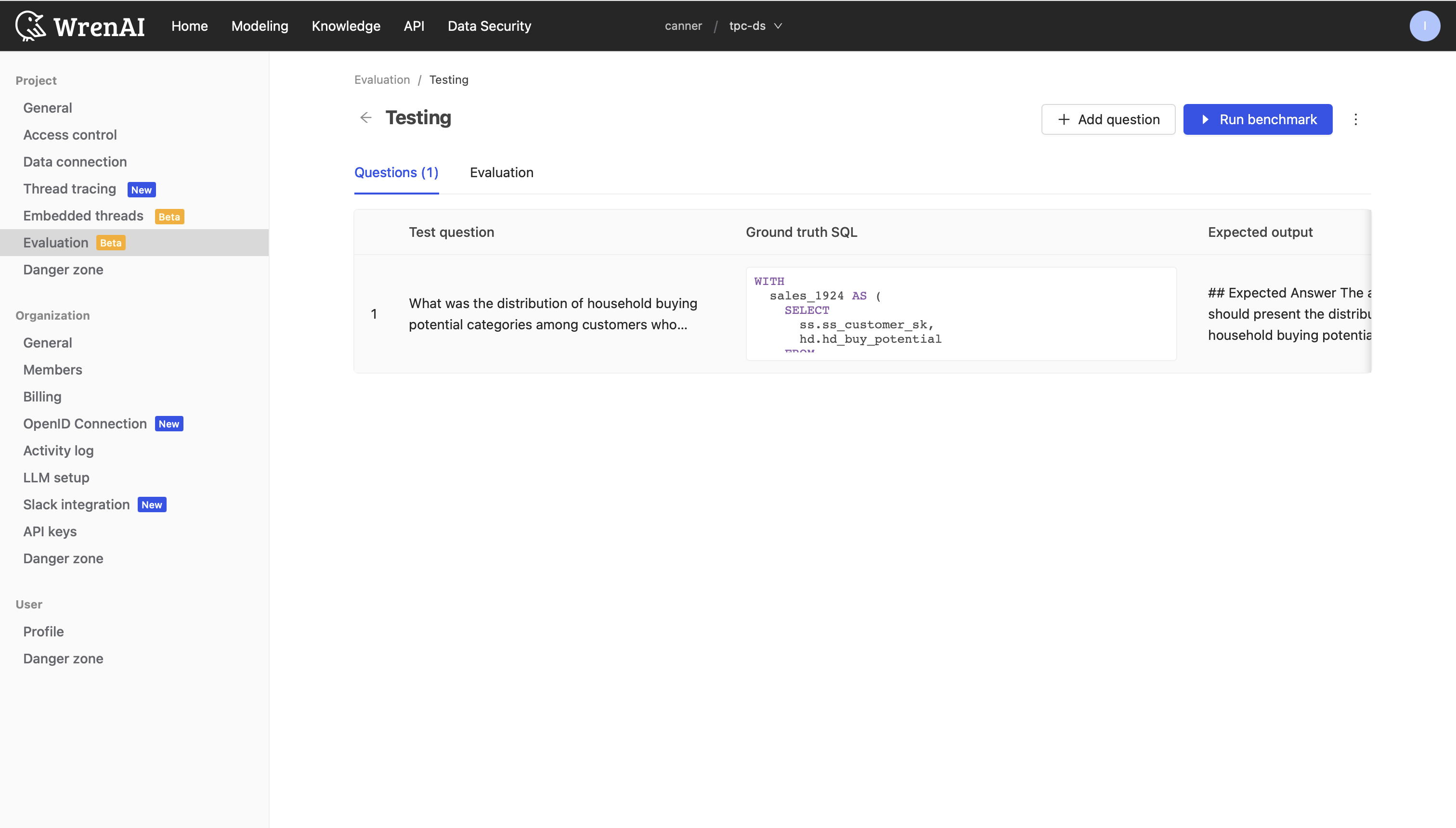
Benchmark: Run and Review
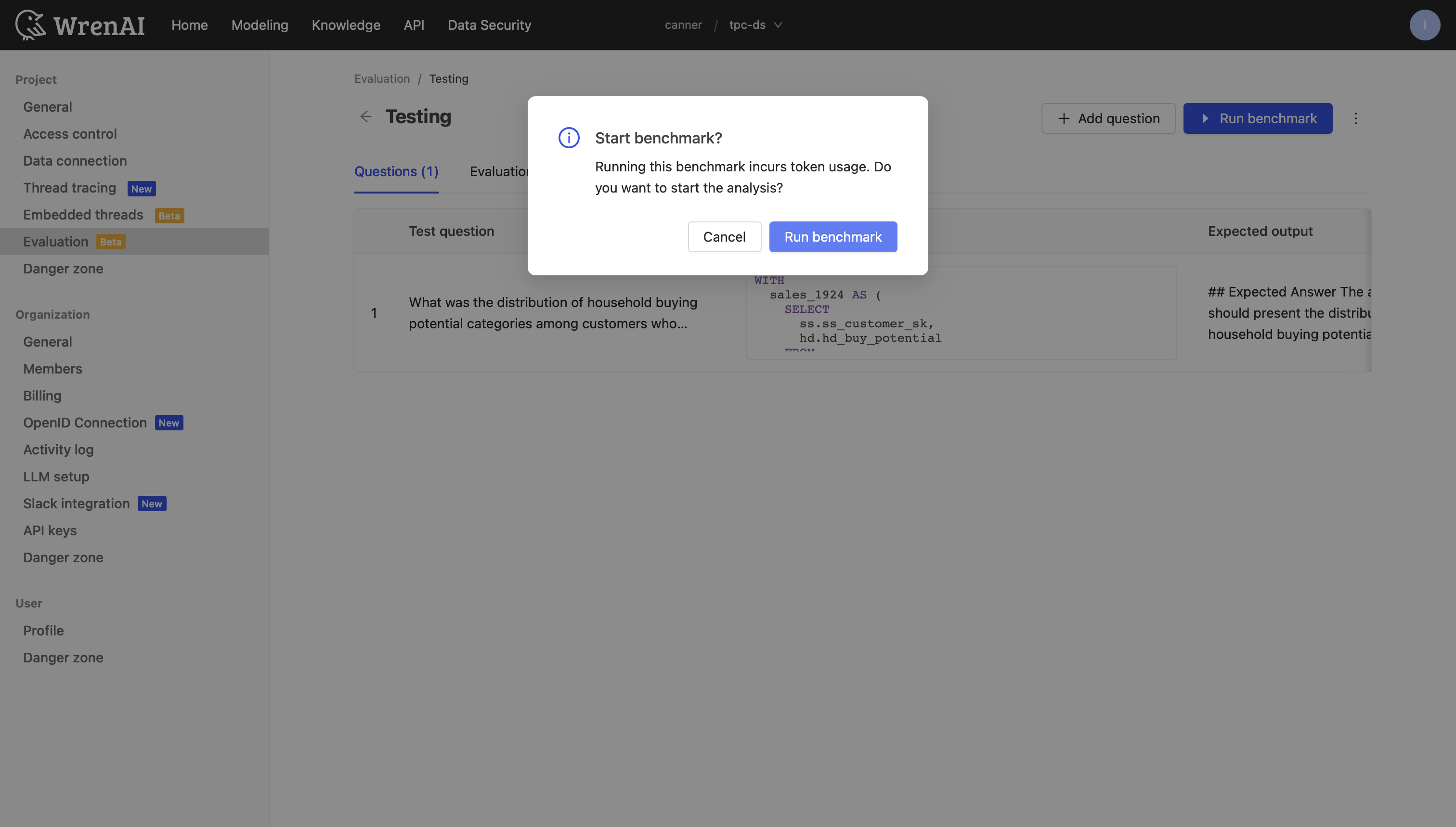
Switch to the Evaluation tab in the scenario detail page, then click Run benchmark.
Run a Benchmark
A confirmation dialog appears — confirm and click Run benchmark to start the analysis.
A new row appears in the result table with In progress status. You can navigate away while it runs.
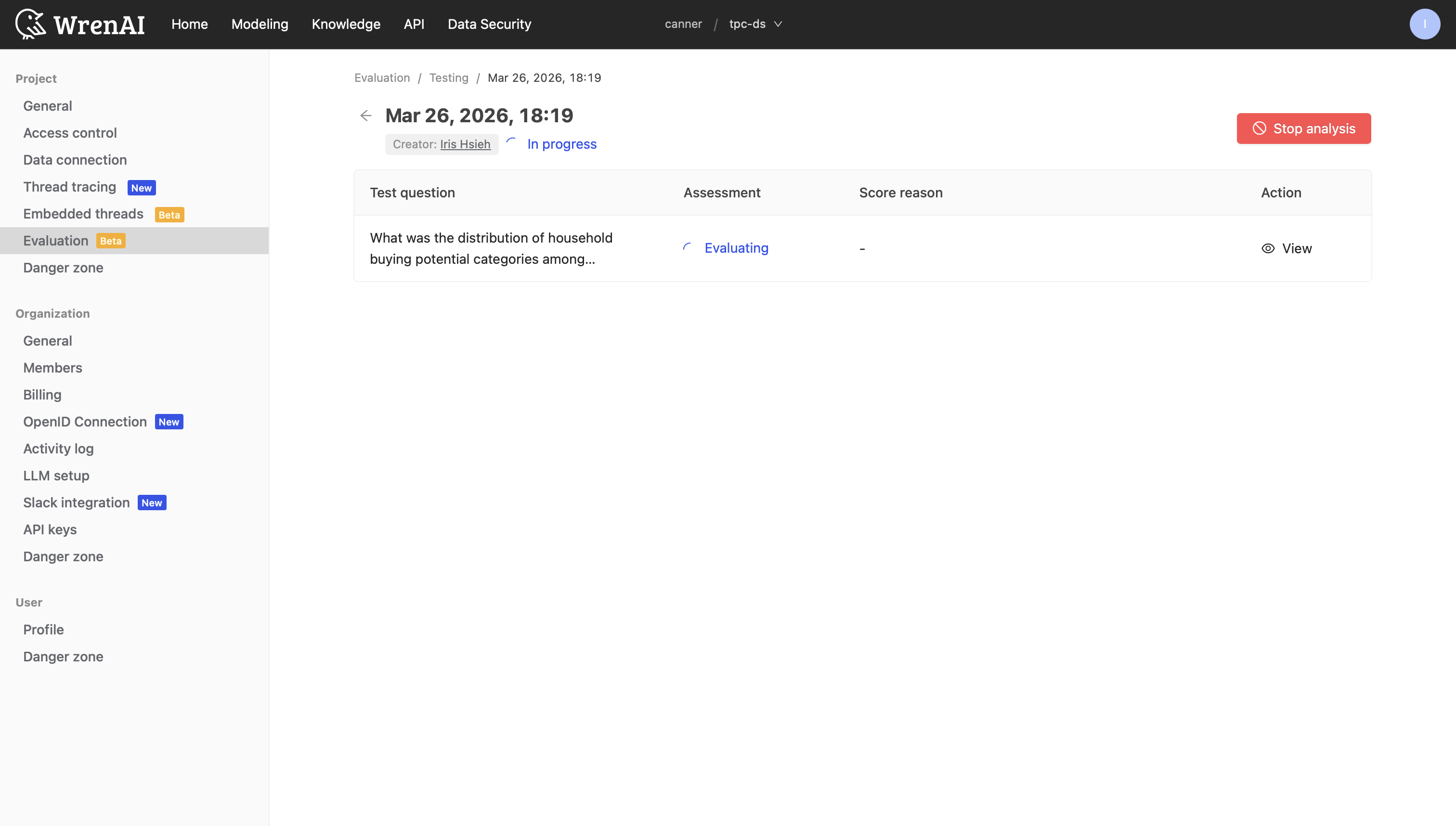
Once complete, the status updates to Completed with the accuracy score displayed.
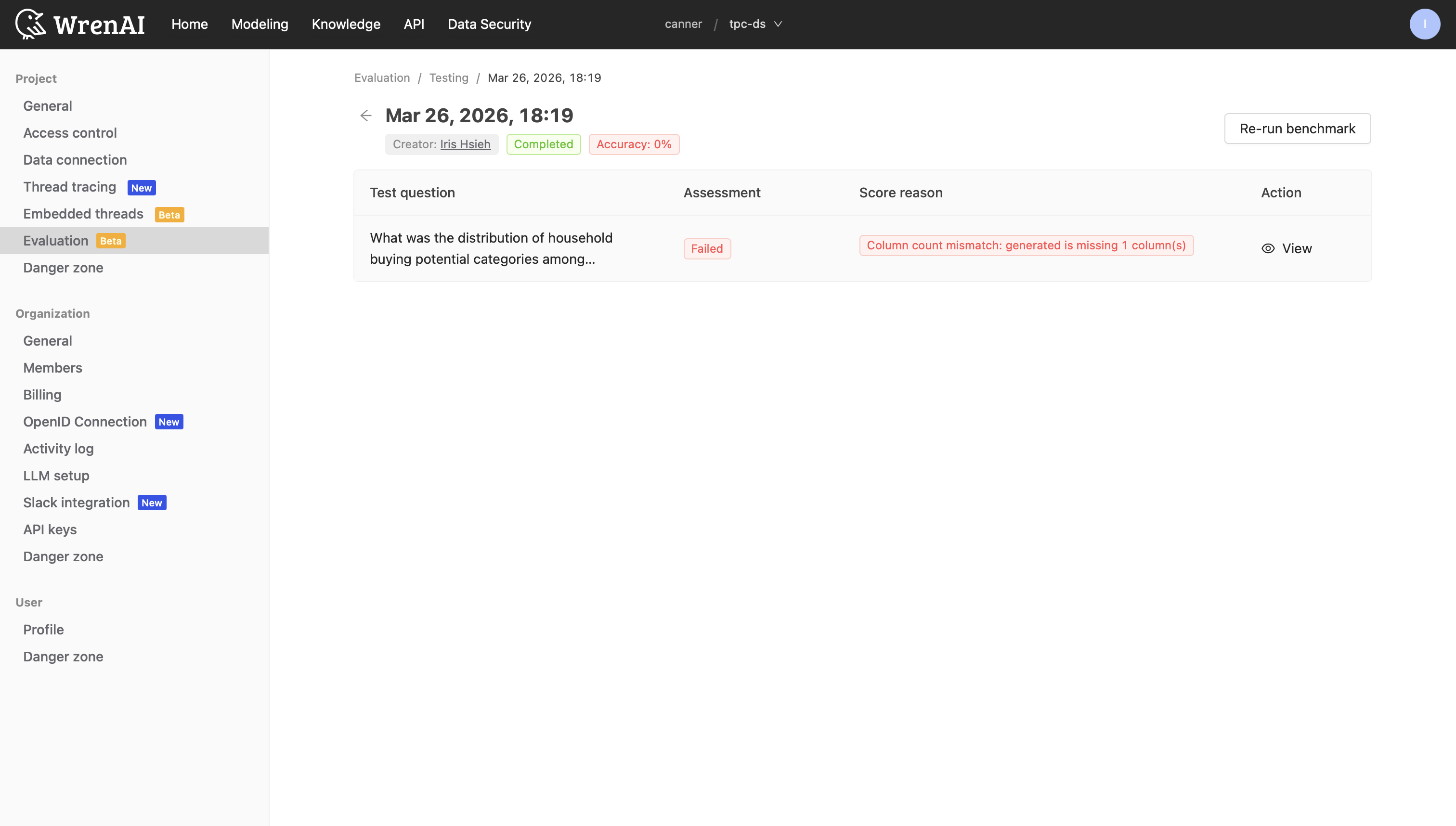
You can stop a running benchmark at any time by clicking Stop analysis. Partial results will still be available for review.
View Results
Click View on any question row to open the View evaluation details panel:
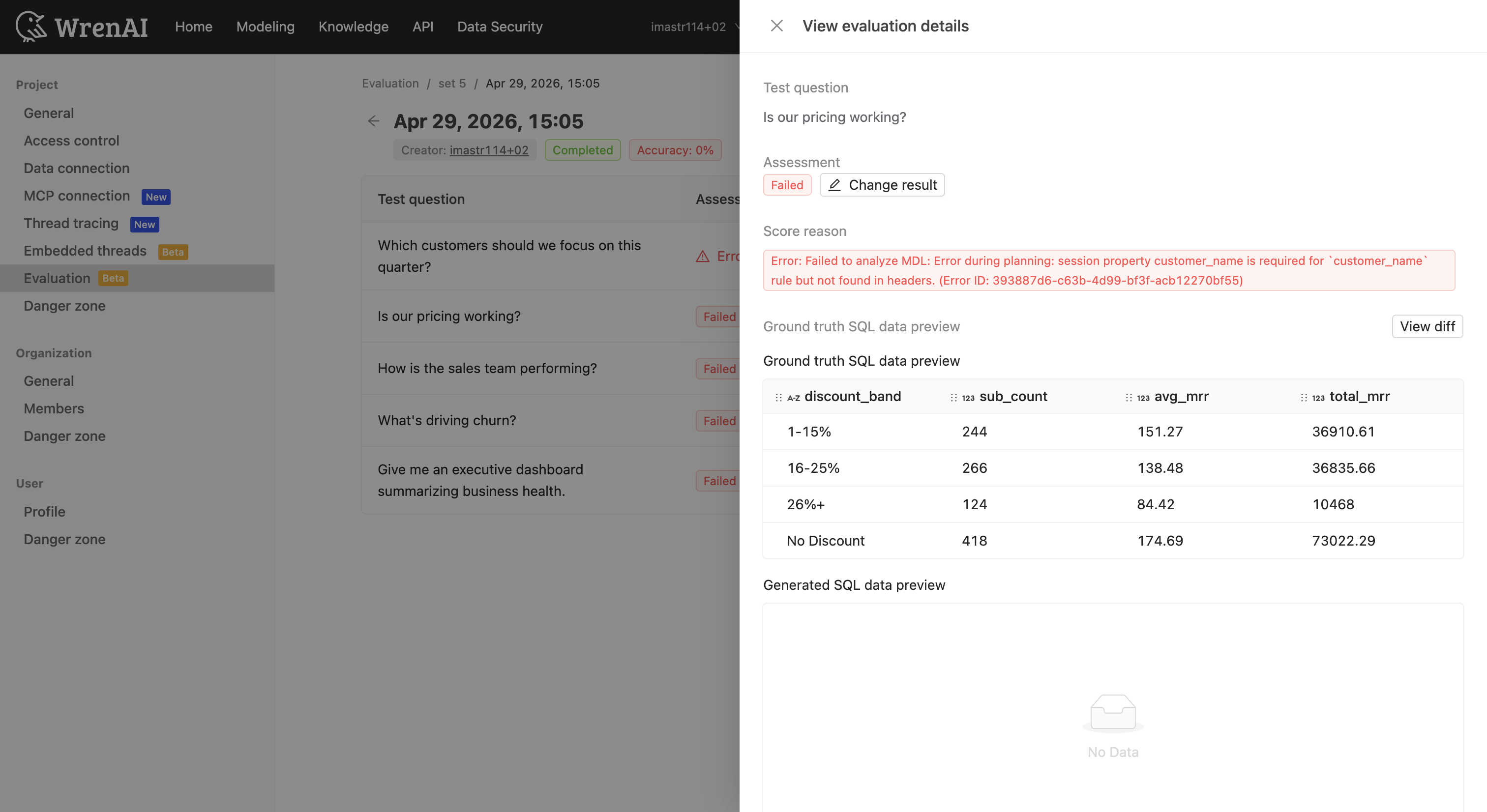
- Assessment — Pass/Fail status with an option to manually override via Change result.
- Score reason — A short tag (e.g., "Column count mismatch: generated is missing 1 column(s)") explaining the result.
- Reason details — A detailed explanation of why the assessment result was given, describing the differences between the ground truth and generated queries.
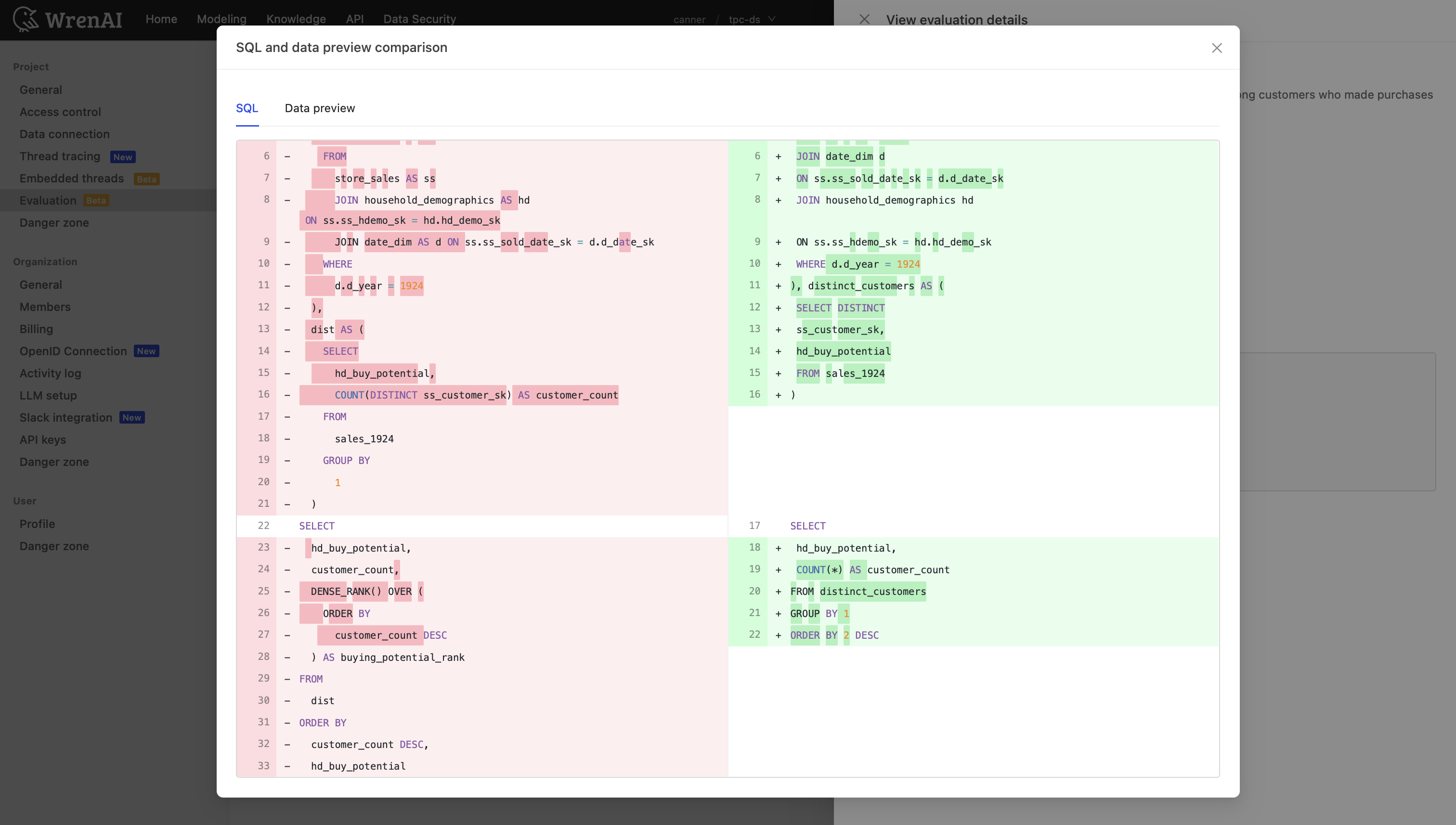
- SQL and data preview comparison — Click View Diff to see a side-by-side diff of ground truth SQL vs. Wren-generated SQL.
-
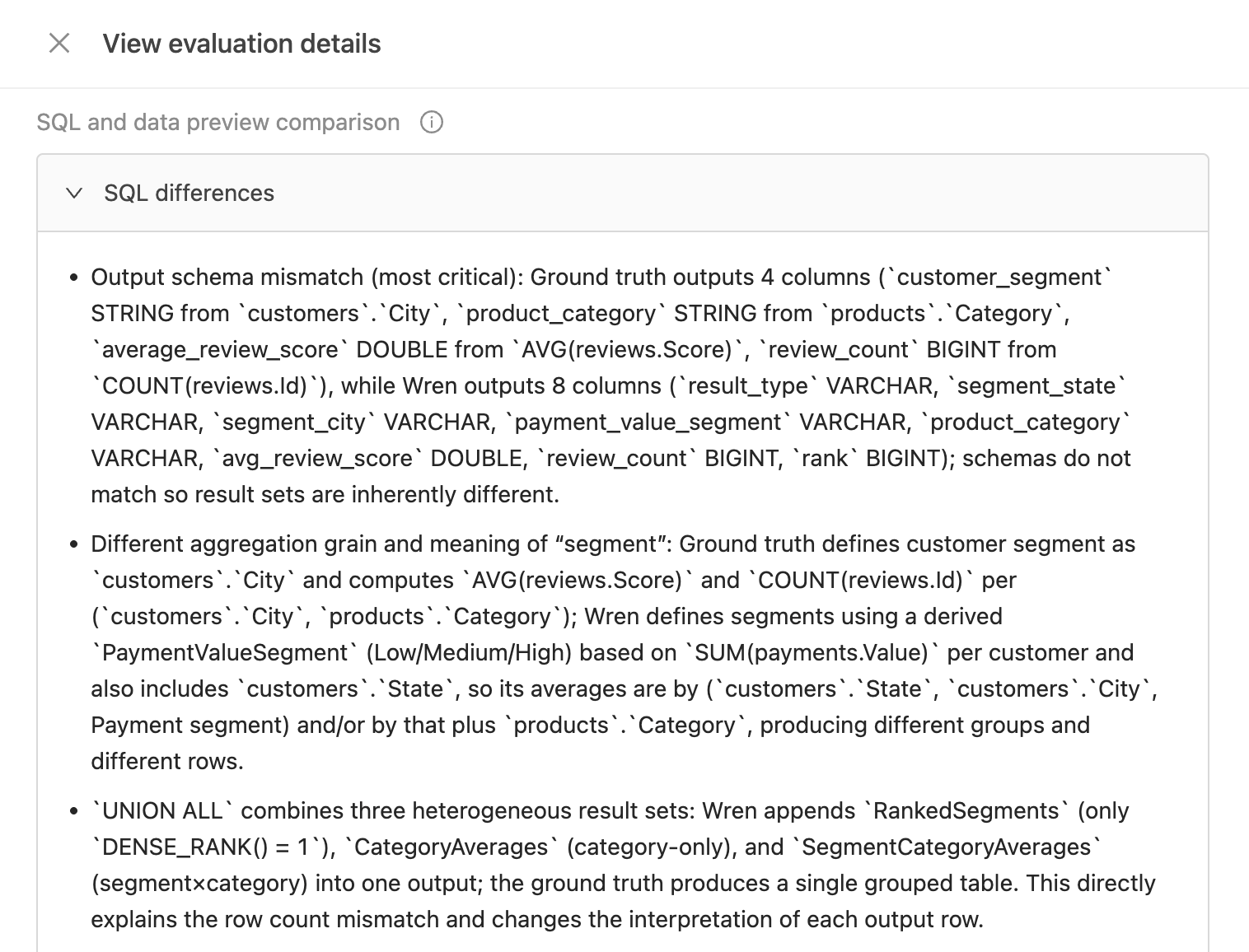
SQL differences — A summary of the specific SQL-level differences between the ground truth and Wren-generated SQL.
-
- Wren SQL thinking steps — A timeline of the AI's reasoning process, including intent recognition, candidate models found, and SQL generation.
SQL and Data Preview Comparison
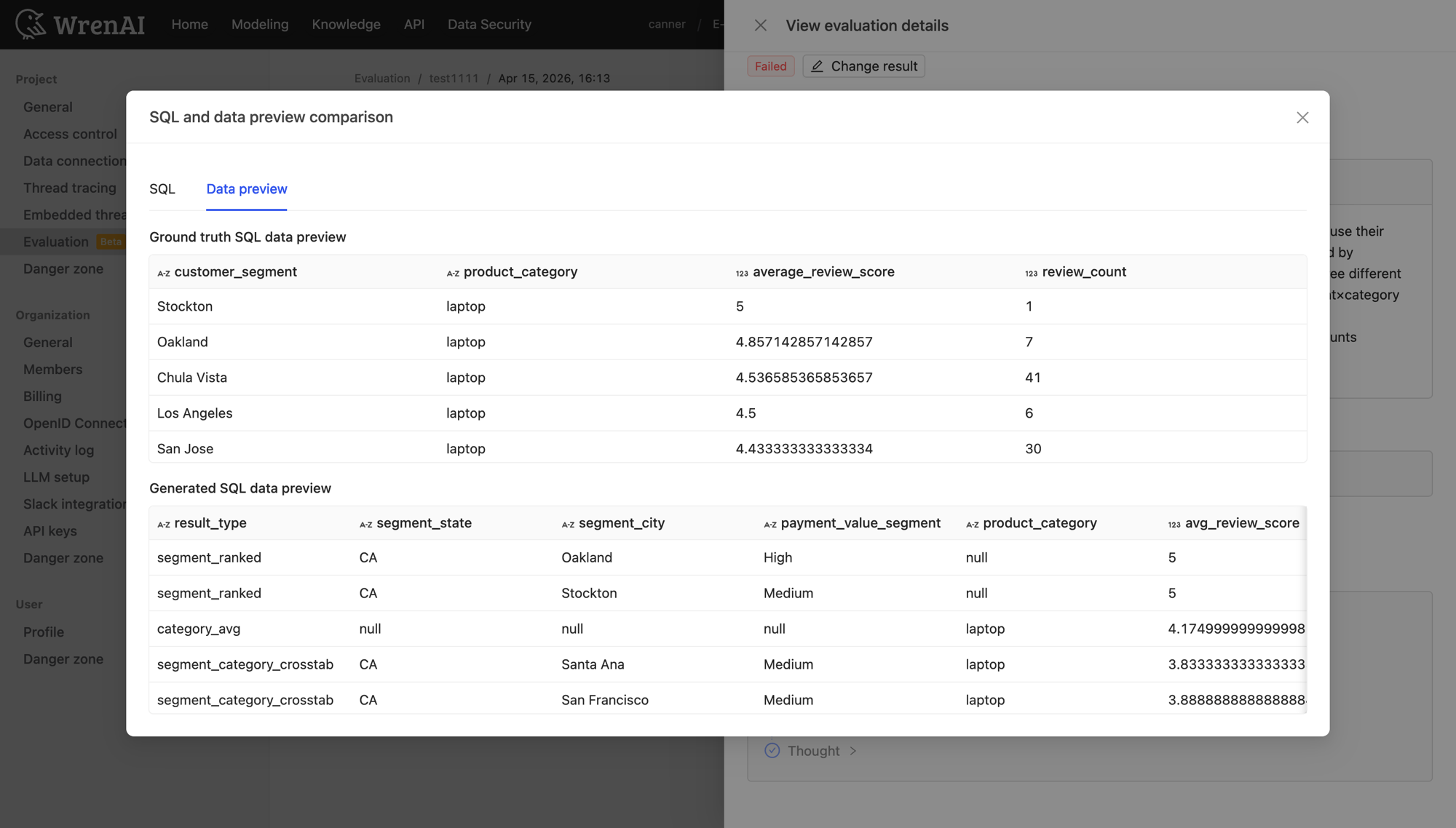
Click View Diff to open a full-screen comparison modal:
-
SQL tab: Side-by-side diff of ground truth SQL (left) and Wren-generated SQL (right), with additions and deletions highlighted.
-
Data preview tab: Comparison of query results from both SQL statements.
Change Assessment Result
If you disagree with an automated assessment, click Change result to manually set the result:
- Select a new Assessment result (Pass / Failed / Manual Review).
- Select a Score reason.
- Click Confirm.