Knowledge
This page describes Knowledge in Agentic projects. For Classic projects, see Knowledge Overview (Classic).
Knowledge lives in the top nav at Knowledge. It's a file explorer of markdown files that give the agent your project's domain context. Anyone on the project can curate it, and everyone benefits.
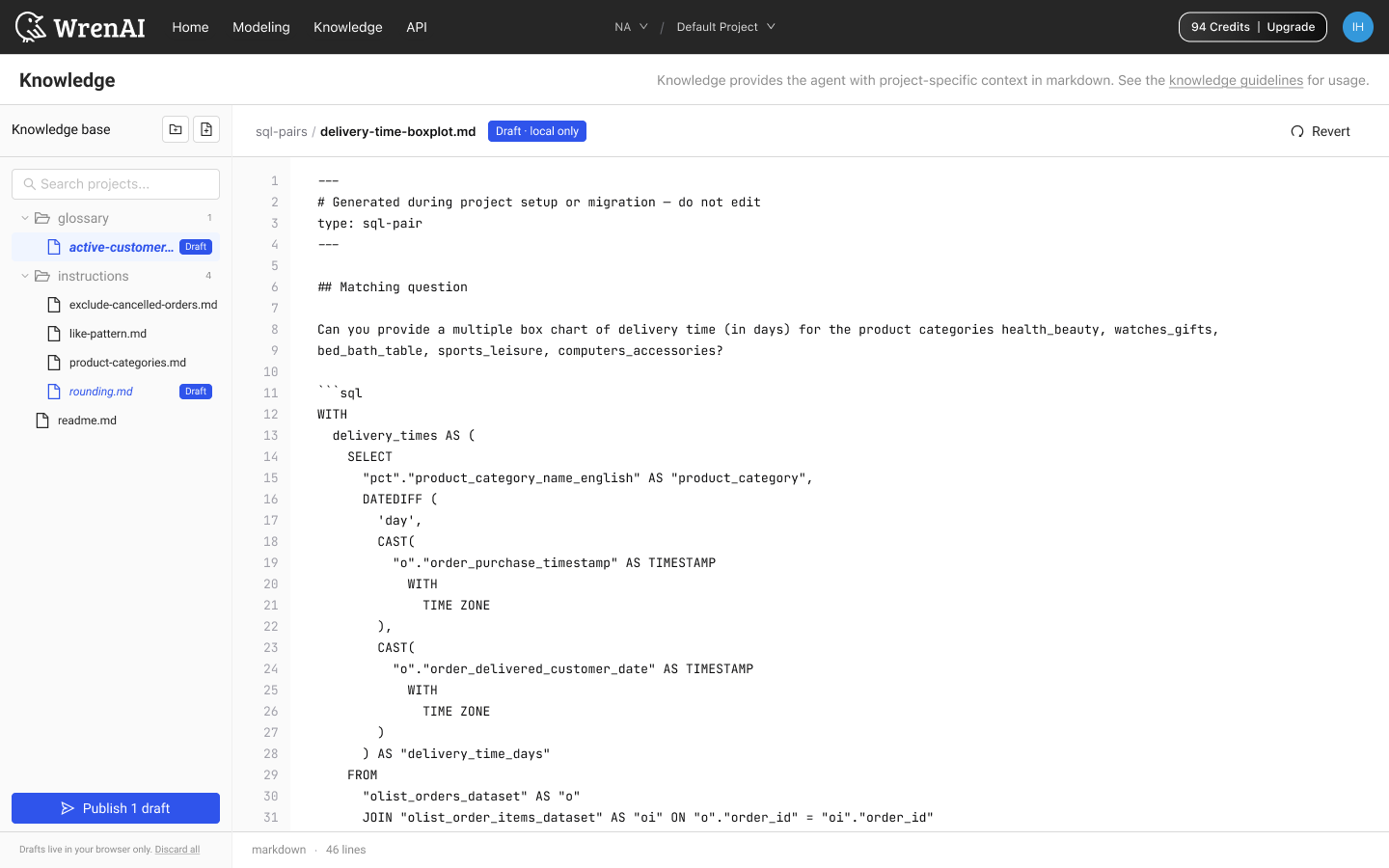
Browse files
Expand folders in the left tree. Click any file to read the markdown on the right. Each file shows a status badge: Published (live in the project) or Draft · local only (browser-local edits not yet shipped).
Each folder ships with a README.md at its root that explains the folder's purpose and authoring conventions. Open it before you start contributing to save yourself some guesswork.
Create a file
Use the file-add icon at the top of the tree to create a new file in one of two ways:
- Blank file: Type a path like
instructions/test-rule.mdand press ↵. The file is created in the target folder. - From template: Pick from six opinionated templates: Glossary term, Metric, Rule, Caveat, SQL pattern, or Blank. Each ships a working frontmatter contract so the agent has structured fields to retrieve over.
- Glossary term: Define a business term and map it to columns.
- Metric: Canonical metric with formula, dimensions, and exclusions.
- Rule: A hard rule Wren should always follow.
- Caveat: A gotcha, like timezone, rename, or dirty data.
- SQL pattern: A canonical, approved query pattern.
- Blank: Empty file with just a title header.
Use the folder-add icon to create a new folder. A starter file (_new.md) is auto-generated inside the folder with type: already pre-filled in its frontmatter.
Drafts and publishing
All edits stay as local drafts in your browser until you explicitly publish. The editor footer shows draft auto-saved to your browser in blue while you type.
Drafts live in your browser only. Refreshing the page keeps them, but switching browsers or devices does not. Teammates can't see your drafts, only published files.
The bottom of the left panel shows the current state of the tree:
- All changes published when there are no pending drafts.
- Publish N draft(s) in blue when drafts exist.
Click Publish to open a summary modal listing each change as create, update, or delete. Confirm with Publish to project to commit the drafts to the project repo. Teammates will see them on their next session.
Click the underlined Discard all link to drop every draft immediately and revert to the last published state. Discard does not show a confirmation dialog.
On publish, SQL pairs and instructions are automatically extracted so users on Classic chat modes (Ad-hoc and Interactive) pick up the new context, with no duplicate maintenance.