Asking Questions (Agentic Mode)
Agentic Mode is only available in Agentic projects. Classic projects use Ad-hoc or Interactive Mode instead.
Agentic Mode is in Beta and available on all plans. Create an Agentic project to start exploring.
Use this page to understand what Agentic Mode is, how to create an Agentic project, and how to ask questions once your project is ready.
What is Agentic Mode?
Agentic Mode turns Wren AI from a Q&A tool into a true teammate that understands your project's context, remembers your preferences, and grows new capabilities as you work. It is opt-in at project creation and unlocks three project-level surfaces that work together:
- Knowledge: Shared domain context (glossary, rules, SQL pairs) curated by the team.
- Skills: Reusable, project-wide workflows the agent can run on demand.
- Memories: Private notes the agent keeps about you, per project.
Early access
Active Starter, Essential Cloud, and Enterprise Cloud organizations get a one-time credit grant to try Agentic Mode (Starter: 100, Essential Cloud and Enterprise Cloud: 500), shared across the whole team. Each organization can redeem once.
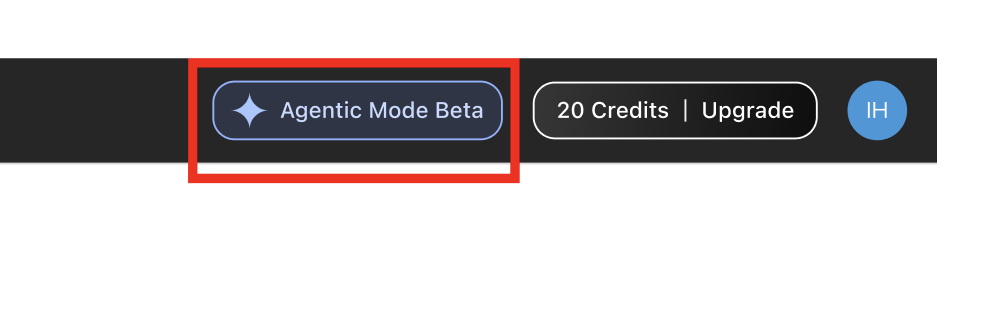
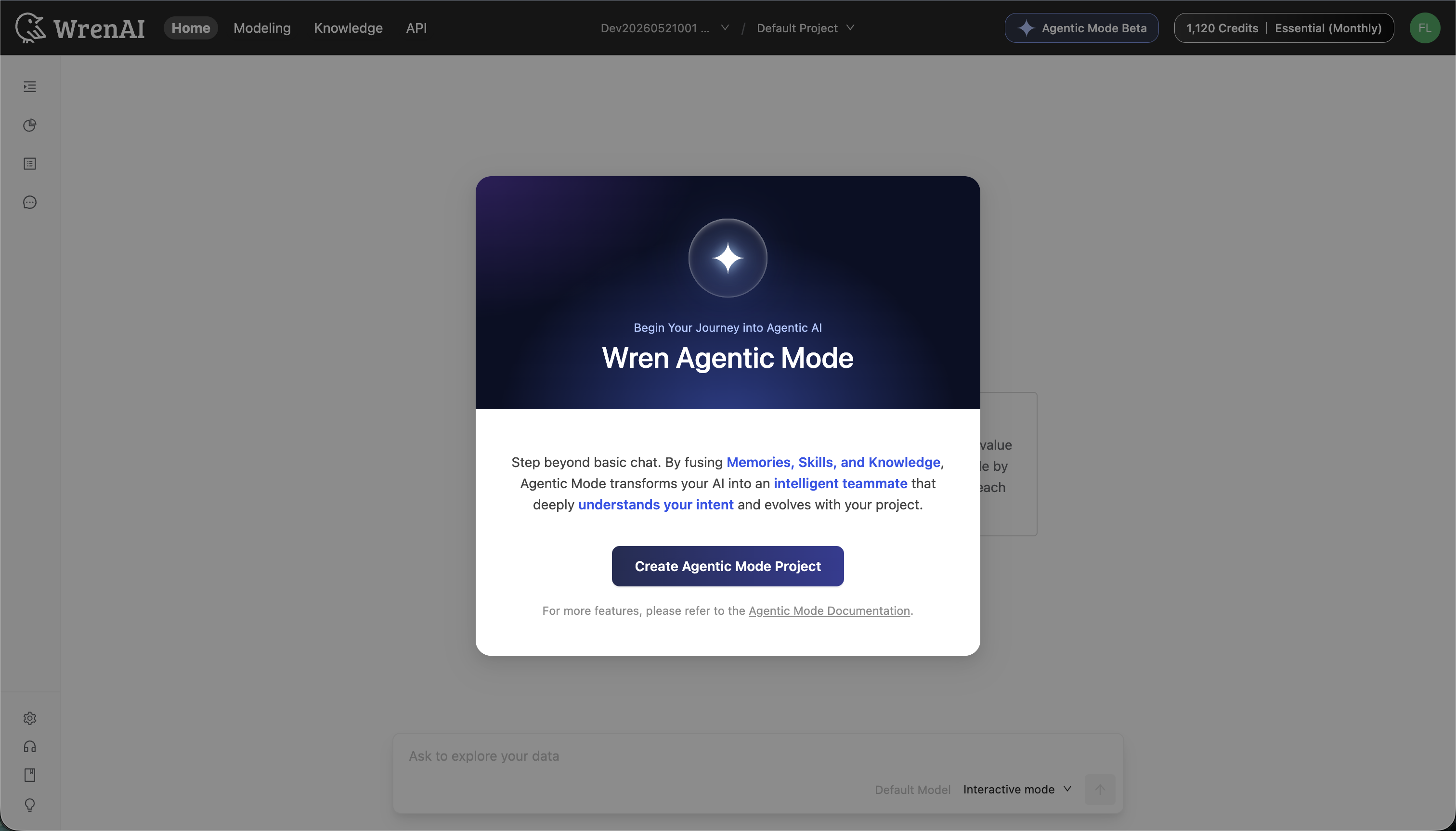
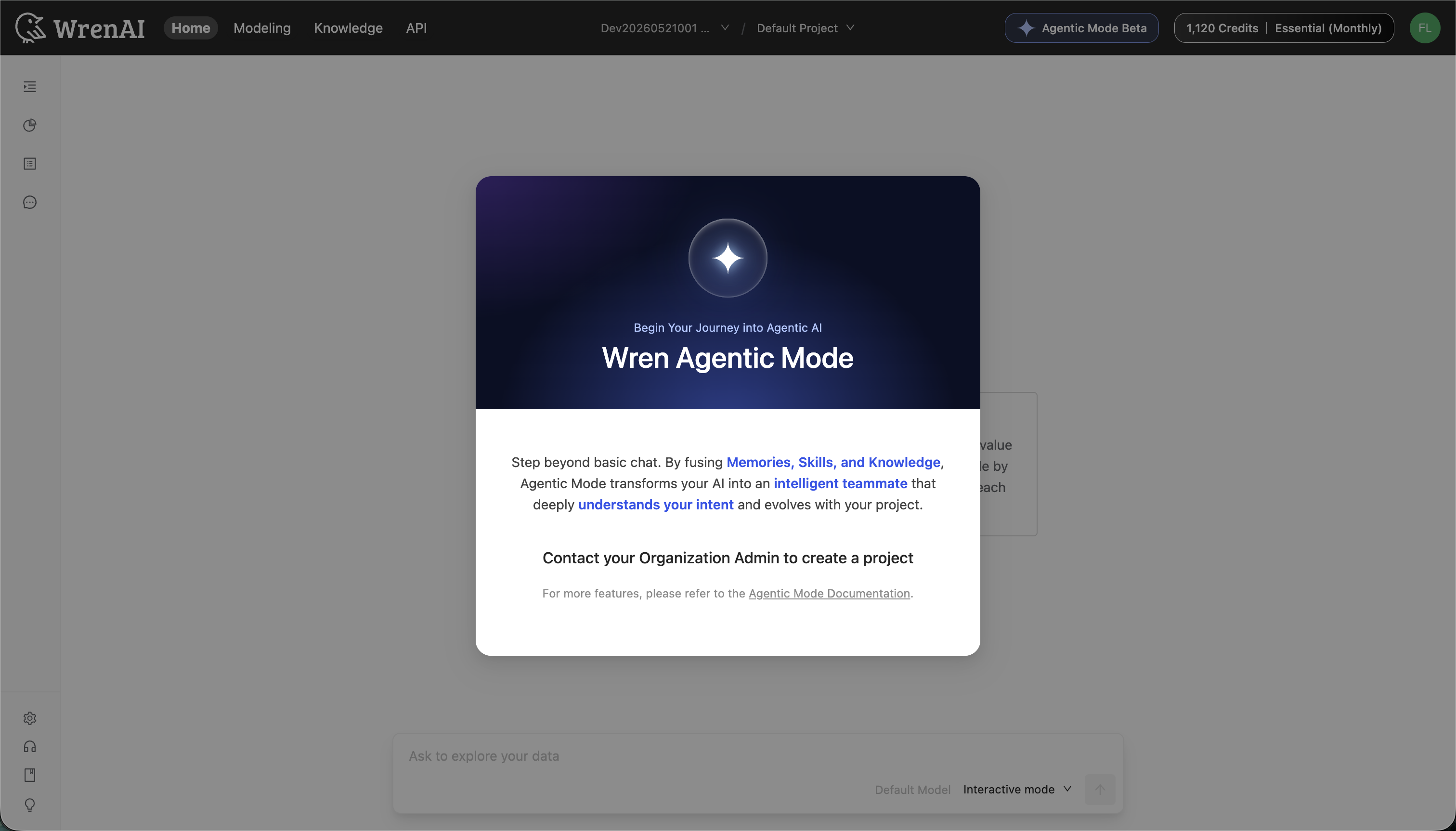
To redeem, click the Agentic Mode Beta entry point in the top navigation to open the invite modal. The modal looks different depending on your role: Organization Admins see a Create Agentic Mode Project button that opens the Create project form, while other members see Contact your Organization Admin to create a project and need an admin to redeem on their behalf.
Create an Agentic project
See Create and Manage a Project → Create an Agentic project for the full creation flow.
Compose a question
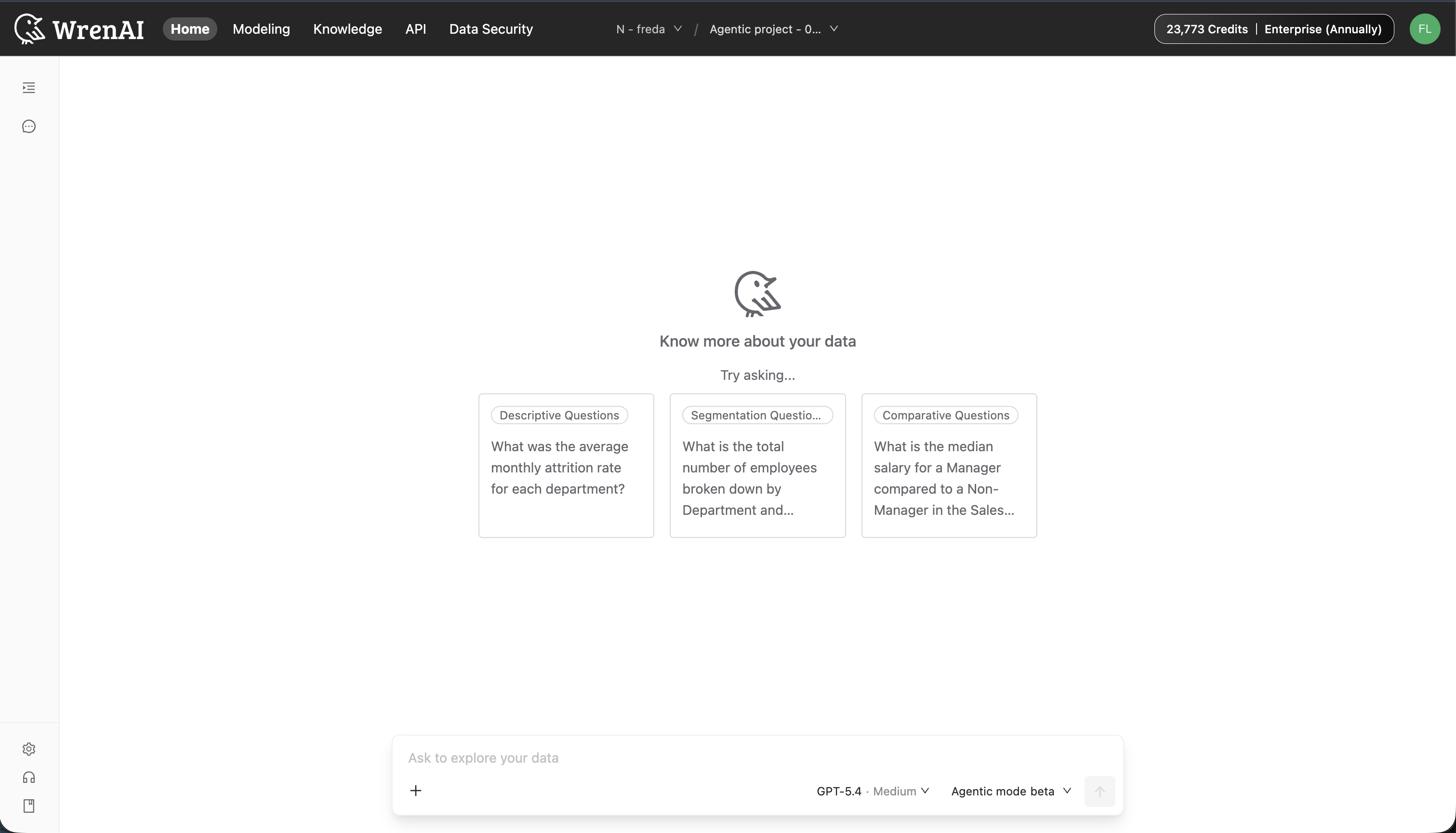
The composer at the bottom of the Home page is where you ask the agent. Three controls sit next to the input:
- Mode picker — Switch between Agentic mode beta and Interactive mode.
- Model picker — Pick the model and reasoning effort.
- Slash menu — Type
/to insert a Skill.
Choose a mode
In an Agentic project, you can switch between two modes per thread:
- Agentic mode beta — Multi-step exploration. The agent plans, runs Skills, reads Knowledge, and writes to Memories on its own.
- Interactive mode — Guided conversation. The agent clarifies your intent and confirms steps before running SQL. (See Interactive Mode (Classic) for the same flow in Classic projects.)
Once you send the first question in a thread, the mode is locked for that thread. To switch modes, start a new thread.
Pick a model
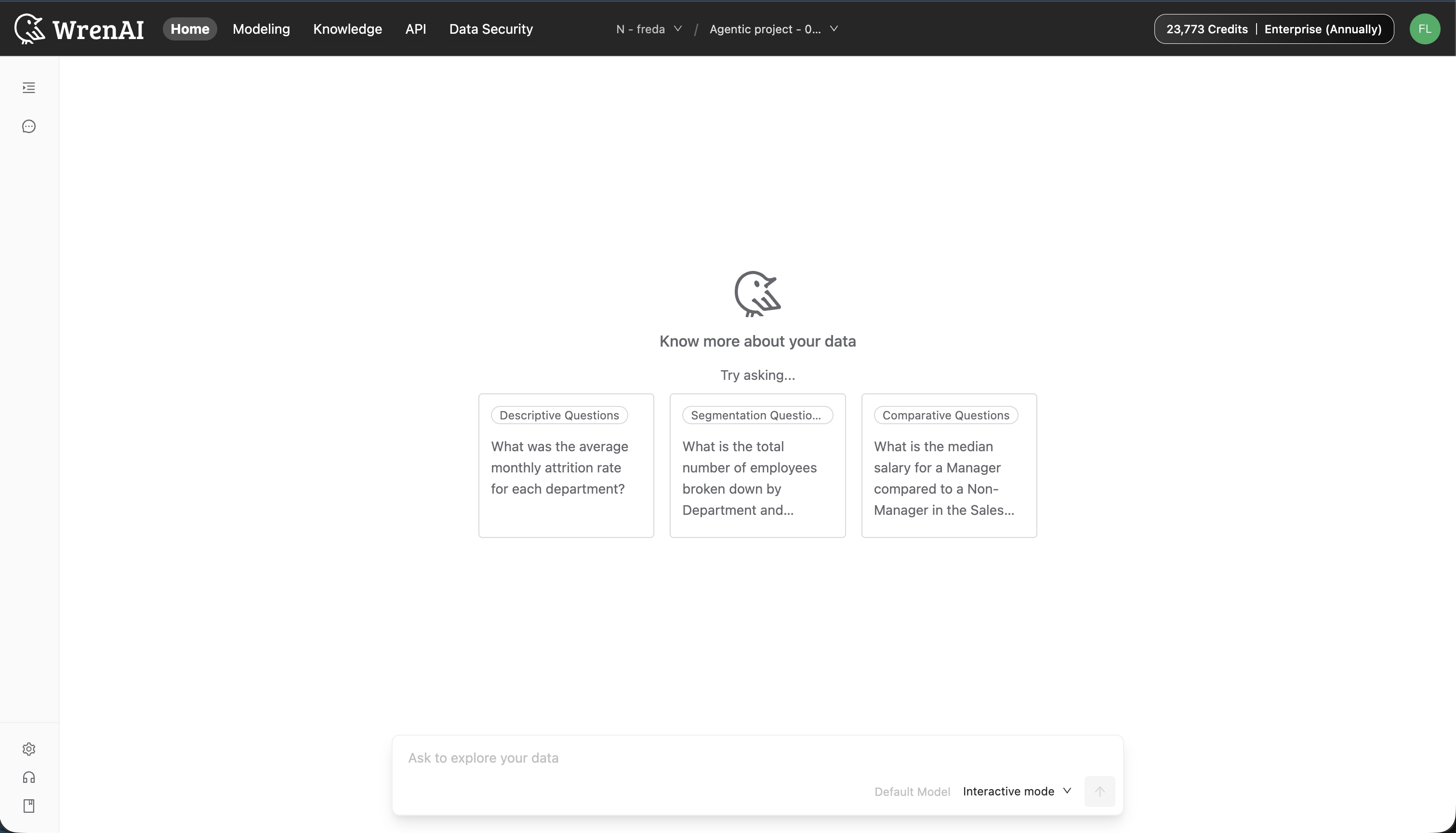
The model picker is only available in Agentic mode. Interactive mode uses the default model and shows Default Model in the composer.
In Agentic mode, click the model name in the composer (for example, GPT-5.4 · Medium) to open the model picker. You can pick:
- Model —
GPT-5.6 Sol,GPT-5.6 Terra,GPT-5.6 Luna,GPT-5.5,GPT-5.4,GPT-5.2. Bigger numbers are newer and more capable; smaller numbers are faster and cheaper. - Effort —
Low,Medium,High,Extra high. Higher effort means the agent thinks longer before answering, which improves quality on hard questions at the cost of latency and credits.
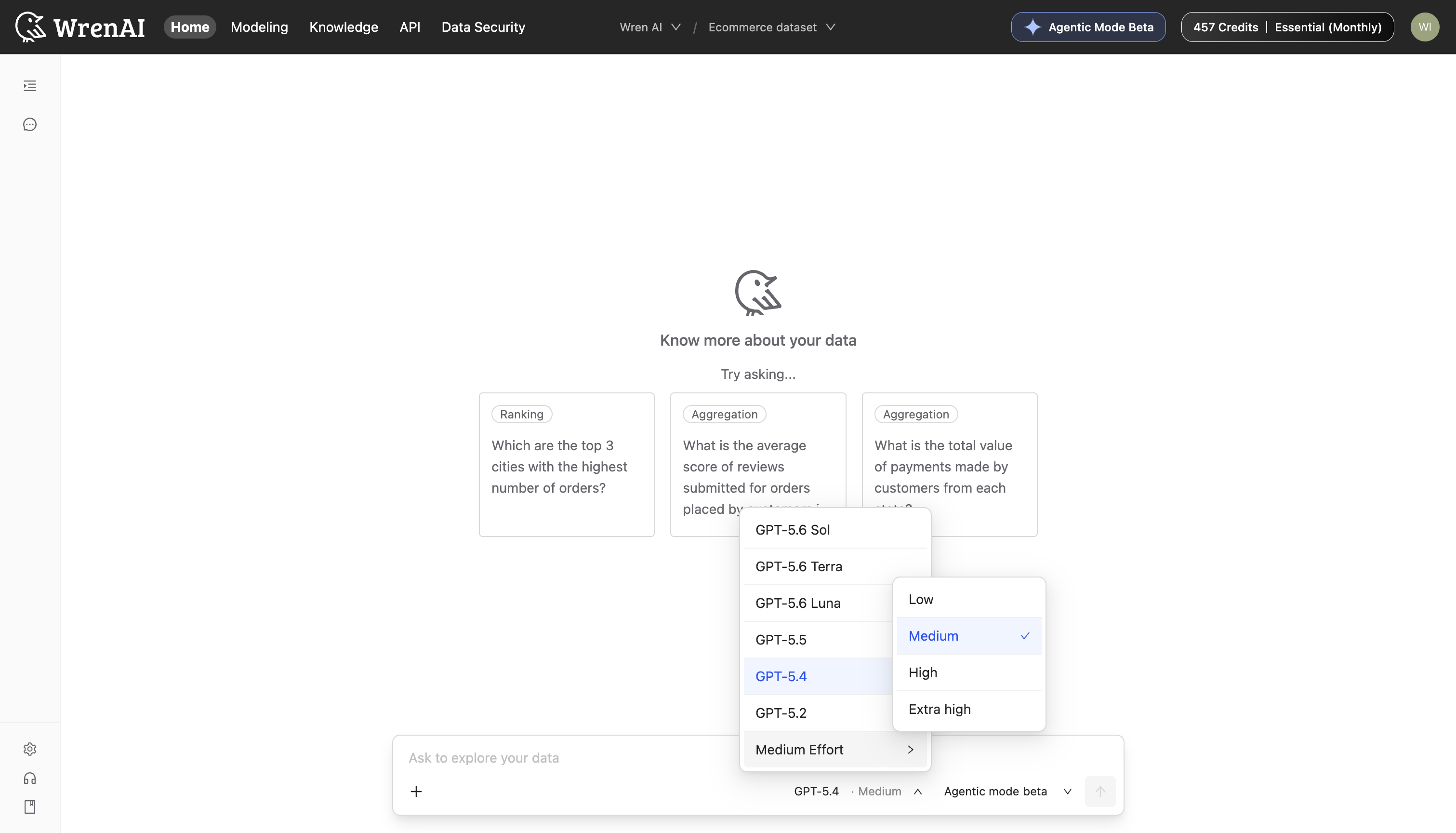
The selected model and effort apply to the next message you send. You can change them mid-thread.
In Interactive mode, the composer shows Default Model instead of a picker:
Trigger a Skill with /
Type / in the composer to open the Skill menu. Skills are reusable workflows the agent can run on demand.
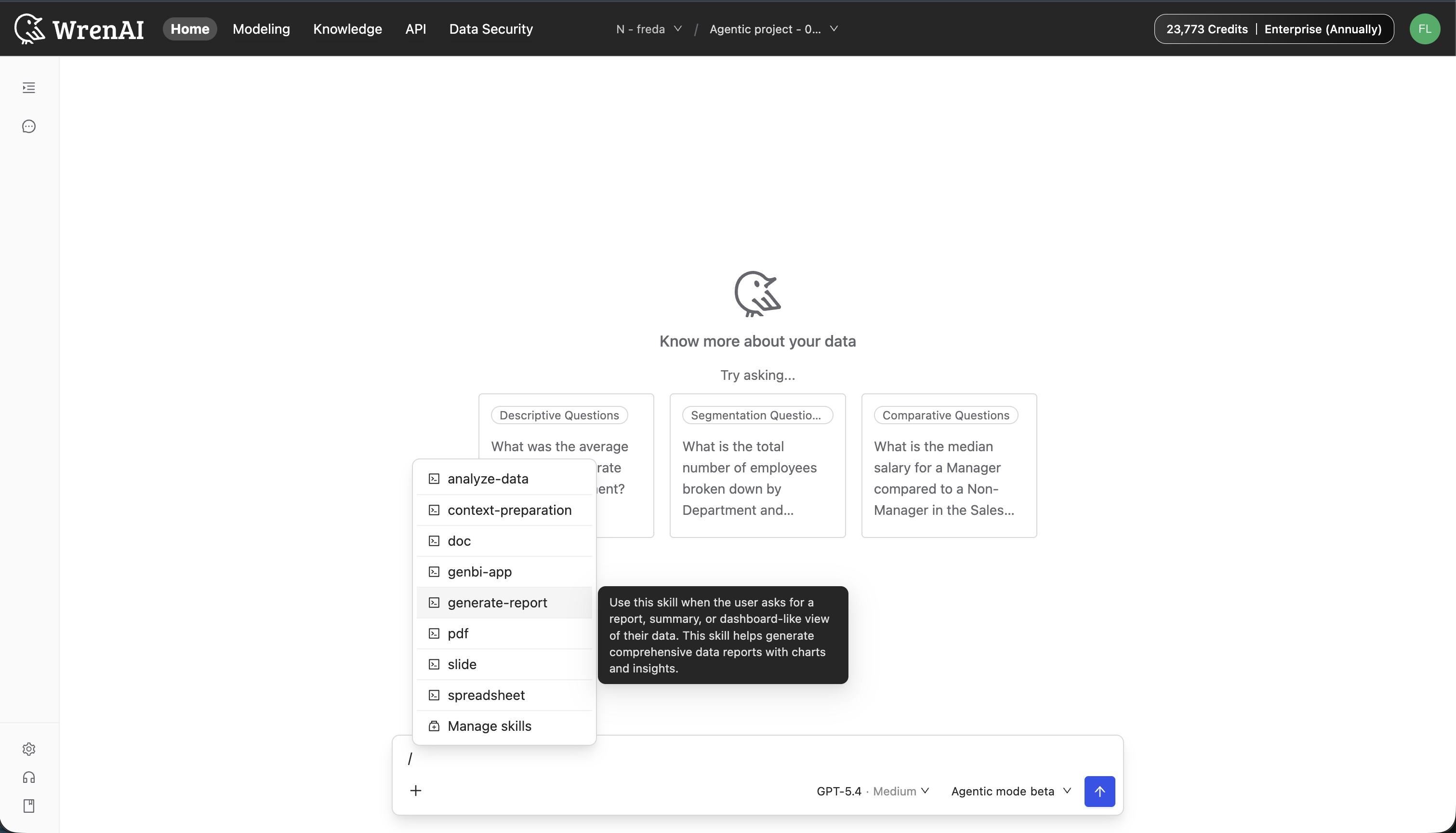
Hover any item to see what it does. Pick Manage skills at the bottom to jump to Settings → Agent → Skills to upload, toggle, or remove Skills.
You don't have to use /. Plain-language prompts work too — the agent recognizes the intent and picks the right Skill automatically.