Know Your Answers
This page describes thread and answer details in Ad-hoc Mode for Classic projects. For Interactive Mode, see Asking Questions.
Use this page to understand what appears in an answer thread after Wren AI returns a result.
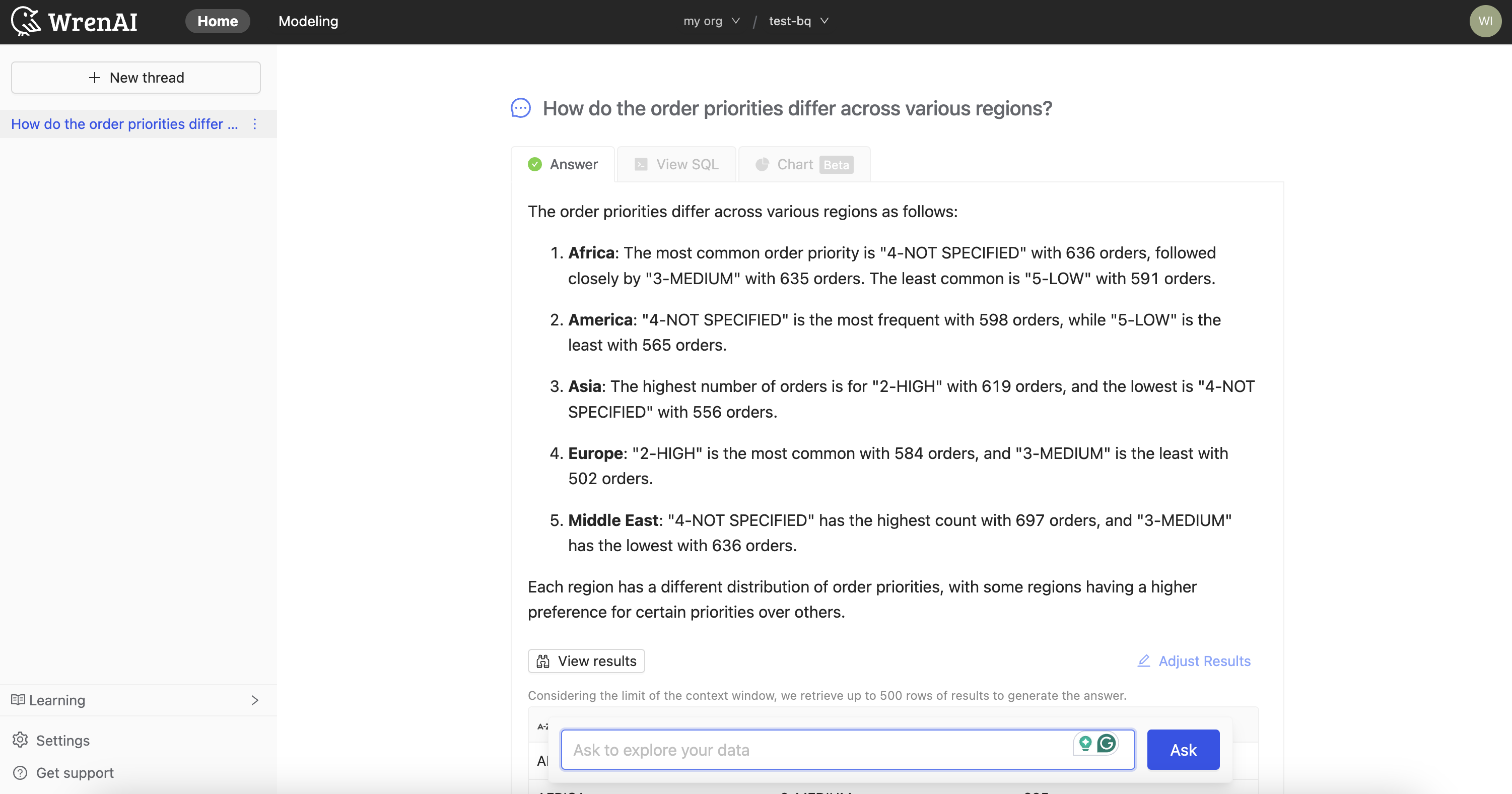
Answer components
Summarized Answer
Wren AI provides a concise summary of the insights derived from your data, making it easy to understand the key findings at a glance.
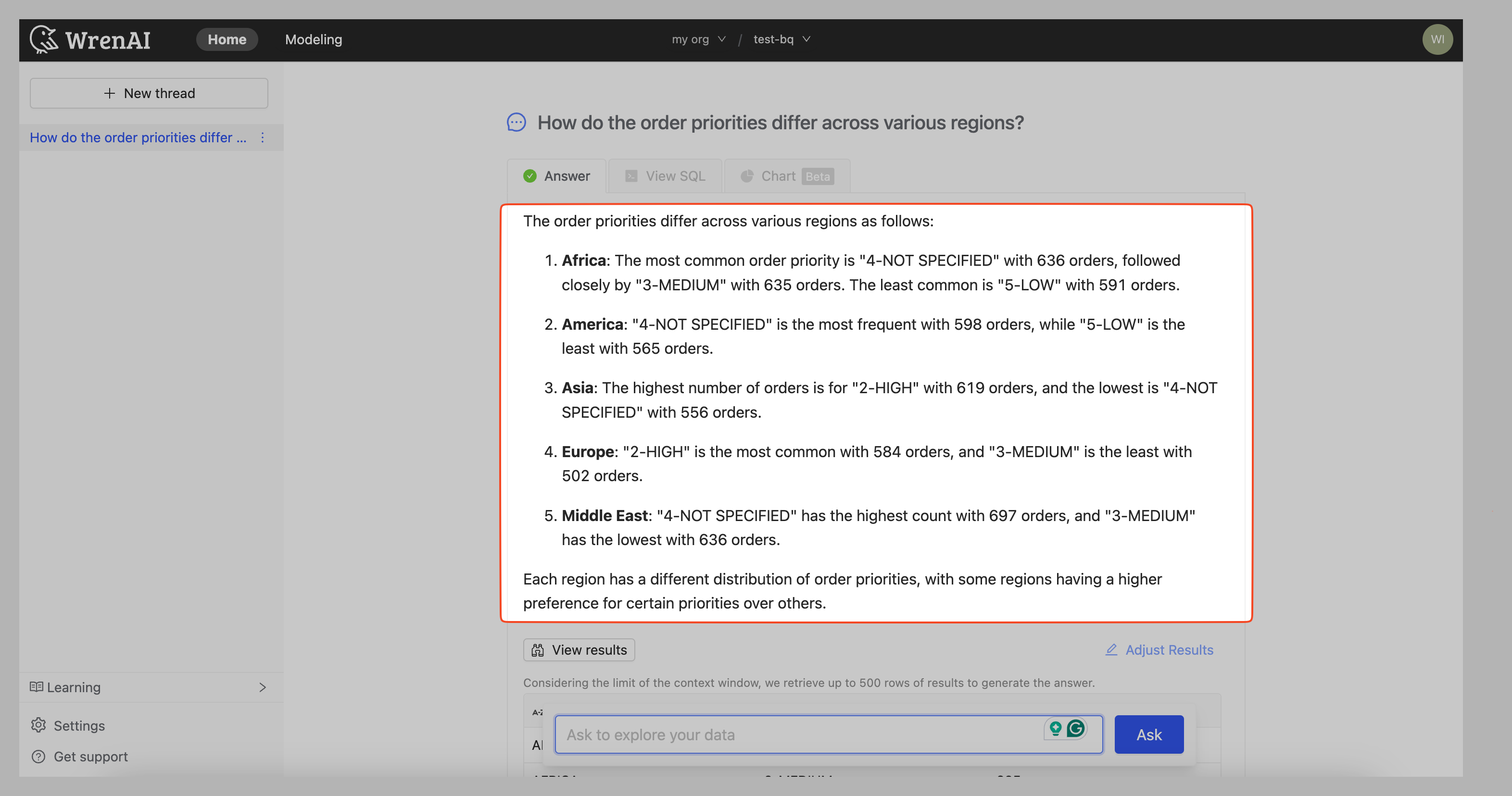
Data Preview
Below the summary, you can see a preview of the actual data results.
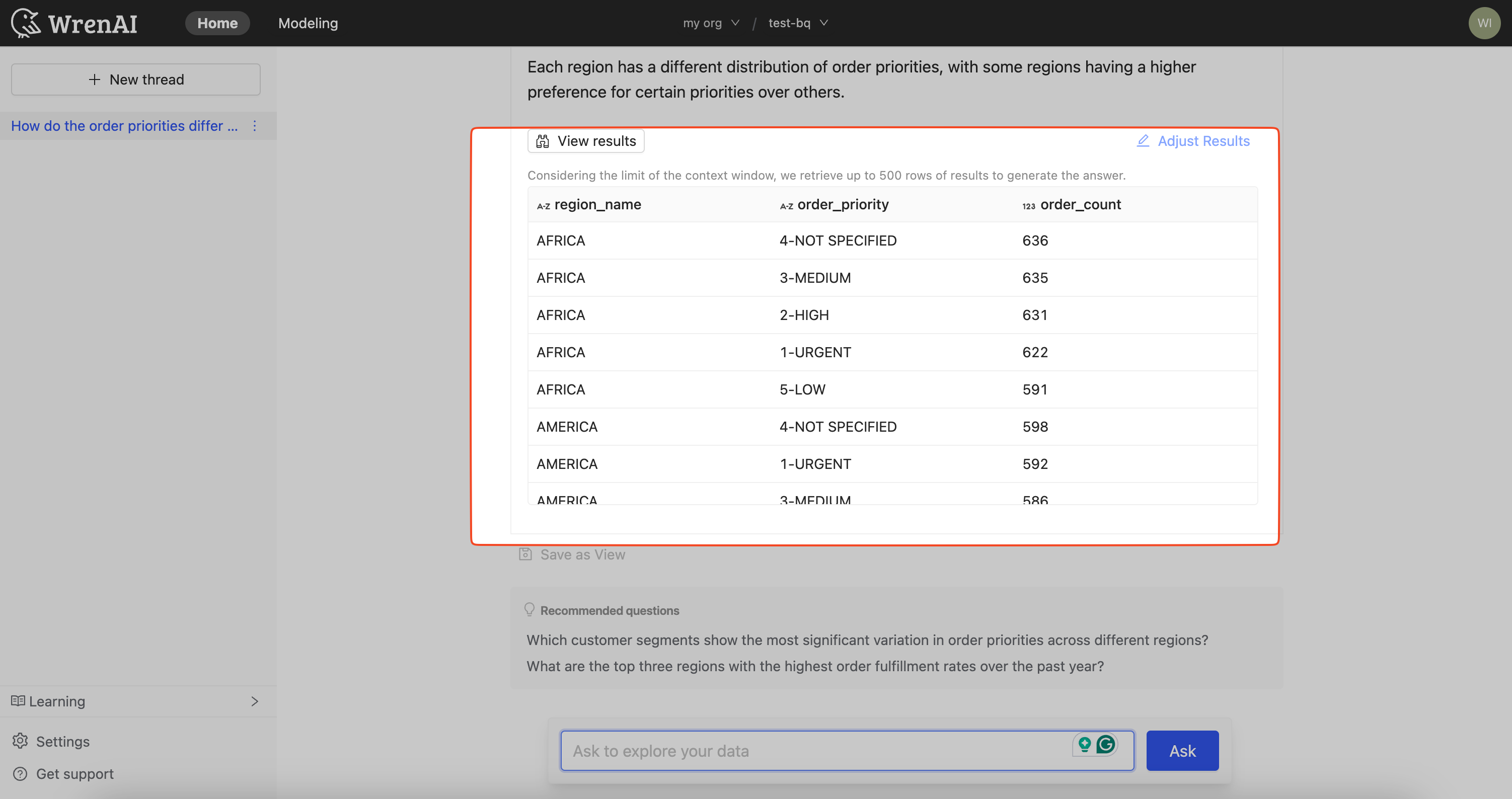
Generate Chart
When applicable, Wren AI automatically generates a chart to help visualize the insights. Click the "Chart" tab to see the generated chart. See Generate Chart for more details about chart options and possible adjustments.
Save result SQL as view
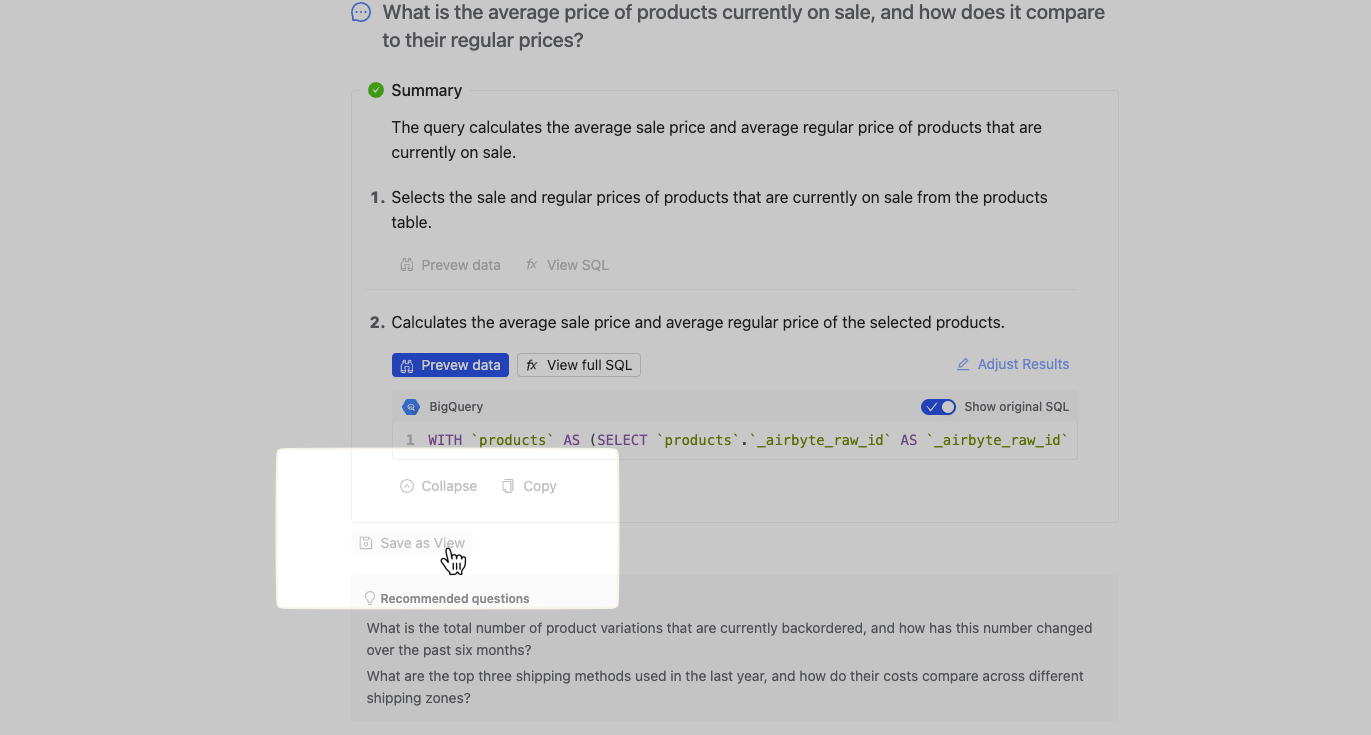
At the bottom of every answer, we offer a save as view button that allows you to save the result SQL as a view.
This is useful when you're satisfied with the result and want to save the SQL, or when you want to keep the answer as a frequently used result to connect to other applications.
Download result
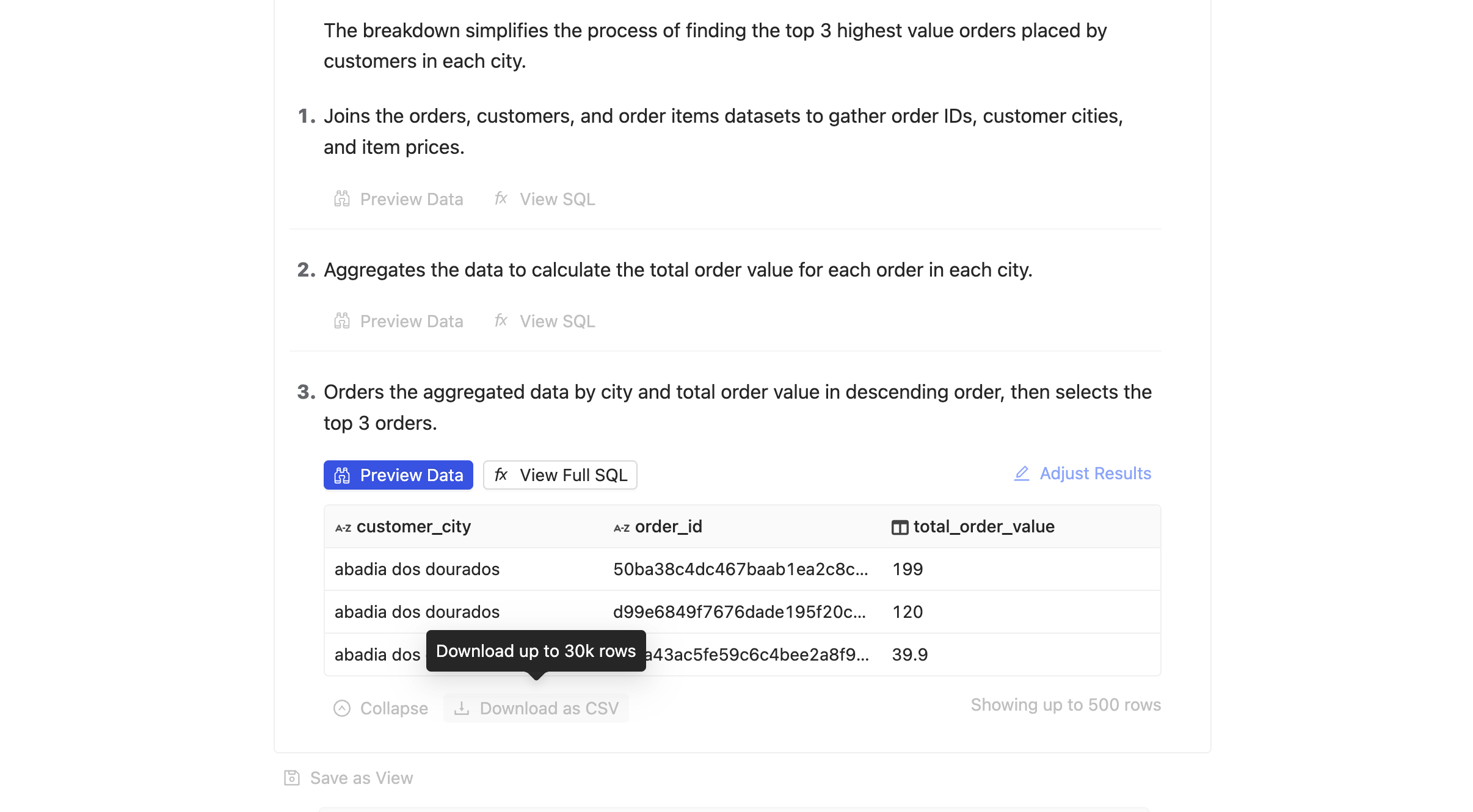
You can download the result as a CSV file by clicking the Download as CSV button at the bottom of the result.
Follow-up questions
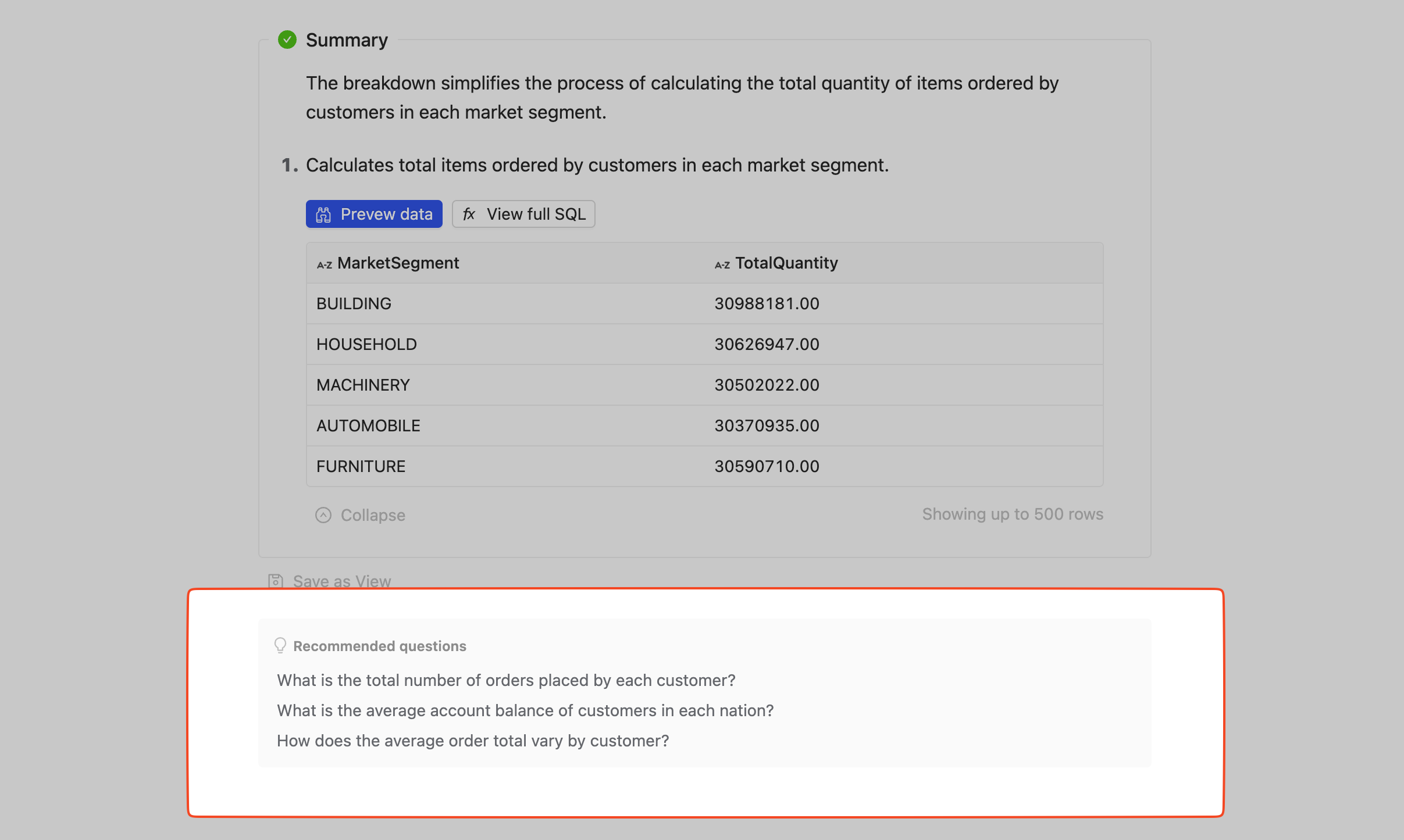
Recommended Questions
Wren AI provides recommended follow-up questions based on your current results to help you explore your data further.
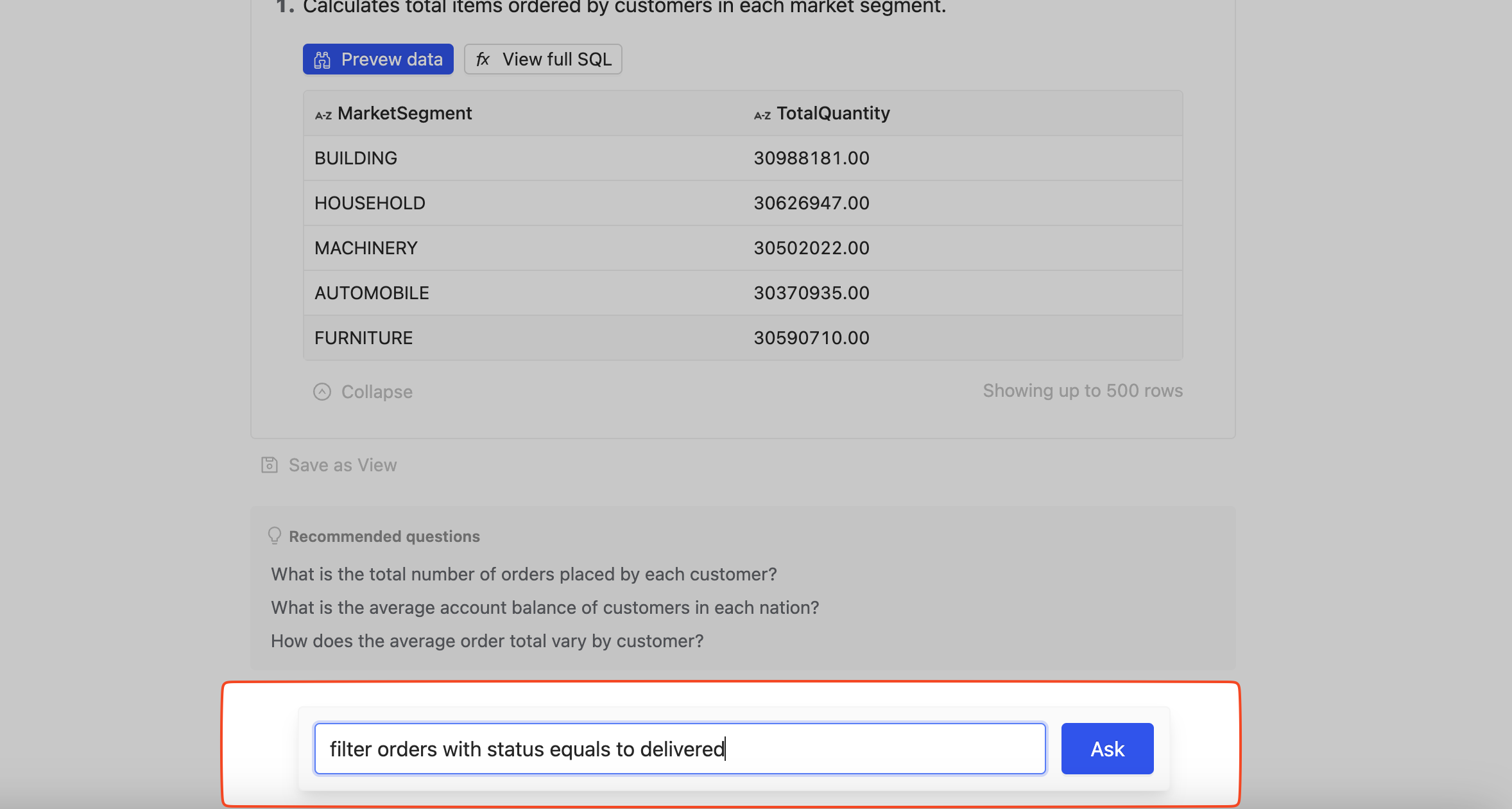
Ask Your Own
You can ask your own follow-up questions related to the current results. Simply type your question in the question box of the thread page. Wren AI will consider the context of previous results when generating new answers.