Models
Use this page to create, update, and delete models in Wren AI.
Models combine schema, metadata, relationships, calculated fields, and semantic context from your data source so both users and Wren AI can understand what each entity represents.
Each project in Wren AI supports importing up to 200 models (tables) by default. This is a soft limitation — you can increase this limit by contacting us.
Create a model
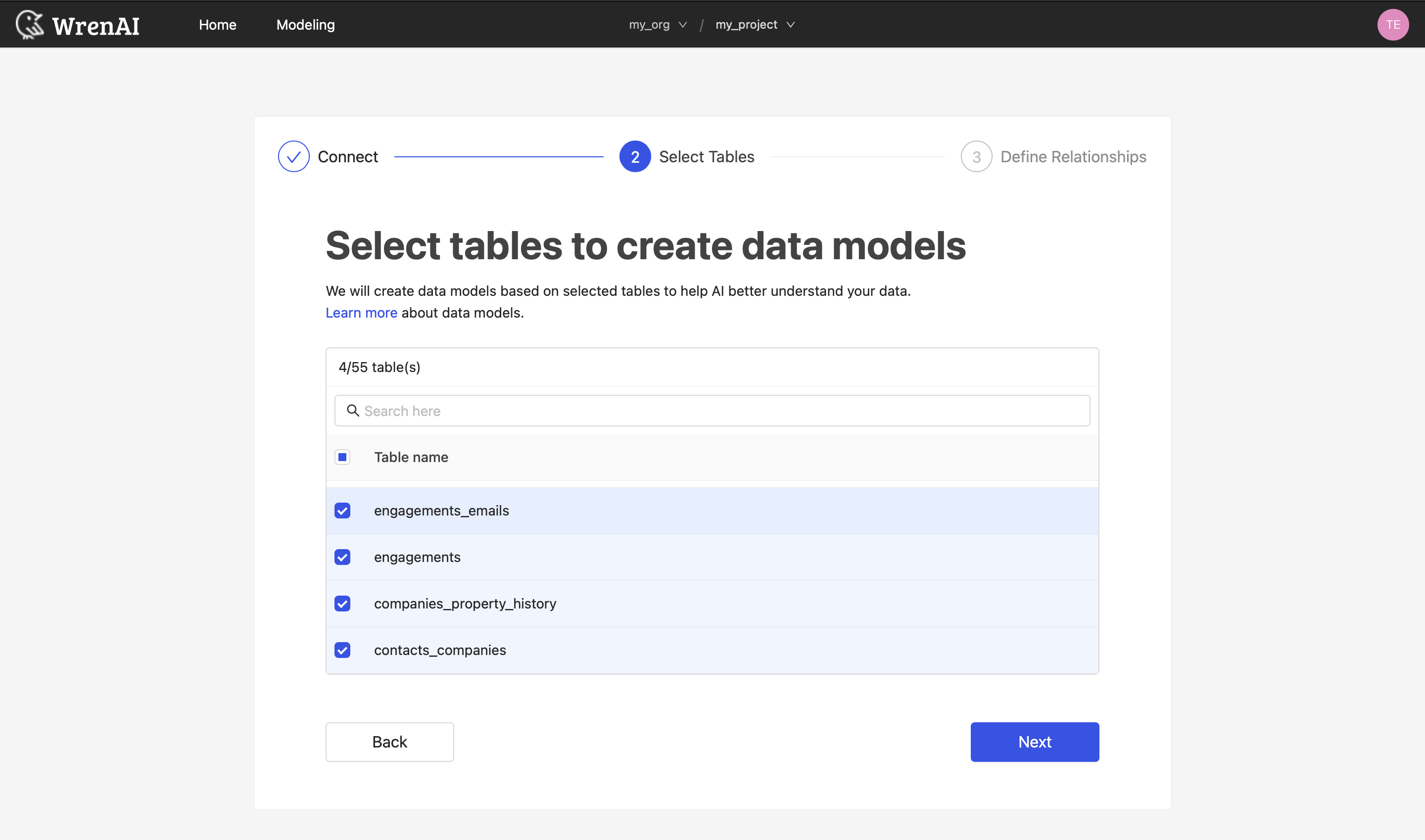
Create a model from the connection process
During the connection process, you are asked to select which tables you want to use in Wren AI.
These selected tables will automatically be created as data models.
Wren AI allows connecting only the necessary tables from your sources. If you change your mind about which tables to connect and columns to sync, you can modify this in the project settings.
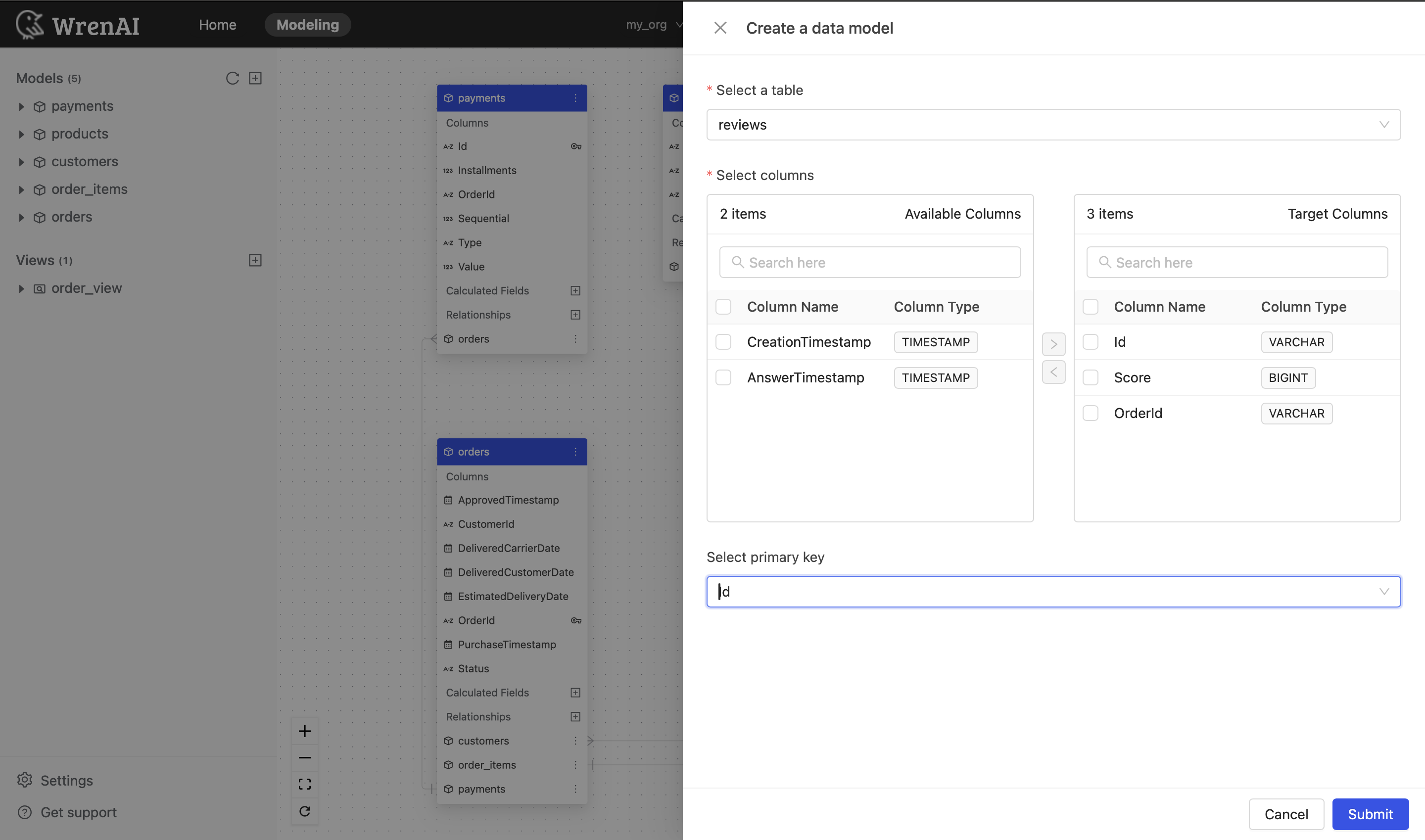
Create a model from the Modeling page
- Click the "+" icon next to the "Models" section of the sidebar.
- Select a table from your data source.
- Select the columns you want to add to this model, then click ">" to include them.
- Select the primary key of this table (optional).
- Click "Submit".
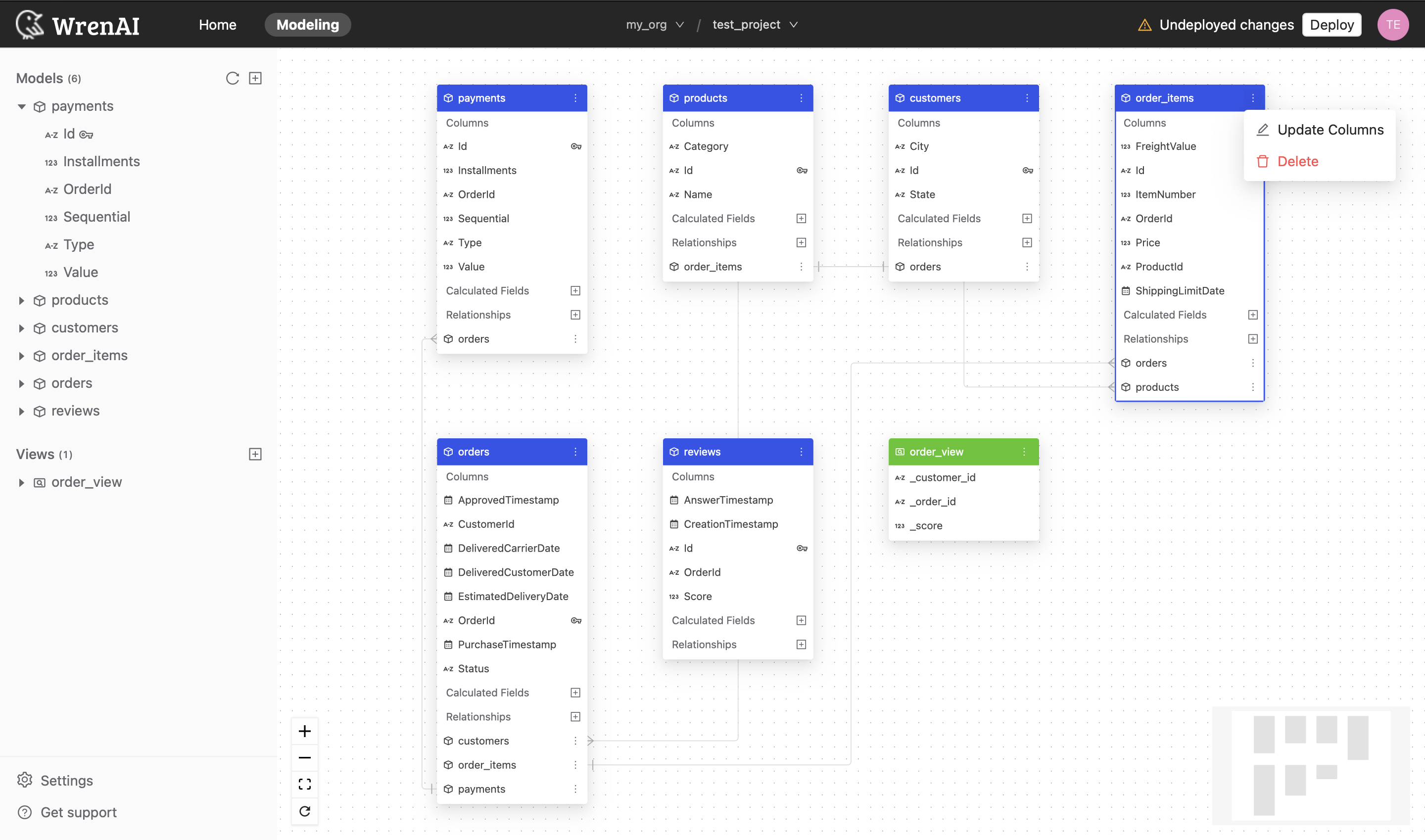
Update model columns
To update column settings in a model:
- Click the "..." icon on the model diagram.
- Choose "Update columns".
Update columns
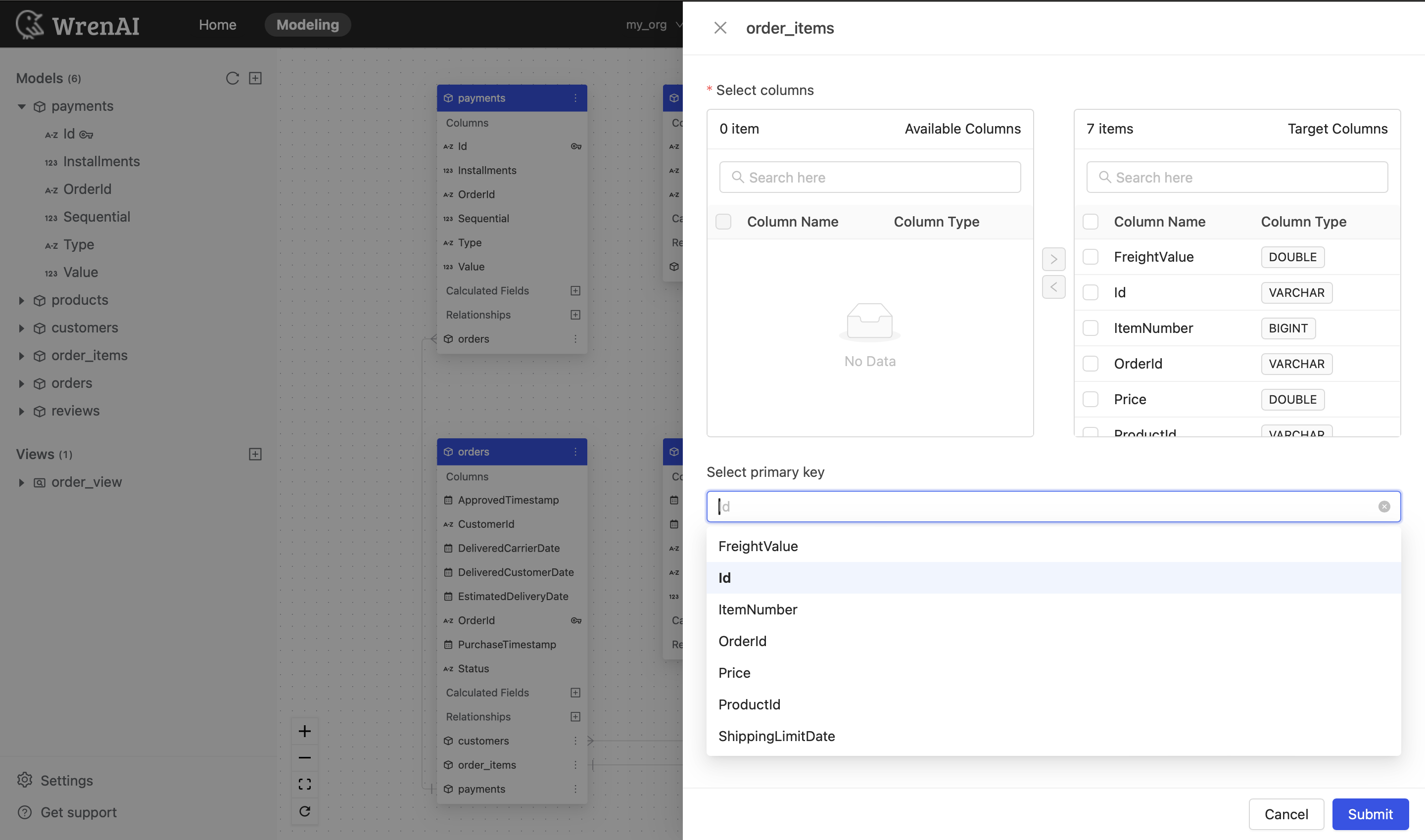
You can add or remove columns of this model.
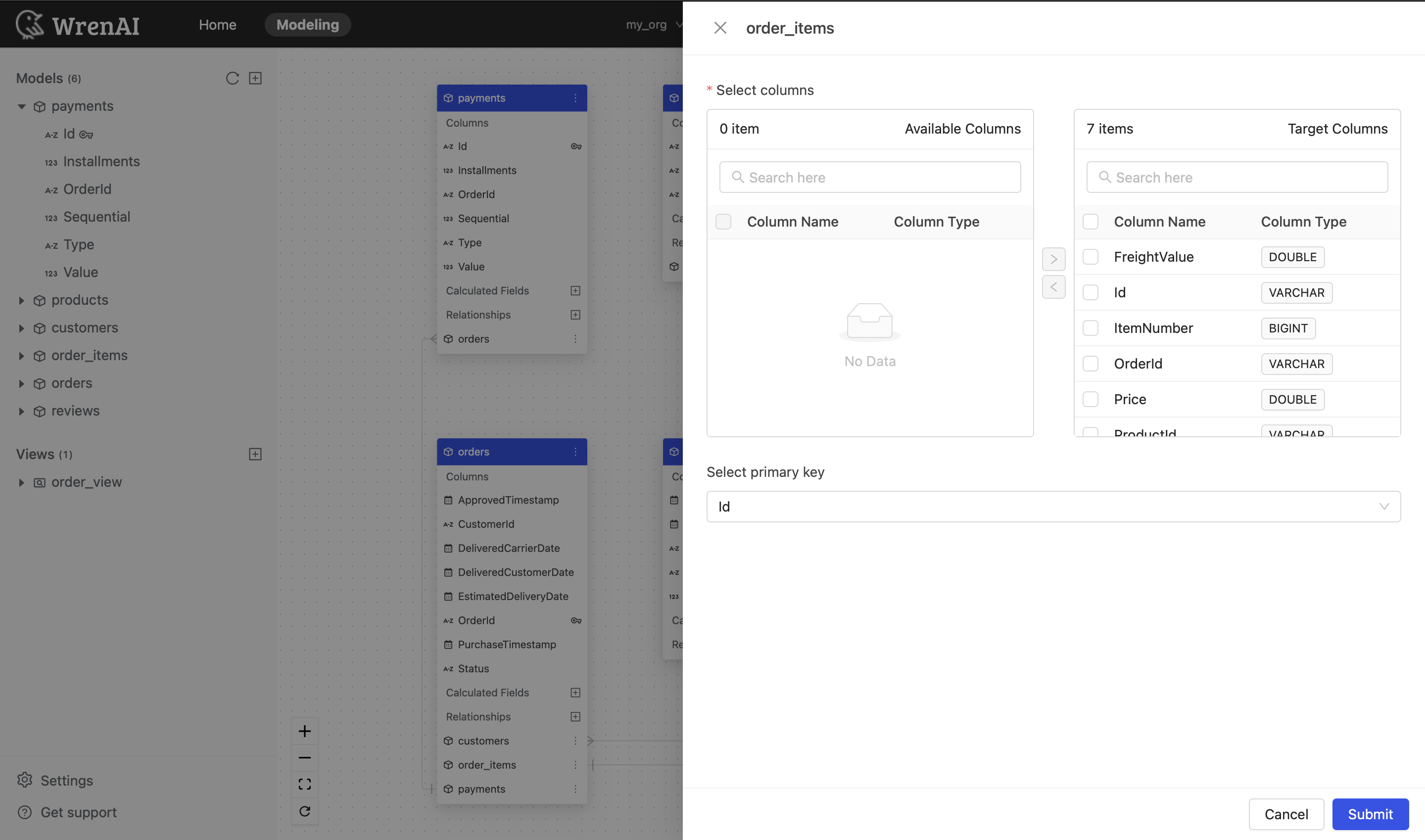
Update primary key
You can add or change the primary key of this model.
Model list
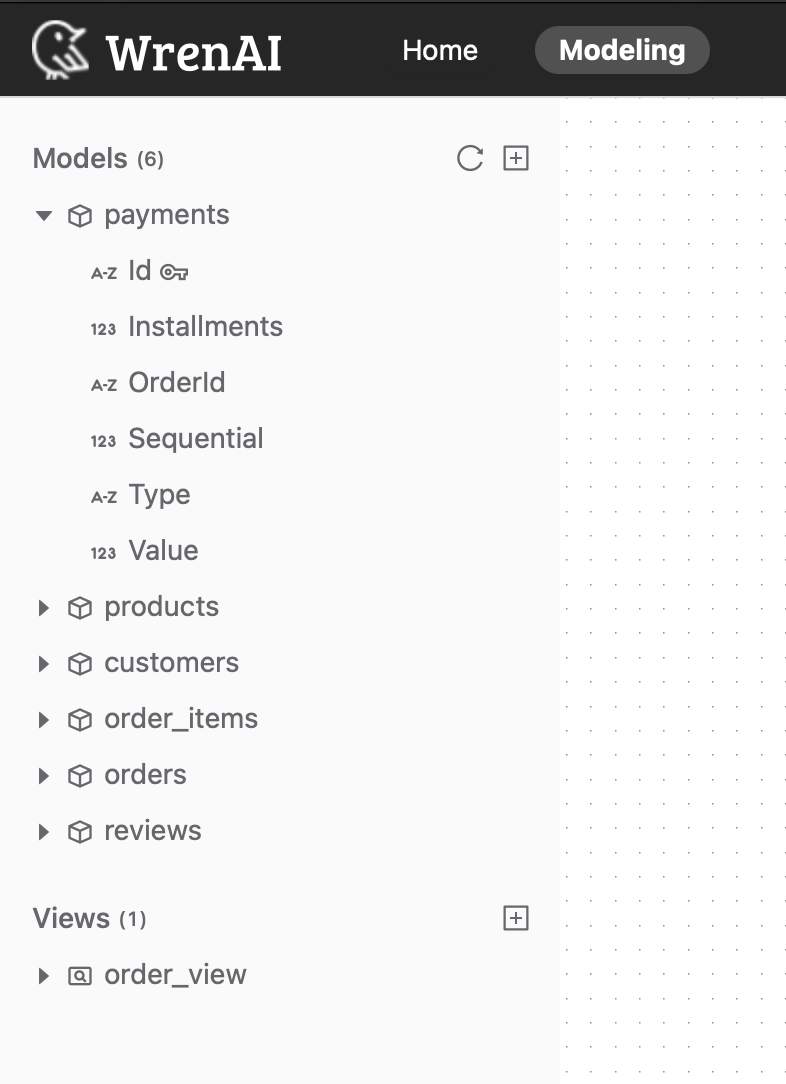
You can access the list of models in the "Models" section of the sidebar on the Modeling page.
Click on the expand icon to see the columns in a model.
If you click on a model from the sidebar, the Entity Relationship diagram will focus on the model you clicked.
Delete a model
To delete a model:
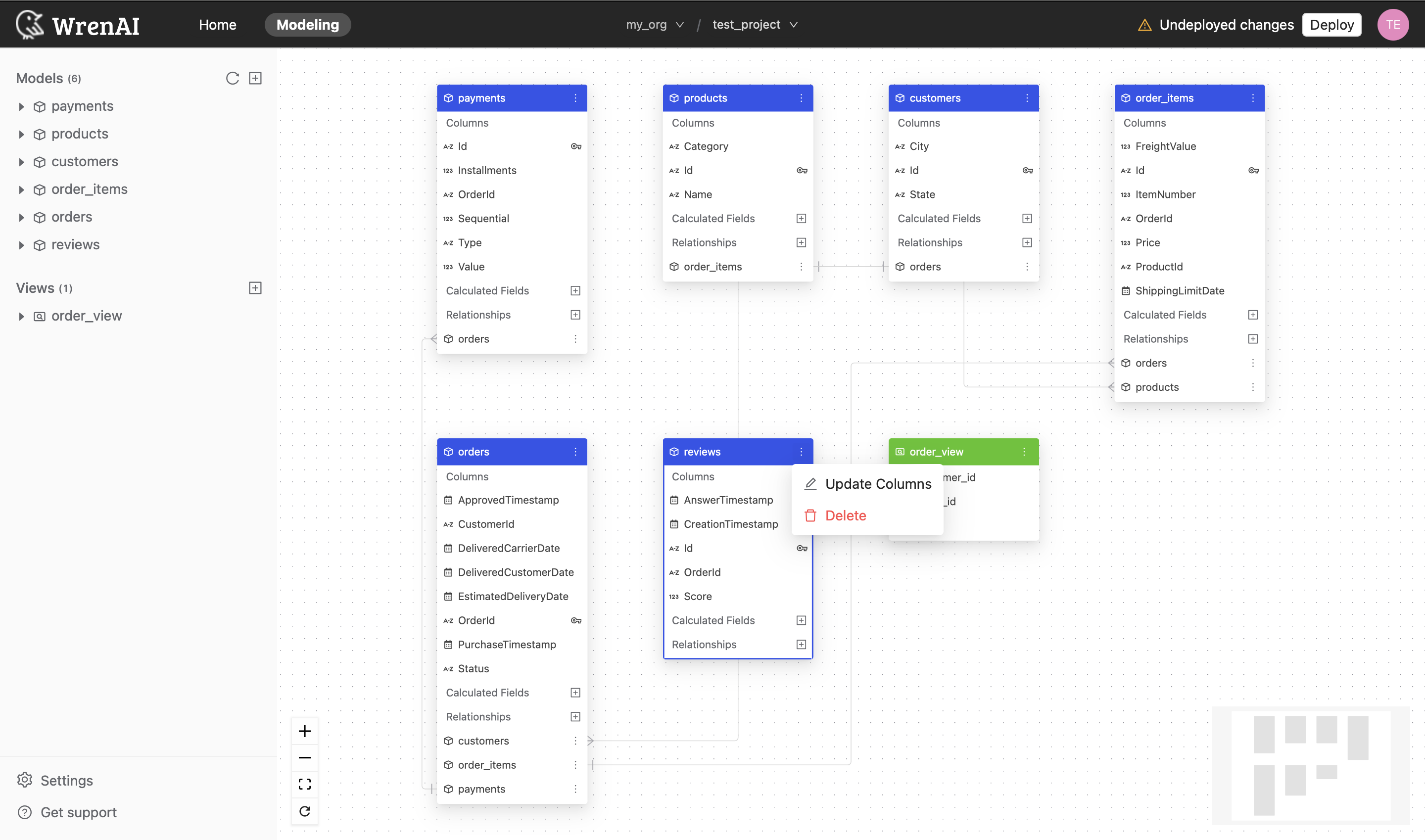
- Click the "..." icon on the model diagram.
- Choose "Delete".
Create multiple models
When adding models, there is a 30-second waiting period before you can add another one. After a model is added, Wren AI syncs metadata from the selected source after you choose tables and columns. This process applies to all data source types.
Deploy
If you make changes in the Modeling page, Wren AI shows a notice at the bottom of the page. Click Update Models Now to synchronize those changes.
The Undeployed changes detected message is only displayed when there are new changes.

While deploying, the message below is shown.

After the status changes from 'Deploying...' to 'Synced', the notice section will disappear after one second.

The project owners will be notified of new changes to the model once they are completed.