Working with Calculated Fields
Use this page to create calculated fields so you can add reusable business logic directly inside a model.
Calculated fields let you generate custom columns with expressions similar to formulas in spreadsheet tools.
List of expressions
See the full list of expressions supported in calculated fields.
Create a calculated field
-
Go to the diagram of the model where you want to create a calculated field.
-
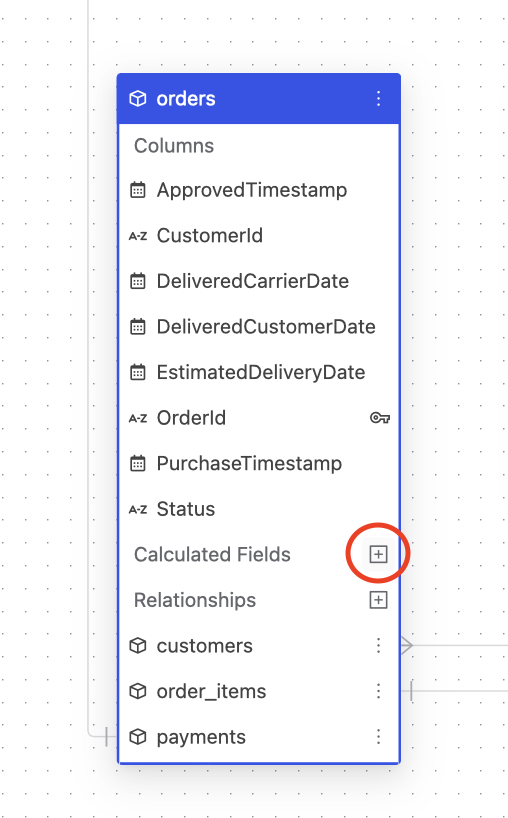
Click the "+" icon next to the "Calculated Fields" section.
-
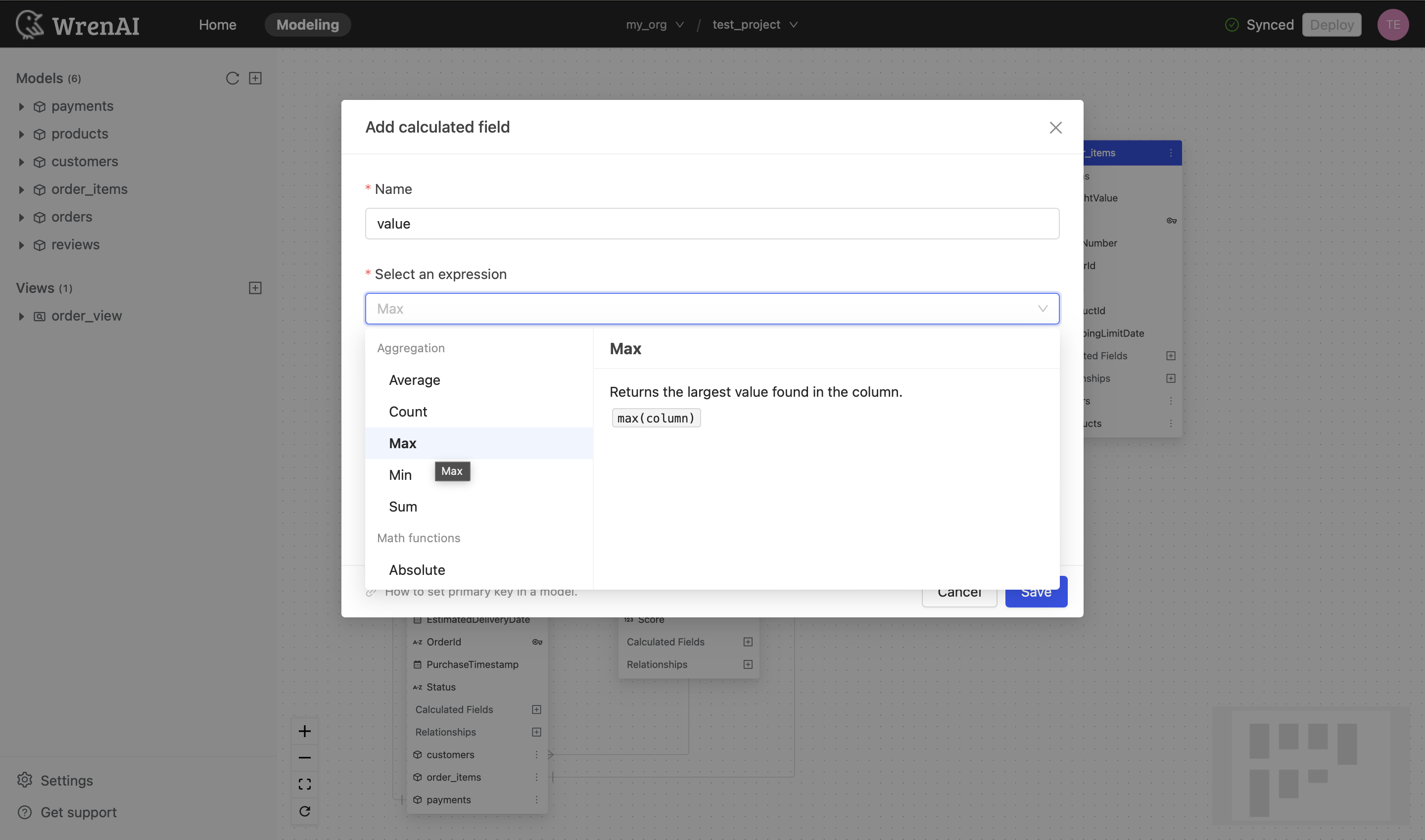
Name this calculated field.
-
Select a function you want to use in this calculated field.
-
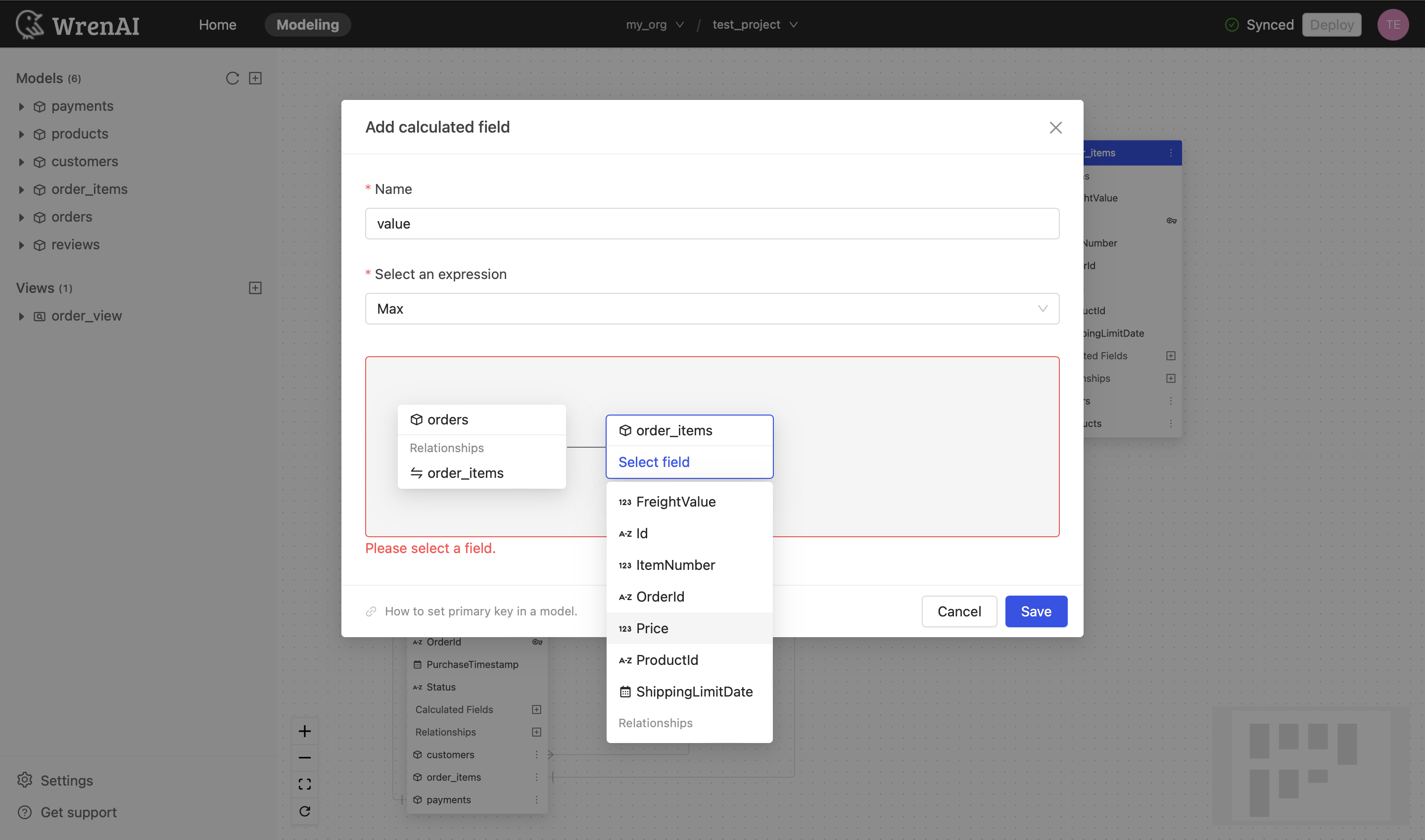
Select the column you want to apply this function to.
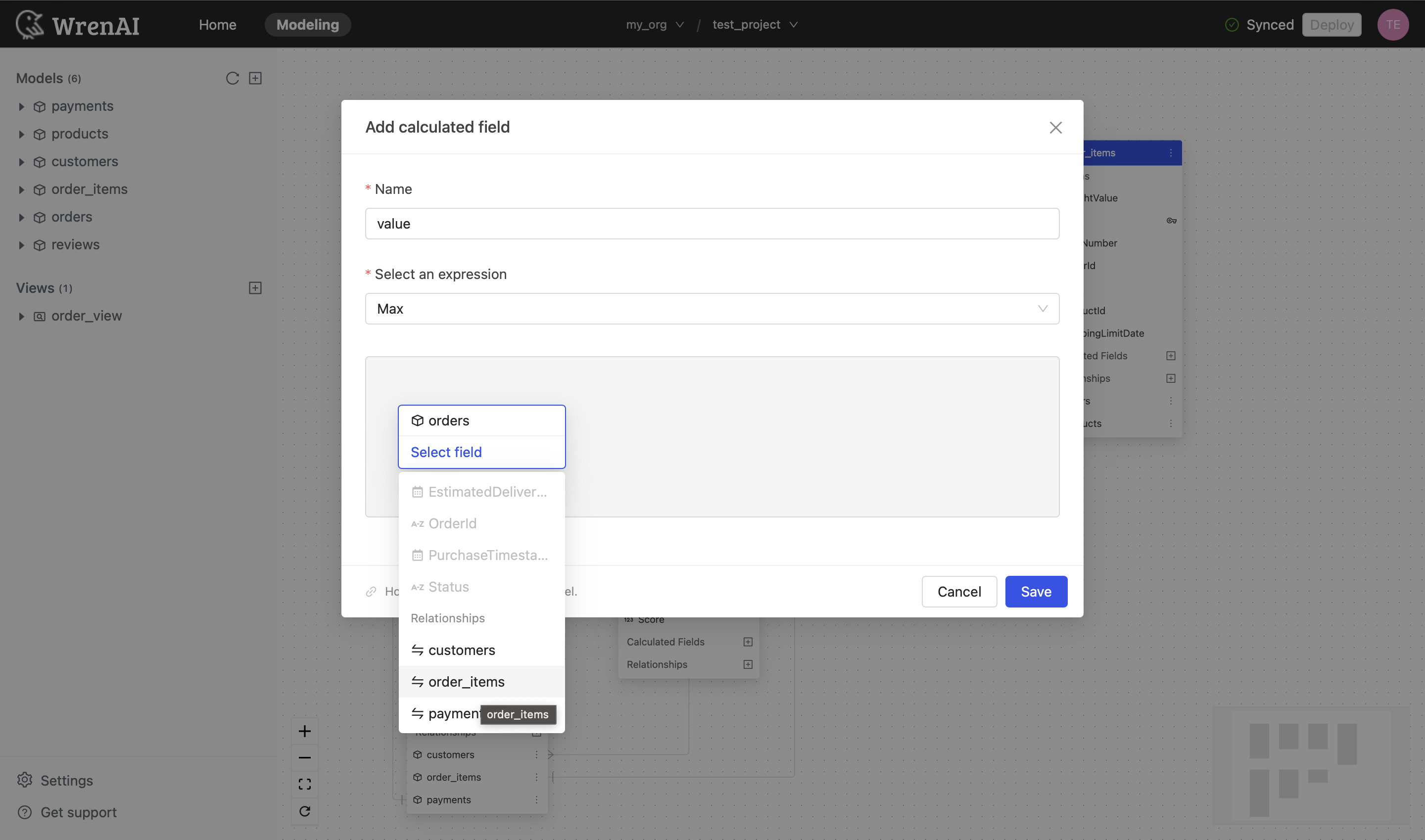
You can apply a column from another model through the relationships already defined in this model.
-
Click "Save" to create.
Update a calculated field
To update calculated field settings in a model:
- Click the "..." icon next to the calculated field on the model diagram.
- Choose "Edit".
- You can edit the name or expression of this calculated field.
Delete a calculated field
To delete a calculated field:
- Click the "..." icon next to the calculated field on the model diagram.
- Choose "Delete".
Deploy
Please press the "Deploy" button on the navigation bar to synchronize any modifications in the Modeling page.
The navigation bar will show an Undeployed changes message if there are any new changes.

The navigation bar will show a synced message if all changes have been deployed.
