Managed PostgreSQL (Supabase, Neon)
Use this guide to connect a managed PostgreSQL service — such as Supabase or Neon — to Wren AI. These services host standard PostgreSQL, so Wren AI connects to them with the regular PostgreSQL connector; only the way you find your connection details differs per provider.
Included in all plans
To add a connection, click on the PostgreSQL option in the Connect a data source section.
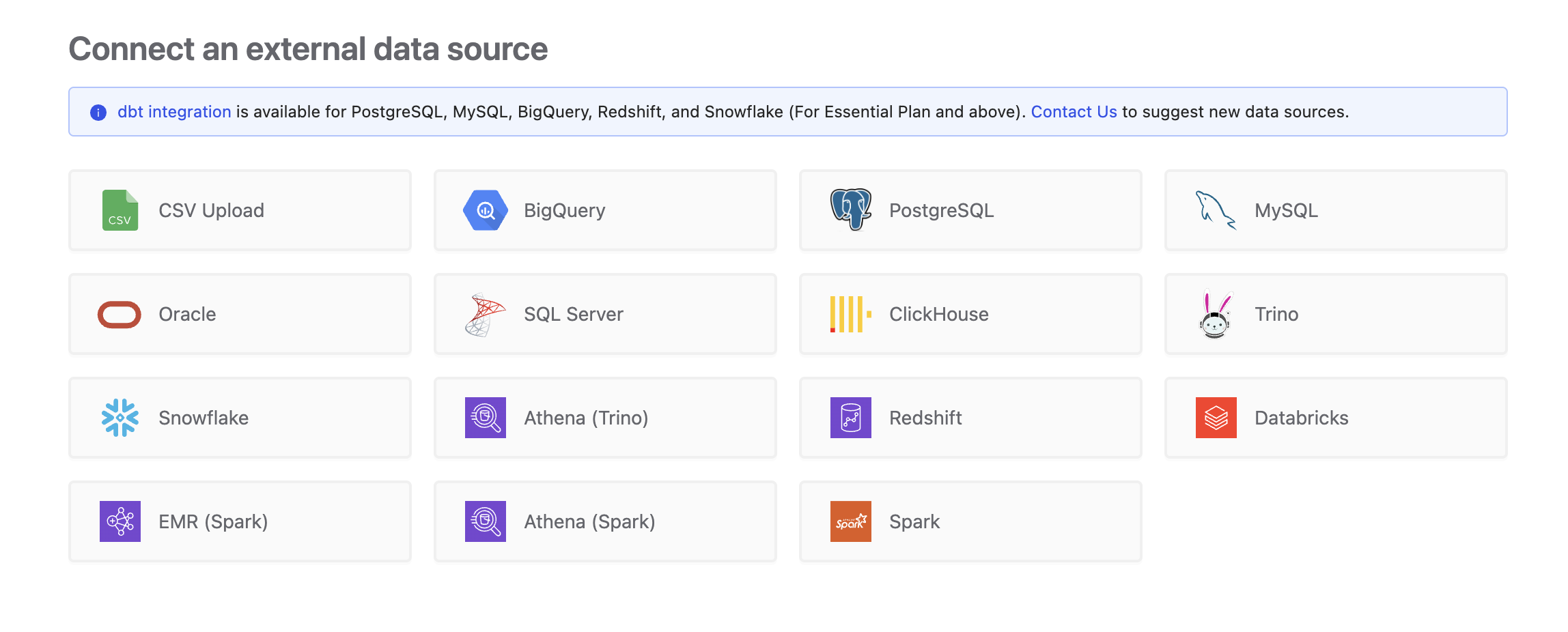
Find your connection details
- Supabase
- Neon
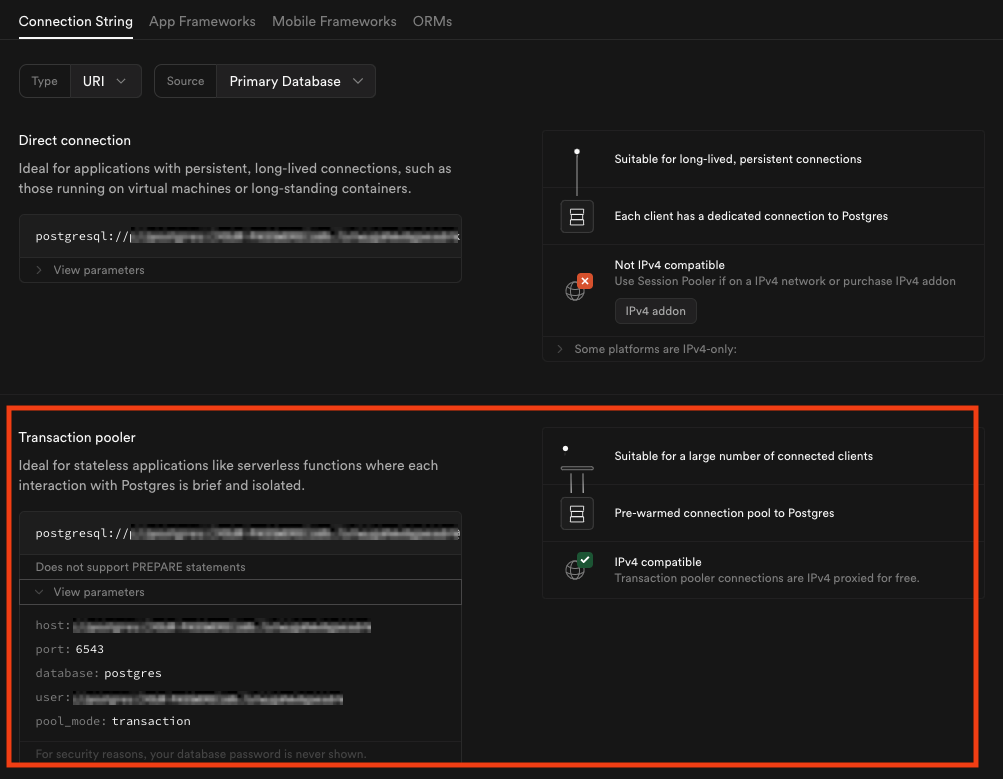
Go to the Connect page from the top bar of the Supabase dashboard.

Currently, Wren AI supports only IPv4-compatible endpoints.
If you're on Supabase's free plan, you can connect using the Transaction Pooler only.
Open the page to view the connection information.
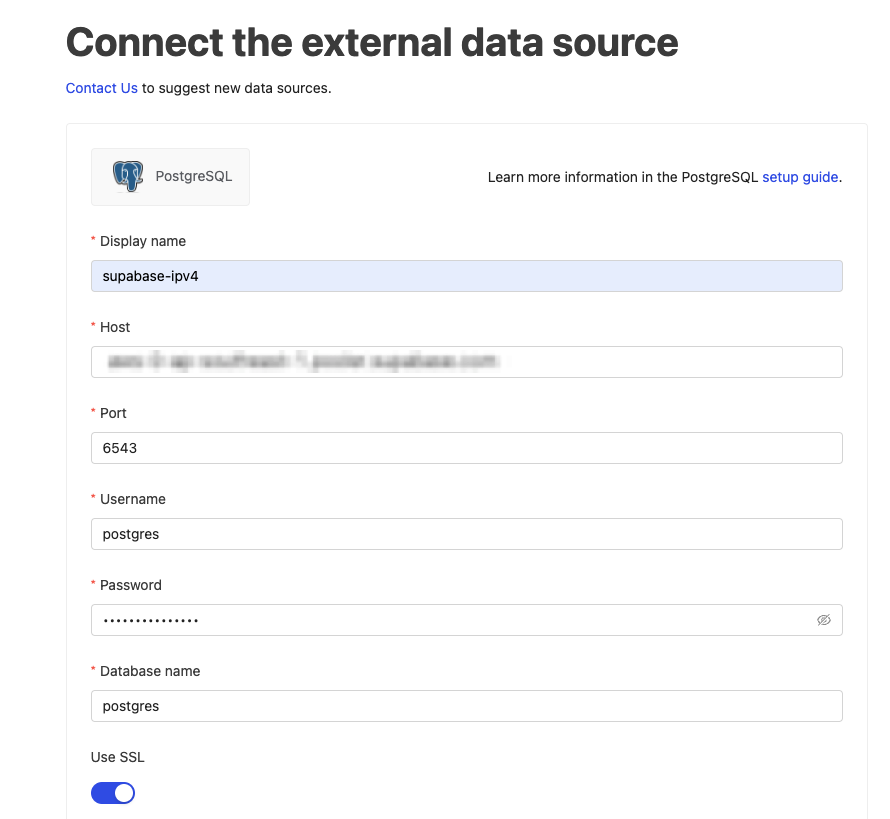
Fill in the connection settings in Wren AI based on the connection information from Supabase:
Navigate to the Dashboard page and click the connection button.
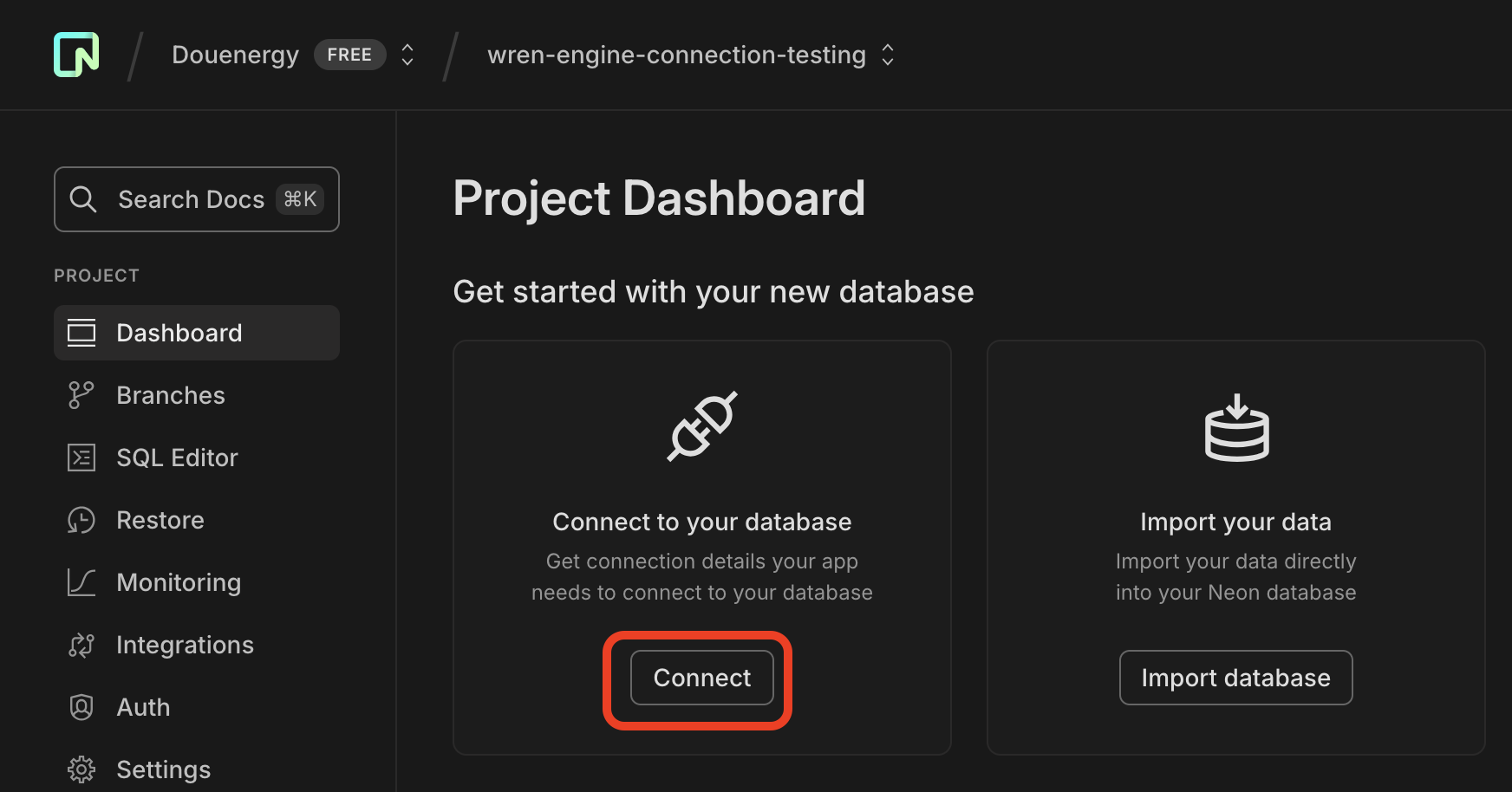
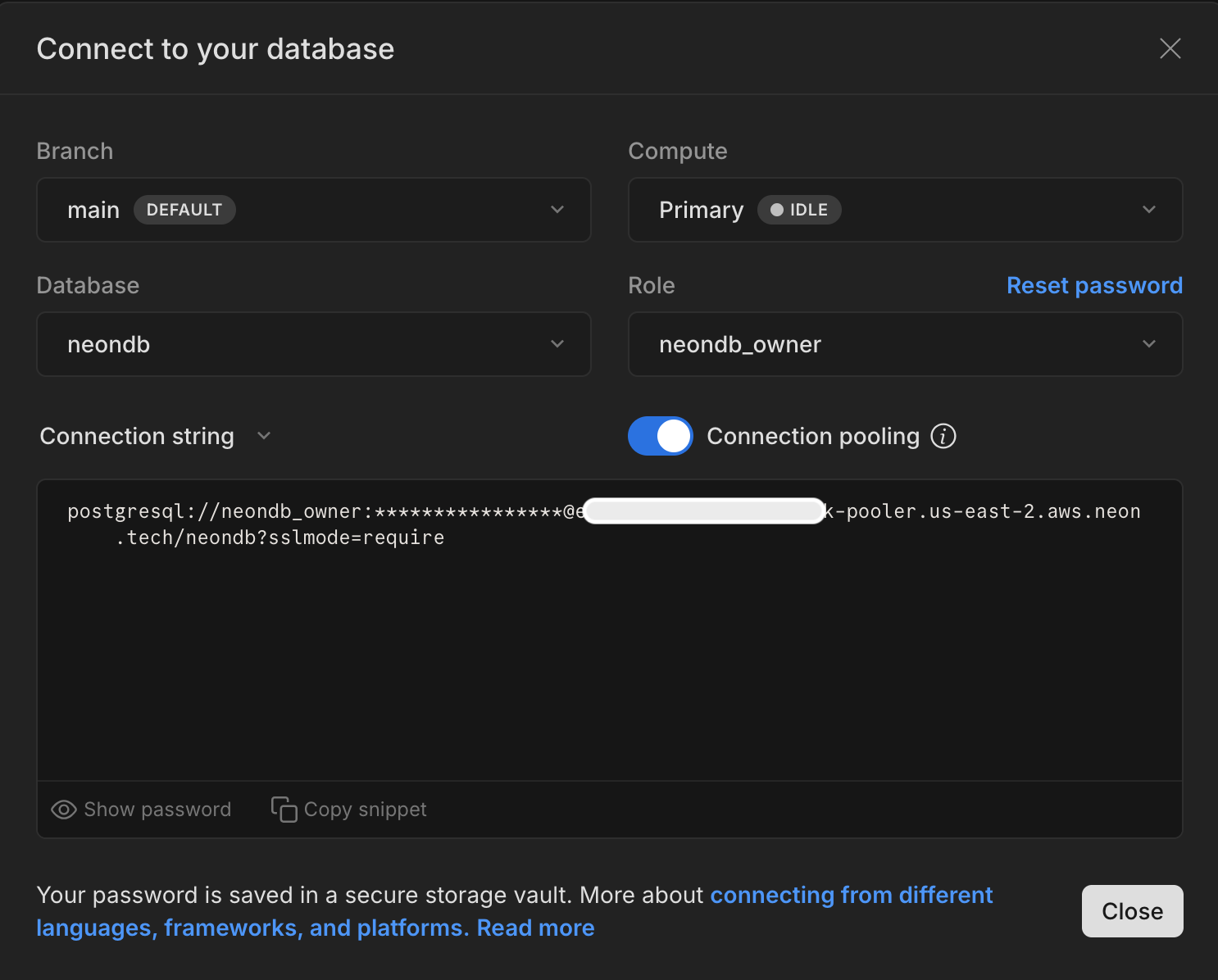
Based on the image shown above, the Neon database connection details are:
- Host:
[hidden for security]-pooler.us-east-2.aws.neon.tech - Port:
5432 - Database:
neondb(Neon's default) - Username:
neondb_owner(Neon's default) - Password:
[hidden for security] - SSL Mode:
require
Fill in the connection settings in Wren AI:
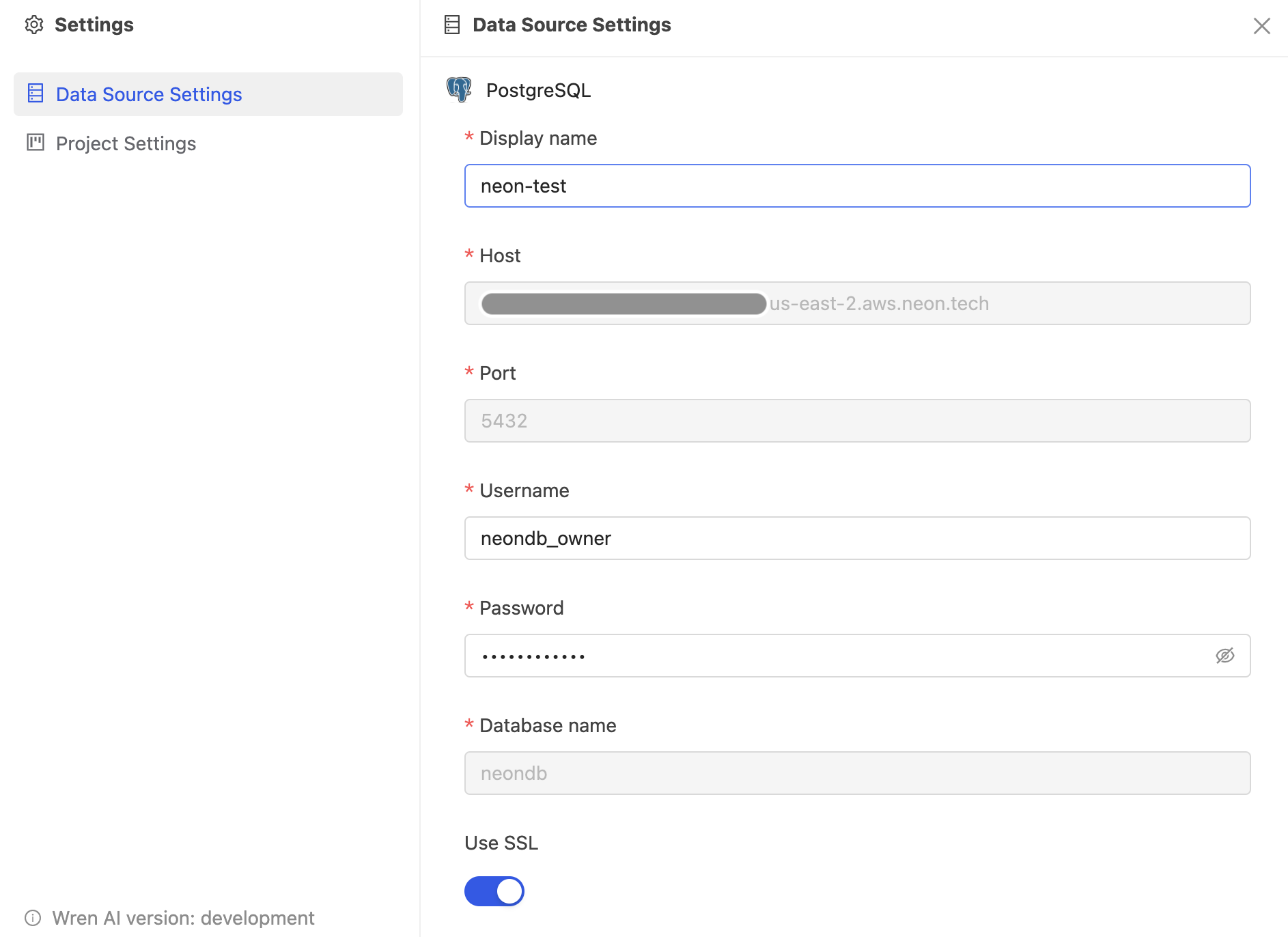
Connection fields
Display name
The display name for the database in the Wren AI interface.
Host
Your database host name, from your provider's connection details.
Port
Your database port (default: 5432).
Username
The database username for the account that you want to use to connect to your database.
Password
The password for the username that you use to connect to the database.
Database name
The name of the database you want to connect to.
Next steps
The remaining steps — required permissions, selecting tables, and defining relationships — are the same as for any PostgreSQL database. Continue with the PostgreSQL connector guide.