Dashboard
Classic project only
Dashboards are only available in Classic projects. In Agentic projects, use GenBI Apps instead.
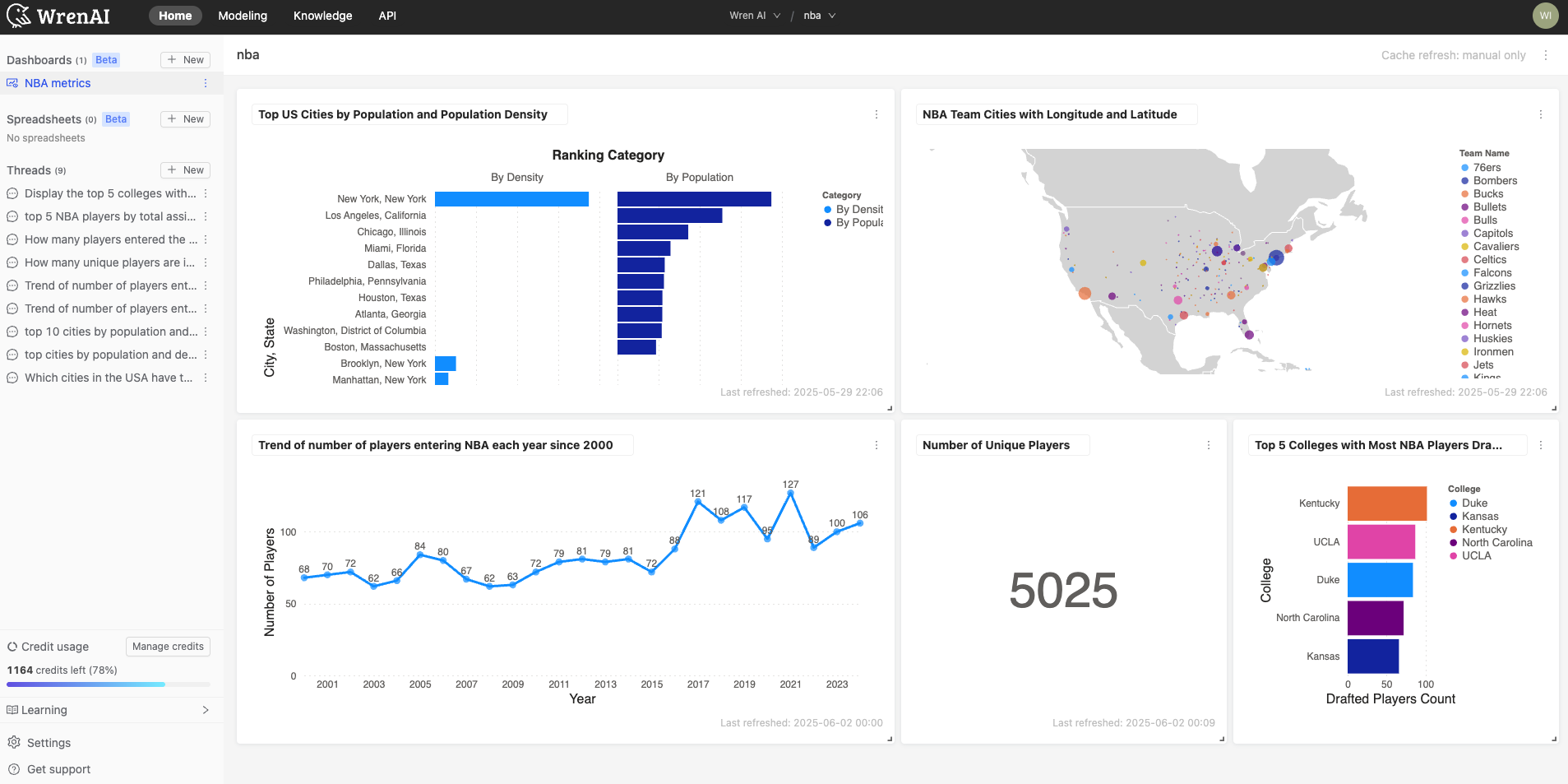
Use this page to pin charts, organize dashboards, and manage the layout of saved visualizations.
Pin a chart to a dashboard
- Generate a Chart: Begin by generating a chart in your threads.
- Pin the Chart: After generating the chart, you will find a
pinicon on top of the chart. Click on it to pin the chart to your desired dashboard.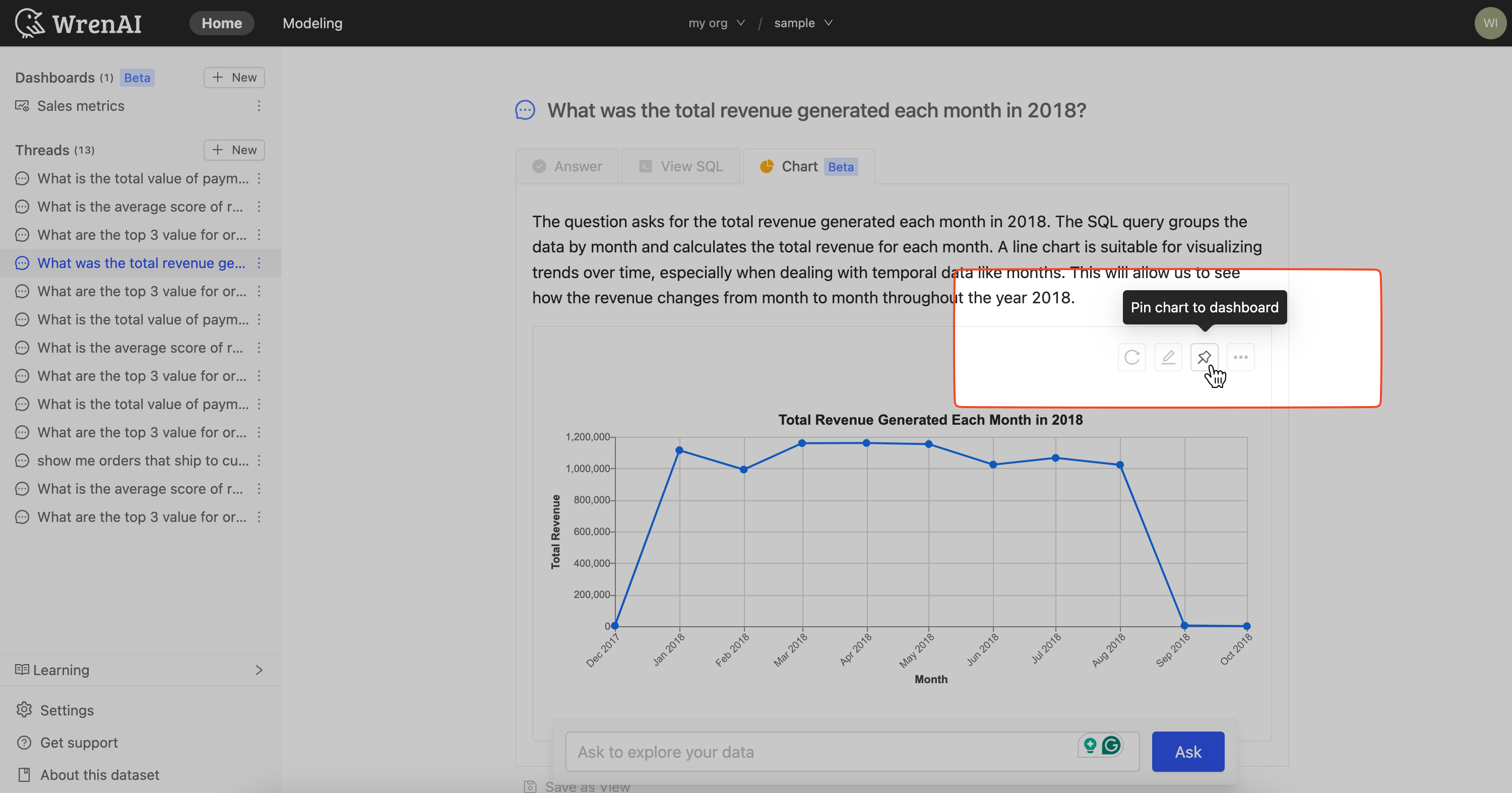
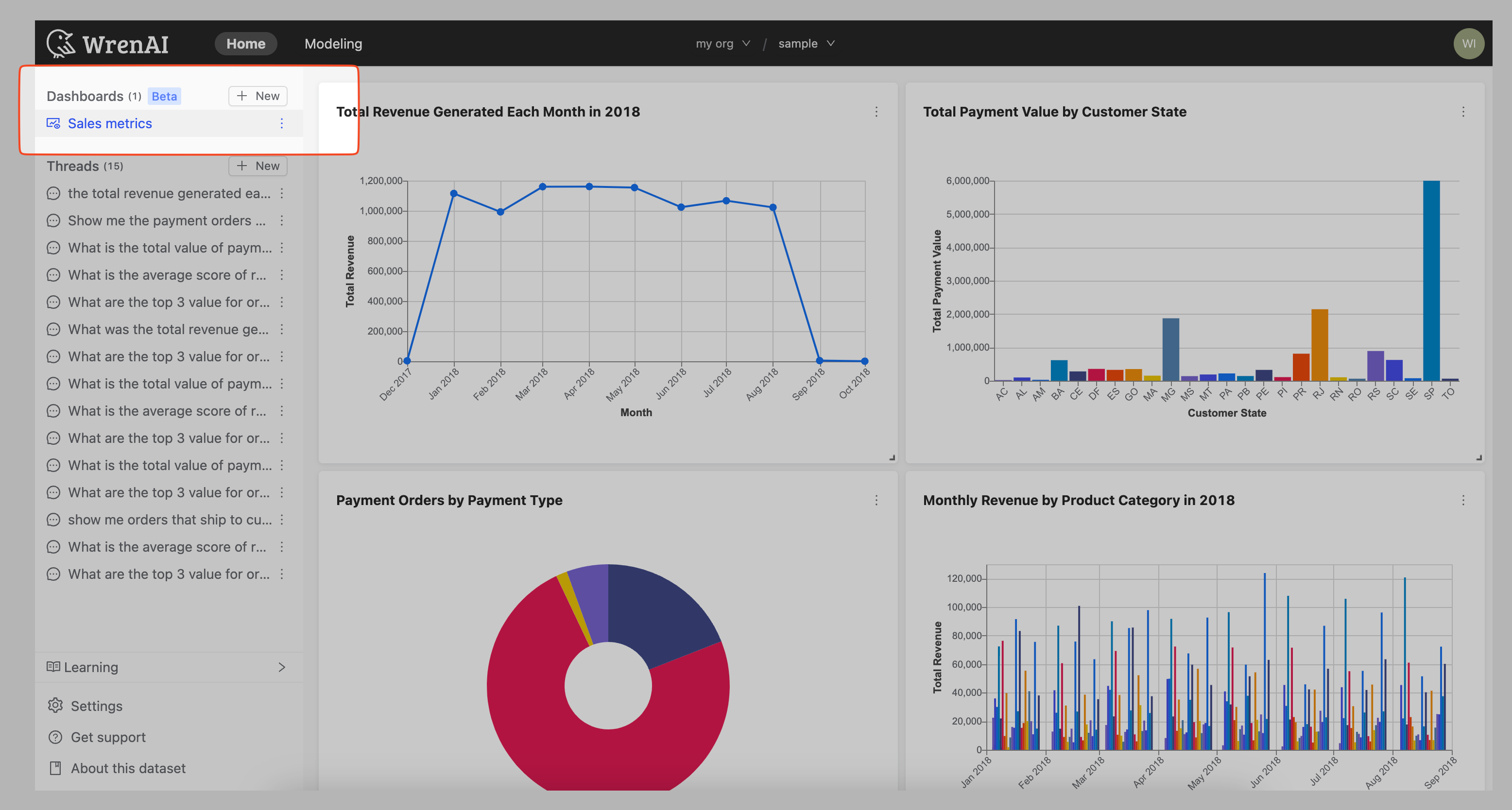
- Access Pinned Charts: Pinned charts will be displayed on your selected dashboard. Navigate to the appropriate dashboard to view your pinned charts.
Manage your dashboards
- Manage Dashboards: Easily switch between multiple dashboards to manage different sets of pinned charts and insights. Users can rename or delete a dashboard by clicking the more (
⋮) icon on the sidebar dashboard item. - Unpin a Chart: To remove a chart from a dashboard, go to the pinned chart and click the 'delete' option.
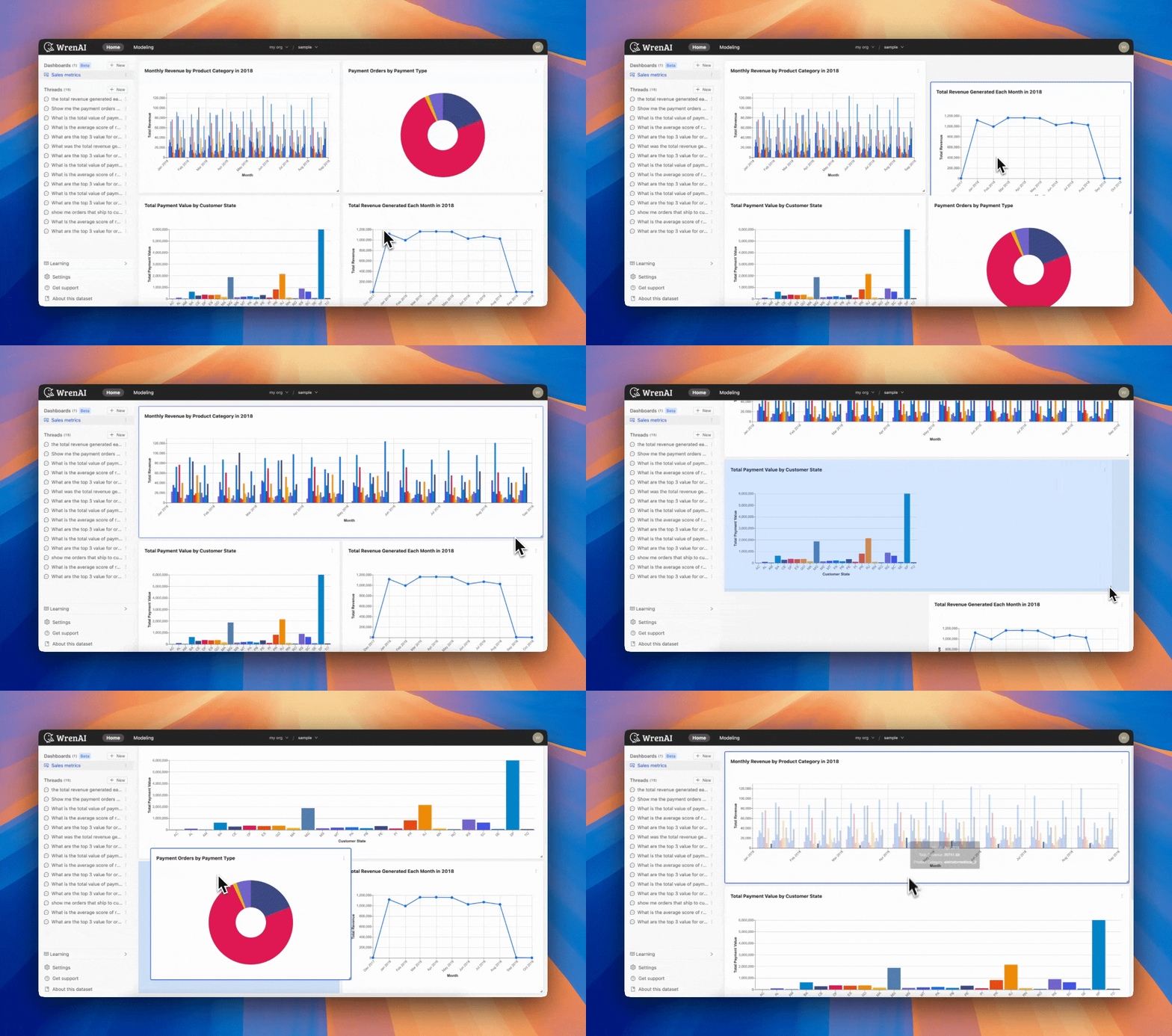
- Arrange Pinned Charts: Users can resize the charts by clicking and dragging the right-bottom corner of the chart. To change the position and reorder pinned charts, simply drag and drop them.