Dashboard Cache
Classic project only
Dashboard caching is only available in Classic projects.
Use this page to enable dashboard caching and control how often cached dashboard results refresh.
Enabling Dashboard Cache
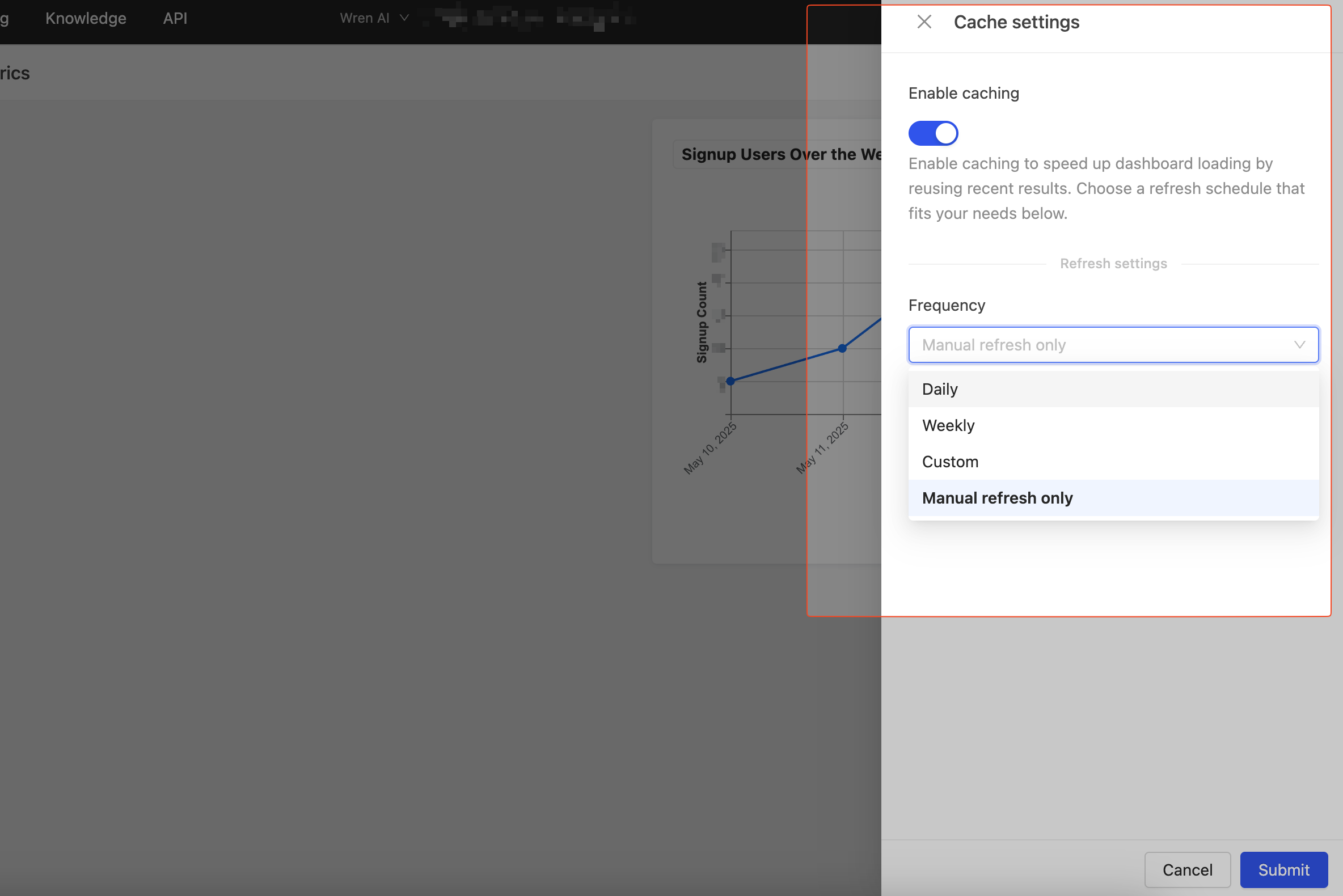
To enable dashboard caching:
- Click the more icon (⋮) in the top-right corner of your dashboard
- Select "Cache Settings" from the dropdown menu
- In the cache settings drawer, toggle the "Enable Cache" option
- Configure your preferred refresh schedule:
- Daily
- Weekly
- Custom schedule
- Manual refresh only
Manual Cache Refresh
You can refresh the cache manually in two ways:
For Individual Charts
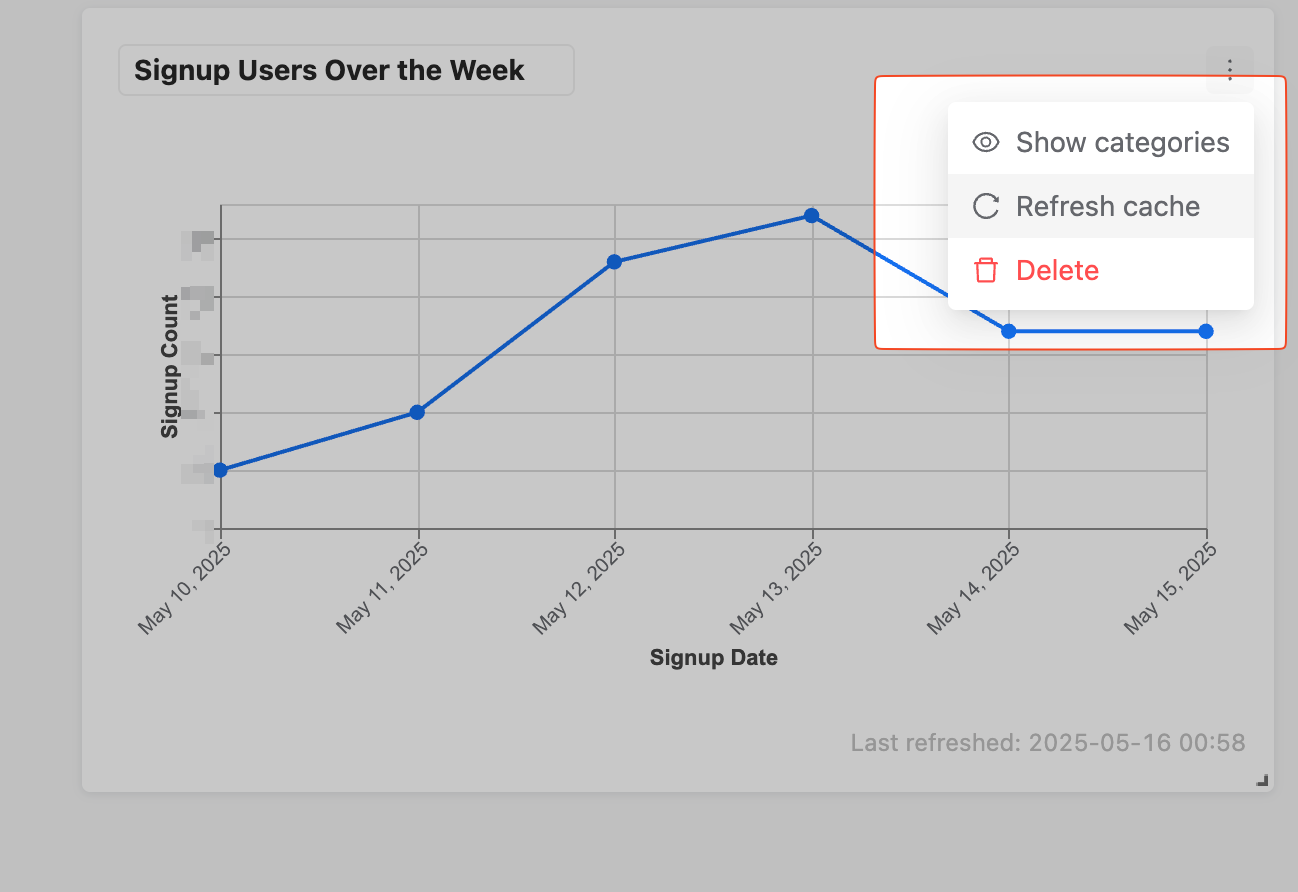
- Click the more icon (⋮) in the top-right corner of the chart
- Select "Refresh Cache" from the dropdown menu
For Entire Dashboard
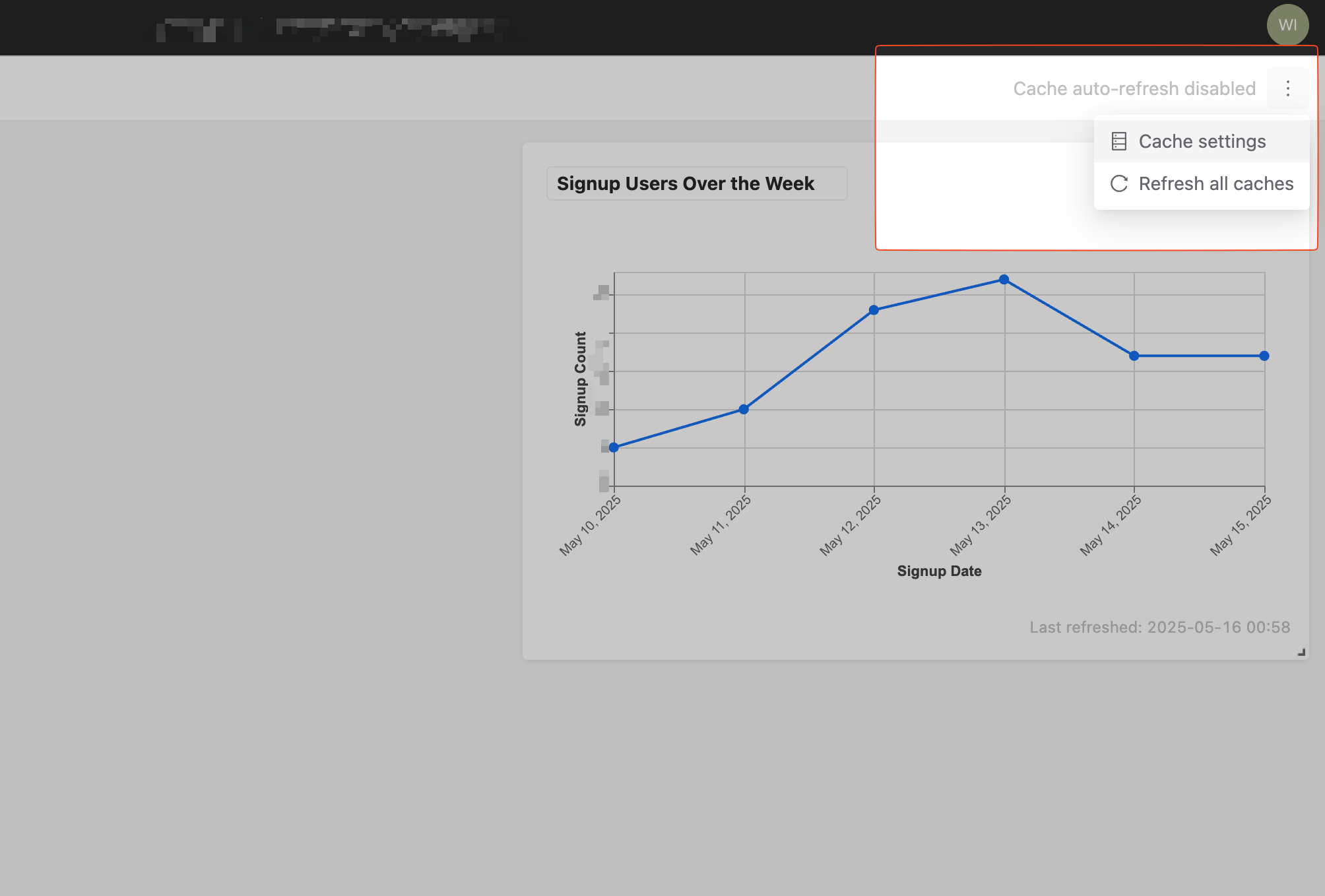
- Click the more icon (⋮) in the top-right corner of the dashboard
- Select "Refresh All Caches" from the dropdown menu
Monitoring Cache Status
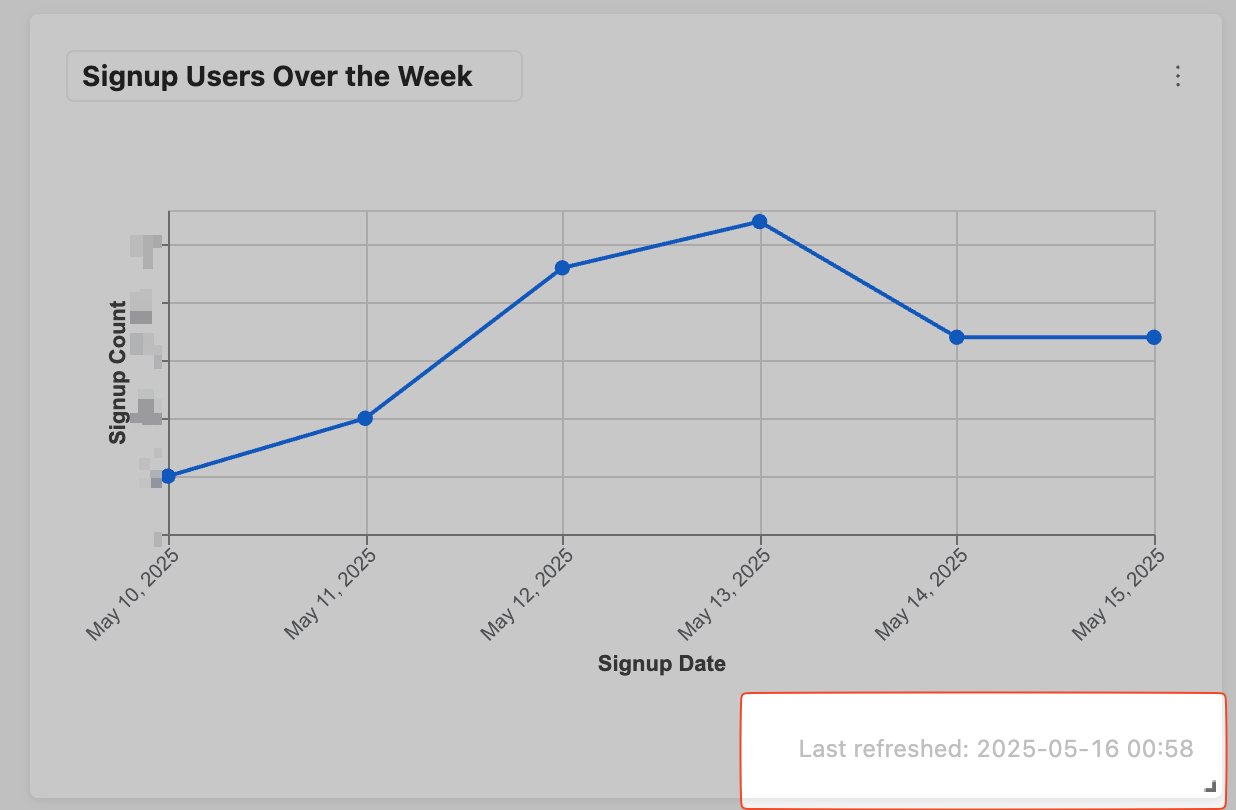
To check if a chart is using cached data and when it was last refreshed:
- Look at the bottom of each chart
- The "Last Refreshed" timestamp indicates:
- The chart is using cached data
- When the data was last cached