Spark
Use this guide to connect a Spark cluster to Wren AI through Spark Connect and verify that the server and network access are configured correctly.
Included in all plans
If your Spark cluster is managed by Amazon EMR, follow the Amazon EMR (Spark) guide instead.
Wren AI Cloud must be able to reach the Spark Connect Server from its outbound IP address. Please add the IP address of the Wren AI service to the firewall / security group of your Spark cluster.
Scroll to the bottom of the data source connection page to find the IP address.
Wren AI requires Spark Connect Server to be running and reachable on the Spark cluster.
Before you begin
Before connecting Wren AI to Spark, make sure:
- Your Spark cluster is running
- Spark Connect Server is running on the cluster (see Start Spark Connect Server)
- Network access is configured correctly (see Cannot connect to Spark from Wren AI Cloud)
- The Spark version you use is within the supported range
Spark version compatibility
Wren AI connects through the Spark Connect protocol. Spark 3.4.0 and later (including Spark 3.5.x) is supported.
Spark Connect was introduced in Spark 3.4. Earlier Spark releases do not include Spark Connect and are not supported.
To add a Spark connection, click on the Spark option in the Connect a data source section.
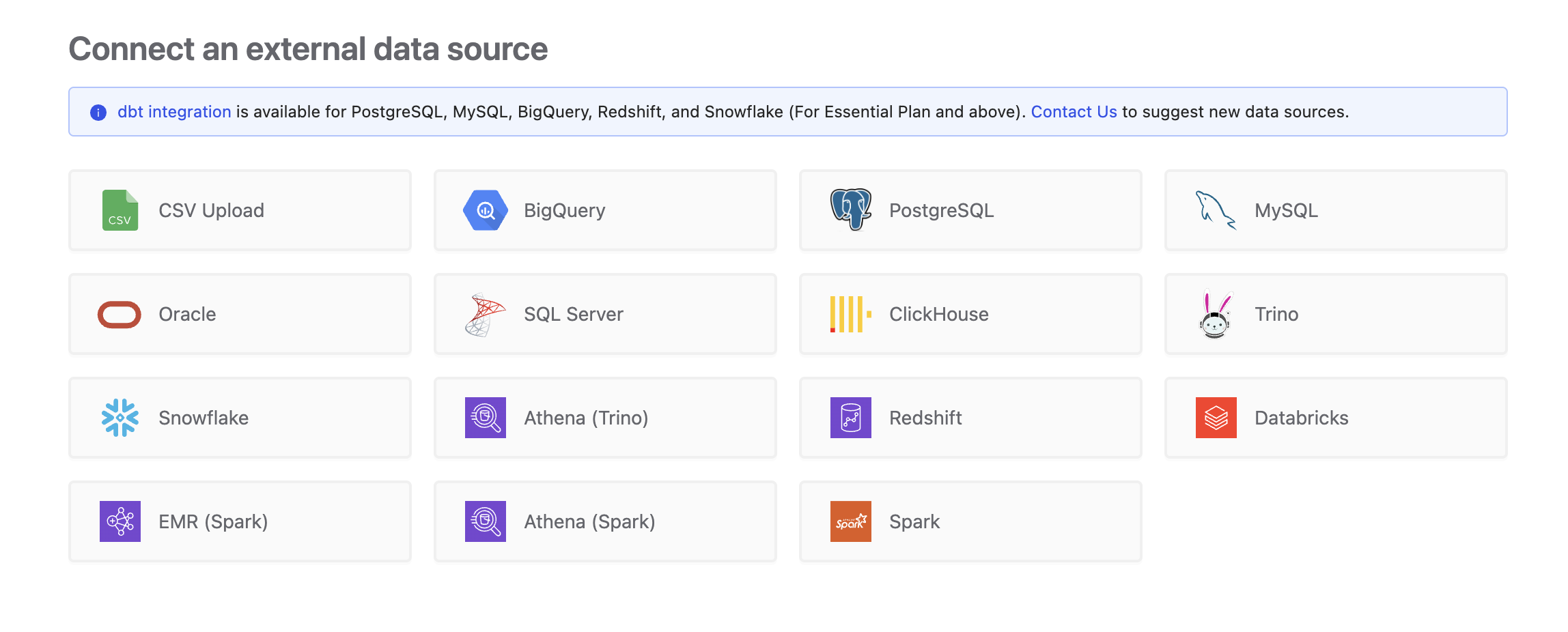
Connect
Fill in the connection settings:
Display name
The display name for the database in the Wren AI interface.
Spark connect hostname
The DNS name or IP address of the node running Spark Connect Server.
Port
The port used by Spark Connect. By default, Spark Connect listens on 15002.
Troubleshooting
Start Spark Connect Server
If your Spark cluster does not have Spark Connect Server running, start it on the cluster before connecting.
You can start Spark Connect Server with spark-submit:
spark-submit \
  --packages org.apache.spark:spark-connect_2.12:3.5.0 \
  --class org.apache.spark.sql.connect.service.SparkConnectServer \
  /usr/lib/spark/jars/spark-connect_2.12-3.5.0.jar
Match the spark-connect package and JAR version to the Spark version running on your cluster.
Cannot connect to Spark from Wren AI Cloud
Make sure the firewall / security group of the node running Spark Connect Server allows inbound traffic from the Wren AI Cloud outbound IP (34.57.198.97).
Check the following:
- The inbound rule includes the Spark Connect port (default:
15002) - The source IP matches the outbound IP (34.57.198.97) shown at the bottom of the Wren AI data source connection page
If the firewall is missing this rule, Wren AI will not be able to connect to your Spark cluster.
Select Tables
All tables of your connected Spark cluster will be listed in this step. Select which tables you want to use in Wren AI. Each selected table will be created as a data model. See the Modeling documentation to learn more about data models.
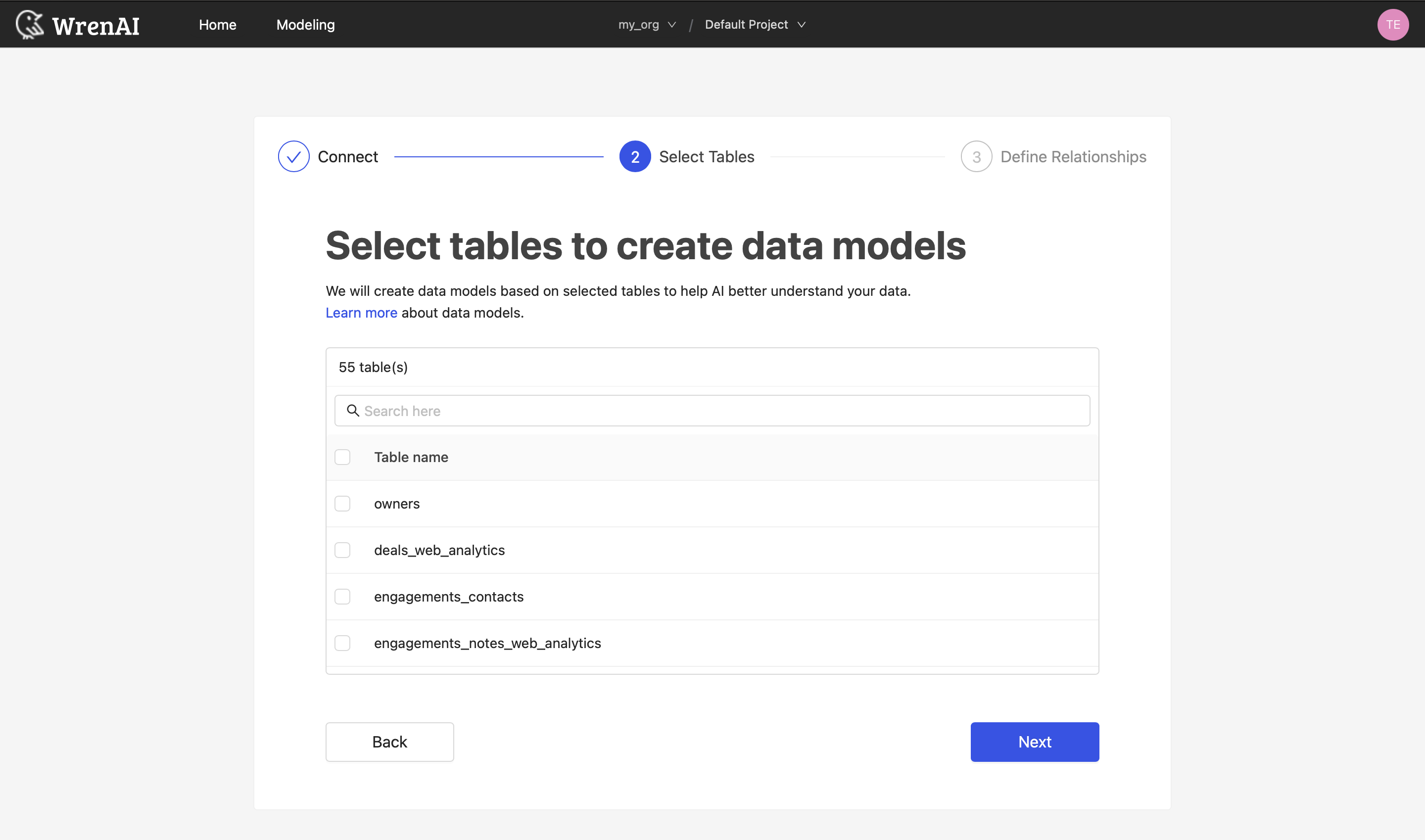
Define relationships
Define the relationships among selected tables in this step. If you have defined primary keys and foreign keys in your dataset, we will list suggested relationships based on that information. If not, you can also add relationships by clicking the Add relationships button on the table blocks.
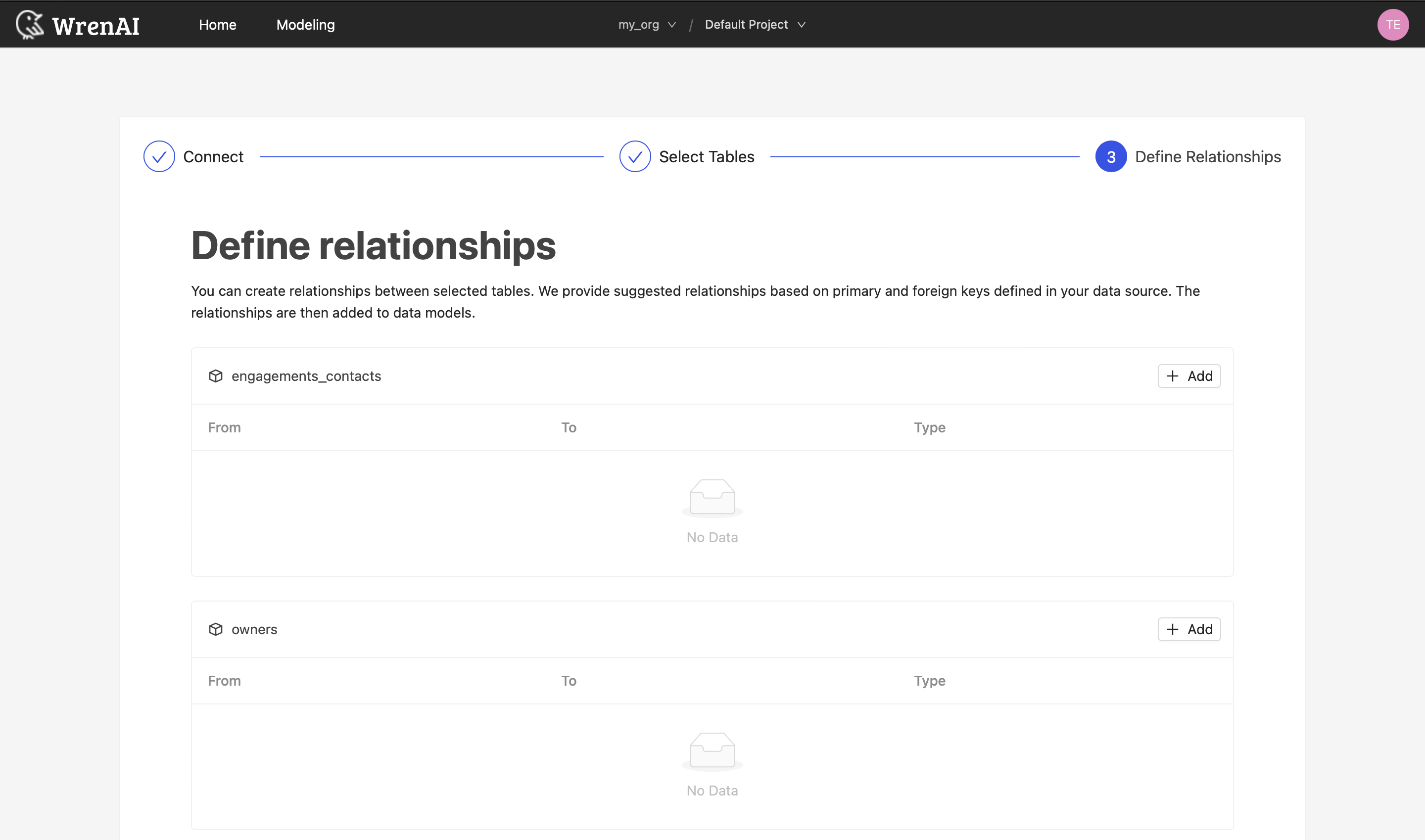
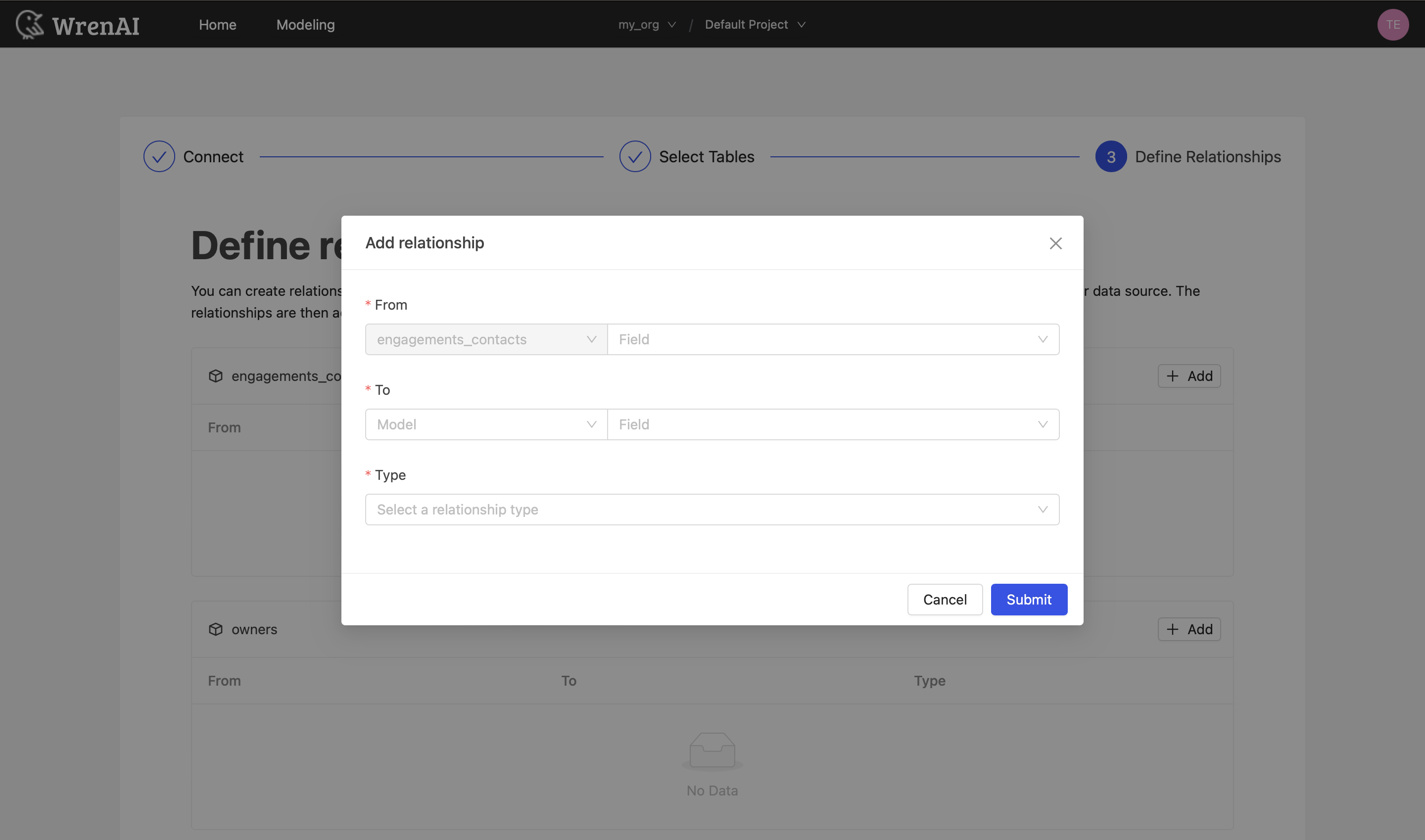
Define the following properties in a relationship:
- From: Select the left side table and column of this relationship.
- To: Select the right side table and column of this relationship.
- Relationship Type: Select the type of relationship.
Find more information about relationships in Modeling - Working with Relationships.
You can also skip this step and finish the connection.