Microsoft Teams Integration
Use this page to connect Microsoft Teams to Wren AI, map projects to channels and group chats, and understand how users can interact with Wren AI from Teams.
Microsoft Teams Integration is only available in Essential/ Business Plan and above
Currently, Microsoft Teams Integration does not support Row-Level Security (RLS). Support for RLS is planned for a future release.
Connect your Microsoft Teams workspace to Wren AI to ask questions in natural language, generate charts, and view reasoning - all without leaving Teams.
Wren AI uses verified generative AI models from trusted providers. However, AI-generated responses may occasionally contain hallucinations or inaccuracies. Please review and verify outputs before making business decisions.
Prerequisites
Connecting Microsoft Teams requires a Microsoft 365 administrator to grant consent for the permissions Wren AI needs. Make sure you have:
- A Microsoft 365 account with administrator rights in your Microsoft Teams organization (tenant).
- A Wren AI account that is an organization admin of the Wren AI organization you want to connect.
- At least one Wren AI project to use as the default project.
Installation
The Microsoft Teams integration is installed from within Microsoft Teams, then linked to your Wren AI organization through a guided setup.
- In Wren AI, go to Settings → Integrations.
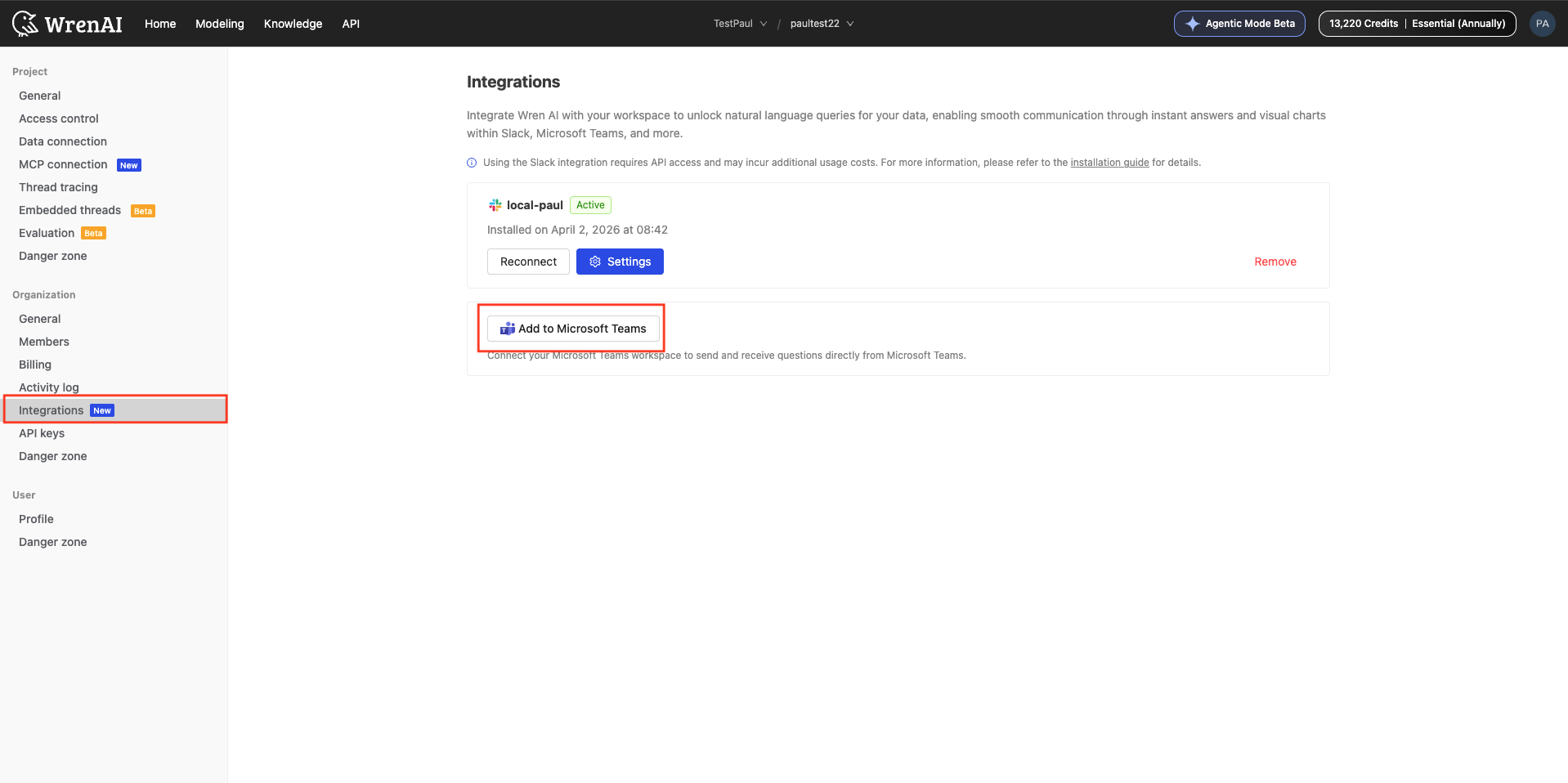
- Click Add to Microsoft Teams and complete the authorization process.
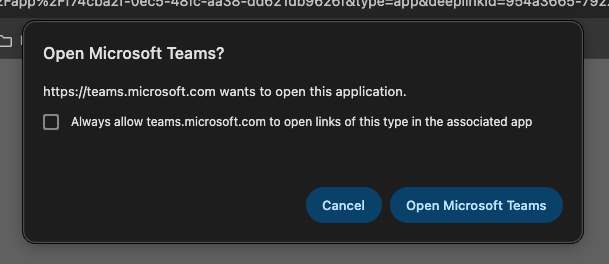
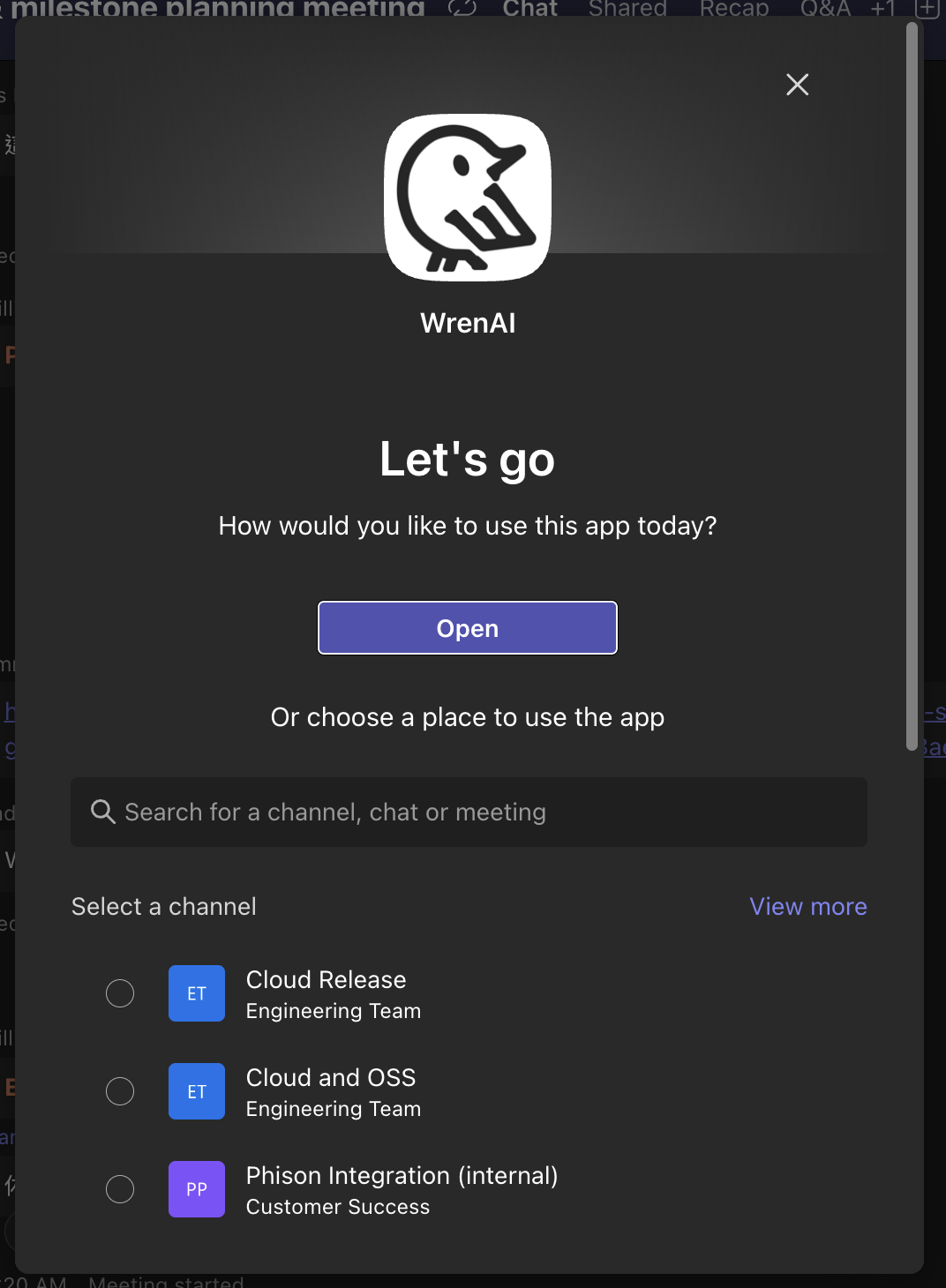
- Open the Wren AI app in Teams. On the welcome screen, Select your channel or group chat then click Sign in with WrenAI to begin setup.
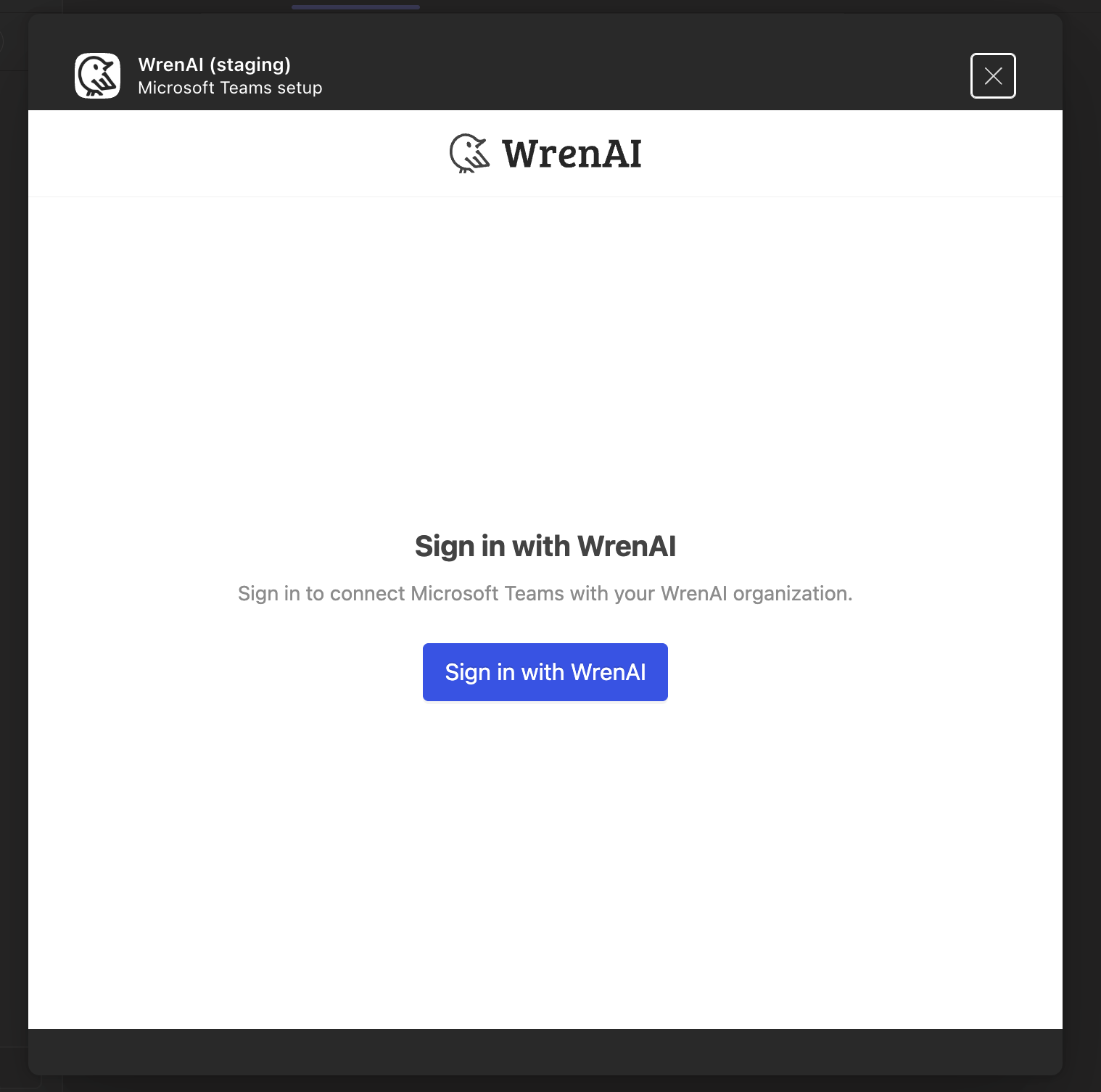
- A browser tab opens. Sign in to your Wren AI account to connect Microsoft Teams with your organization.
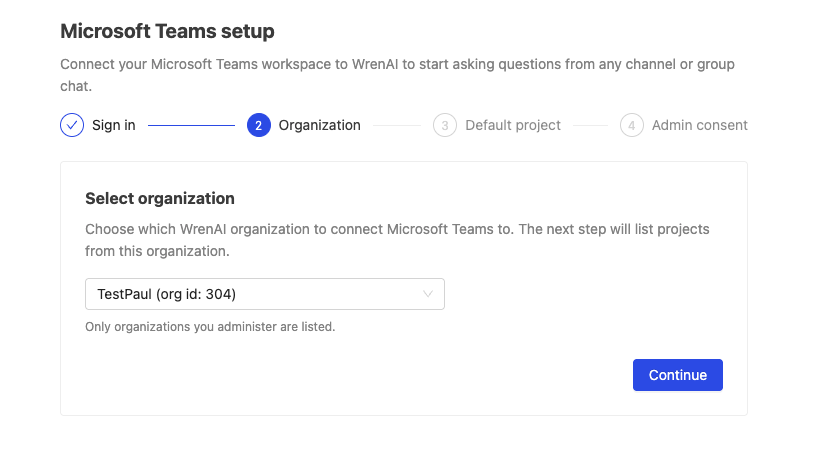
- Select organization. Choose which Wren AI organization to connect Microsoft Teams to. Only organizations you administer are listed.
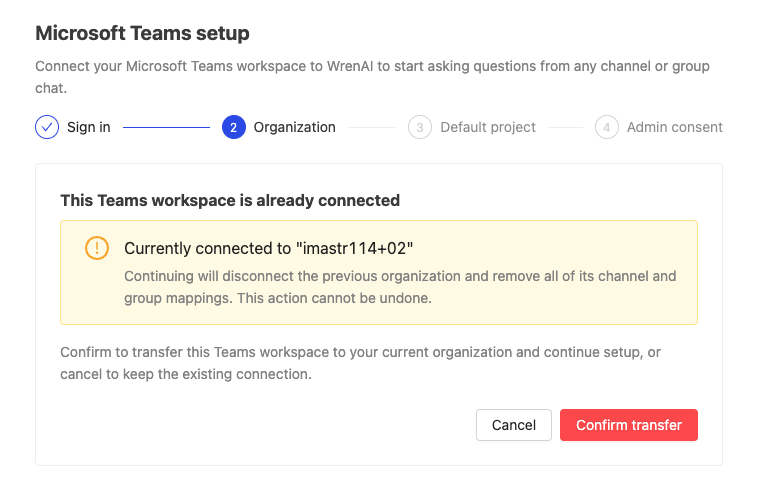
Each Microsoft Teams workspace (tenant) can be connected to only one Wren AI organization at a time. If the workspace is already connected to another organization, Wren AI shows a confirmation before continuing:
- Confirm transfer — moves this Teams workspace to your current organization. The previous organization is disconnected and all of its channel and group mappings are removed. This action cannot be undone.
- Cancel — keeps the existing connection and stops setup.
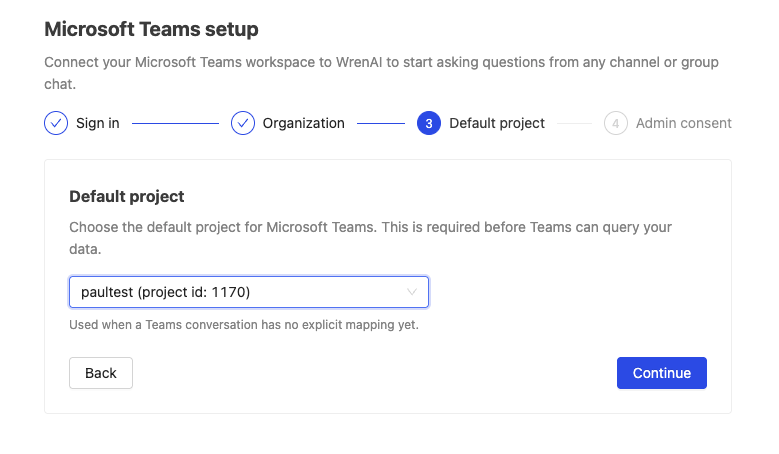
- Choose a default project. Select the default project for Microsoft Teams. This is required before Teams can query your data, and is used whenever a Teams conversation has no explicit mapping yet.
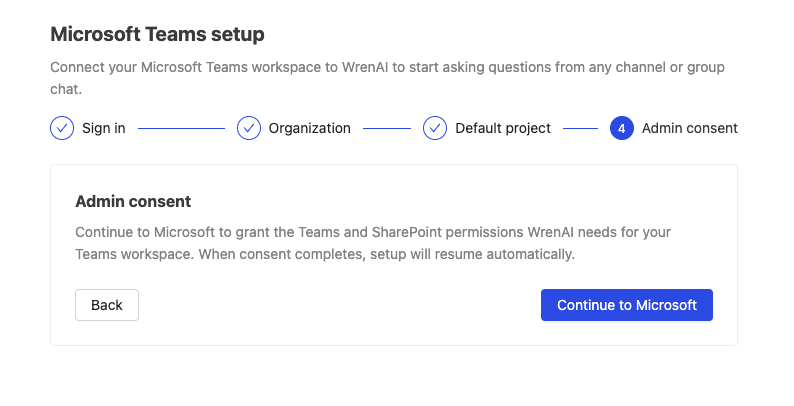
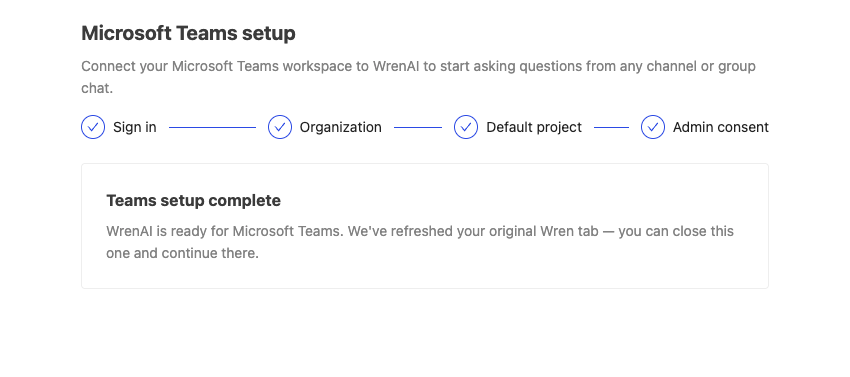
- Admin consent. Continue to Microsoft to grant the Teams and SharePoint permissions Wren AI needs for your Teams workspace. When consent completes, setup resumes automatically.
- After consent completes, you'll see a confirmation that Teams setup is complete. You can close the browser tab and continue in Microsoft Teams.
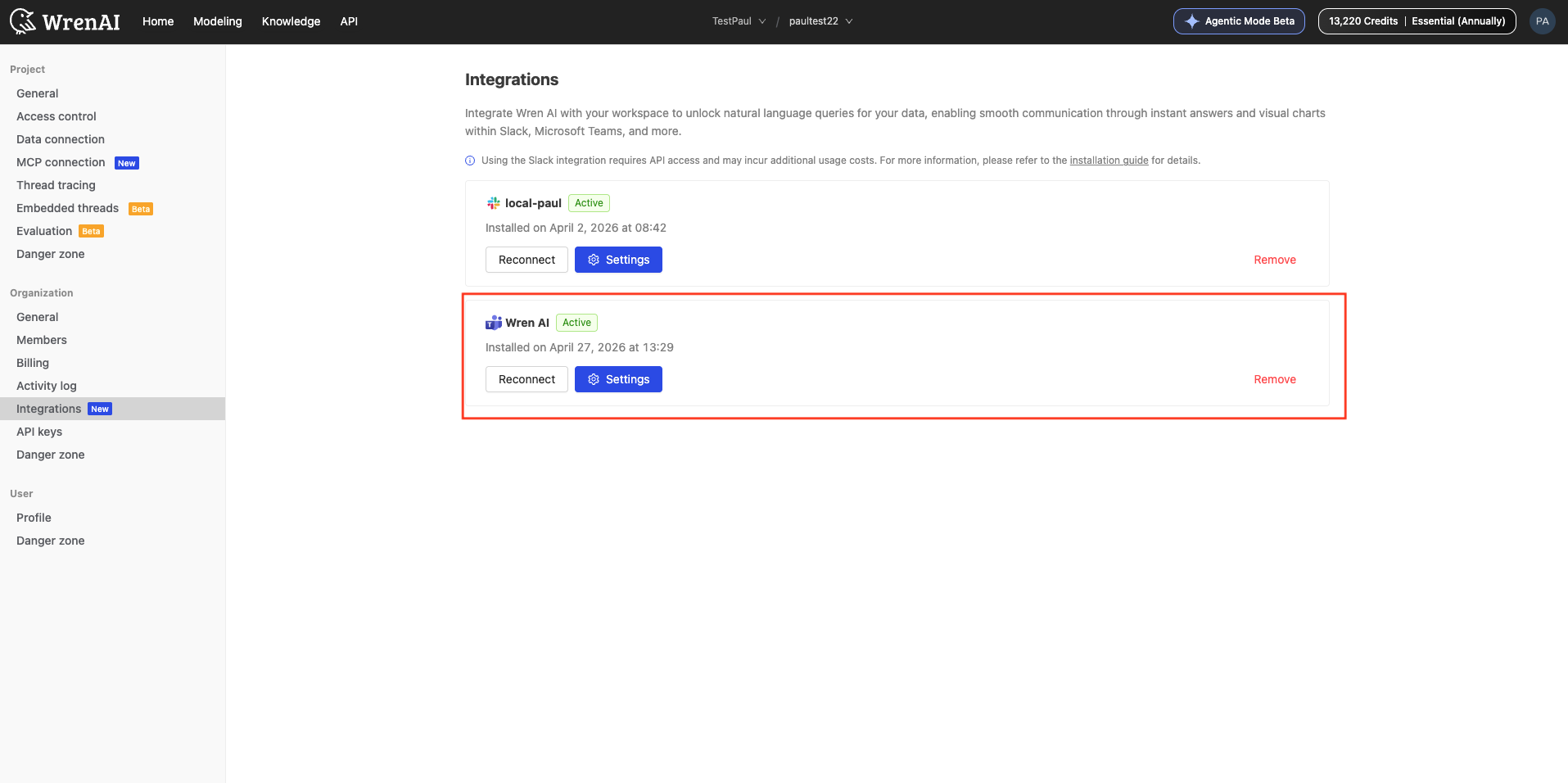
- Once setup is complete, your Microsoft Teams workspace name will appear on the integration page in Settings → Integrations.
Channel and Group Mapping
Channel and group mapping lets you assign different Wren AI projects to different Teams channels and group chats. This not only ensures that questions in each conversation are answered using the most relevant data, but can also be used as a form of access control - restricting which data sources are available in each channel or group.
To configure channel and group mapping:
-
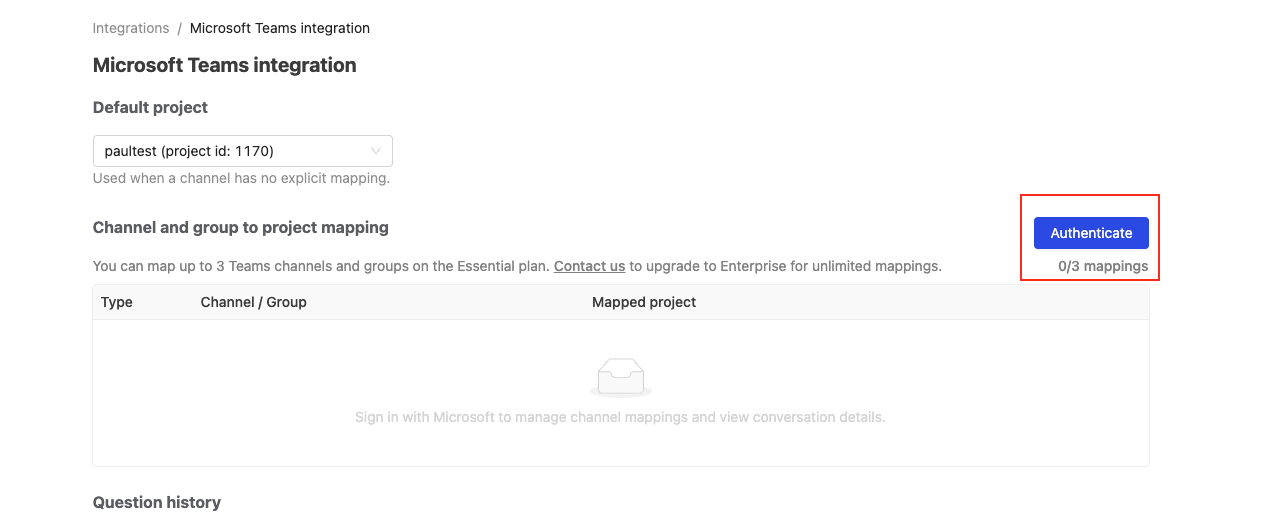
Authenticate with Microsoft (first time only): To list your channels and group chats, sign in with Microsoft. Click Authenticate in the Channel and group to project mapping section and complete the Microsoft sign-in.
-
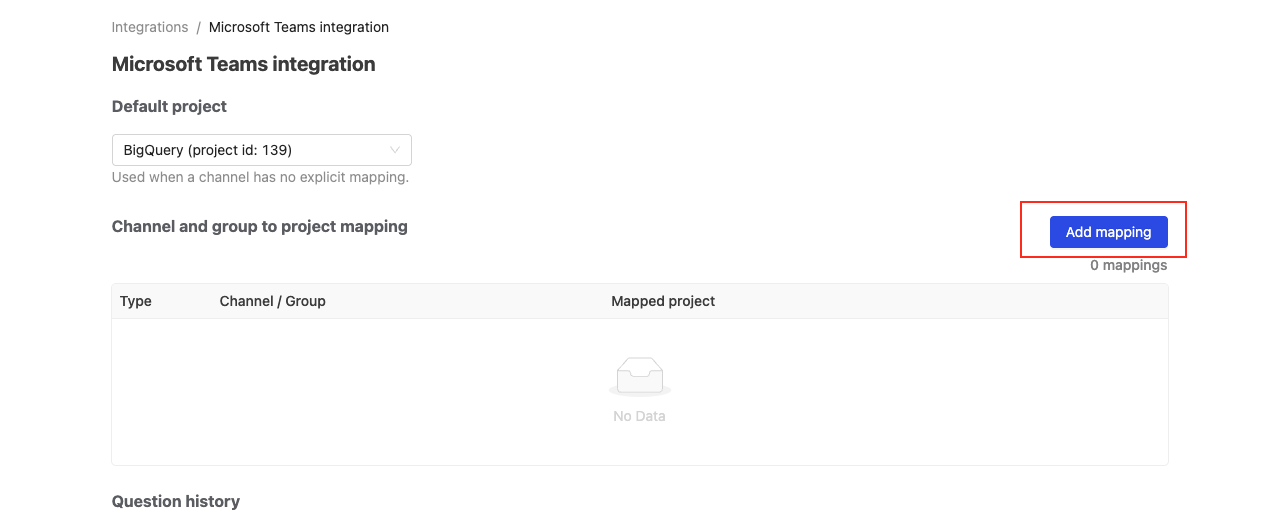
Map specific channels or group chats to projects (optional): Click Add mapping, then choose a channel or group chat and the project it should use. When a conversation is mapped, all questions asked there will use the assigned project for queries.
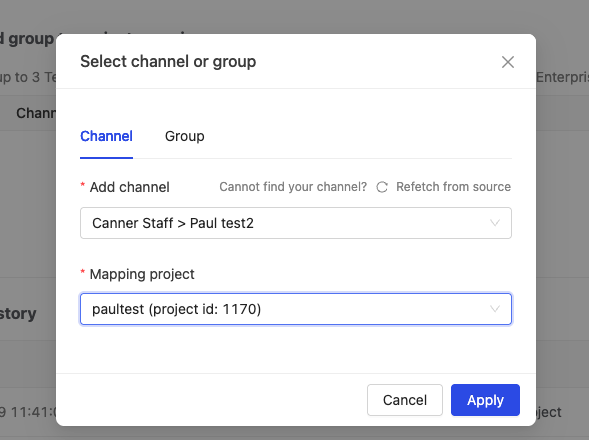
This setup helps ensure that each Teams conversation gets answers from the right data source, and you can update the mapping as your needs change.
On the Essential plan, the number of Teams channels and group chats you can map is limited. To unlock unlimited mappings, upgrade to the Enterprise plan.
Use in Microsoft Teams
Ask questions
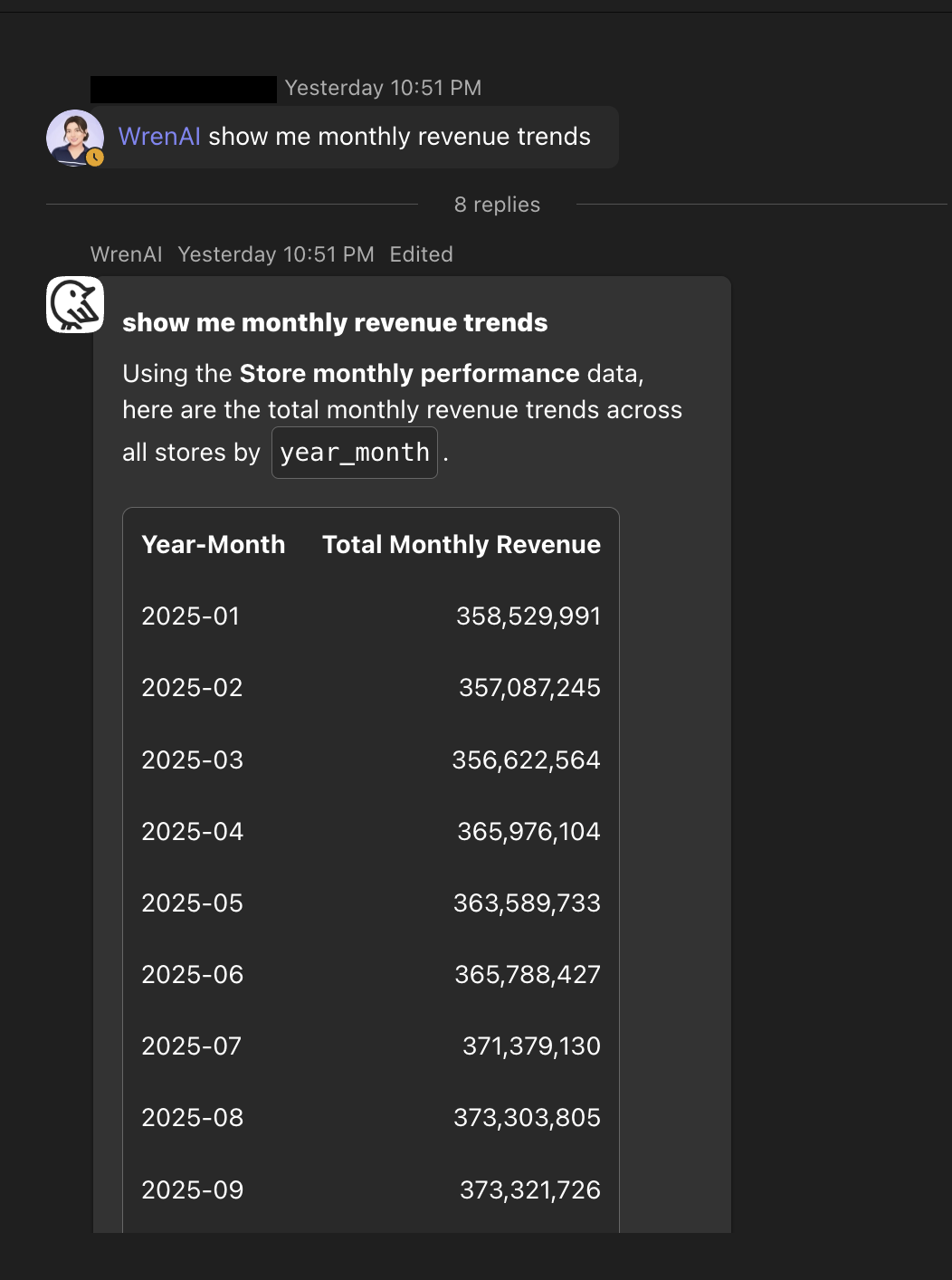
To ask a question, mention @Wren AI in any mapped channel or group chat, or send a direct message to the Wren AI bot without mentioning it. Ask your question in any language, and Wren AI will respond in a thread.
You can continue the conversation by asking follow-up questions in the same thread. Wren AI will remember the context from previous messages and use it to answer your new question. Wren AI also suggests follow-up questions you can send with a single click.
Generate charts
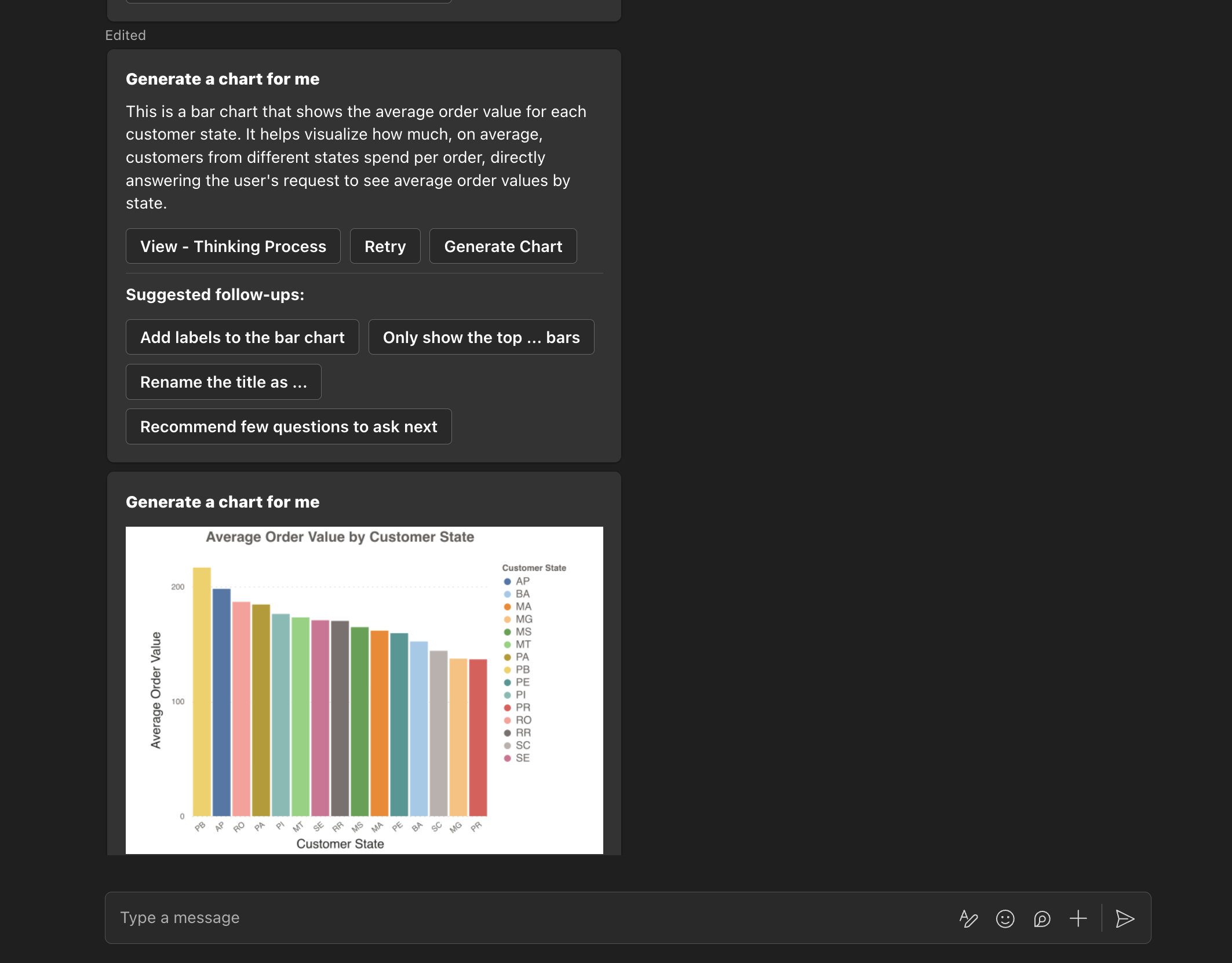
Click Generate chart on the answer card to receive a chart for your results.
See reasoning
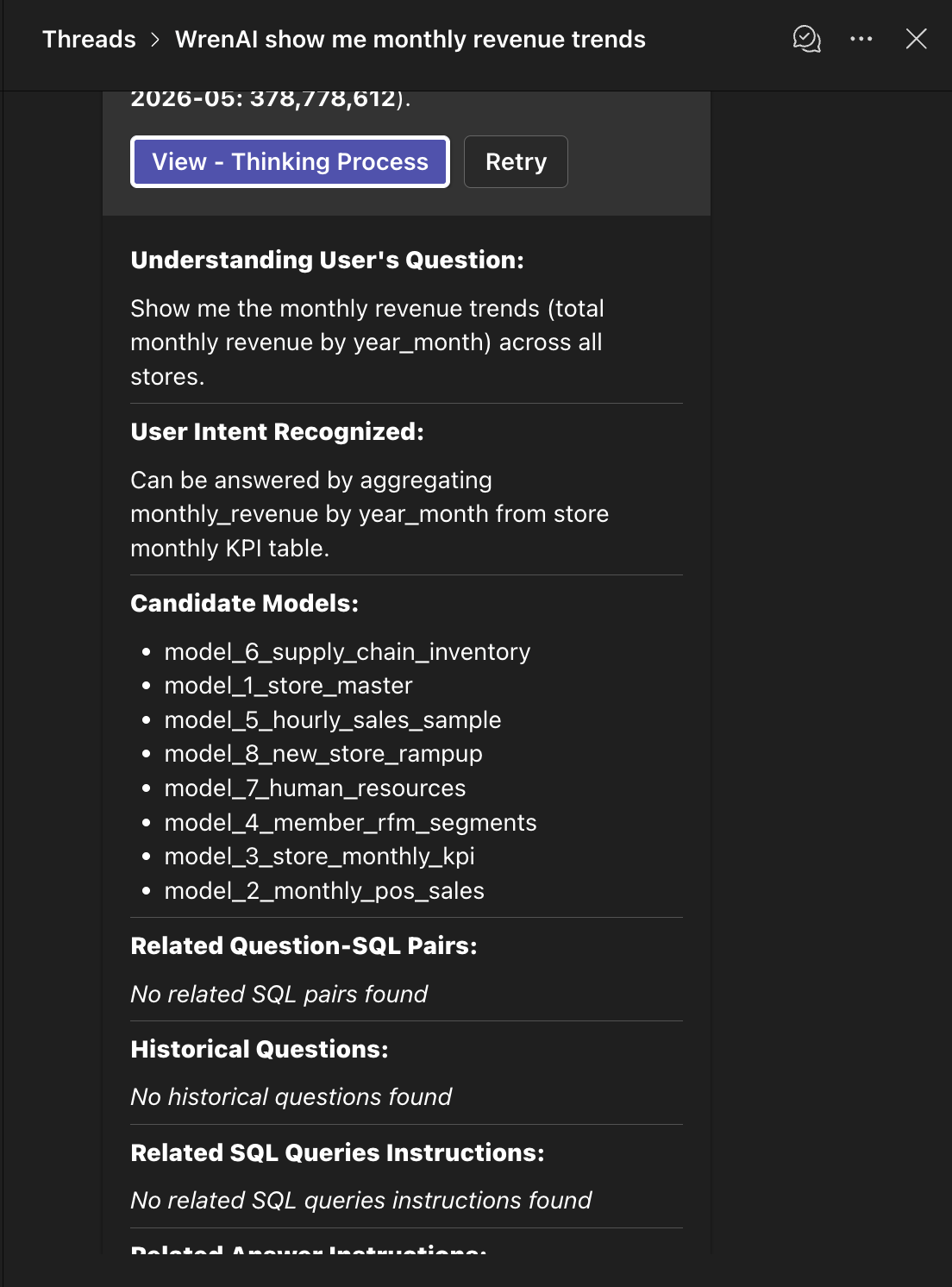
Click View - Thinking Process on the answer card to see how Wren AI interpreted your question, including assumptions and step-by-step logic.
FAQ
Can I map a Microsoft Teams workspace to multiple Wren AI organizations?
No. Each Microsoft Teams workspace (tenant) can be connected to only one Wren AI organization.
Why do I need a Microsoft administrator to set this up?
Wren AI needs Microsoft Graph permissions (for Teams and SharePoint) to read the channels and group chats it operates in and to send messages. Granting these permissions requires admin consent from a Microsoft 365 administrator of your tenant.
How is usage charged?
- Each question uses API credits for an "Ask Question" (
/api/v1/ask) request. - Each chart generation uses API credits for a "Generate Chart" (
/api/v1/generate_vega_chart) request.
See Pricing for more information.