ChatGPT Integration
Wren AI is available as an app in ChatGPT's plugin directory - the Wren AI listing. Instead of pasting an MCP endpoint URL by hand, open the listing and click Install plugin - then ask questions about your data warehouse directly in a ChatGPT conversation.
The ChatGPT plugin runs on the same organization-level MCP endpoint as Wren AI MCP, so it requires the Essential Cloud plan and above, and an org admin must enable MCP first.
Like Wren AI MCP, the ChatGPT plugin runs in Interactive Mode only. Requests from ChatGPT use Interactive Mode even if the connected project has Agentic Mode available.
Overview
Once installed, ChatGPT can reach the exposed projects your account is allowed to see in the connected Wren AI organization. ChatGPT picks a project, reads its schema through the semantic layer, and answers in natural language - with SQL and charts generated by Wren AI rather than guessed from raw tables.
- Where: ChatGPT web and desktop apps - the listing at chatgpt.com/plugins
- Auth: OAuth with your Wren AI account - no API key, no local proxy, no URL to copy
- Security: Row/column-level security (an Enterprise Cloud feature) is enforced per user, server-side
Before You Begin
-
Wren AI Essential Cloud plan and above.
-
An org admin has enabled MCP and exposed projects. In Wren AI, go to Settings → Organization → MCP, turn on Enable MCP for this organization, and toggle Exposed for each project you want reachable from ChatGPT. See Wren AI MCP → Before You Begin for details.
noteOnly exposed projects are reachable, and each user still only sees projects they're a member of.
-
A ChatGPT account that can install apps. Plugin and connector availability depends on your ChatGPT plan, and on Business/Enterprise workspaces an admin may have to allow the app before members can install it. If the Install plugin button isn't there, that's the usual reason.
noteAllowing the app at the workspace level doesn't grant anyone data access on its own - each person still signs in with their own Wren AI account. On Enterprise Cloud, this also keeps RLS/CLS scoped per user.
Install Wren AI in ChatGPT
Step 1 - Open the Wren AI listing and install.
Go to the Wren AI plugin listing in ChatGPT. The listing shows what the app does and every tool it exposes. Click Install plugin.
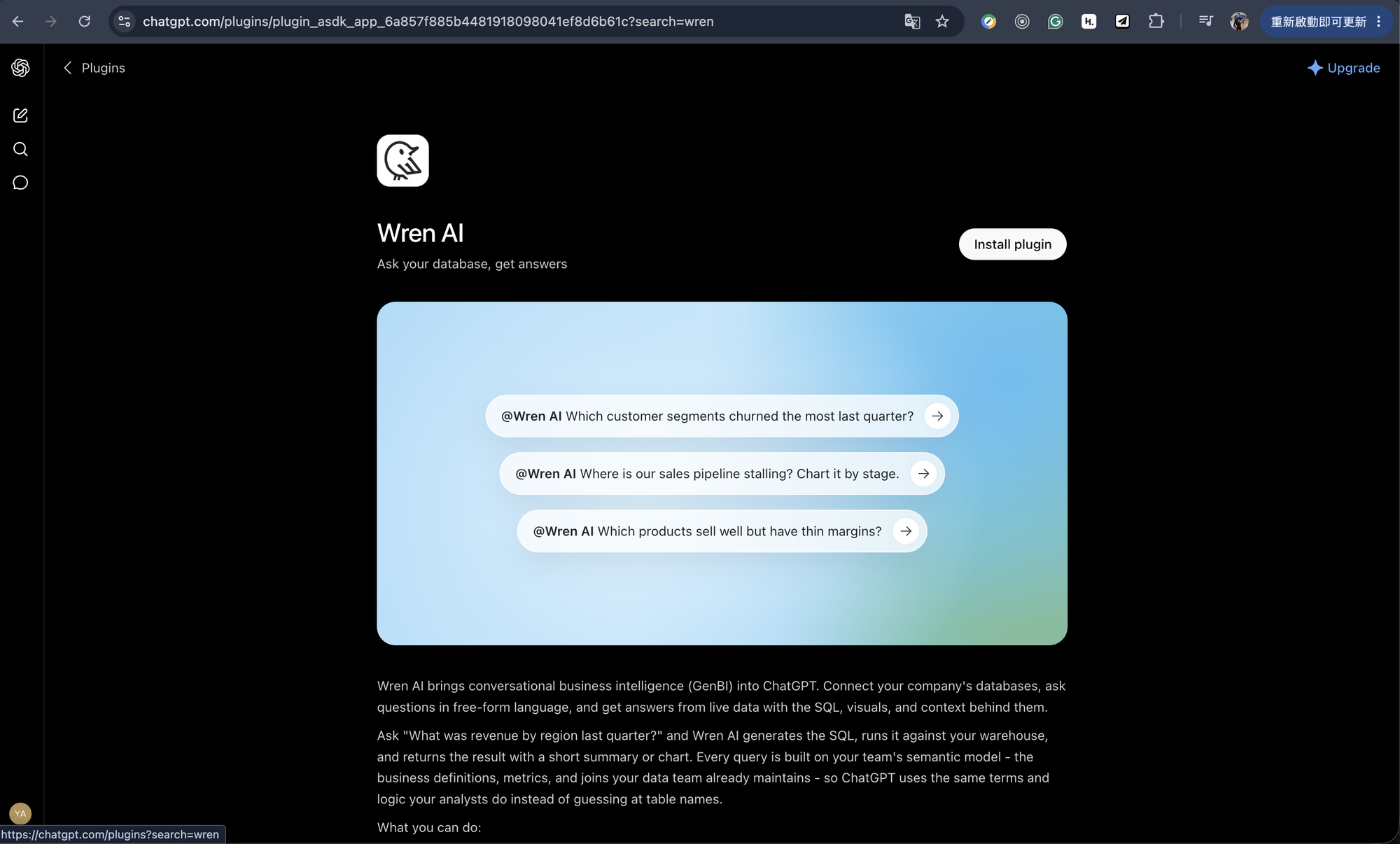
You can also reach the same listing from inside ChatGPT: open Plugins and search wren.
Step 2 - Log in with your Wren AI account.
ChatGPT redirects you to Wren AI Cloud to authenticate over OAuth. Sign in with your own Wren AI account - data permissions are resolved from whoever logs in here.
When you're returned to ChatGPT, Wren AI shows up in your installed apps and is ready to use.
Step 3 - Add custom instructions (optional).
ChatGPT has no skill upload, so the analyst guidance goes in custom instructions instead. Go to
Settings → Personalization → Custom Instructions and paste the content from
web/chatgpt/wrenai-analyst-skill.md.
Generate the skill content locally:
git clone https://github.com/canner/wrenai-mcp.git && cd wrenai-mcp && ./setup --host chatgpt
Using It
Mention the app in a conversation (@Wren AI) or just ask a data question and let ChatGPT pick the
tool. ChatGPT discovers your projects with list_projects, reads the schema with
get_project_metadata, then answers with ask / generate_sql / run_sql, and renders charts from
the same governed query with generate_chart.
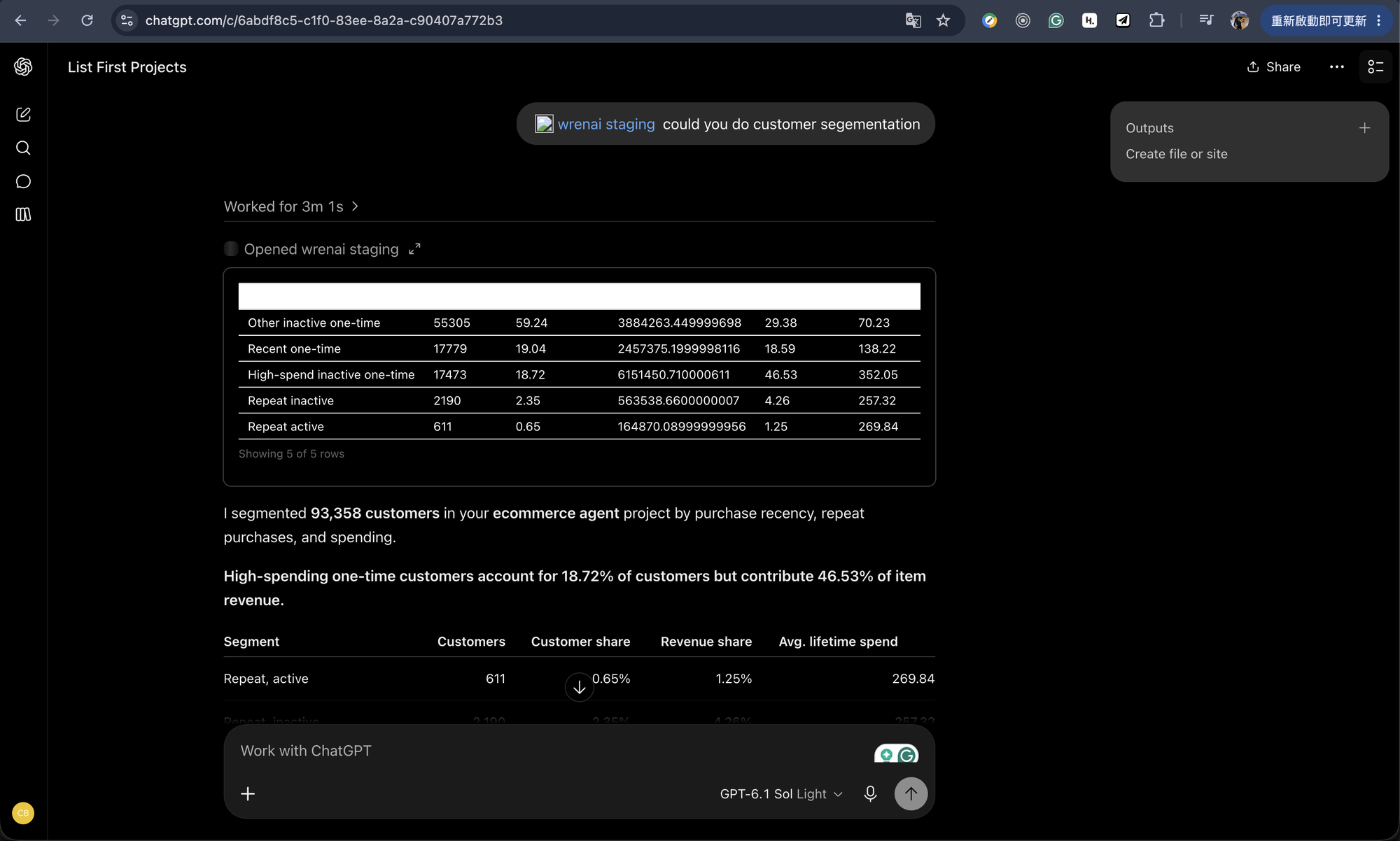
Expand the Opened Wren AI step to see exactly which tools ran and what came back - useful when you
want to check the question ChatGPT actually asked, or the projectId it chose.
Example prompts:
- "List my Wren AI projects."
- "@Wren AI which customer segments churned the most last quarter?"
- "@Wren AI where is our sales pipeline stalling? Chart it by stage."
- "In the Sales project, what were the top 5 products by revenue last quarter? Chart it."
The app is bound to a single Wren AI organization. list_projects returns only the exposed projects in that organization, even if your account belongs to other MCP-enabled organizations.
Rating an answer
Answer feedback is currently available on self-hosted Wren AI. Coming soon to Wren AI Cloud.
If an answer is wrong, or exactly right, tell ChatGPT in your own words - for example "That total is wrong, it should exclude refunds." ChatGPT records your verdict on that Wren AI answer with submit_feedback without asking you to confirm, though you may be asked to allow the action.
A report can't be withdrawn or edited - if you change your mind, say so and it's recorded as a new report. See Rating an answer for what can be rated.
Tools
| Tool | Purpose | Takes projectId |
|---|---|---|
list_projects | Projects you can query | - |
get_project_metadata | Table schema for a project | ✓ |
ask | End-to-end natural-language Q&A | ✓ |
generate_sql | Question → SQL | ✓ |
run_sql | Execute SQL | ✓ |
generate_chart | Vega chart spec | ✓ |
generate_summary | Summarize results | ✓ |
respond_clarification | Answer a follow-up question from Wren AI | ✓ |
submit_feedback | Record whether an answer was right or wrong (coming soon to Wren AI Cloud) | ✓ |
ask, generate_sql, generate_summary and generate_chart return an answerId with each answer, which ChatGPT passes to submit_feedback.
Data Security
Row/column-level security (RLS/CLS), an Enterprise Cloud feature, is enforced per user: policies are resolved server-side from the Wren AI account that authorized the app, and ChatGPT cannot override them.
Anyone connecting with a shared Wren AI account inherits exactly that account's data permissions, so RLS/CLS can't distinguish between the individual people behind it. Have each person install the app with their own Wren AI account.
When you rate an answer, the report carries your own words, including any corrected value, and the agent sends it without a confirmation step - leave out anything you wouldn't want the people who review answer quality to see. Reports appear in the project's API History.
Troubleshooting
| Symptom | Likely cause and fix |
|---|---|
No Install plugin button on the listing, or searching wren in Plugins returns nothing | Your ChatGPT plan doesn't include apps, or a Business/Enterprise admin hasn't allowed this one yet. |
| The login screen in Step 2 shows the wrong Wren AI account | It reuses your browser's Wren AI session. Uninstall the app and reinstall as the right account - on Enterprise Cloud, RLS/CLS follows whoever authorized it. |
list_projects returns nothing | MCP is off for the org, no project is Exposed, you're not a member of an exposed project, or you connected a different org. |
| Fewer rows or columns than the Wren AI web app shows | On Enterprise Cloud, RLS/CLS of the account that authorized the app applies. Compare the same question in Wren AI signed in as that account. |
| You need a self-hosted or non-default endpoint | The listing points at Wren AI Cloud. Add it as a custom connector instead - see Wren AI MCP. |
| ChatGPT says it couldn't record your rating | For a temporary failure, ChatGPT offers to retry. If it says the answer can't be rated, the answer came before rating was available or failed before Wren AI started on it - ask the question again and rate the new answer. On self-hosted Wren AI, the deployment may have no feedback storage configured - see Data Security. |
Related
- Claude.ai Integration - the same connector in Claude.
- Wren AI MCP - the underlying endpoint, plus Claude Code setup and the custom-connector flow.