Role Permissions
Customizing role permissions is available in Enterprise Cloud and Enterprise Plus plans. The three default project roles are available on all plans — see Manage Members and Roles.
Use this page to customize what users with the Viewer role can access in a project. This is useful when you want business users to see only the parts of Wren AI they need, while hiding Modeling or Knowledge from non-technical readers.
How it works
Every project member has one of three roles — Project Owner, Project Contributor, or Project Viewer — each with a default set of permissions. For the role definitions and the full default permission matrix, see Manage Members and Roles → Project role matrix.
By default, Viewers have Read only access to Modeling and Knowledge. On this page, Project Owners can further restrict Viewer access to those two modules to No permission, hiding them from the Viewer's interface entirely.
Configure Viewer permissions
To configure permissions for the Viewer role for the Modeling and Knowledge modules:
- Navigate to Access Control
- Go to your project settings and select Access control from the sidebar.
- Click on the Role permissions tab at the top of the page.
- Edit Viewer Permissions
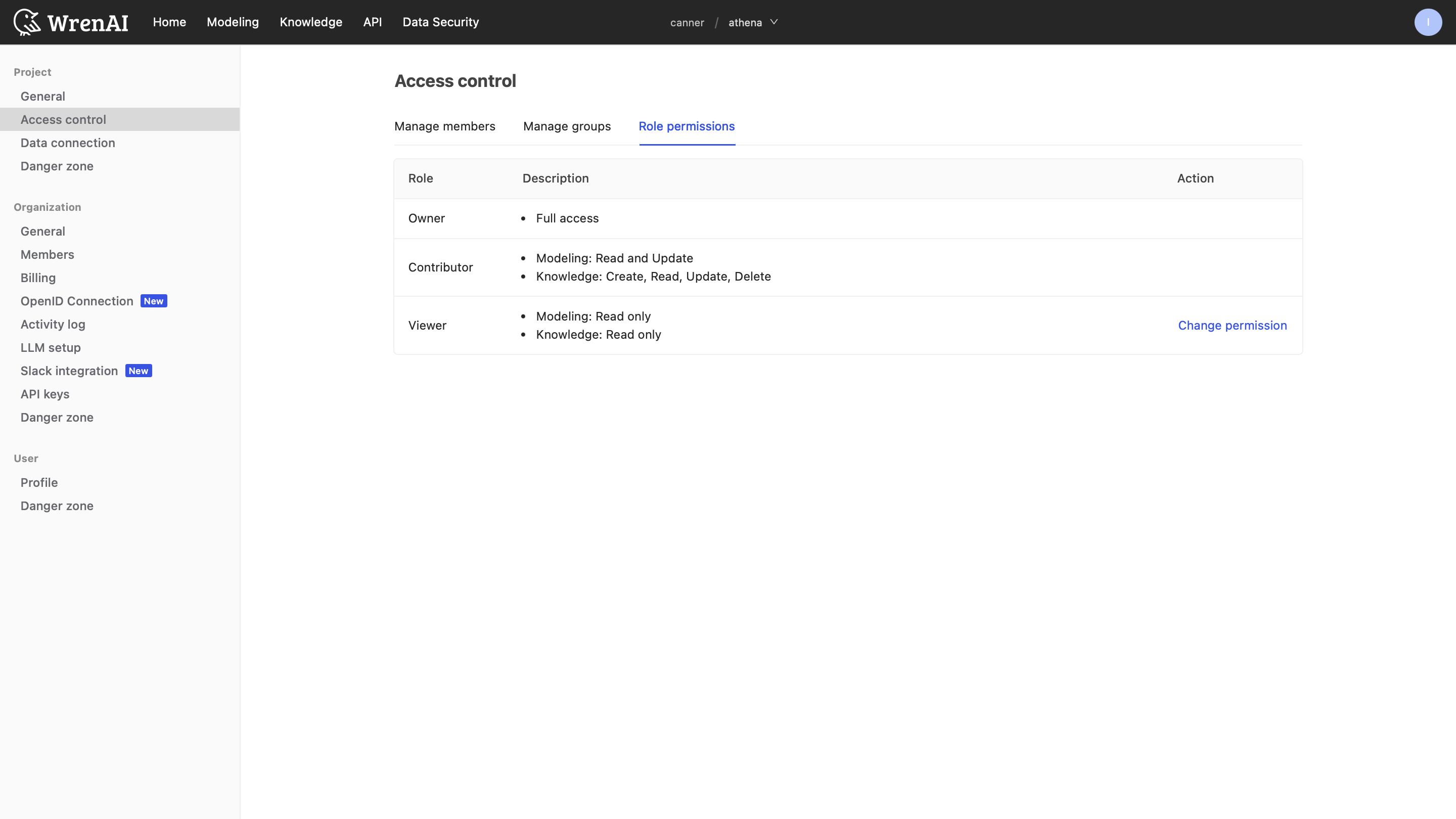
- Locate the Viewer row in the roles table.
- Click the Change permission link in the Action column.
-
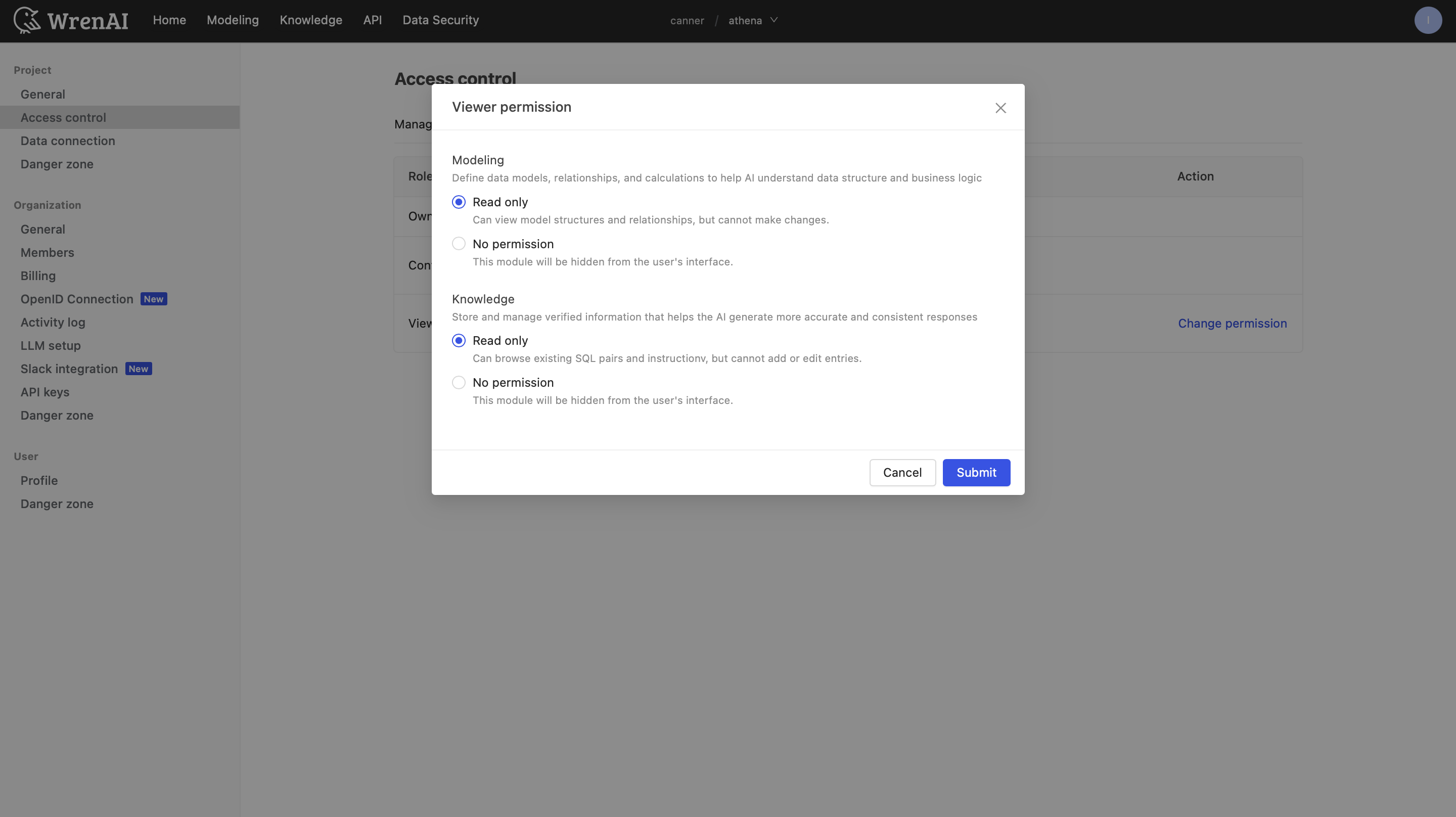
Configure permissions A configuration pop-up will appear. You can set the permission for Modeling and Knowledge independently:
- No permission: The module will be completely hidden from the user's interface. Use this to simplify the view for non-technical users.
- Read only: The user can view structures and instructions but cannot make any edits or add new entries.
- Save Changes
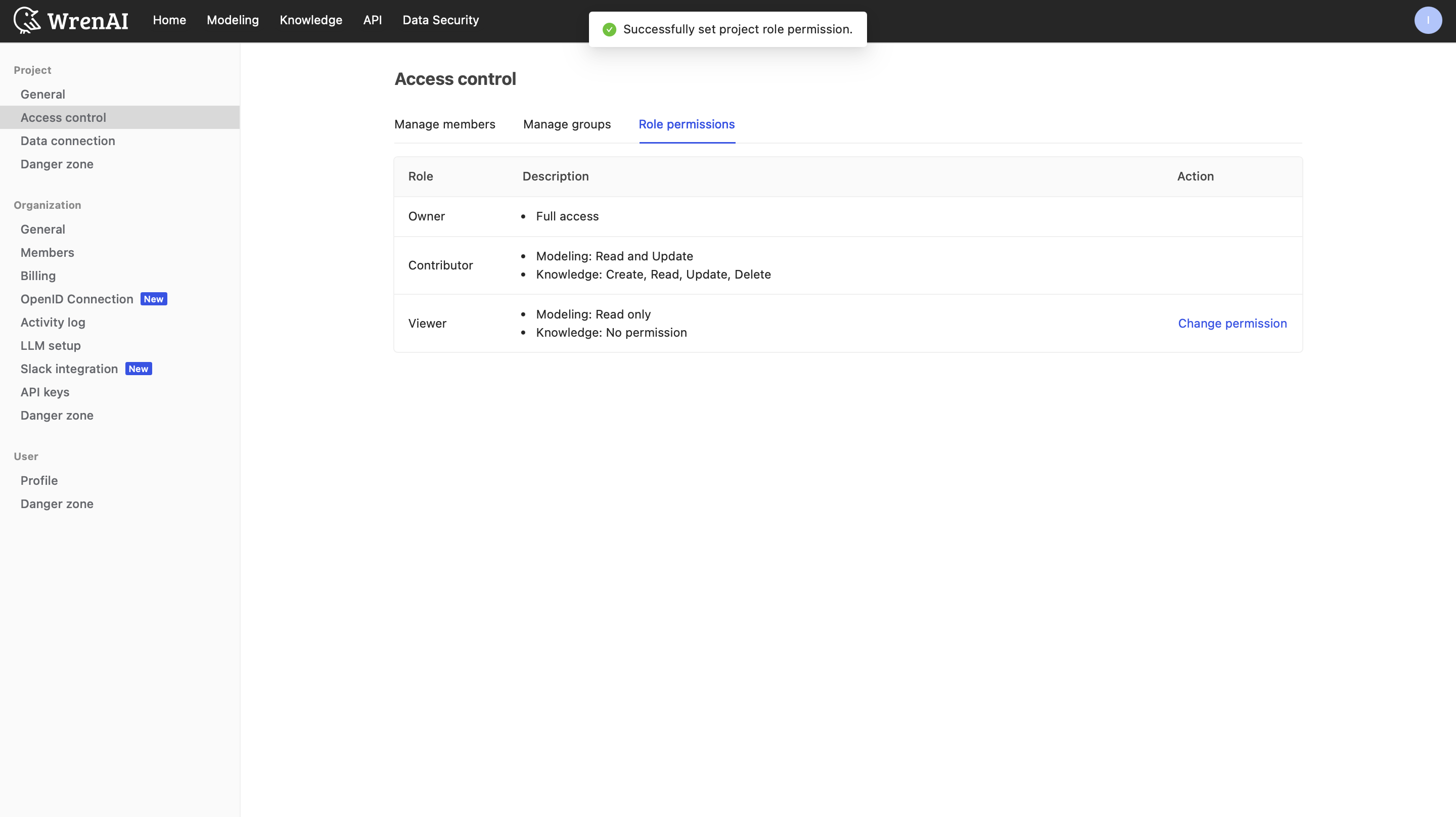
- Click Submit to apply the new permissions. The table will update to reflect the current access scope.
Tips and notes
- Immediate Effect: Changes to permissions apply immediately. Users with the "Viewer" role will see the interface update upon their next login or page refresh.
- Default Settings: If you do not configure these settings, Viewers typically default to "Read Only" access for Modeling and Knowledge, allowing them to browse but not edit.