Manage Members and Roles
Use this page to add members to a project, assign project roles, and update or remove access later.
- Free Plan: Limited to 2 members (including Admin).
- Essential Cloud plan and above: Unlimited.
Wren AI uses role-based access control (RBAC) for projects. Before someone can work in a project, they must already be a member of your organization.
Add members to a project
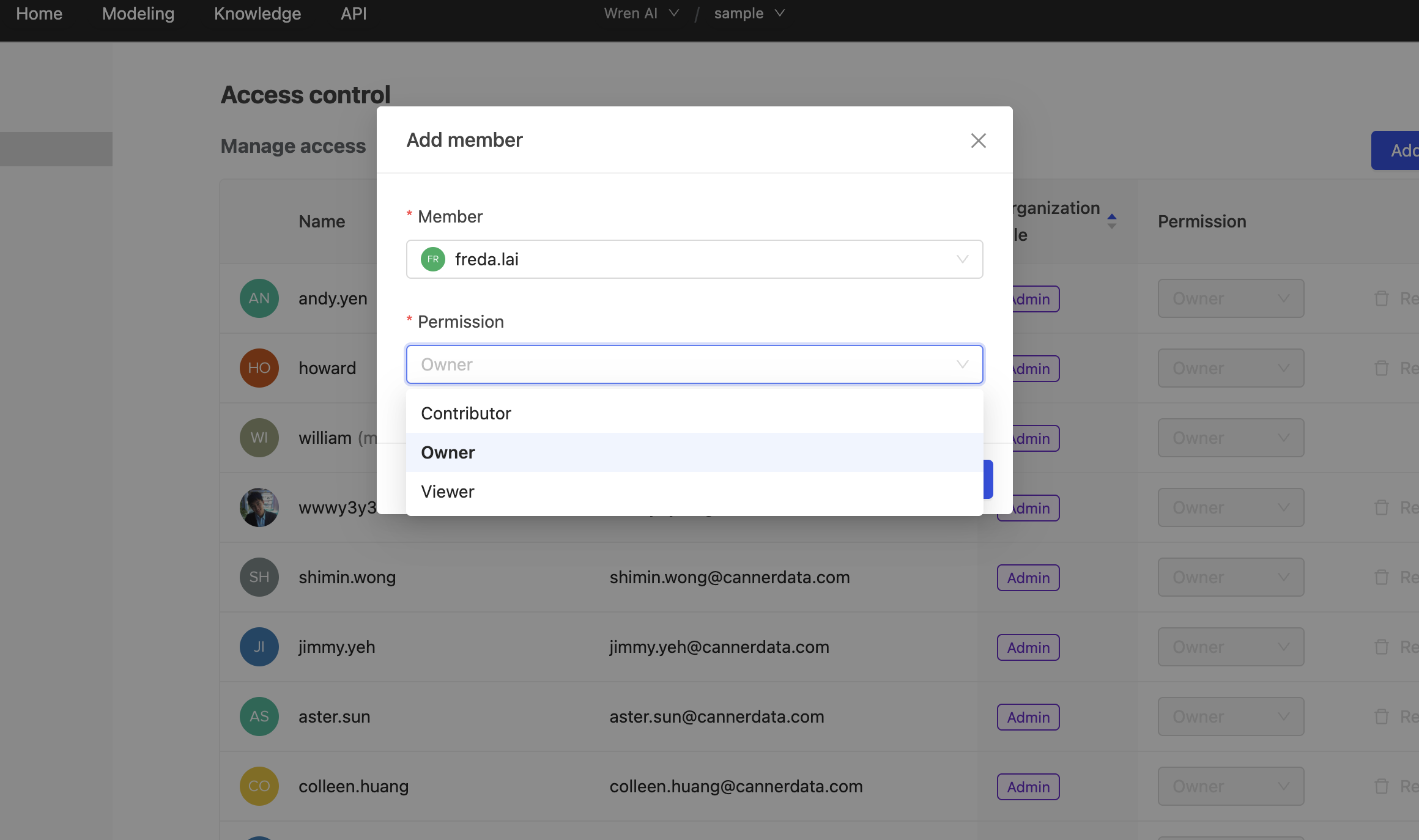
To add members to your project:
- Go to Settings → Project → Access Control
- Click Add Member
- Select an organization member from the dropdown
- Choose the appropriate role for the member
- Click Add to confirm
Users must be members of your organization before they can be added to projects. Organization admins can invite new members to the organization first.
Choose a project role
When adding members to a project, you can assign one of three roles:
Project Owner
- Full access to manage project settings, members, and all project content
- Can update models, knowledge base, dashboards, and spreadsheets
- Can manage project access control and settings
- Organization admins automatically become project owners of all projects
Project Contributor
- Can perform most project activities but cannot update project settings or manage members
- Can create and modify threads in shared folders, models, knowledge, dashboards, and spreadsheets
- Cannot change project-level configurations
Project Viewer
- View-only access to project settings, members, models and knowledge base
- Can create and modify dashboards and spreadsheets
Project role matrix
The following table outlines the permissions for each role in your project:
| Function | Project Owner | Project Contributor | Project Viewer |
|---|---|---|---|
| Update Project Settings | Yes | No | No |
| Manage Project Members | Yes | No | No |
| Modeling | CRUD | RU | R |
| Knowledge | CRUD | CRUD | R |
| Dashboard | CRUD | CRUD | CRUD |
| Spreadsheet | CRUD | CRUD | CRUD |
| CSV Download | Yes | Yes | Yes |
Legend:
- CRUD: Create, Read, Update, Delete
- RU: Read, Update (no Create/Delete)
- R: Read only
On Enterprise Cloud and Enterprise Plus plans, Project Owners can further restrict Viewer access to Modeling and Knowledge — down to hiding those modules entirely. See Role Permissions.
Manage existing members
Update Member Permissions
- Go to Settings → Project → Access Control
- Find the member you want to modify
- Click the Permission dropdown next to their name
- Select the new role
- The change takes effect immediately
- You cannot modify your own role
- Organization admins automatically have owner permissions and cannot be modified
Remove Members
- Go to Settings → Project → Access Control
- Find the member you want to remove
- Click the Remove button
- Confirm the removal
Removed members will lose all access to the project and its content. This action cannot be undone.
Best Practices
- Start with Viewer roles: Begin by giving new members viewer access, then upgrade as needed
- Regular reviews: Periodically review project member access and roles
- Principle of least privilege: Only grant the minimum permissions necessary for each member's role
- Document access: Keep track of who has access to sensitive projects