AI Advisor
- Cloud: Enterprise Cloud
- Self-hosted: Enterprise Plus
Overview
AI Advisor is an AI-powered diagnostic workflow that helps you improve Wren AI's query accuracy. After running a benchmark, AI Advisor analyzes failing questions and generates actionable suggestions — including schema adjustments and instructions — that you can review, edit, verify, and apply to your AI system.
AI Advisor follows a 4-step process:
- AI Advisor — Diagnose and stage improvements
- Verification — Run and iterate verification
- Run Regression — Verify improvements against all questions
- Apply to AI System — Persist verified improvements
Prerequisites
- A benchmark that has completed running
- At least one question with a Failed assessment result
Step 1: Diagnose and Stage Improvements
Start AI Advisor
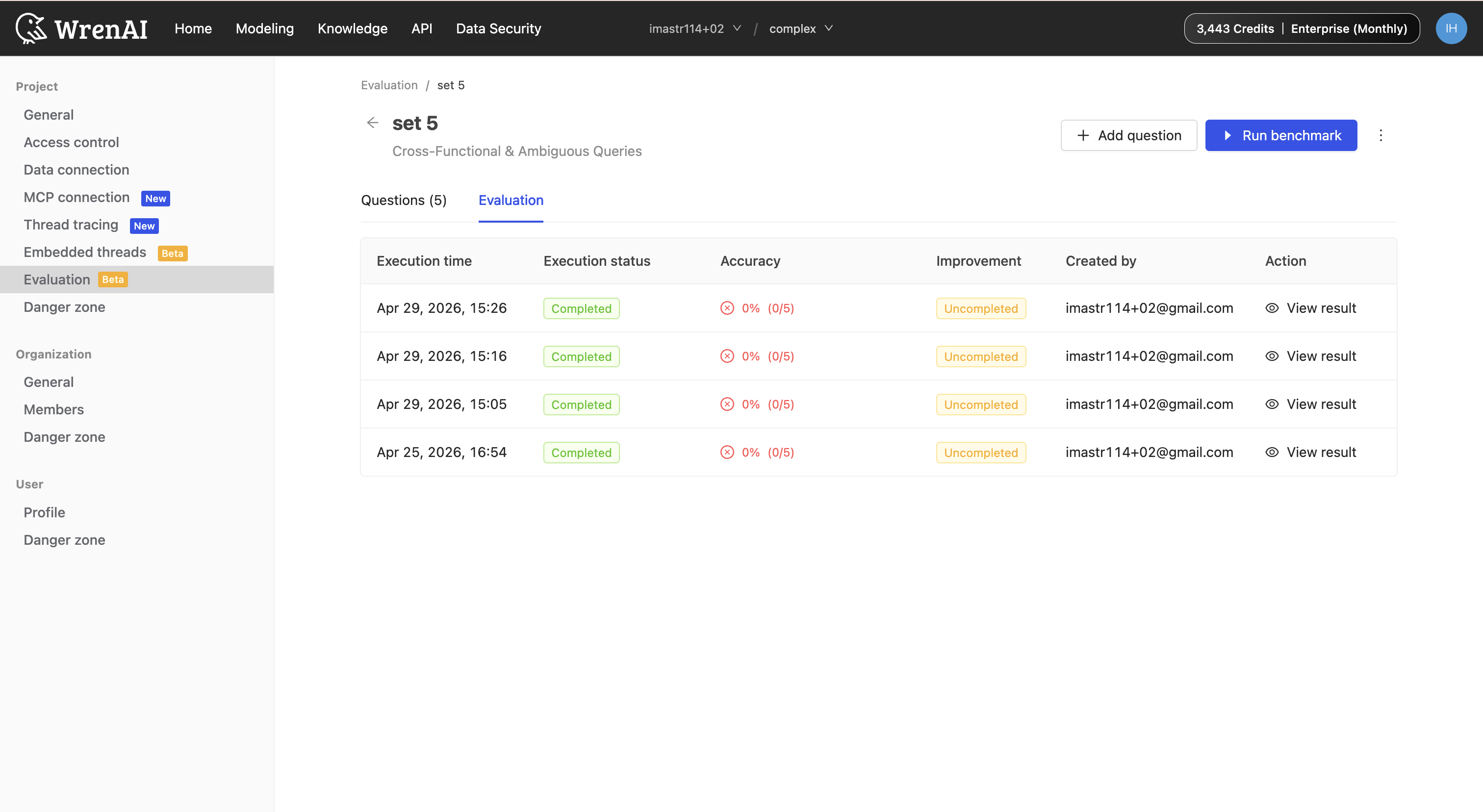
From the scenario detail page Evaluation tab, click View result on a completed benchmark.
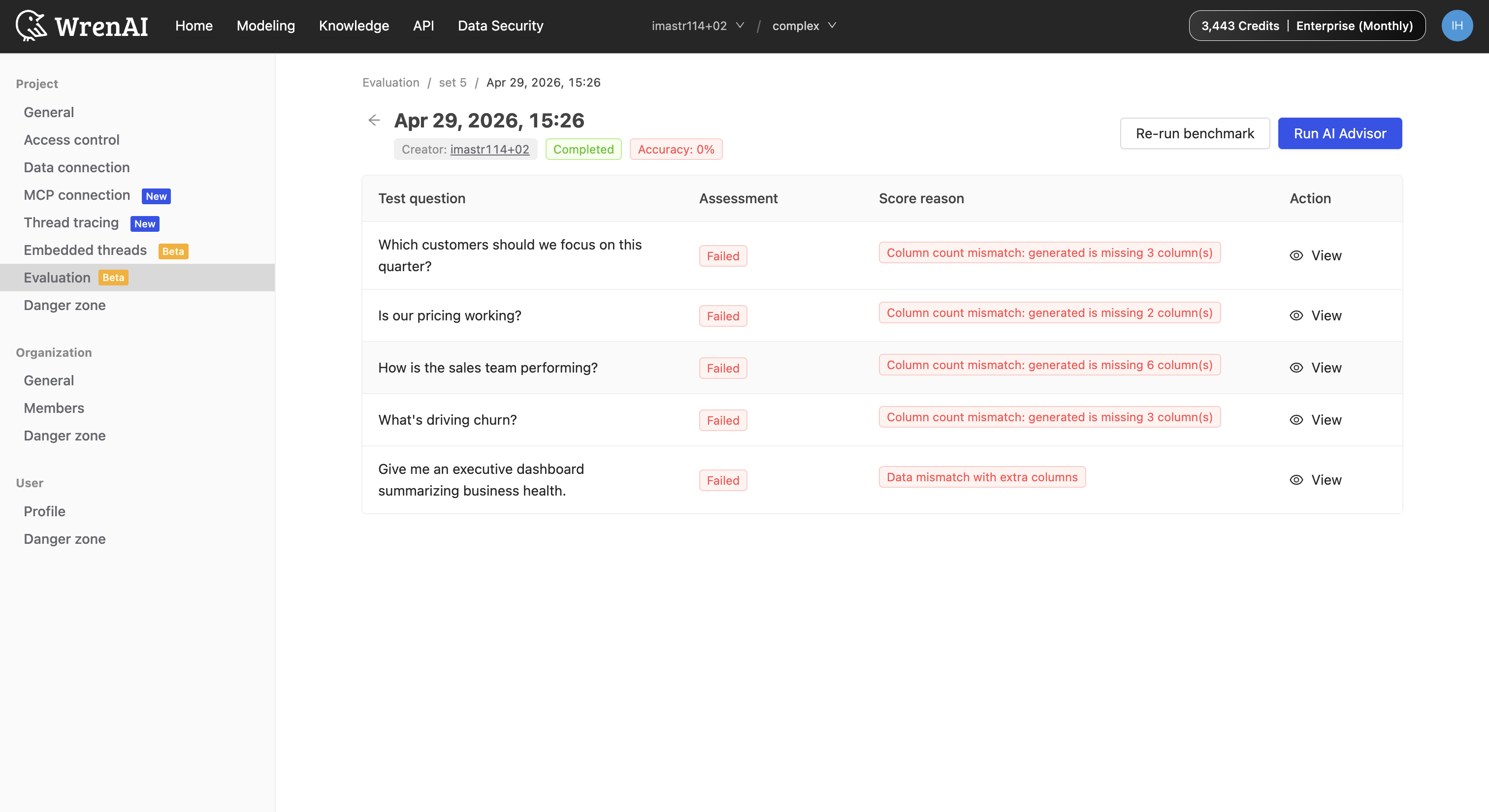
On the benchmark result page, click Run AI Advisor.
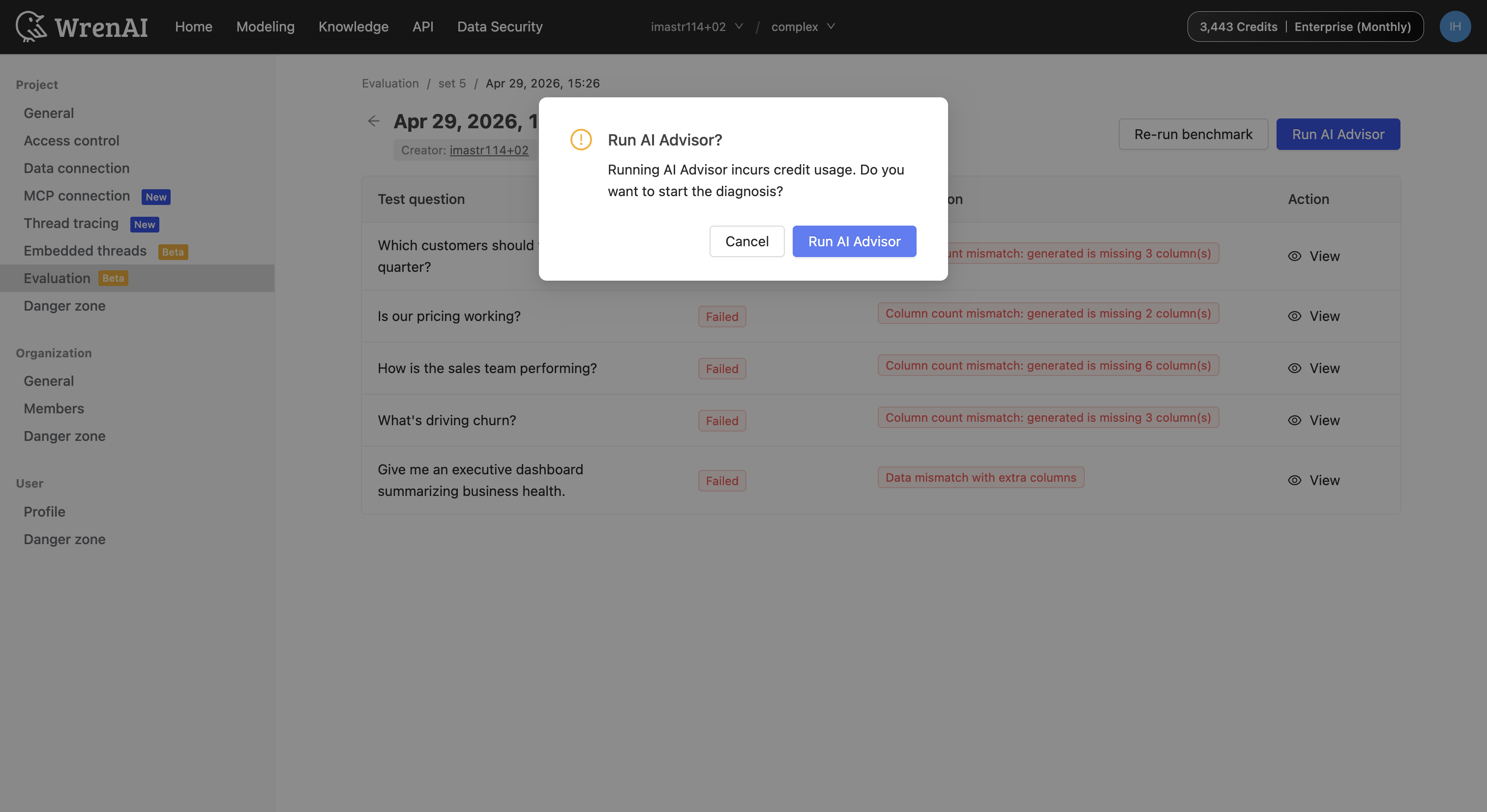
A confirmation dialog appears informing you that running AI Advisor incurs credit usage — click Run AI Advisor to proceed.
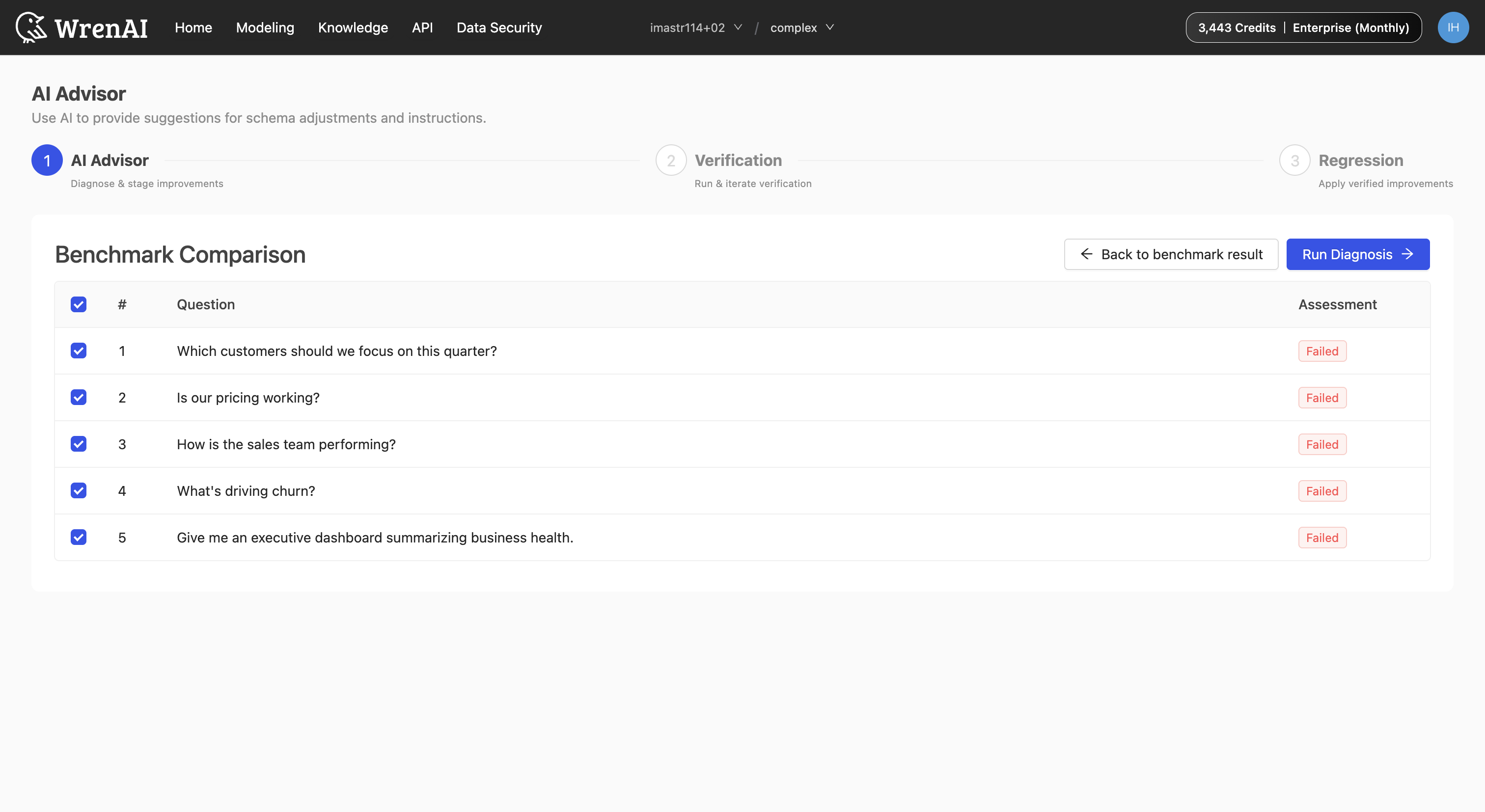
Select Questions
A question selection table shows all non-passing questions from the benchmark. Select the questions you want AI to diagnose, then click Run Diagnosis.
Review Staged Changes
Once diagnosis completes, the results appear in a two-panel layout:
- Left panel — Benchmark comparison table showing each question's rating Before and After improvements.
- Right panel — Staged Changes panel listing all AI-generated suggestions.
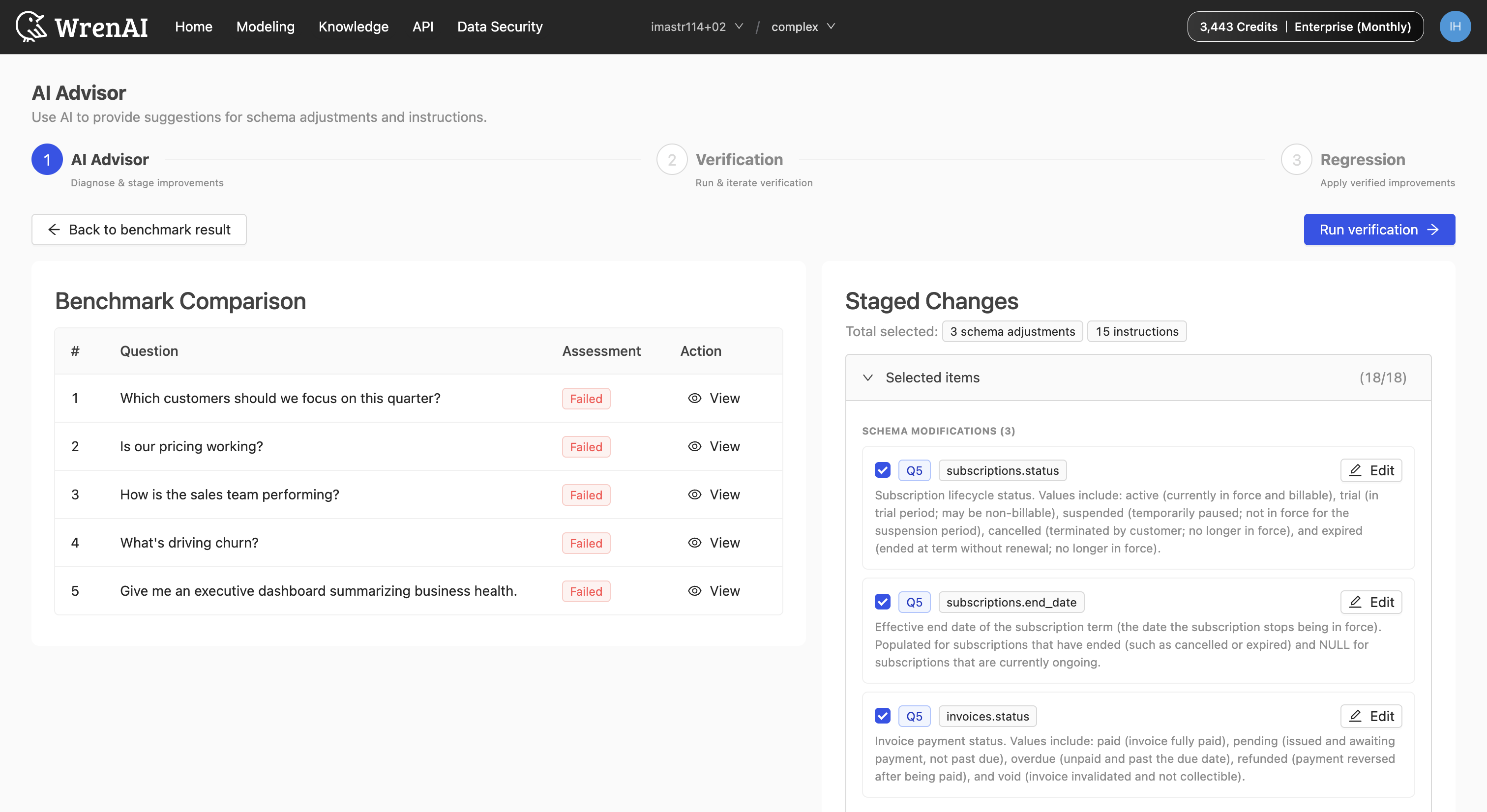
Staged changes are grouped into two categories:
- Schema modifications — Recommended changes to table or column definitions (e.g., adding a description, adjusting a column type).
- Instructions — Guidance for the AI when generating SQL queries. Instructions can be:
- Global — Applies to all questions.
- Specific — Applies only when similar user questions are detected.
Each suggestion has a checkbox to include or exclude it from verification. A summary at the top shows how many schema adjustments and instructions are currently selected.
Edit Staged Changes
Click Edit on any staged item to modify it:
- Instructions — Update the instruction text, change the scope between Global and Specific, and configure matching questions for specific instructions. Instructions apply to SQL generation only.
- Schema adjustments — Edit the example field to refine the recommendation.
Re-diagnose
If you want to diagnose different questions or generate additional suggestions, click Re-diagnose in the Staged Changes panel. A modal lets you select questions to re-diagnose. New results appear as a separate New Diagnosis batch alongside the original Initial Diagnosis batch.
Step 2: Verification
Click Run verification to test your staged changes against the originally failed questions.
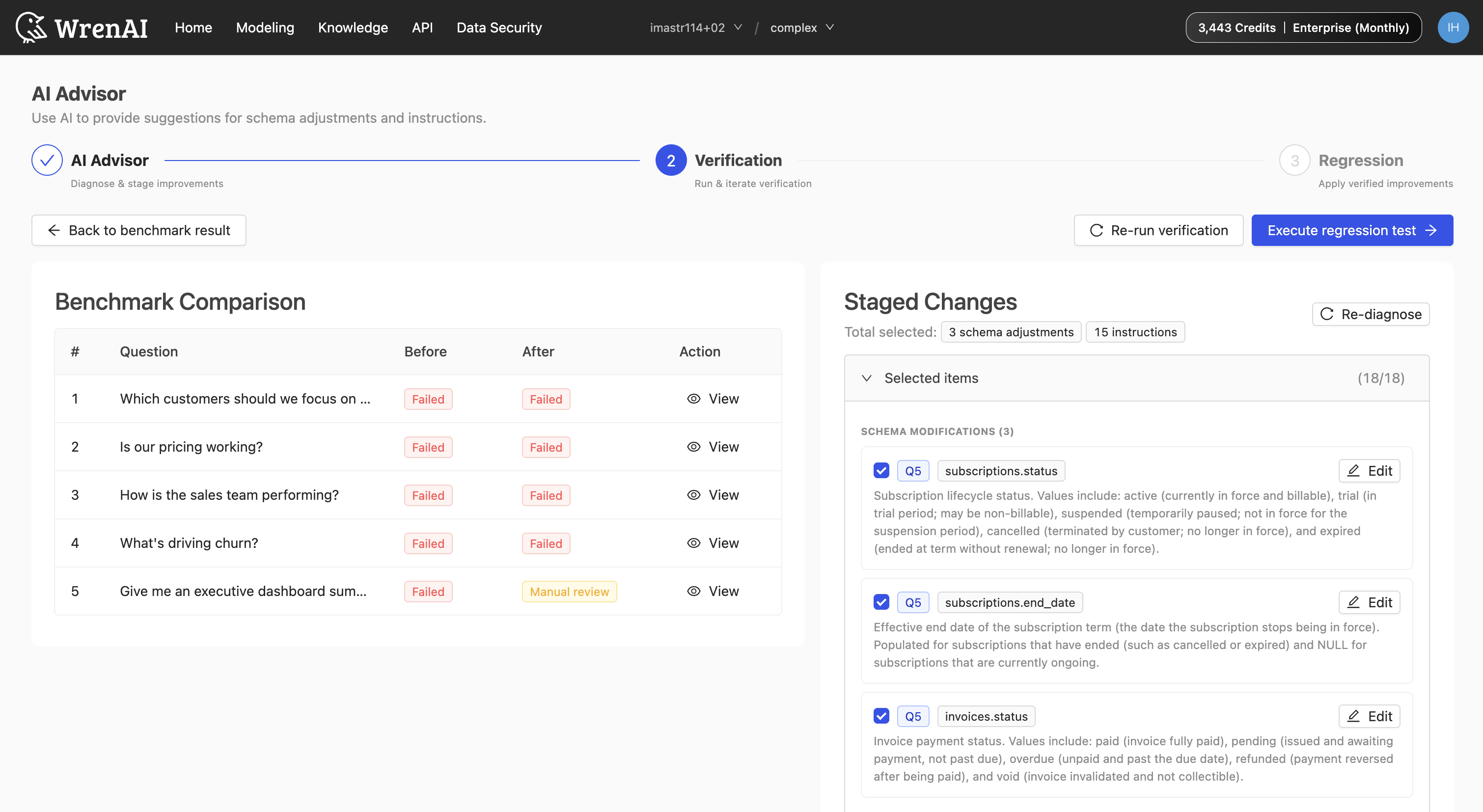
During verification, the comparison table updates to show the After rating for each question. Once complete, you can see which questions improved, stayed the same, or regressed.
Click View on any question to inspect detailed results — including assessment, score reason, reason details, and SQL differences.
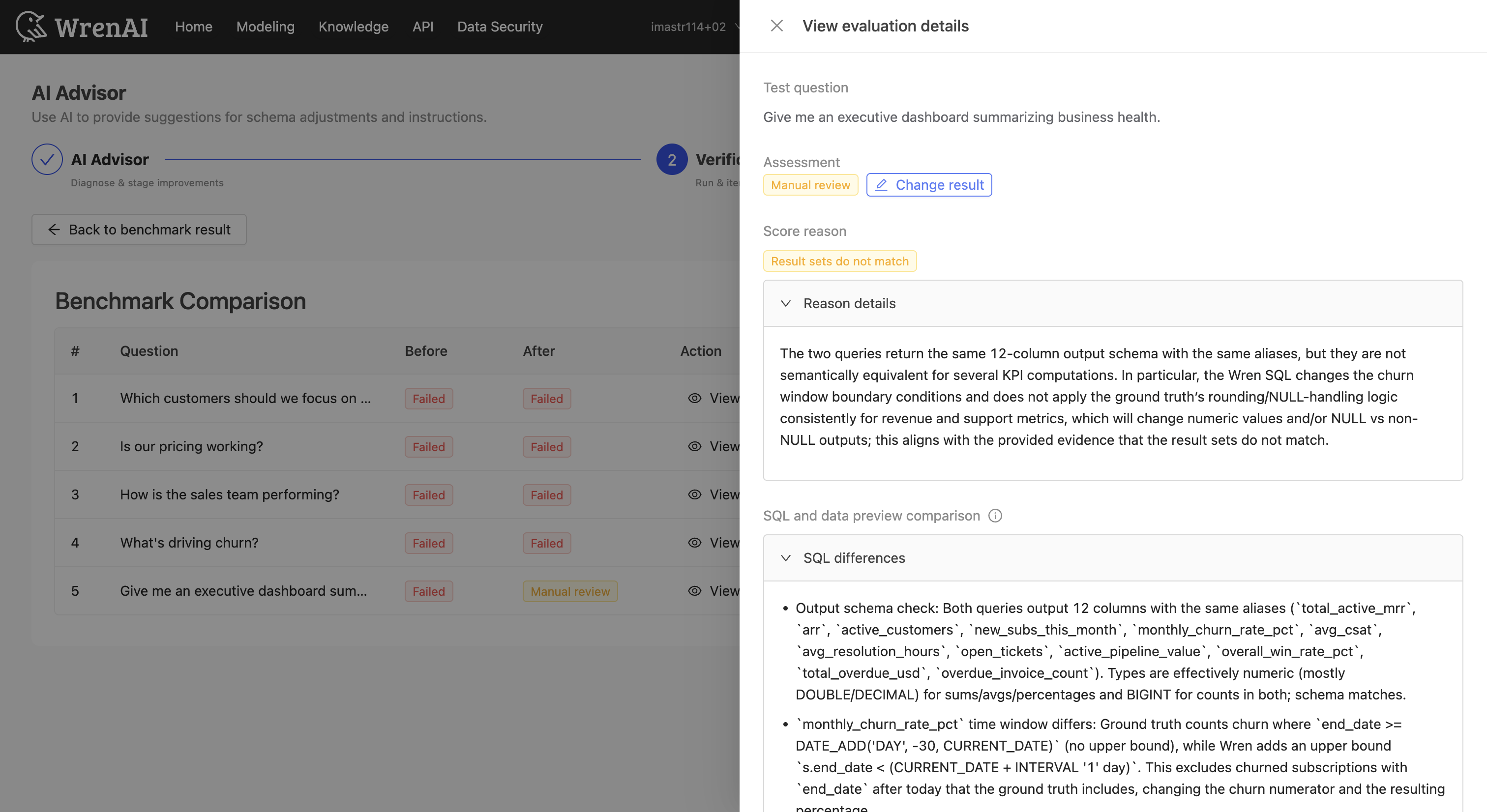
If you disagree with an automated assessment, click Change result to manually override it (Passed / Failed / Manual review).
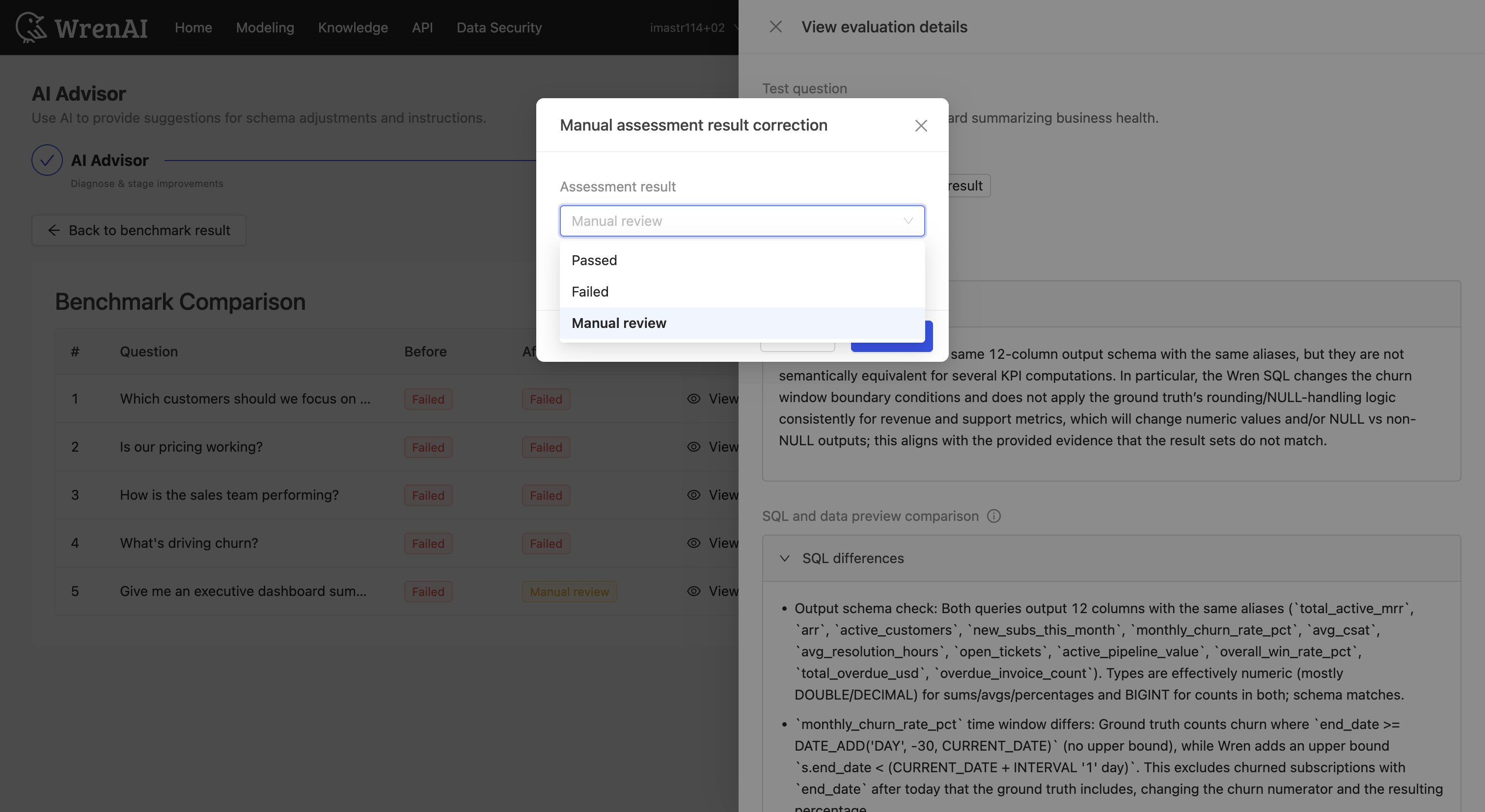
From here you can:
- Re-run verification — Run verification again after adjusting staged changes.
- Back to benchmark result — Return to the benchmark result page (a confirmation dialog will warn you about losing staged changes).
- Execute regression test — Proceed to Step 3 to run a full verification against all questions.
You can stop a running verification at any time by clicking Stop verification.
Step 3: Run Regression
In this step, verification runs against all questions in the benchmark — not just the previously failed ones — to ensure improvements don't cause regressions.
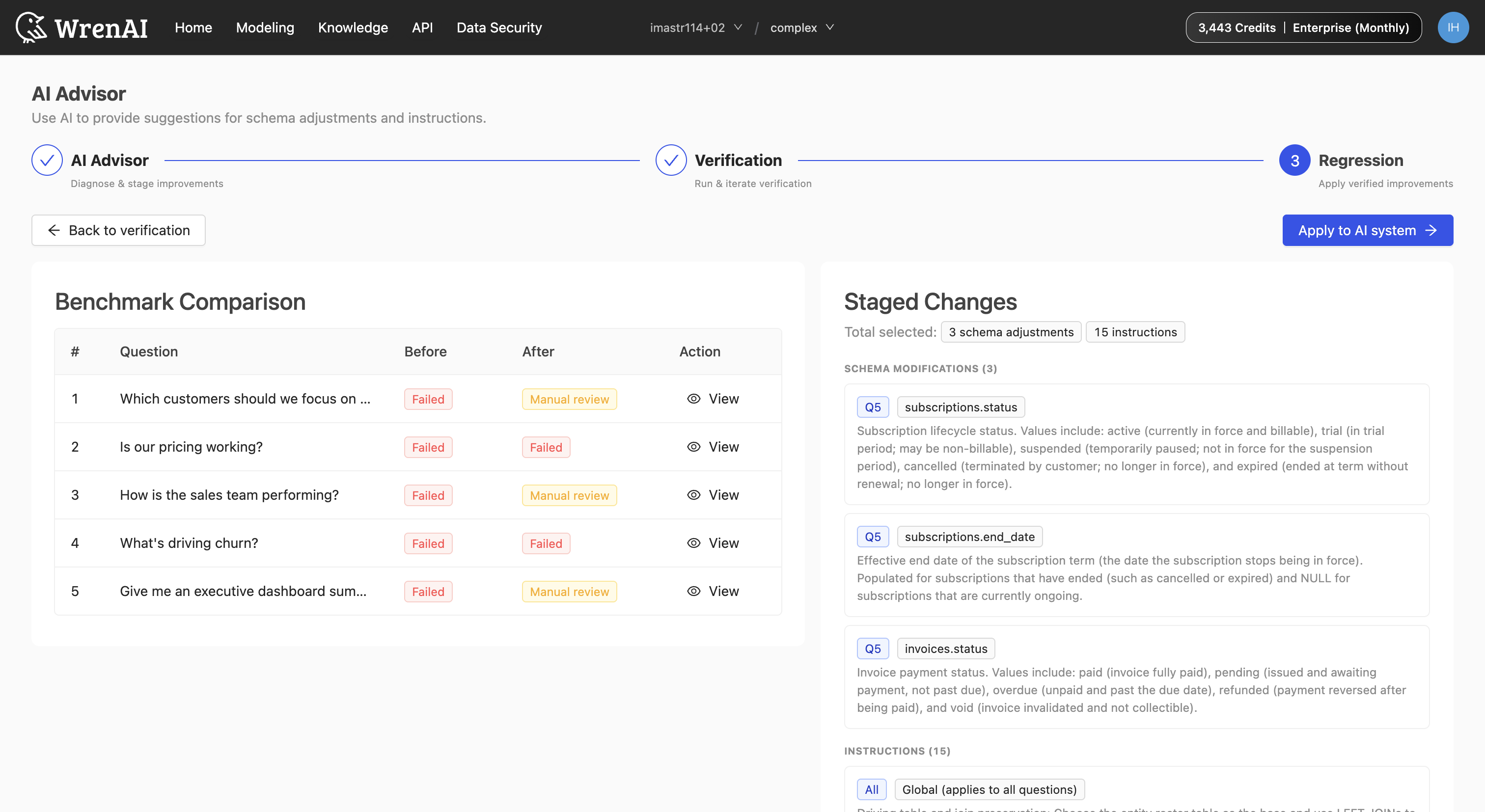
The comparison table shows the complete before/after results for every question with Pass, Failed, or Manual Review status.
When all questions pass, the Apply to AI system button is fully enabled.
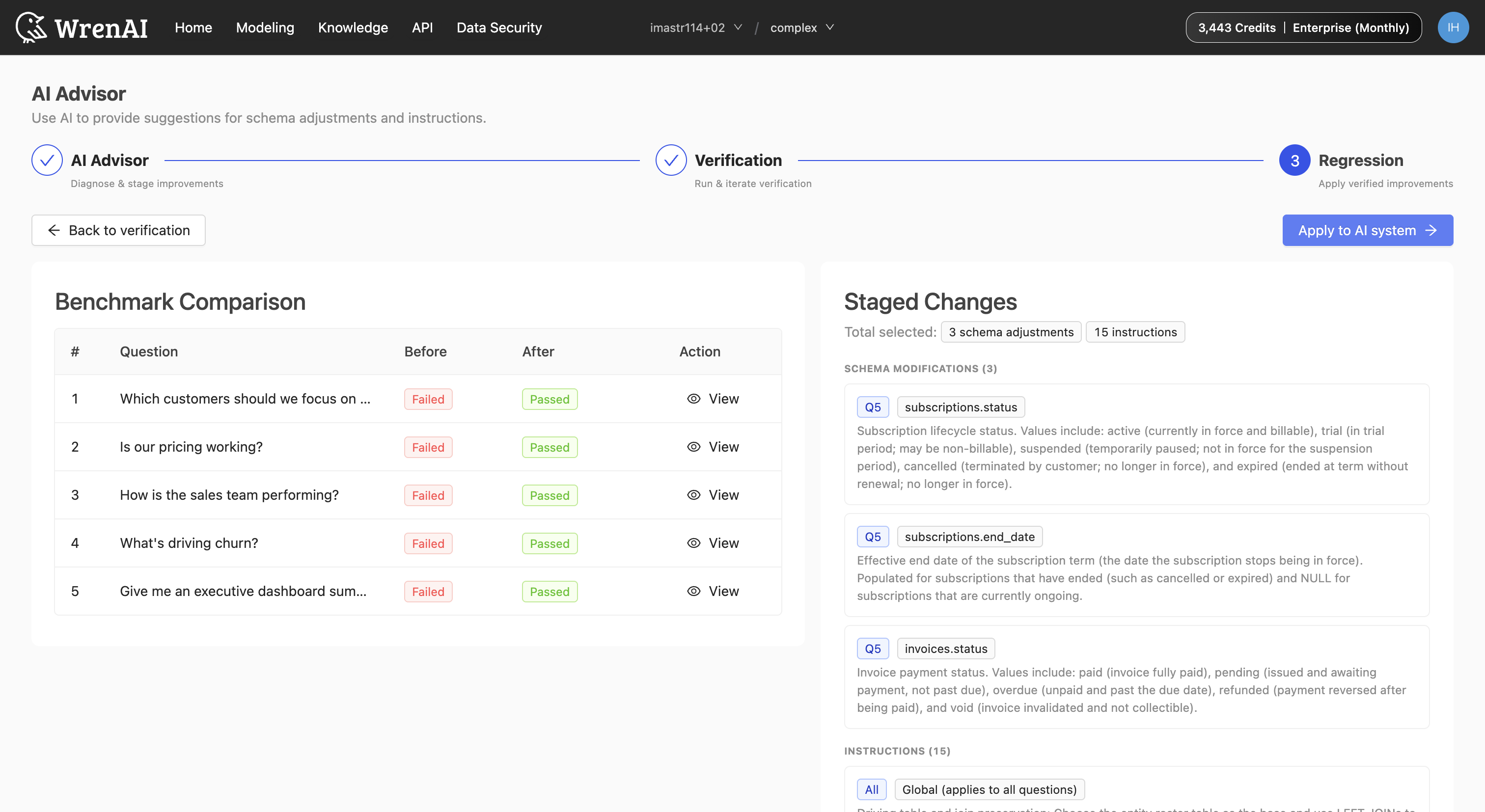
You can click Back to verification to return to Step 2, or Back to benchmark result to exit the advisor workflow.
Step 4: Apply to AI System
Once satisfied with the regression test results, click Apply to AI system to persist the improvements. The applied schema adjustments and instructions will take effect for all future AI queries.
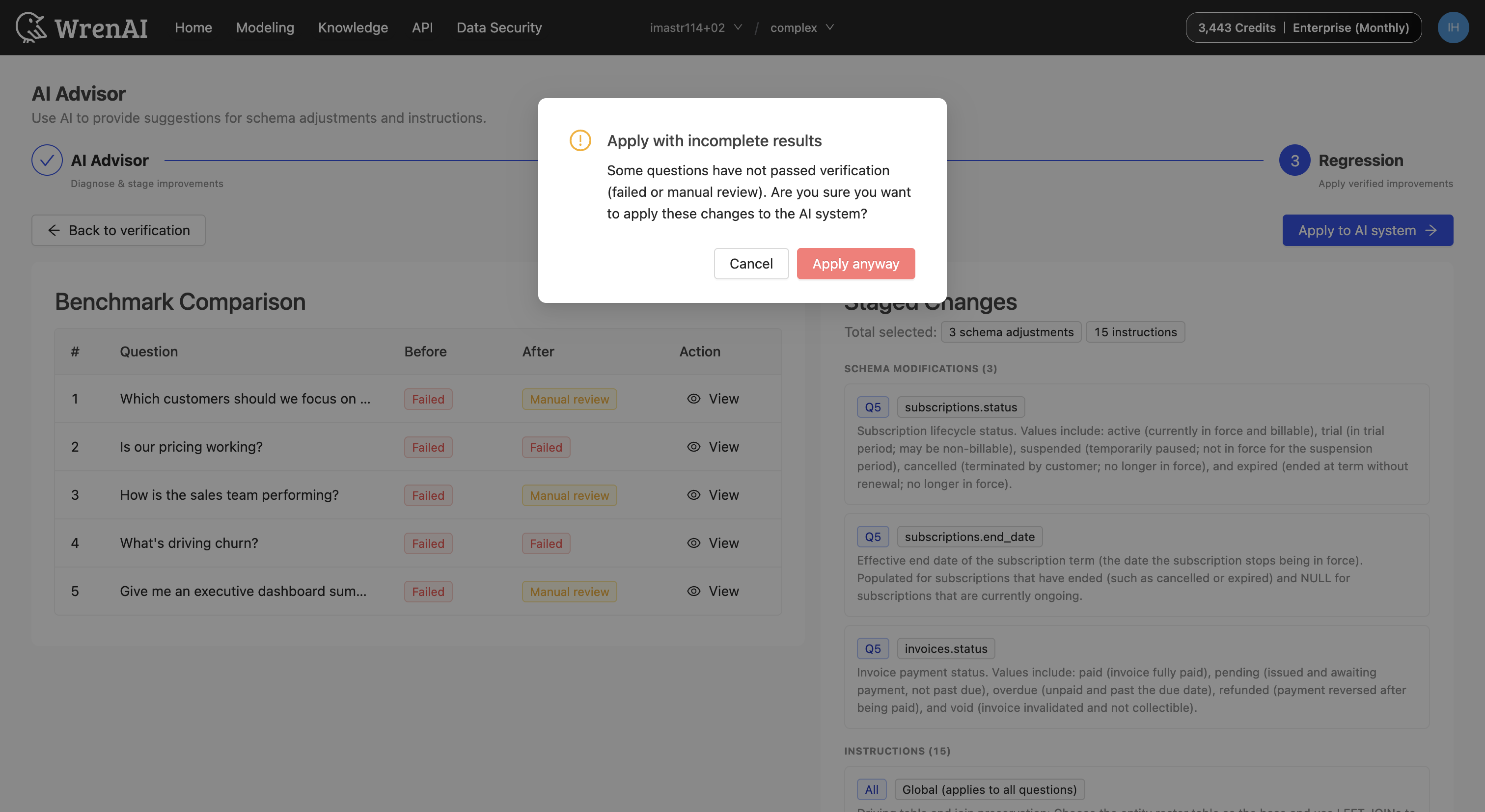
If some questions still show Failed or Manual Review status, a confirmation dialog will appear asking whether you want to apply with incomplete results. Review carefully before proceeding.
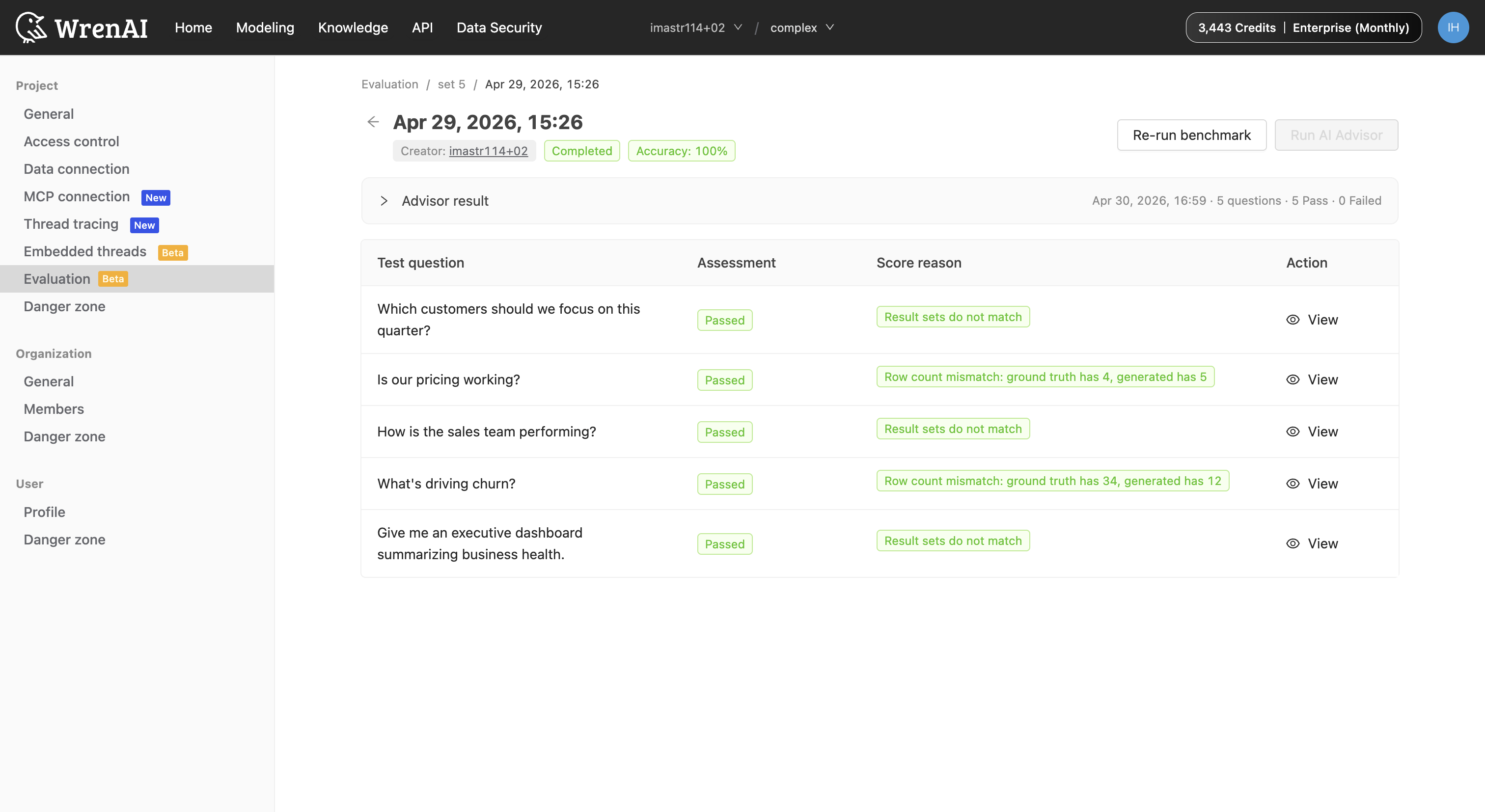
After applying, the benchmark result page shows the updated accuracy along with an Advisor result summary of what was applied.
Understanding Suggestion Types
Schema Adjustments
Schema adjustments recommend changes to your data model metadata. Each adjustment includes:
- Table.Column — The target table and column.
- Issue — What the AI identified as problematic.
- Recommendation — The suggested change.
- Example — An editable example to clarify the recommendation.
Instructions
Instructions provide rules for the AI to follow. Each instruction includes:
- Scope — Global (all questions) or Specific (matched questions only).
- Instruction details — The rule the AI should follow when generating SQL queries.
- Matching questions — (Specific only) Example questions that should trigger this instruction.
You can convert a Specific instruction to Global (or vice versa) when editing. This is useful when a diagnosis generates a question-specific insight that you want to apply broadly.