Agentic Mode (Early release)
Contact sales to request for early access.
Overview
Agentic Mode turns Wren AI from a Q&A tool into a true teammate — one that understands your project's context, remembers your preferences, and grows new capabilities as you work. It is opt-in at project creation and unlocks three project-level surfaces that work together:
- Knowledge — Shared domain context (glossary, rules, SQL pairs) curated by the team.
- Skills — Reusable, project-wide workflows the agent can run on demand.
- Memories — Private notes the agent keeps about you, per project.
This guide walks through creating an Agentic project and using each of the three surfaces.
Create an Agentic Project
Memories, Skills, and Knowledge only exist inside Agentic projects. Choosing Agentic Mode at creation is what unlocks them — Classic projects keep the dashboards-and-spreadsheets experience.
In the top navigation, click the project picker next to your workspace name, then click + New project.
If this is your first project, you'll land on the Create your first agentic project page instead, which already presents the Agentic option.
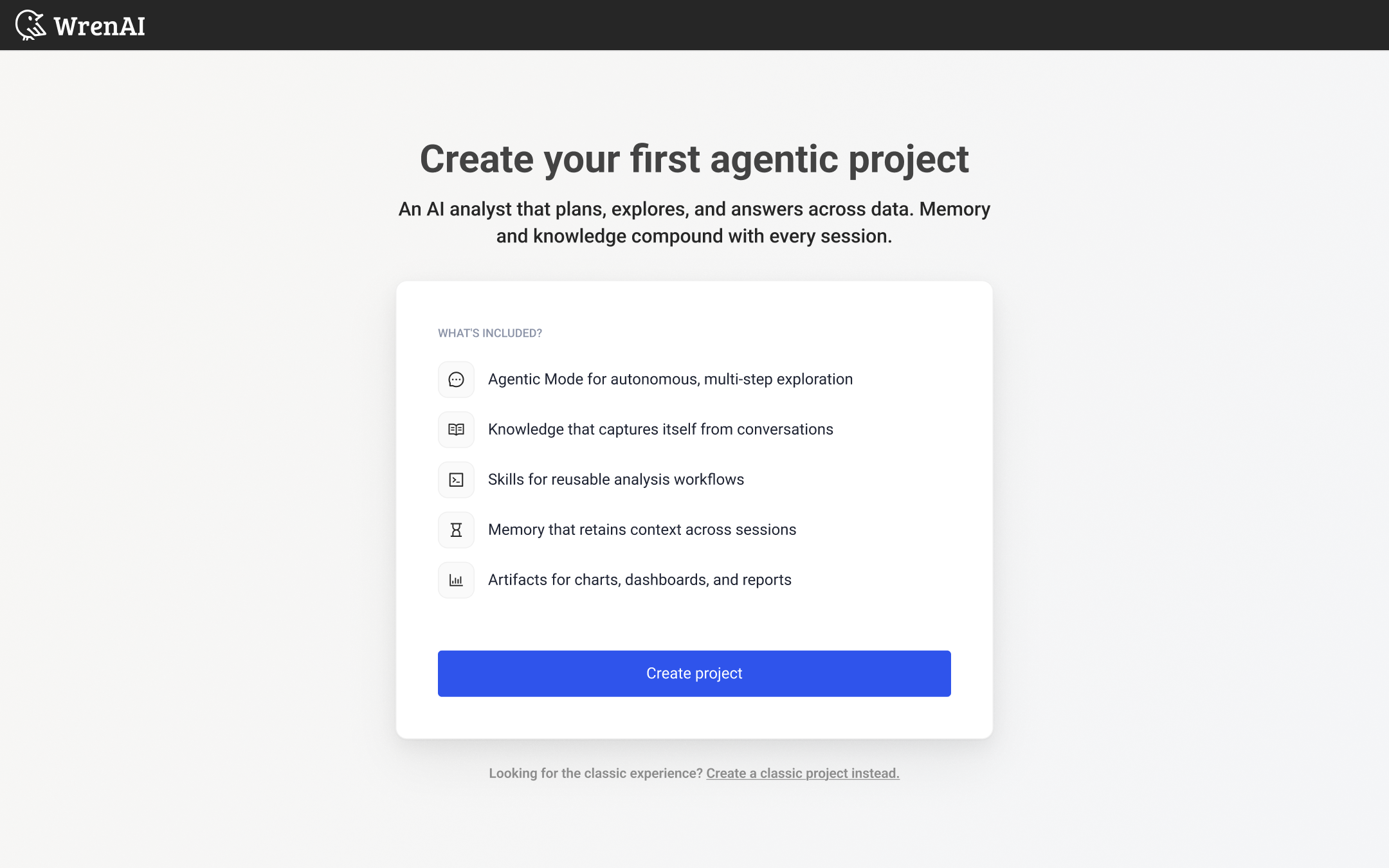
In the Create project modal, two options are stacked. Agentic project is selected by default and tagged RECOMMENDED. Review what's included:
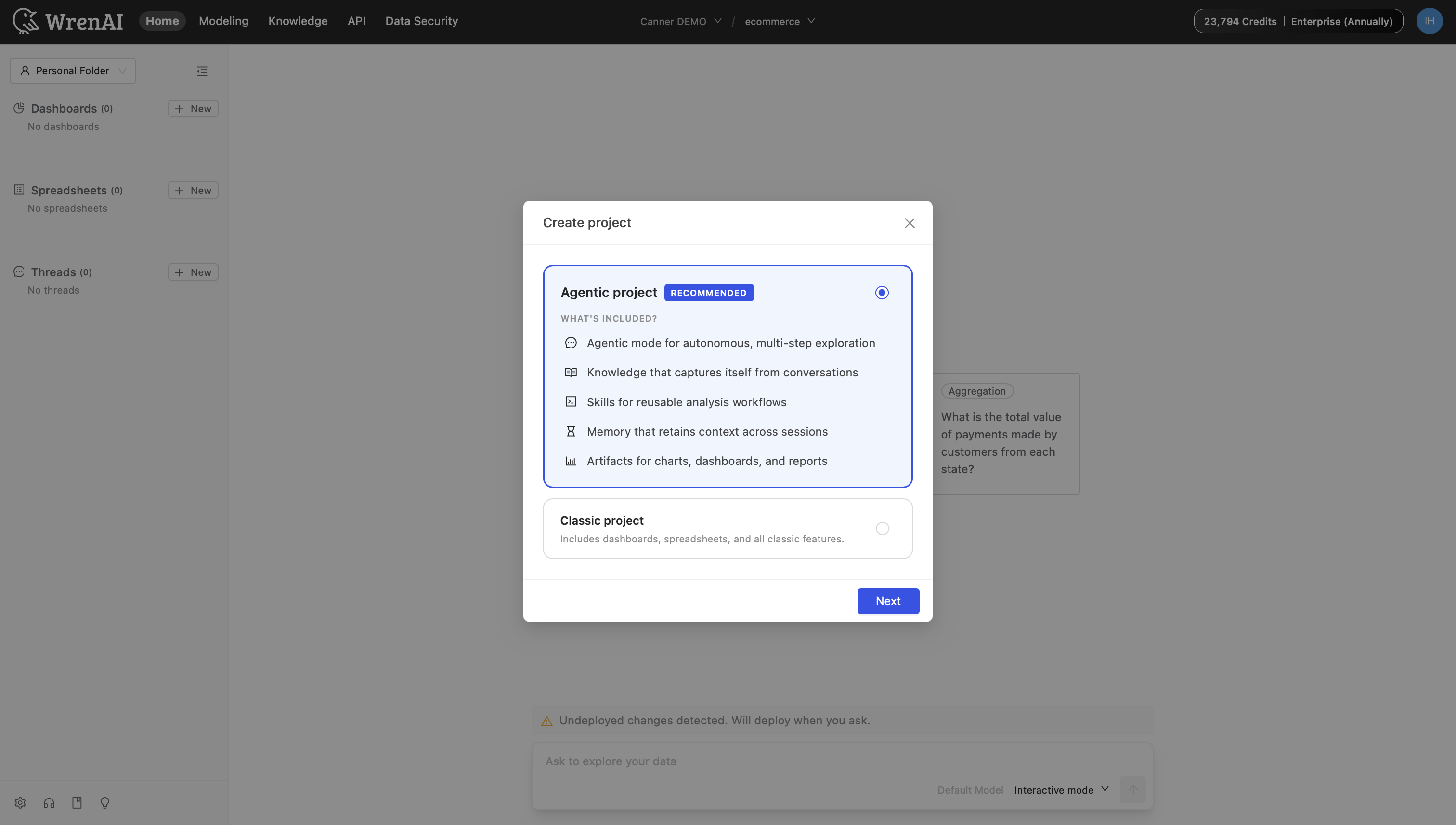
- Agentic Mode — autonomous, multi-step exploration
- Knowledge that captures itself from conversations
- Skills for reusable analysis workflows
- Memory that retains context across sessions
- Artifacts for charts, dashboards, and reports
Click Next and finish the project setup wizard.
You can mix project types in one workspace. Use a Classic project alongside an Agentic project if your team needs both surfaces during the transition.
Curate Knowledge
Knowledge lives in the top nav at Knowledge. It's a file explorer of markdown files that give the agent your project's domain context. Anyone on the project can curate it, and everyone benefits.
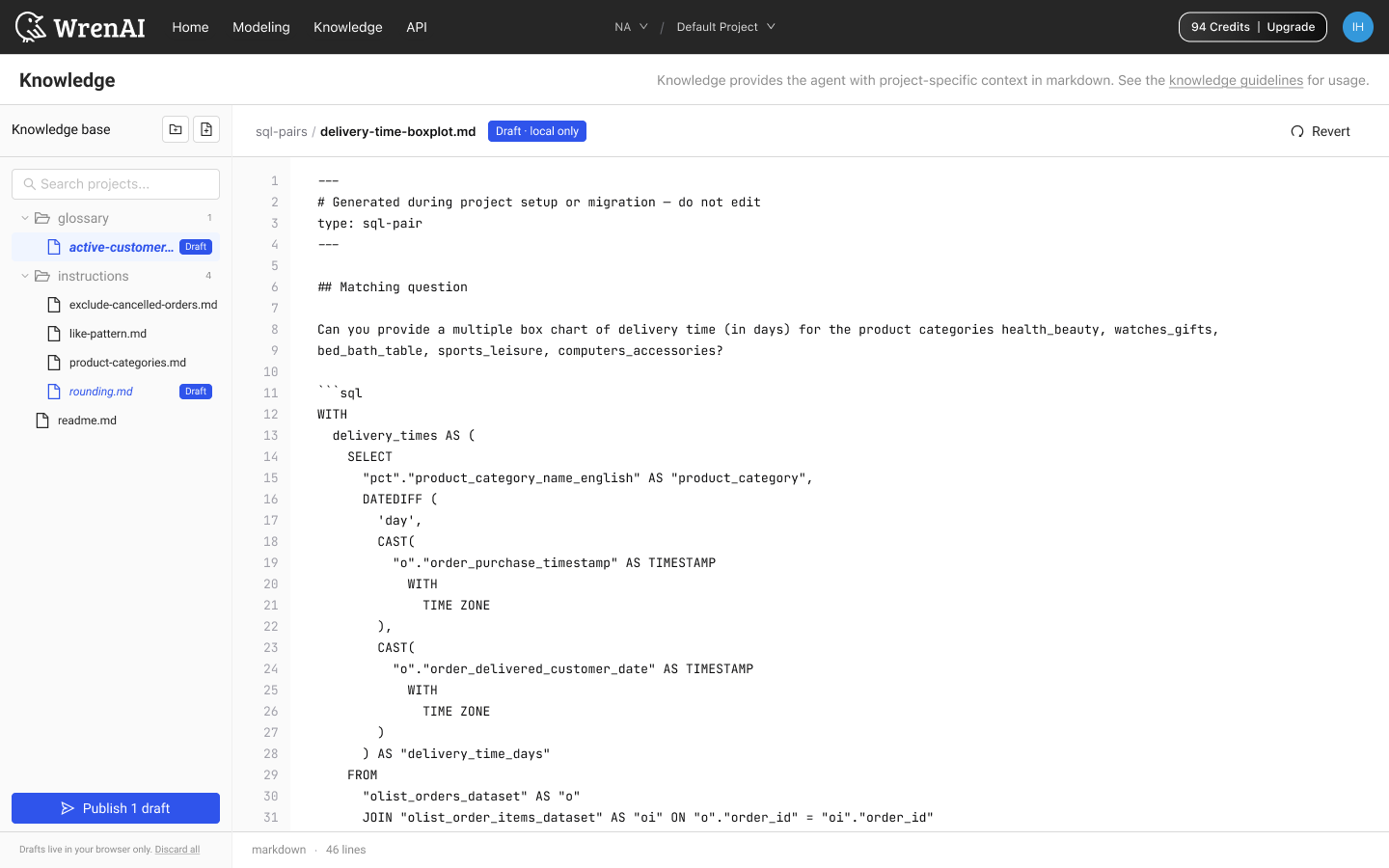
Expand folders in the left tree. Click any file to read the markdown on the right. Each file shows a status badge — Published (live in the project) or Draft · local only (browser-local edits not yet shipped).
Each folder ships with a README.md at its root that explains the folder's purpose and authoring conventions — open it before you start contributing to save yourself some guesswork.
Use the file-add icon at the top of the tree to create a new file in one of two ways:
- Blank file — Type a path like
instructions/test-rule.mdand press ↵. The file is created in the target folder. - From template — Pick from six opinionated templates: Glossary term, Metric, Rule, Caveat, SQL pattern, or Blank. Each ships a working frontmatter contract so the agent has structured fields to retrieve over.
- Glossary term — Define a business term and map it to columns.
- Metric — Canonical metric with formula, dimensions, and exclusions.
- Rule — A hard rule Wren should always follow.
- Caveat — A gotcha — timezone, rename, dirty data.
- SQL pattern — A canonical, approved query pattern.
- Blank — Empty file with just a title header.
Use the folder-add icon to create a new folder. A starter file (_new.md) is auto-generated inside the folder with type: already pre-filled in its frontmatter.
All edits stay as local drafts in your browser until you explicitly publish. The editor footer shows draft auto-saved to your browser in orange while you type.
Drafts live in your browser only. Refreshing the page keeps them, but switching browsers or devices does not. Teammates can't see your drafts — only published files.
The bottom of the left panel shows the current state of the tree:
- All changes published when there are no pending drafts.
- Publish N draft(s) in orange when drafts exist.
Click Publish to open a summary modal listing each change as create, update, or delete. Confirm with Publish to project to commit the drafts to the project repo. Teammates will see them on their next session.
Click the underlined Discard all link to drop every draft immediately and revert to the last published state. Discard does not show a confirmation dialog.
On publish, SQL pairs and instructions are automatically extracted so users on Classic chat modes (Ad-hoc and Interactive) pick up the new context — no duplicate maintenance.
Manage Skills
Skills live at Settings → Agent → Skills. A Skill is a packaged capability the agent can pick up when a task calls for it — for example, "run a project health audit", "generate a weekly report", or "format SQL the way our team prefers". Skills are shared across the whole project.
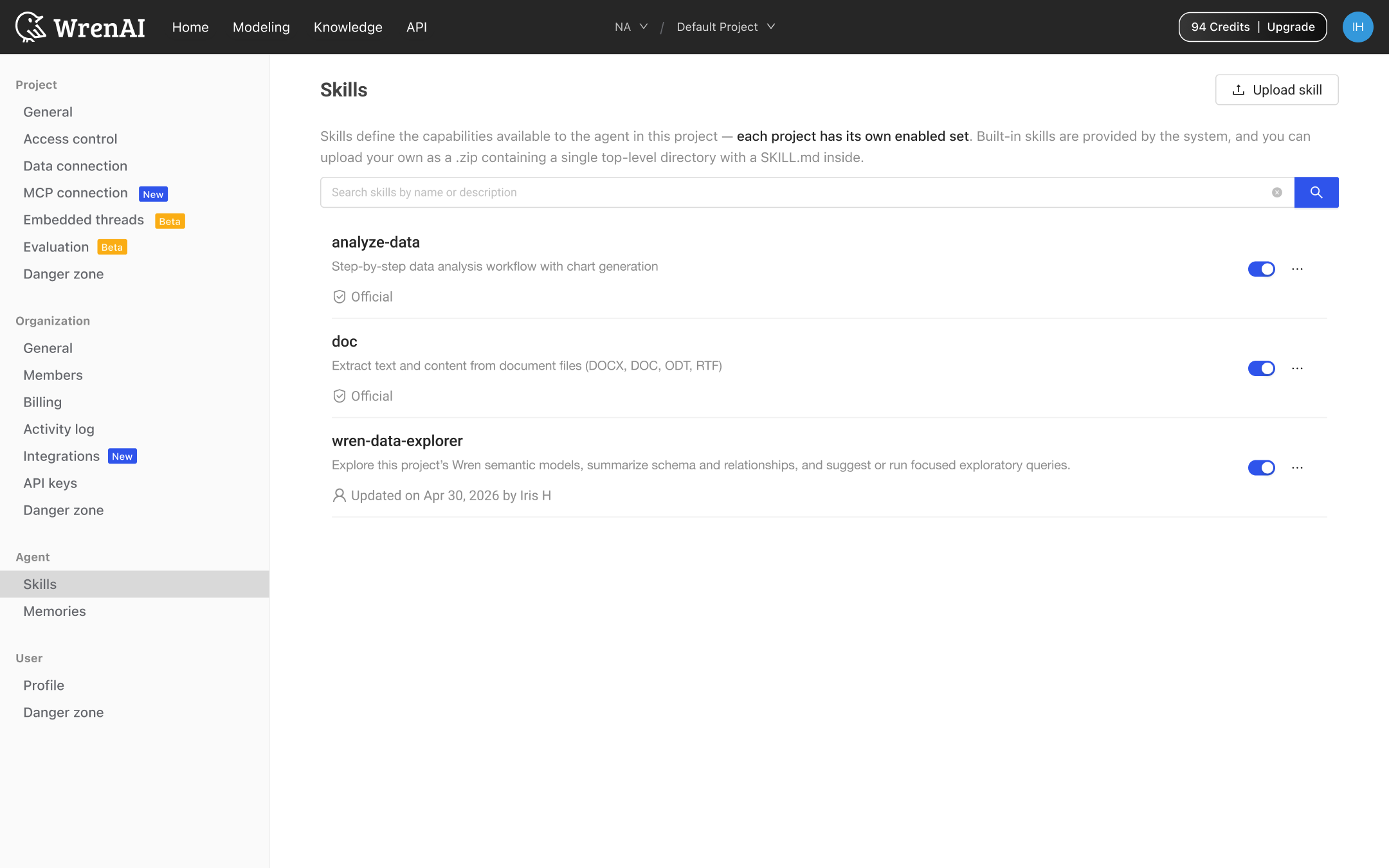
- Built-in skills — Shipped with Wren, always available, tagged Official. You can toggle and try them, but not edit or delete. Six built-ins ship with every Agentic project:
analyze-data,doc,generate-report,pdf,spreadsheet,sql-queries. - Your skills — Uploaded as a
.zipcontaining a single top-level folder with aSKILL.mdinside. Once uploaded, every member of the project gets access.
Each row has an on/off toggle. Flipping it off shows a warning toast and silences the skill for the next session. Flipping it back on shows a success toast. State changes are scoped to the active project — toggling here doesn't affect any other project.
Click any row to open the detail modal:
- Built-in — Article-style description with a single Try it out action.
- Your skill — Two-pane file tree + code viewer so you can read every file before trusting it. Footer shows Download, Edit with Wren AI, and Try it out.
Click the More button → Try it out, or use the Try it out button in the detail modal. You land on the Home thread view with the composer prefilled Demo /{name} with some great examples. The slash command renders in blue to signal it's a structured command the agent will route.
Click Upload skill in the page header and drop a .zip. New rows appear at the top of the list. If the name collides with an existing skill, you'll be asked to Discard or Upload and replace.
These actions are only available for your own skills. Built-ins are protected.
- Edit with Wren AI — Opens the Home thread with
Help me edit this skill /{name}staged in the composer. The agent does the file edits with you in chat. - Download — Triggers a
{name}.zipdownload for version-control, sharing, or moving to another project. - Delete — Shows a destructive confirm modal before removing the row.
The agent can author Skills too. When it figures out a useful new workflow during a conversation, accept its Save as skill prompt — a new row appears at the top of Skills and every teammate picks it up automatically.
Review and Reset Memories
Memories live at Settings → Agent → Memories. They are personalized memories saved privately for you in every project. The agent manages them automatically per person to ensure contextual accuracy — teammates can't see your memories, and what's remembered in Project A doesn't leak into Project B.
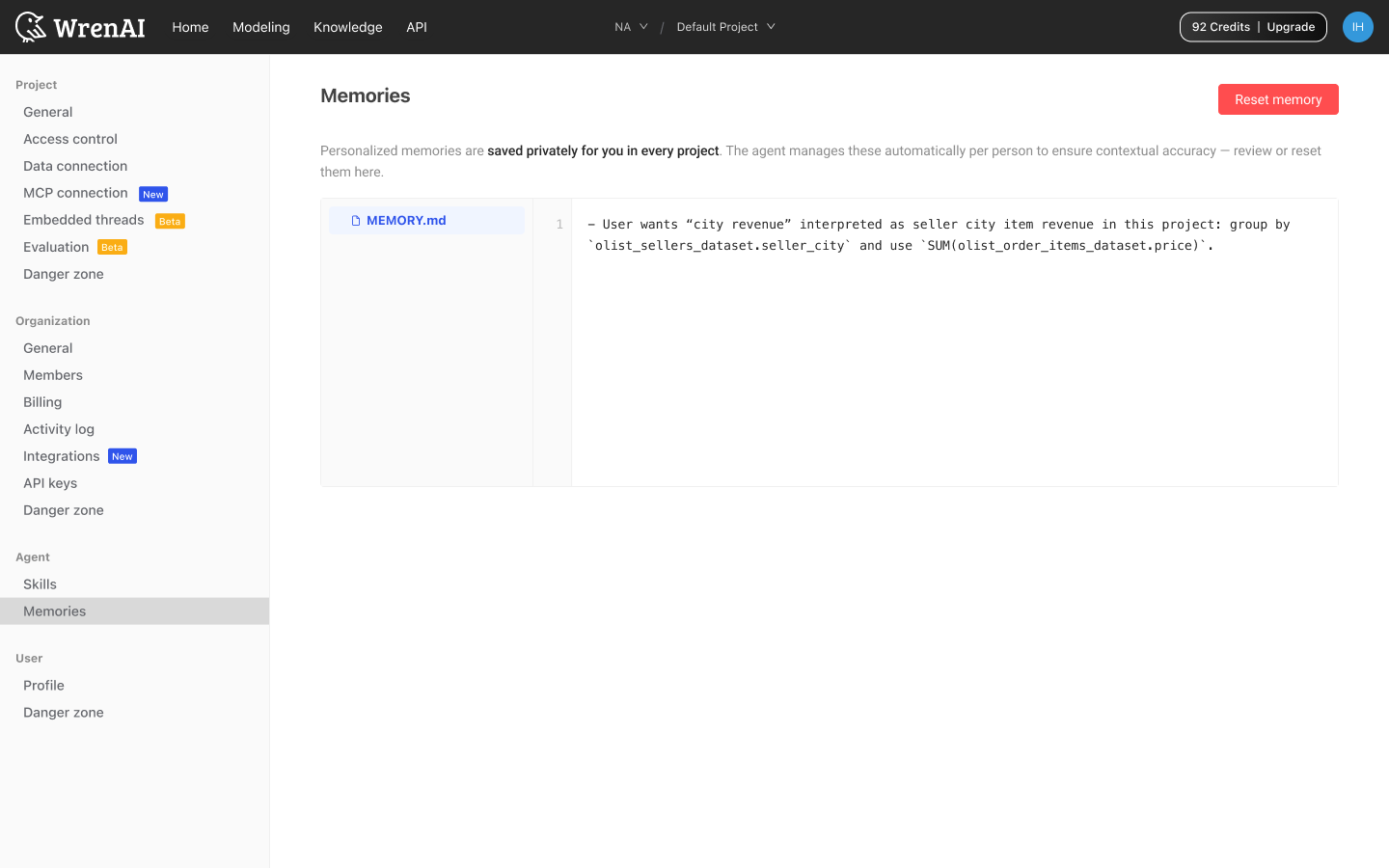
The agent maintains a single MEMORY.md file behind the scenes. As you chat, it writes notes about your role, preferences, recurring corrections, and project-specific interpretations. Example entry the agent might write itself:
— User wants "city revenue" interpreted as seller city item revenue in this project: group by
olist_sellers_dataset.seller_cityand useSUM(olist_order_items_dataset.price).
The page renders the live MEMORY.md in a read-only file viewer with line numbers — no hidden notes, no surprises. Open the page any time to see exactly what the agent has written about you.
Click the red Reset memory button (top right) to wipe the notebook for this project. This is useful when:
- You've changed roles and your preferences have shifted
- The project has pivoted and old context is no longer relevant
- The agent keeps acting on a wrong assumption you can't pinpoint
Reset is scoped to the active project. Memories in other projects are untouched.
Reset cannot be undone. Once cleared, the agent starts fresh next session.
You don't author entries by hand — the agent writes, updates, and prunes them itself. Triggers include:
- Explicit asks — "Remember that we always exclude test accounts."
- Corrections — "Don't include canceled orders in revenue."
- Confirmed-good approaches — When you accept an unusual choice without pushback.
Memories vs. Knowledge
The two surfaces look similar but serve different audiences:
| Memories | Knowledge | |
|---|---|---|
| Scope | Private, per person | Shared, per project |
| Audience | Just you | The whole project |
| Authoring | The agent writes automatically | You write it yourself, or the agent recommends and you add it |
| Reset / discard | Reset memory (one click) | Discard all drafts (one click) |
| Best for | Personal preferences, shortcuts, interpretations | Domain terms, team rules, SQL patterns |
A "format SQL the way our team prefers" rule belongs in Knowledge. An "I prefer terse responses with no trailing summaries" preference belongs in Memories.
Putting it together
A normal week inside an Agentic project uses all three surfaces without you ever having to think about which is which:
- Ask a question in chat. The agent uses Skills it knows are relevant, Knowledge files for domain context, and your private Memories for personal preferences — all in one response.
- Correct or refine. When you say "don't include canceled orders" or "format columns lowercase", the agent updates Memories (if it's a personal preference) or proposes a Knowledge rule (if it's a team standard).
- Save a workflow as a Skill. If the agent did something useful you want to repeat, accept its Save as skill prompt — or upload a hand-written skill via Upload skill.
- Publish Knowledge. When you've drafted enough domain context — a metric definition, a SQL pair, a caveat — hit Publish so the rest of the team picks it up.
- Reset when needed. If your Memories have drifted, click Reset memory and start fresh. Knowledge and Skills are untouched.