Manual Setup with MCP
This guide shows how to set up Wren Engine manually and connect it to an MCP-compatible AI client.
By the end, you will have:
- a running Wren Engine container
- a
connection.jsonfile for your data source - a compiled
mdl.jsonfile that defines your business context - an MCP endpoint your AI agent can use for querying and analysis
Overview
Wren Engine exposes business context to AI agents through MCP. In a manual setup, you prepare the connection and modeling files yourself, run the container locally, and then point your MCP client to the Wren endpoint.
Prerequisites
- Docker installed and running
- an MCP client that supports HTTP transport
- access to a supported data source
- a
connection.jsonfile and anmdl.jsonfile
If you want an agent-assisted setup instead, see Quickstart with Claude Code.
Step 1: Create a workspace
Create a local workspace that Wren Engine can mount:
mkdir -p ~/wren-workspace/target
Your workspace should look like this:
~/wren-workspace/
└── target/
    ├── connection.json
    └── mdl.json
Step 2: Prepare connection.json and mdl.json
Wren Engine reads both files from the mounted workspace:
target/connection.json: connection settings for your data sourcetarget/mdl.json: the compiled Modeling Definition Language file that defines models, relationships, and calculations
If you already have these files, place them under ~/wren-workspace/target and continue to Step 3.
If not, use these references to create them:
Example connection.json
The exact structure depends on your data source. For local parquet files, a minimal example looks like this:
{
  "url": "/workspace/data",
  "format": "parquet"
}
Example mdl.json
{
  "dataSource": "local_file",
  "catalog": "my_catalog",
  "schema": "my_schema",
  "models": [
    {
      "name": "Orders",
      "tableReference": {
        "table": "/workspace/data/orders.parquet"
      },
      "columns": [
        { "name": "orderkey", "expression": "o_orderkey", "type": "integer" },
        { "name": "custkey", "expression": "o_custkey", "type": "integer" },
        { "name": "orderstatus", "expression": "o_orderstatus", "type": "varchar" },
        { "name": "totalprice", "expression": "o_totalprice", "type": "float" },
        { "name": "orderdate", "expression": "o_orderdate", "type": "date" }
      ],
      "primaryKey": "orderkey"
    },
    {
      "name": "Customer",
      "tableReference": {
        "table": "/workspace/data/customer.parquet"
      },
      "columns": [
        { "name": "custkey", "expression": "c_custkey", "type": "integer" },
        { "name": "orders", "type": "Orders", "relationship": "CustomerOrders" },
        {
          "name": "sum_totalprice",
          "type": "float",
          "isCalculated": true,
          "expression": "sum(orders.totalprice)"
        }
      ],
      "primaryKey": "custkey"
    }
  ],
  "relationships": [
    {
      "name": "CustomerOrders",
      "models": ["Customer", "Orders"],
      "joinType": "ONE_TO_MANY",
      "condition": "Customer.custkey = Orders.custkey"
    }
  ]
}
If you use the local parquet example, also place your parquet files under ~/wren-workspace/data.
Step 3: Start Wren Engine manually
Run Wren Engine with Docker:
docker rm -f wren-mcp 2>/dev/null || true

docker run -d \
  --name wren-mcp \
  -p 8000:8000 \
  -p 9000:9000 \
  -e ENABLE_MCP_SERVER=true \
  -e MCP_TRANSPORT=streamable-http \
  -e MCP_HOST=0.0.0.0 \
  -e MCP_PORT=9000 \
  -e WREN_URL=localhost:8000 \
  -e CONNECTION_FILE_ROOT=/workspace \
  -e MDL_PATH=/workspace/target/mdl.json \
  -e CONNECTION_INFO_FILE=/workspace/target/connection.json \
  -v ~/wren-workspace:/workspace \
  ghcr.io/canner/wren-engine-ibis:latest
This starts:
- the Wren Engine API on
http://localhost:8000 - the MCP endpoint on
http://localhost:9000/mcp
To confirm the container is running:
docker ps --filter name=wren-mcp
docker logs wren-mcp
If your database runs on your host machine, replace localhost or 127.0.0.1 in your connection settings with host.docker.internal.
If connection.json contains credentials, add it to .gitignore before committing.
Step 4: Connect your MCP client
Point your MCP client to:
http://localhost:9000/mcp
For example, in Claude Code you can register it with:
claude mcp add --transport http wren http://localhost:9000/mcp
For other MCP clients, use the same endpoint in the client-specific MCP configuration flow.
Step 5: Verify the connection
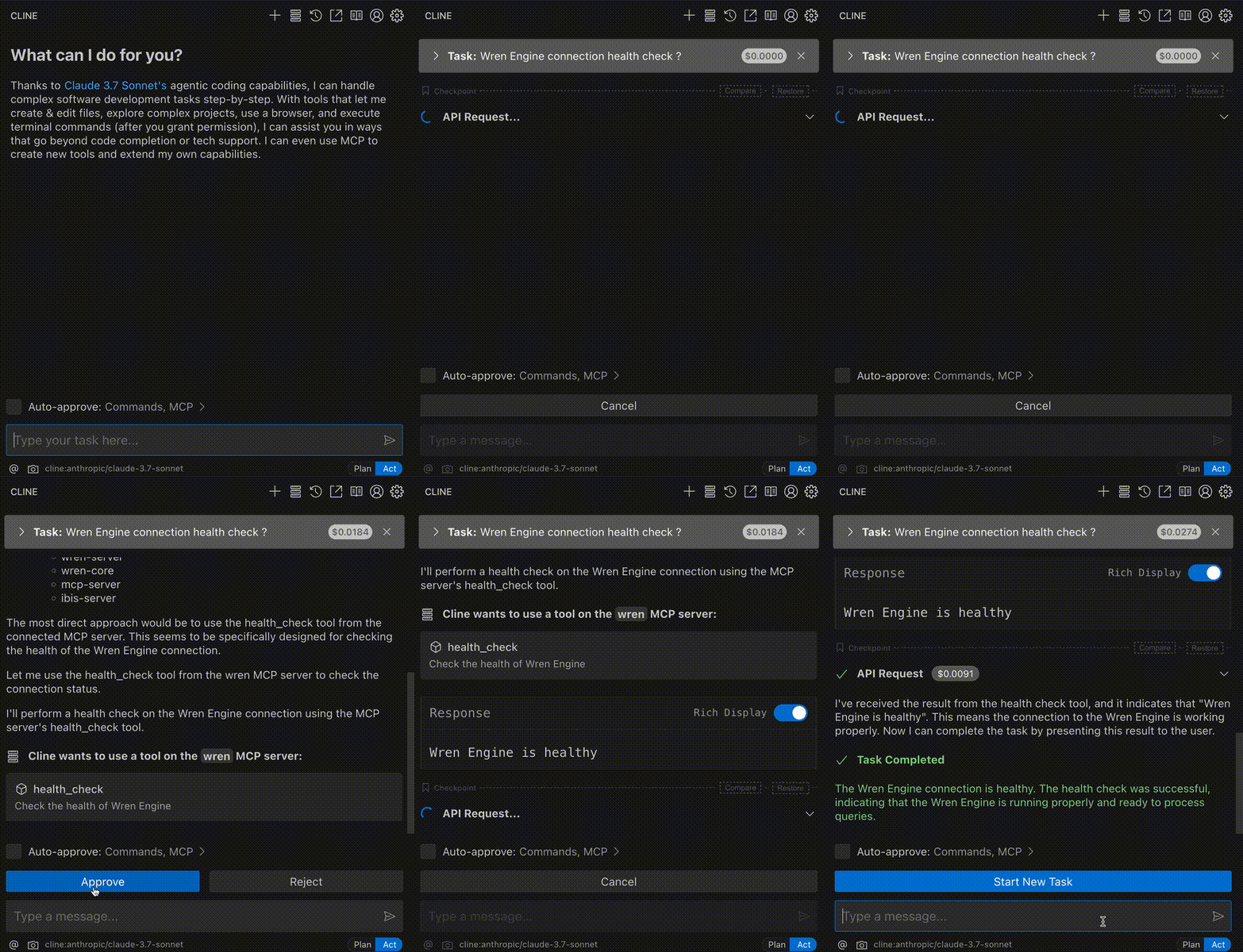
After your MCP client loads the server, ask it to run:
Use health_check() to verify Wren Engine is reachable.
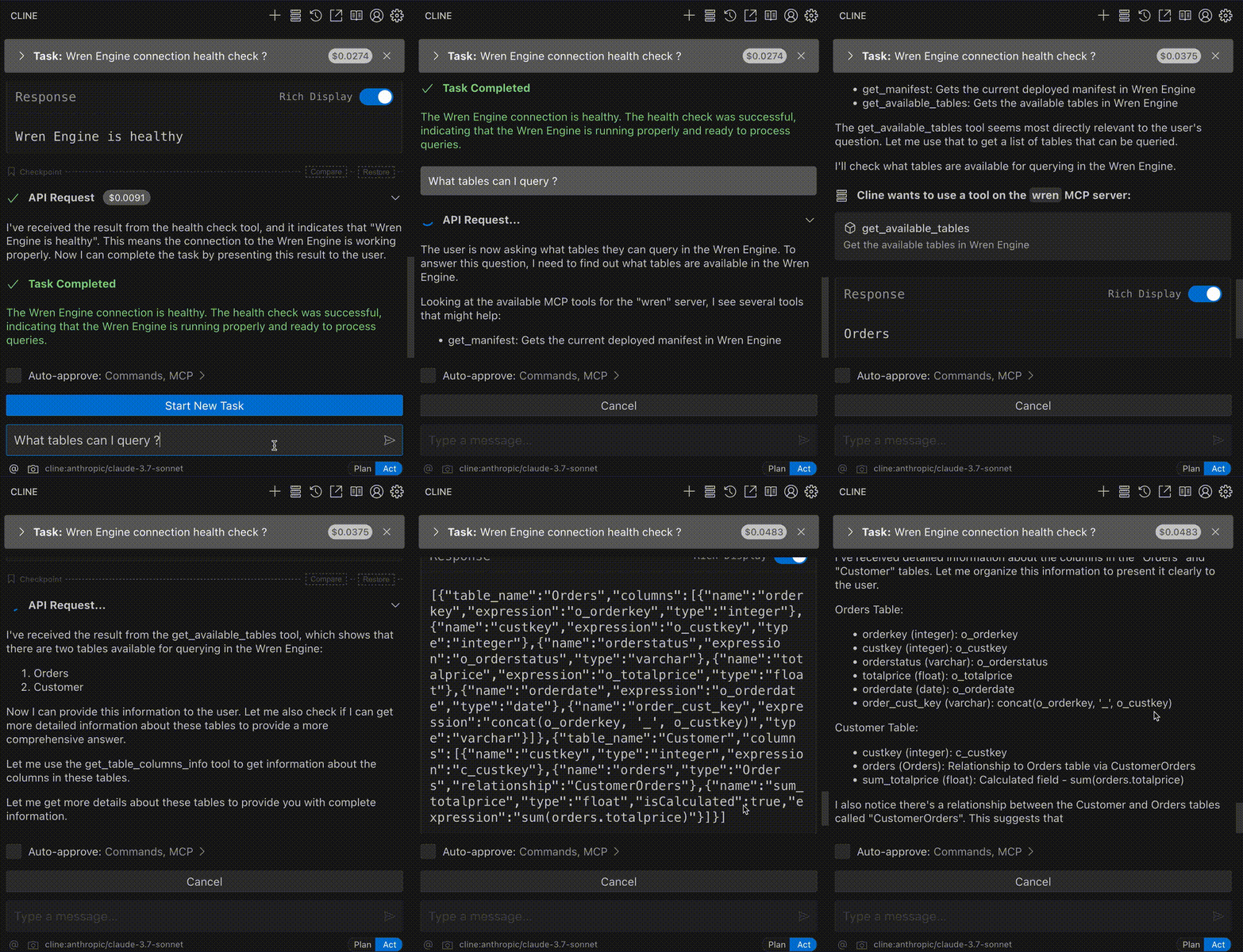
You can then try a query such as:
List available tables.
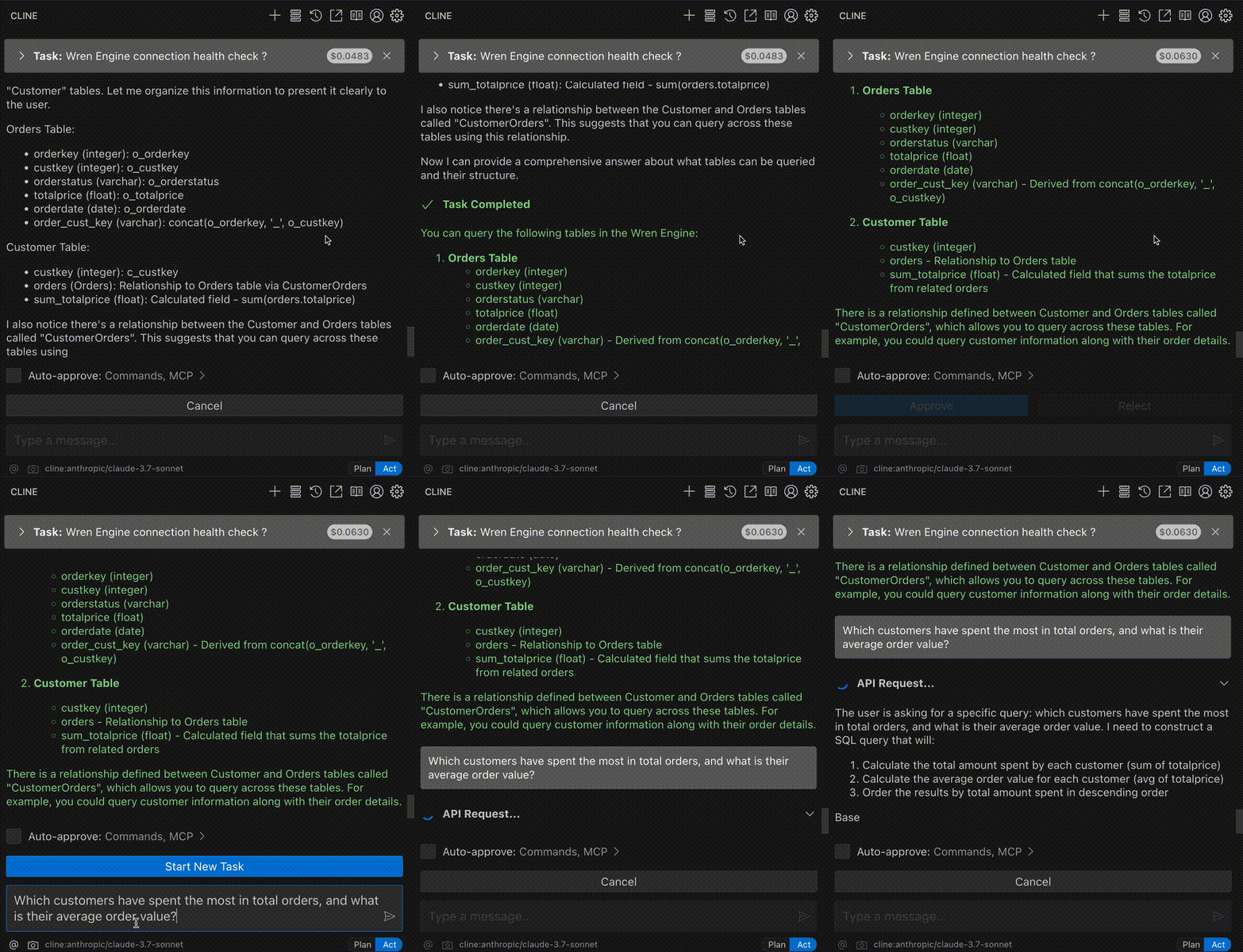
Which customers have spent the most in total orders, and what is their average order value?
MCP tool reference
| Tool | Purpose |
|---|---|
health_check() | Verify Wren Engine is reachable |
query(sql=...) | Execute SQL against the deployed MDL |
deploy(mdl_file_path=...) | Load a compiled mdl.json |
setup_connection(...) | Configure data source credentials |
list_remote_tables(...) | Introspect database schema |
Troubleshooting
- If the container fails to start, check
docker logs wren-mcp. - If the MCP client cannot connect, confirm
http://localhost:9000/mcpis reachable and the container is running. - If Wren Engine cannot find your files, confirm
~/wren-workspace/target/mdl.jsonand~/wren-workspace/target/connection.jsonexist. - If database access fails from inside Docker, replace
localhostwithhost.docker.internalin the connection settings. - If queries fail, validate your MDL definitions and confirm the configured tables or files are reachable from the container.