DuckDB (files)
Use this guide to connect local files through DuckDB so you can query CSV, JSON, and Parquet data in Wren AI.
We support file connections via DuckDB. To add a connection, click on the DuckDB option in the Connect a data source section.

Supported File Formats:
- CSV Files
- JSON Files
- Parquet Files
Supported Data Types:
- BIGINT
- BIT
- BLOB
- BOOLEAN
- DATE
- DECIMAL
- DOUBLE
- INTEGER
- REAL
- SMALLINT
- TIMESTAMP
- VARCHAR
- ARRAY
- BOOLEAN
- INTEGER
- DOUBLE
- DECIMAL
- VARCHAR
- TIMESTAMP
- DATE
Connect
Fill in the connection settings:
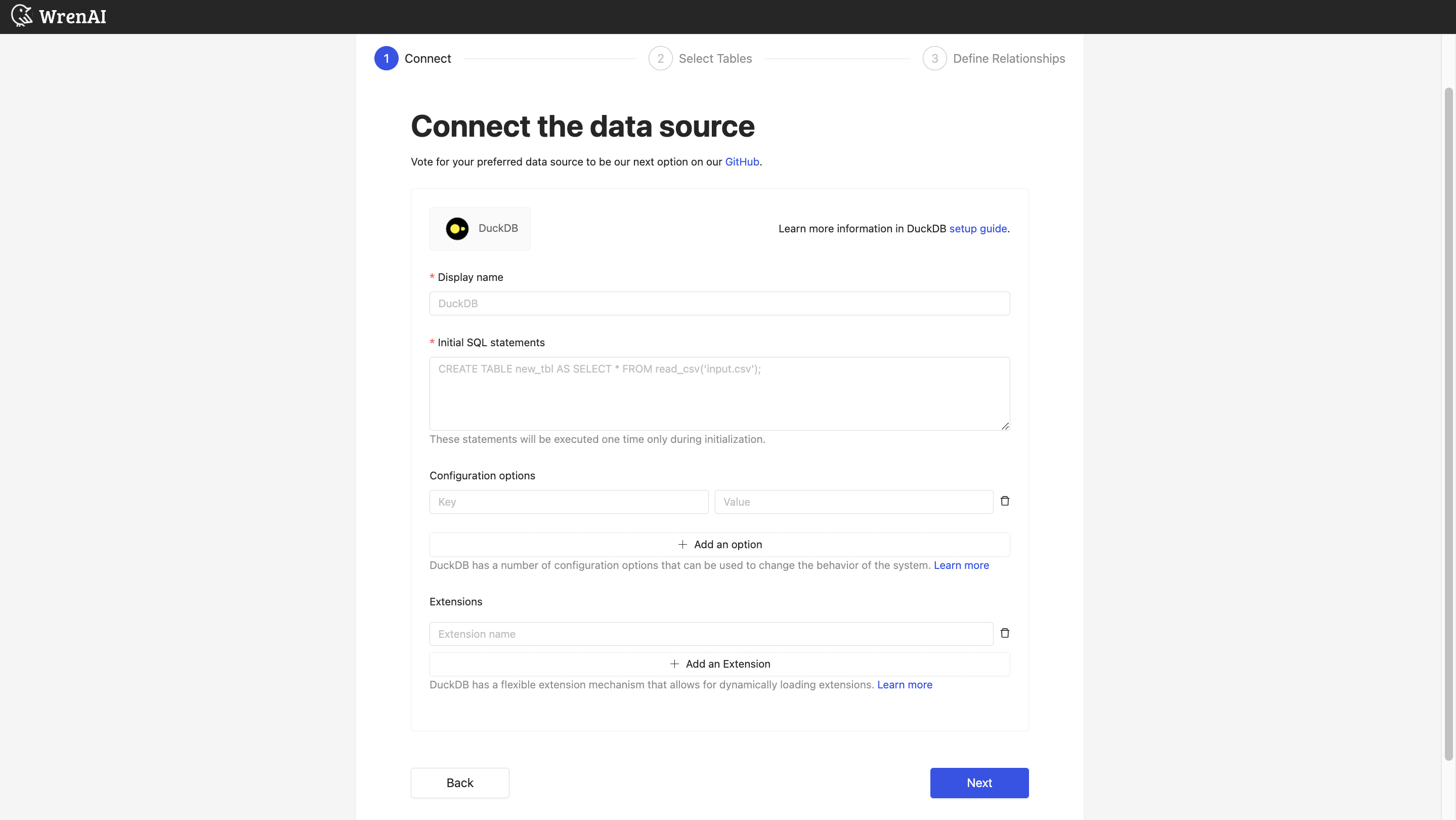
Display name
The display name for the database in the Wren AI interface.
Initial SQL Statements
The first step of connecting files is to load your data into DuckDB. DuckDB provides several data ingestion statements that allow you to fill up the database. Please refer to the DuckDB documentation for methods of loading data from different file types.
Here are some examples:
- CSV File
- JSON File
- Parquet File
- Multiple Files
CREATE TABLE new_tbl AS SELECT * FROM read_csv('input.csv', header = true);
CREATE TABLE new_tbl AS SELECT * FROM read_json('input.json');
CREATE TABLE new_tbl AS SELECT * FROM read_parquet('input.parquet');
CREATE TABLE tbl1 AS SELECT * FROM read_csv('tbl1.csv', header = true);
CREATE TABLE tbl2 AS SELECT * FROM read_json('tbl2.json');
You can read files from either a local path or a cloud storage URL (such as AWS S3).
Configuration options
DuckDB has a number of configuration options that can be used to change the behavior of the system. You can set configurations in this section if needed, or leave it blank to use the default configurations. When filling in configurations, set each configuration name and value as a pair. Please refer to the DuckDB documentation for details of the configuration options.
Extensions
DuckDB has a flexible extension mechanism that allows for dynamically loading extensions. Built-In extensions and autoloadable extensions will be automatically loaded. You can add other extensions by filling in the extension names if needed. Please refer to the DuckDB documentation for the list of official extensions.
Click Next to start the connection and go to the next step.
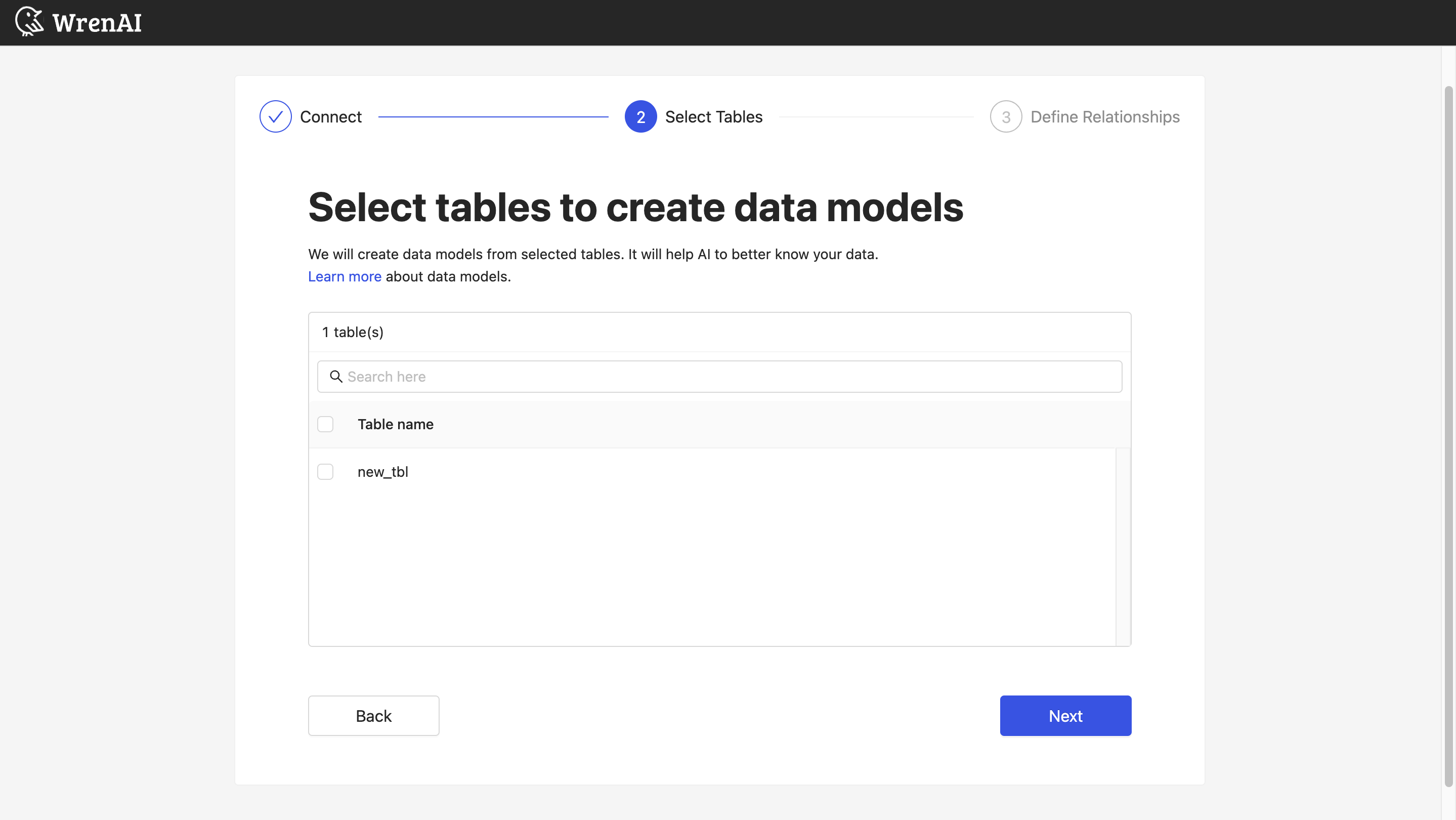
Select Tables
All tables of your connected files will be listed in this step. Select which tables you want to use in Wren AI. Each selected table will be created as a data model. See the Modeling documentation to learn more about data models.
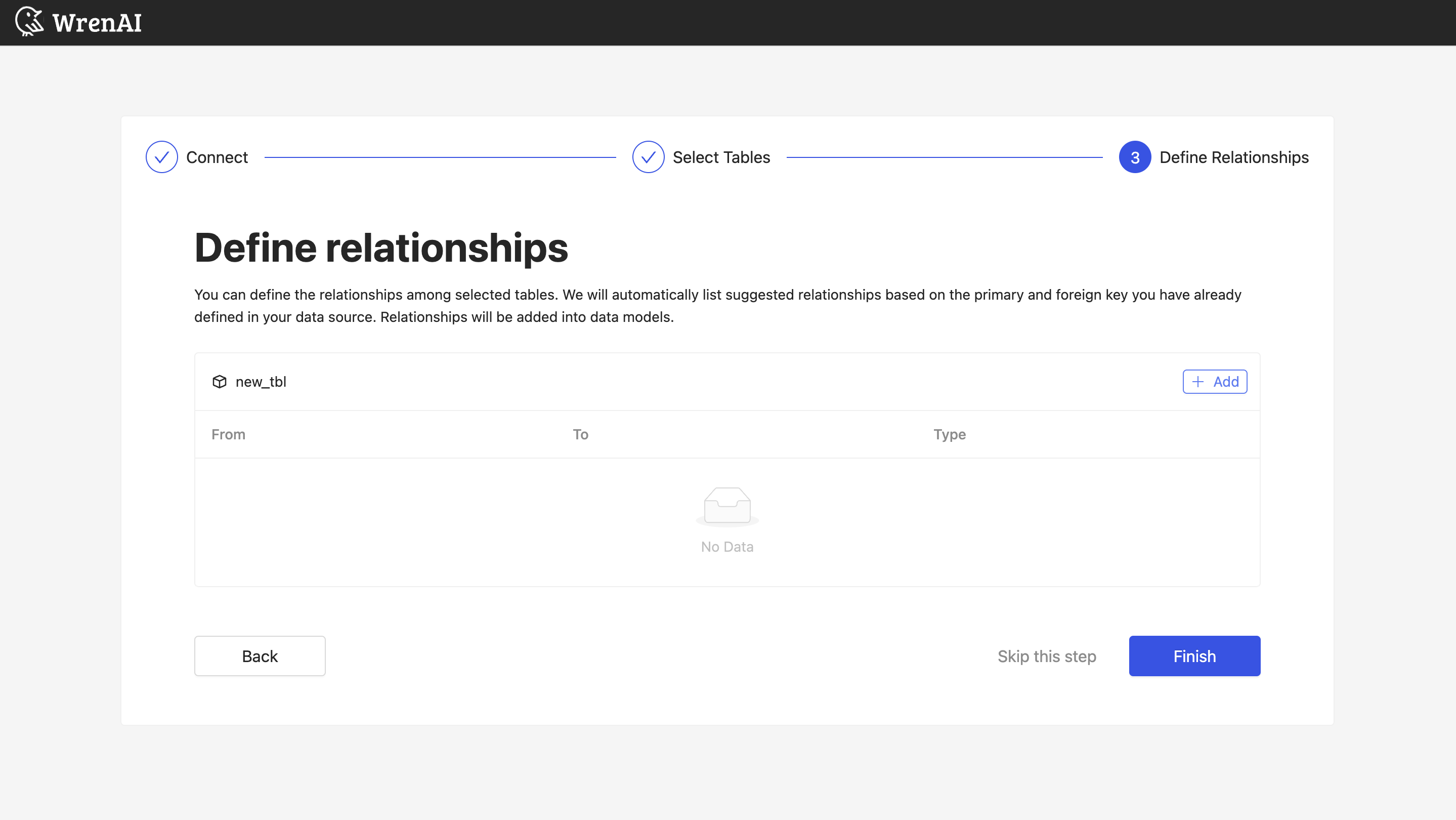
Define relationships
Define the relationships among selected tables in this step. You can add relationships by clicking the Add relationships button on the table blocks.
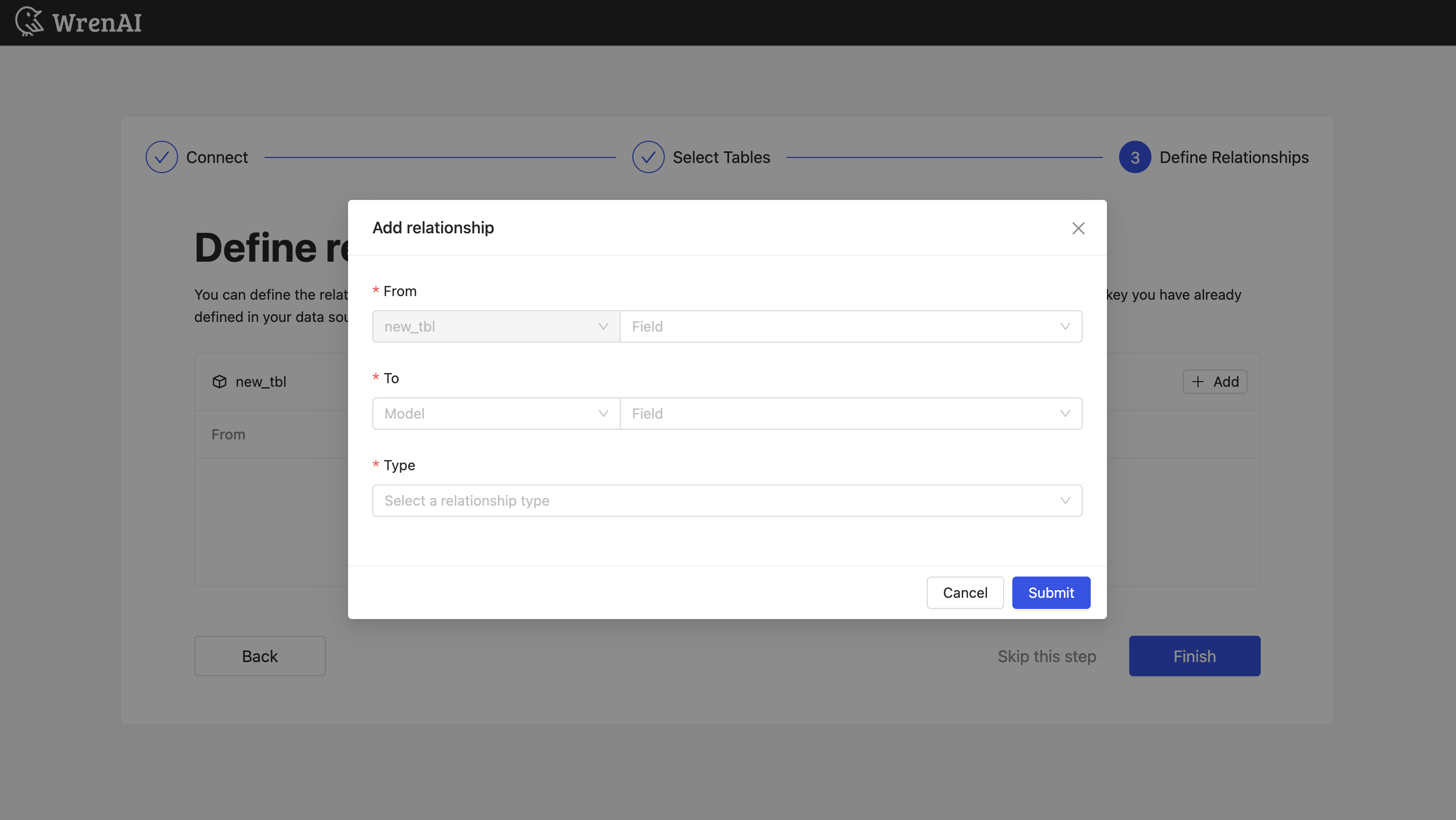
Define the following properties in a relationship:
- From: Select the left side table and column of this relationship.
- To: Select the right side table and column of this relationship.
- Relationship Type: Select the type of relationship.
Find more information about relationships in Modeling - Working with Relationships.
You can also skip this step and finish the connection.